
FlightSpan’s REST API can be used to securely share information with other software solutions. FlightSpan’s API allows you to either pull information from FlightSpan for use in another program, or to import information into FlightSpan from another program.
Create a New API Connection
Note: The instructions for creating a new API connection assume that the user has software developer skills and tools. Contact FlightSpan support if you need help designing the datasets that you need.
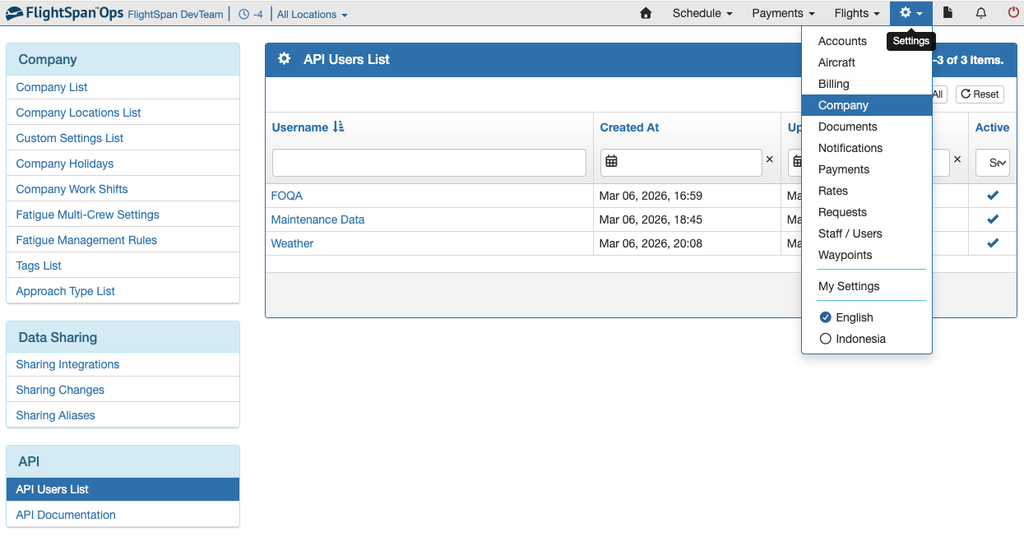
From the Settings menu, select Company, then API Documentation from the API menu on the left.
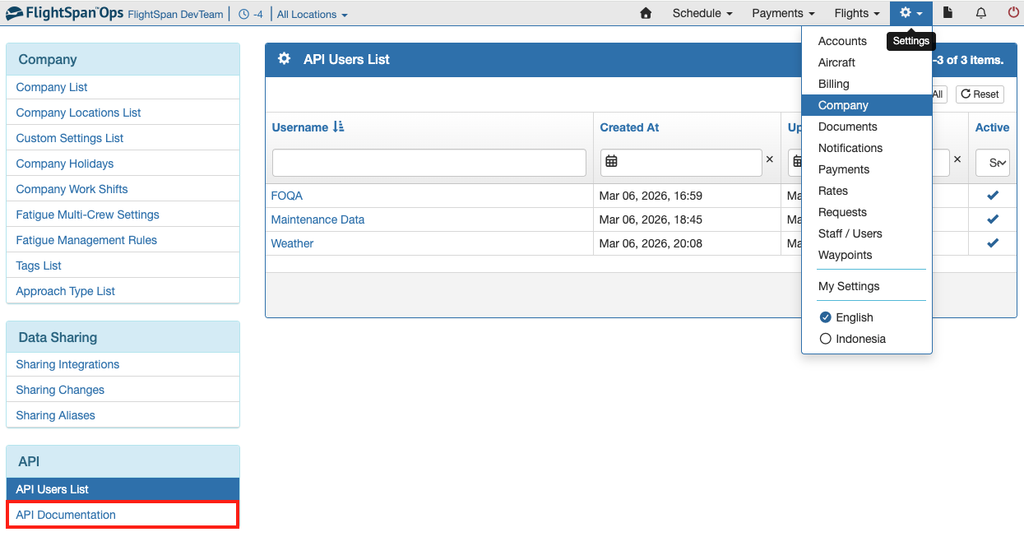
The window that opens contains detailed instructions for interacting with the API. Click the Download button if you wish to export the OpenAPI specification to software such as Postman.

Note: Currently only Waypoint data is available.
Click on a data type, then click on Authorizations to view the permissions required for that piece of data. See Permissions under API Users for details on adding permissions.
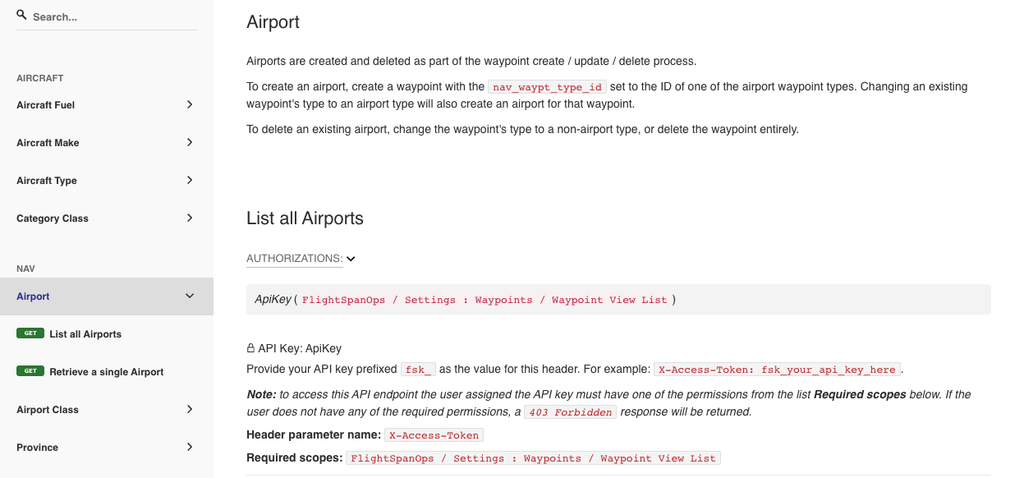
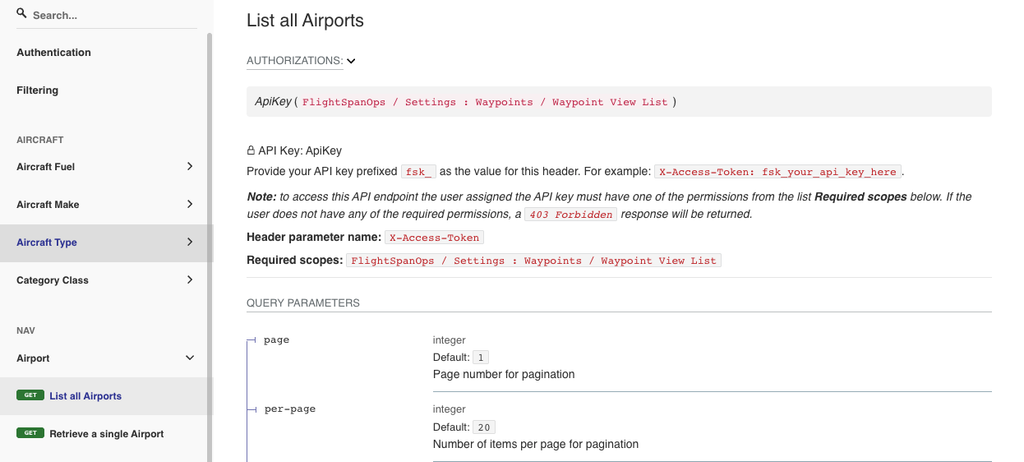
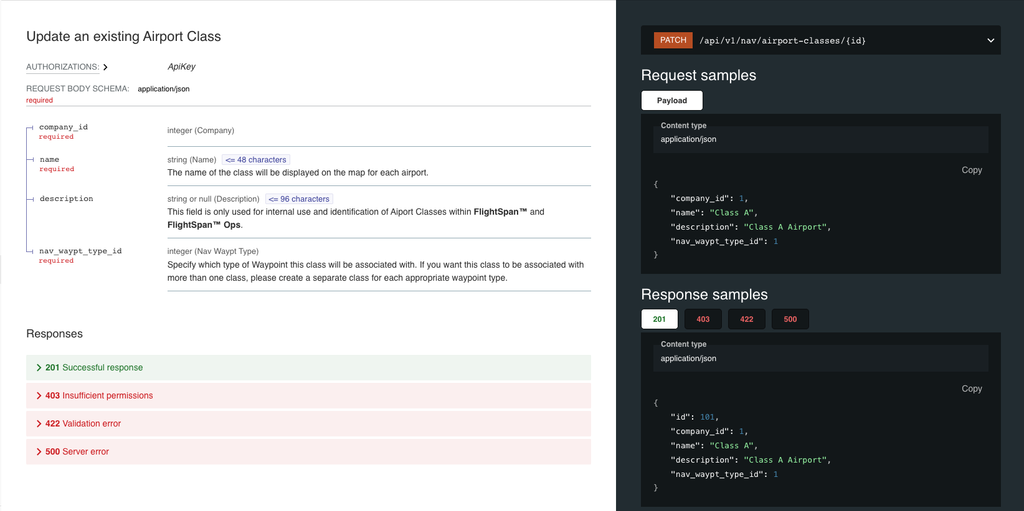
Click on the specific actions under a data type, and the required permission for that action will be listed.
Below that are the query parameters.
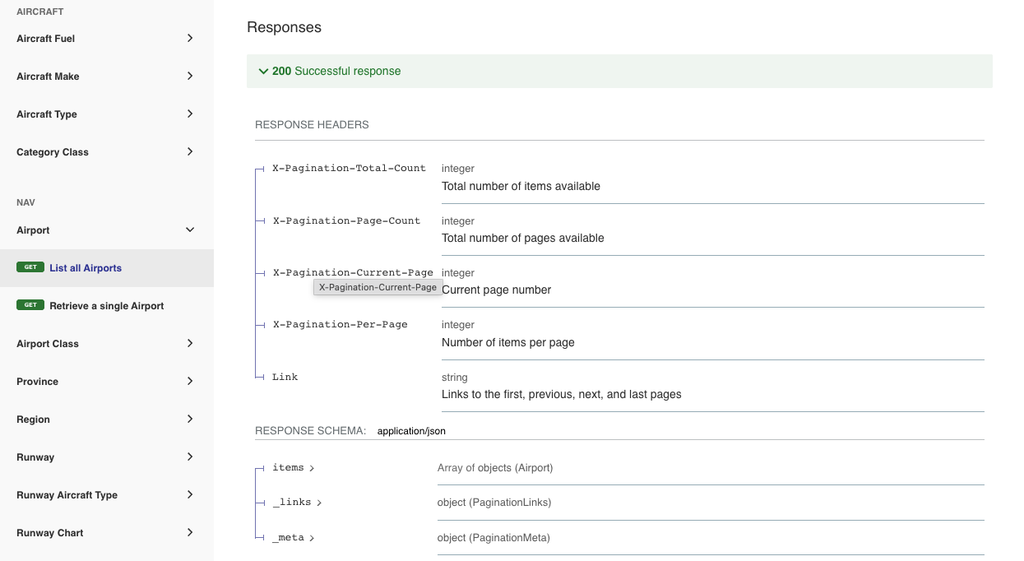
Further down you will see what a successful response will include.
Below that are details for error messages.
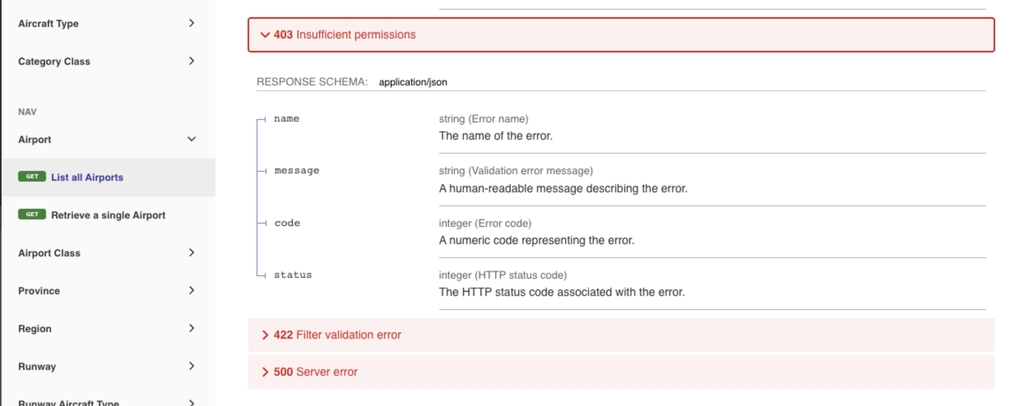
To the far right are samples of the responses that may be returned and the payloads that may be sent.
API Users
In FlightSpan, API Users are used to manage authentication and authorization for applications connected to FlightSpan.
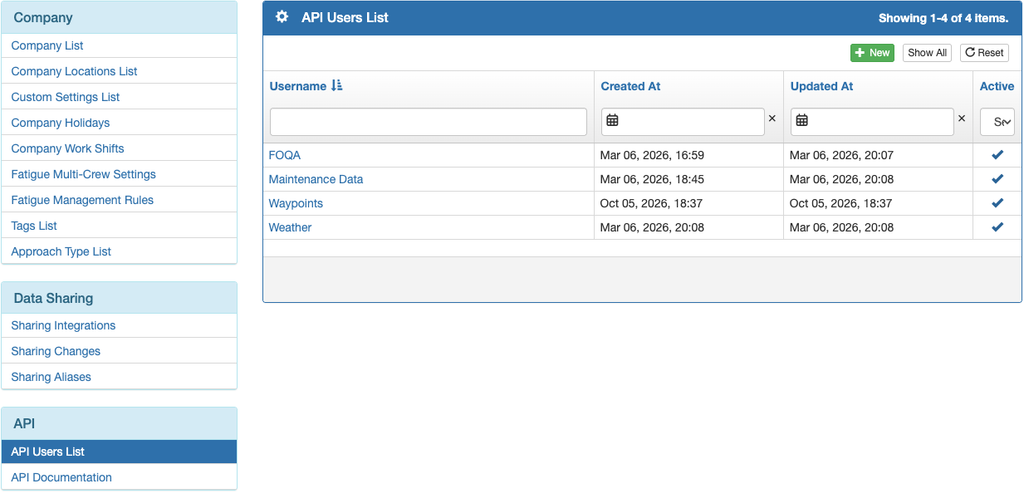
To create a new API User, from the Settings menu, select Company, then API Users List from the API menu on the left.
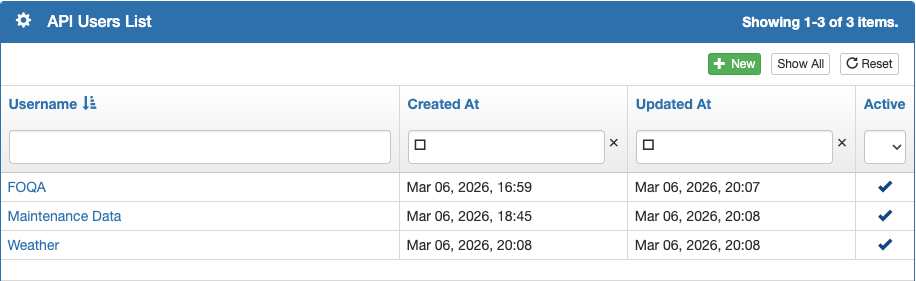
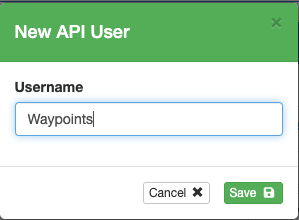
Create a new API User by clicking the green New button.
Enter the new Username that you assigned or that was assigned to this dataset by FlightSpan Support, and save. (Spaces are allowed in the username.)
The new API User will be added to the list.
User Permissions
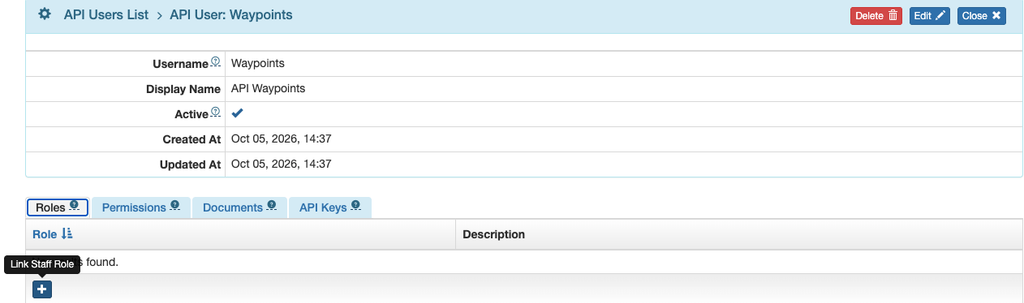
First Create a Custom Role that includes the needed permissions, then from the API Users List, click on the desired API User.
Assign one or more Roles with the blue plus button.
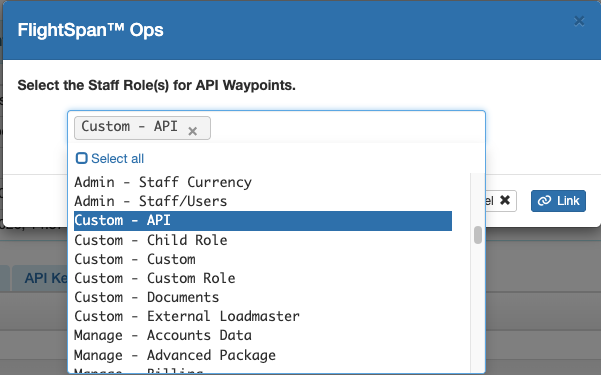
Search for and select the desired role, then click Link.
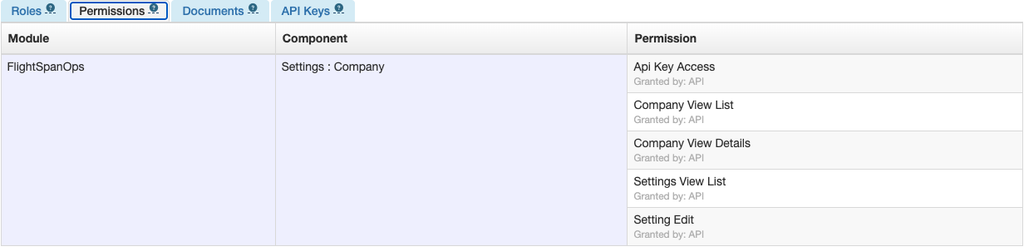
After refreshing the page, the associated permissions will be listed under the Permissions tab.
Documents
If you wish to attach any documents associated with the API, upload or link using the respective buttons. See Document Management for more details.

API Keys
From the API Keys tab, click the green Plus button.

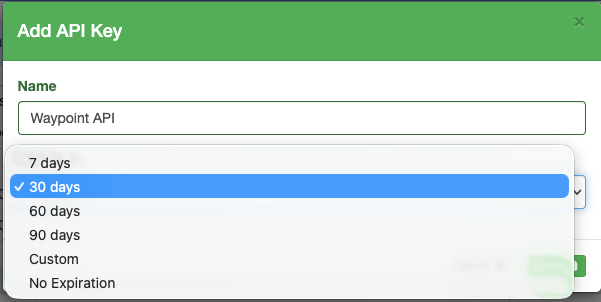
Name the key, select how long it should be valid, then click Save.
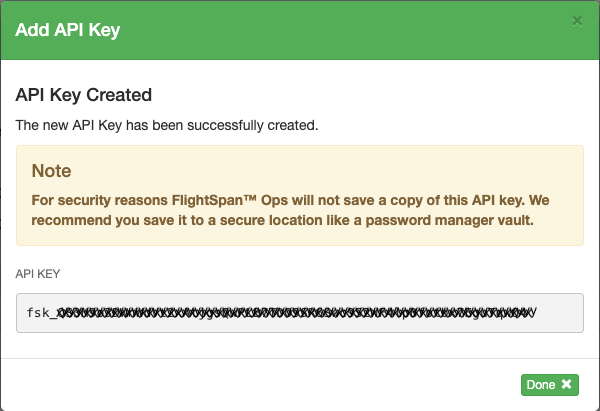
FlightSpan will generate an API Key. Be sure to copy the key and save it in a secure location such as a password vault. FlightSpan will not keep a copy of the key.
This API Key will be needed in the external software that will be using the API to connect to FlightSpan.
The new API Key will be listed.
Edit the name or expiration period with the blue pencil icon; generate a new key with the refresh icon; delete with the trash can icon.
