
From the Payments menu, select New Package.

Or from the Payments List click the Package button.

The New Package window will open.
Note: in the background, a new Payment is also created, which will be filled in with the data entered here.
Select the Cancel button to both close this window and delete the Payment.
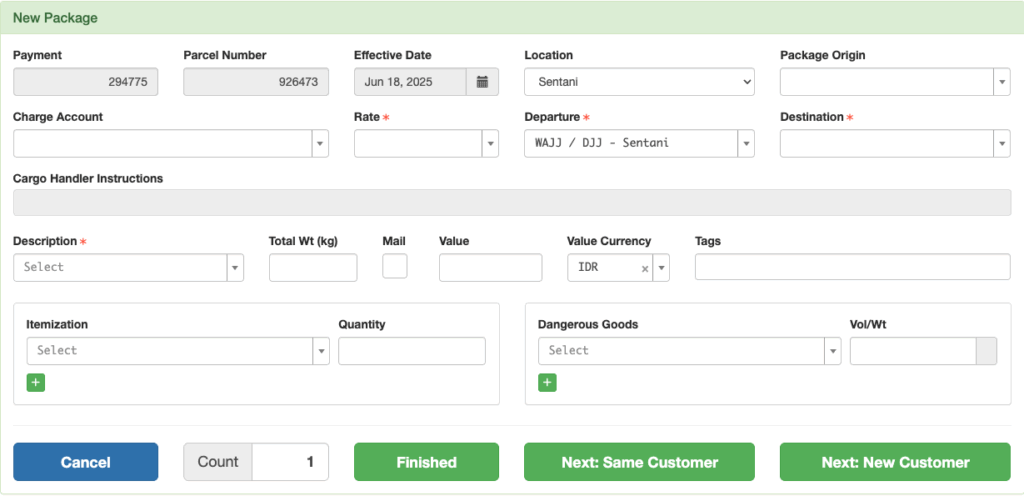
Package Origin (search from the list or enter a new shipper), Charge Account, Rate, and Destination are all required.
If you select an account with defaults set, the Rate, Destination, and Cargo Handler Instructions will be prefilled. The default Rate and Destination can be changed.

Note: A new shipper entered here will not be added to the list. If you want to save the shipper, add them from the Shippers List.
Description (search from the list or enter a new description) and Weight are required.
Enter the package value if required, check Mail as needed (if it has been authorized for the destination).
Tags allow for filtering at the time of manifesting cargo. They are inherited from both the organization level and the account level and also can be selected for the current package.
Itemize the package contents, using the green plus button to add more items as necessary.
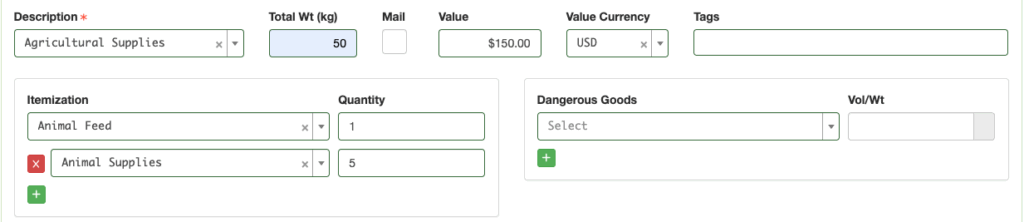
If the package contains Dangerous Goods, select from the list and enter the net weight/volume using the units appropriate to the type of DG.
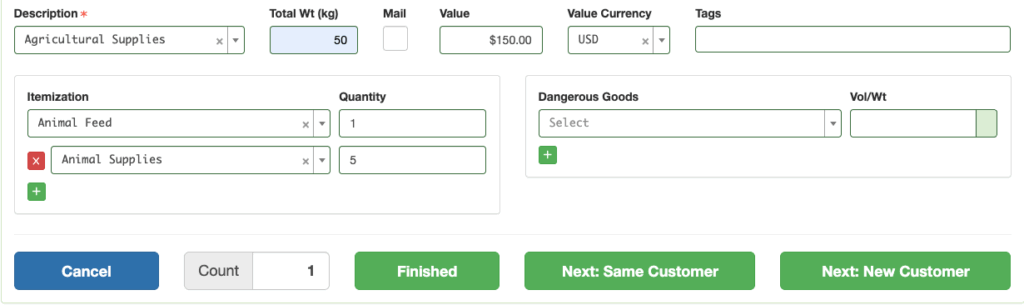
If you are processing multiple identical packages, you can set the count to the number desired and a single Payment with that number of packages (each with their own unique parcel number) will be created in the next step.

Select Finished to close the form and print the tag; select Next: Same Customer to print the tag and re-open the form with the same account information; select Next: New Customer to print the tag and re-open a blank form.
The Payment will be completed with all the information from the form.

Package Management Exports
When Advanced Package Management has been enabled, there will be two .csv export files available for download
- Package Summary, which summarizes the package information on the flight sorted by recipient account/organization
- Package Detail, which itemizes the package information on the flight
These .csv files can be used to populate various pdf forms as needed.
If Advanced Packages are on a Manifest or completed Flight, the export buttons can be found on the upper right corner of
- The Schedule Detail in the Manifest Loads section
- The Manifest Detail in the Loads Departing From section, or
- The Flight Detail in the Loads Flown section
