FlightSpan™ can track required recency of experience to maintain proficiency, such as day and night takeoff and landing requirements and instrument proficiency. But first you will have to set up the proficiency rules for the items you wish to track.
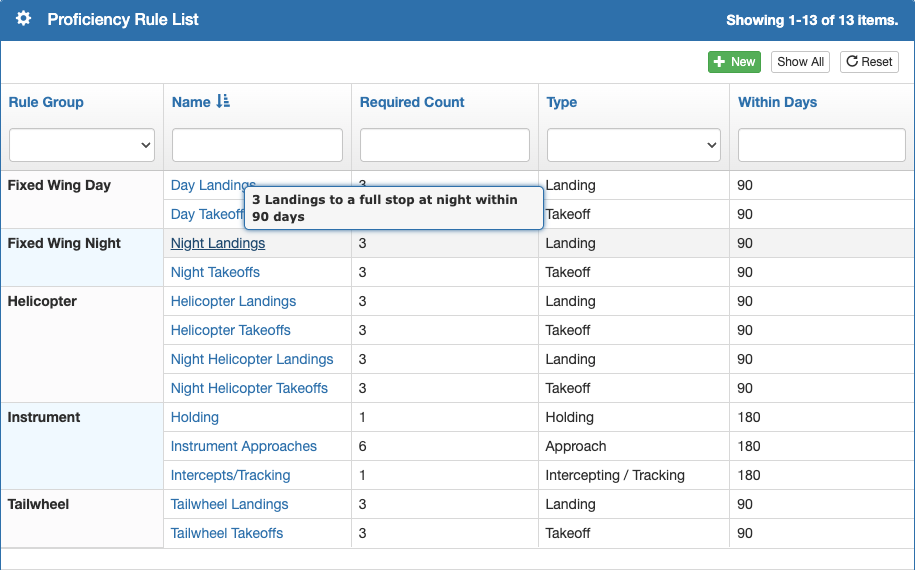
Proficiency Rule List
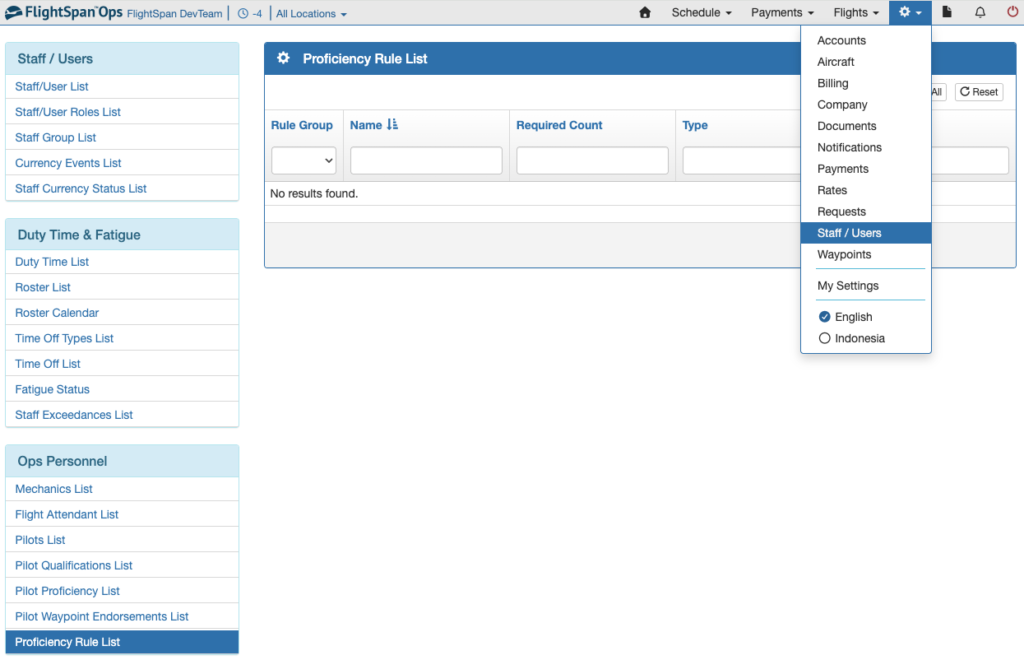
From the Settings menu, select Staff/Users, then Proficiency Rules List from the Ops Personnel menu on the left.
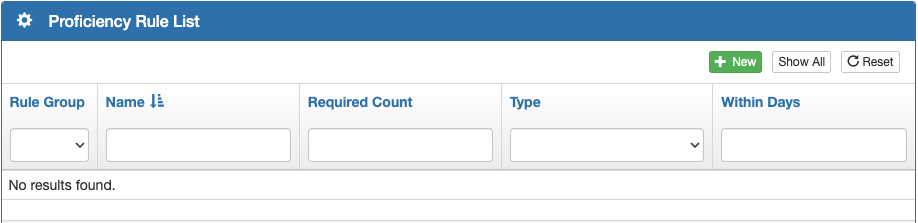
Next click the green New button.
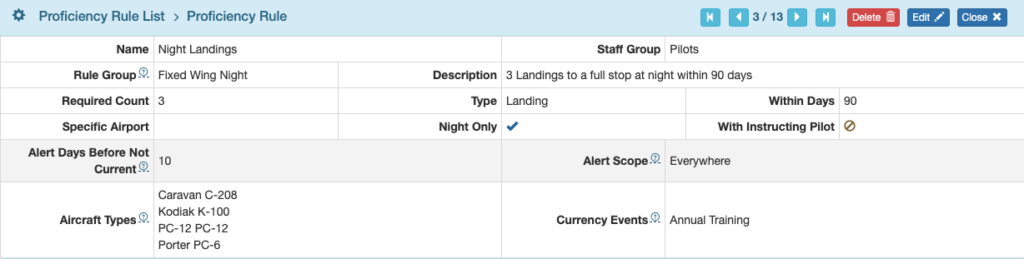
Name the rule, and select which Staff Group the rule will be applied to.
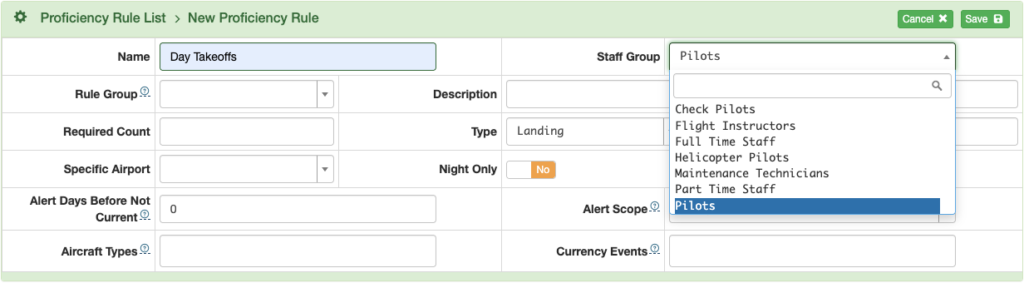
If you wish to group this rule with others for easier sorting, add the name of the Rule Group, then hit Enter, or select from the list if the group already exists.

Set the Required Count, the Type of operation being evaluated, and the required time period in Days.
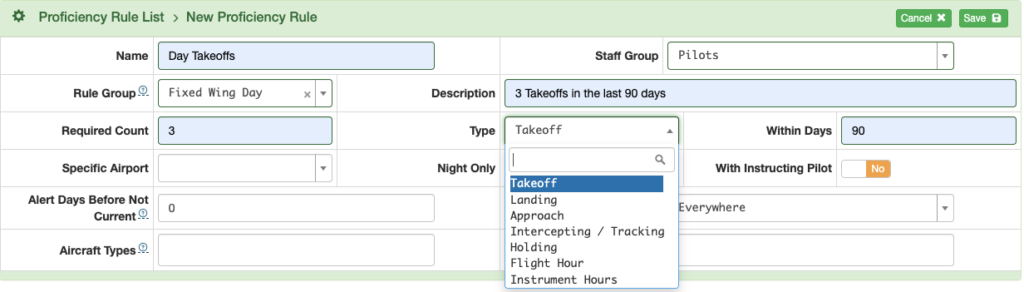
If the event must occur at a specific airport, at night, or with an instructor, make the appropriate selections.
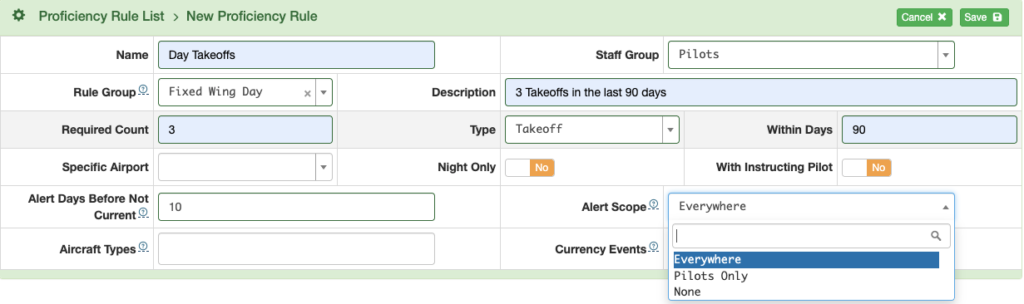
Add how many days before expiration you want an alert. Alerts for grouped rules will follow the most conservative value in the group.
Next set the Alert Scope.
- Everywhere – Pilots will receive notifications and the Scheduling Calendar will show flags
- Pilots Only – Pilots will receive notifications, but the Scheduling Calendar will not show flags for that rule
- None – No notifications will be sent to pilots, and no flags will be shown on the Scheduling Calendar
All proficiency requirements will always show in the Proficiency Lists.
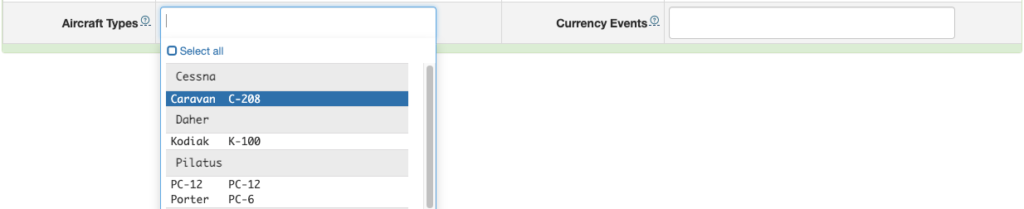
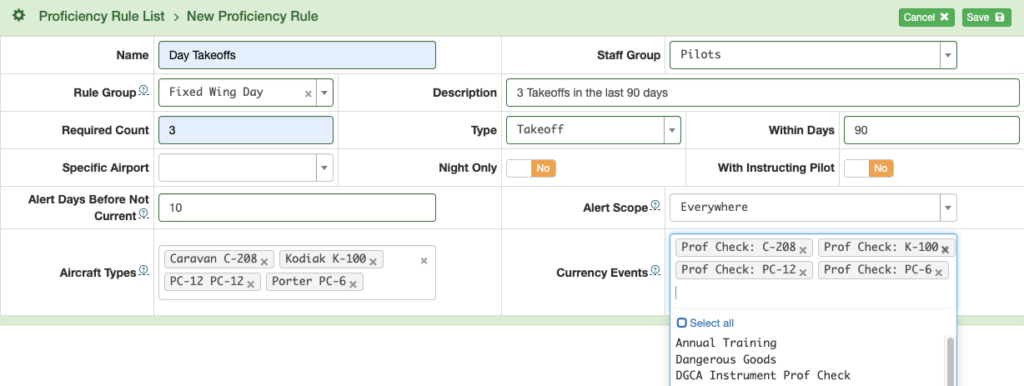
Select one or more Aircraft Types. If more than one aircraft type is selected, FlightSpan will count the total number of events for all aircraft selected.
If completing a Currency Event will satisfy the requirements of the rule, select the currency event(s), then Save.
Continue adding rules until your list is complete.
Hover over a name for the description. Click on a rule name to open the details.
Select the blue Edit button to edit the rule as necessary, or the red Delete button to discard the rule.
Video Version