Suspend Data Sharing
If any party wishes to suspend sharing a certain data type, simply toggle that data type off.
Toggle the switch back on if you wish to resume sharing.

Terminate Data Sharing
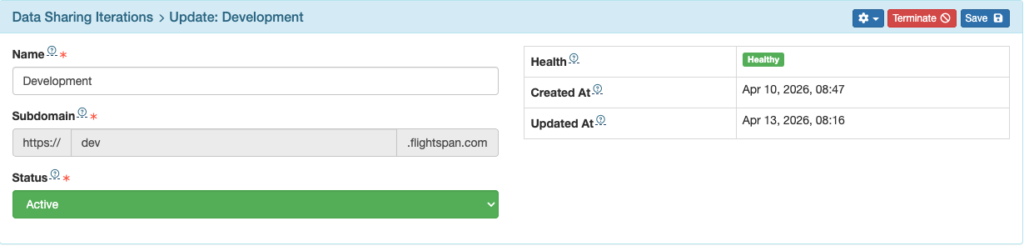
If any party wishes to terminate an integration, select the red Terminate button.

Note: Once data has been shared, an integration can no longer be deleted, it can only be terminated.
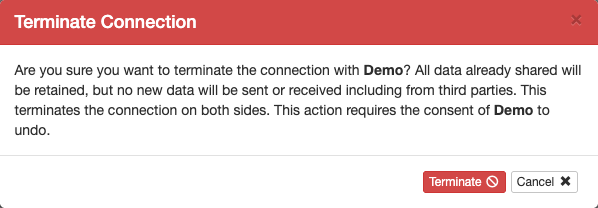
Then confirm that you wish to terminate.
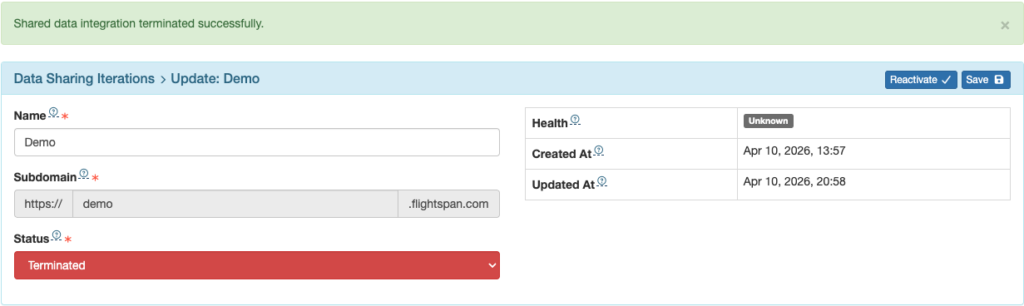
There will be a confirmation banner, and the integration will be marked Terminated.
Resume Data Sharing
If you wish to resume data sharing, both parties must agree to reactivate the terminated integration, and both parties should perform the following steps.
First, select the Reactivate button.
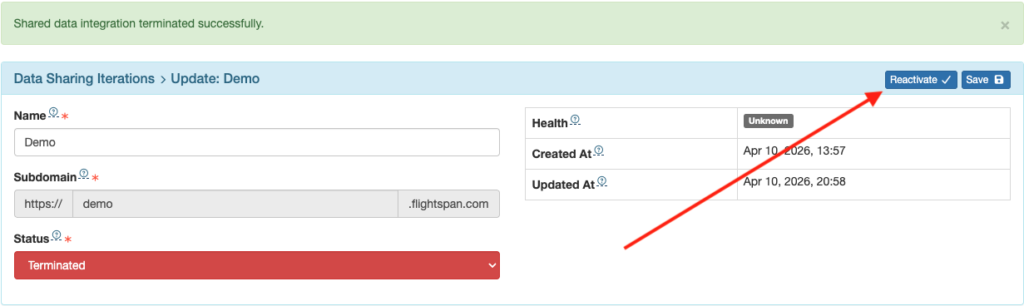
A window will open with the required steps. Select the Generate New Key button, then copy and send the share key to the other party.
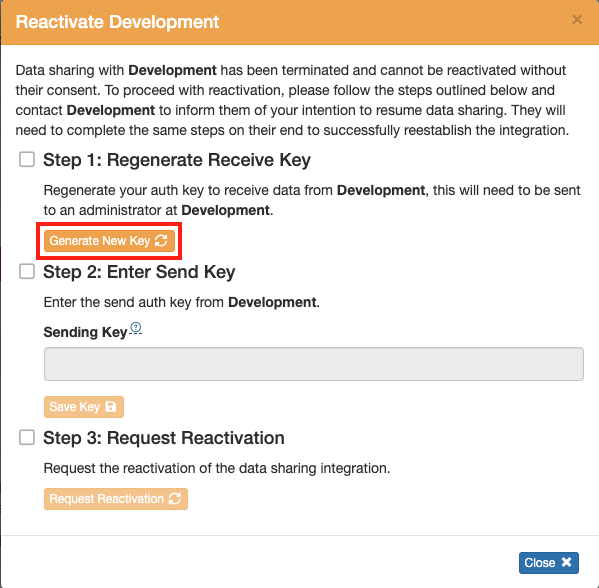
When you receive the key from the other party, select the Reactivate button again, enter the key you received, then click Save Key.
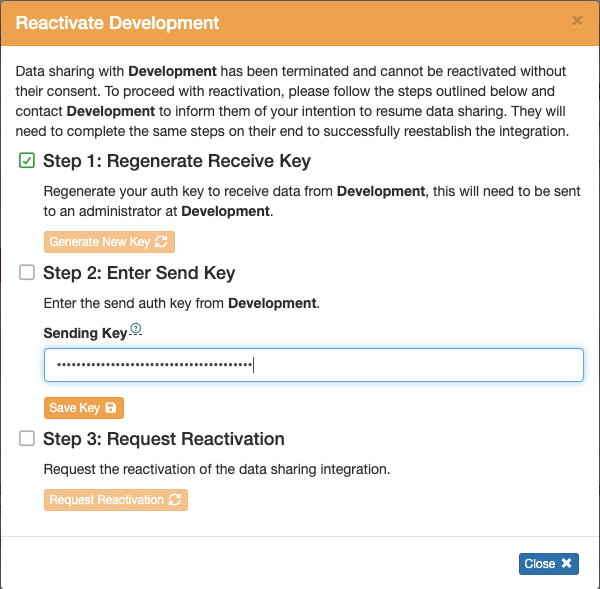
Once both parties have entered the Send Key, select the Regenerate button one more time, and then click the Request Reactivation button.
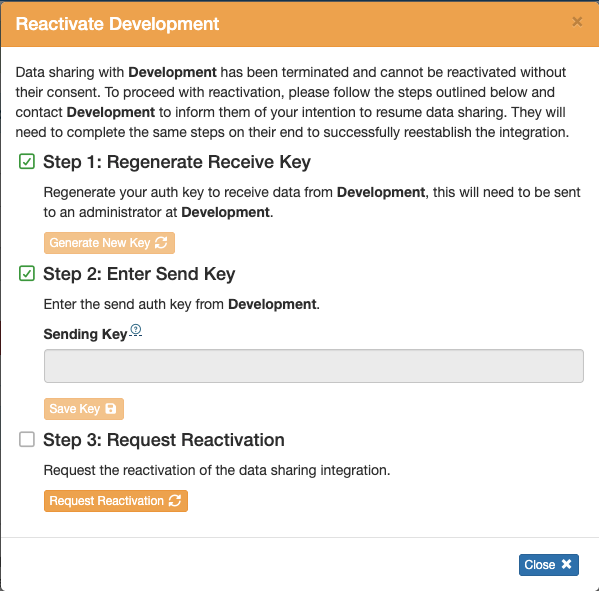
If either party requests activation before both parties have entered the Send Key, you will receive an error.
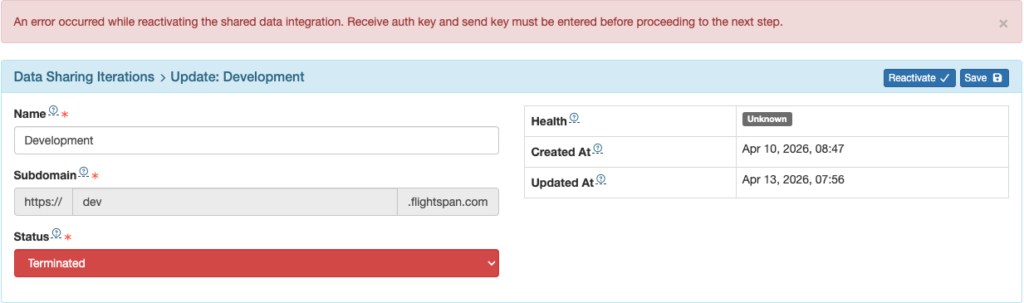
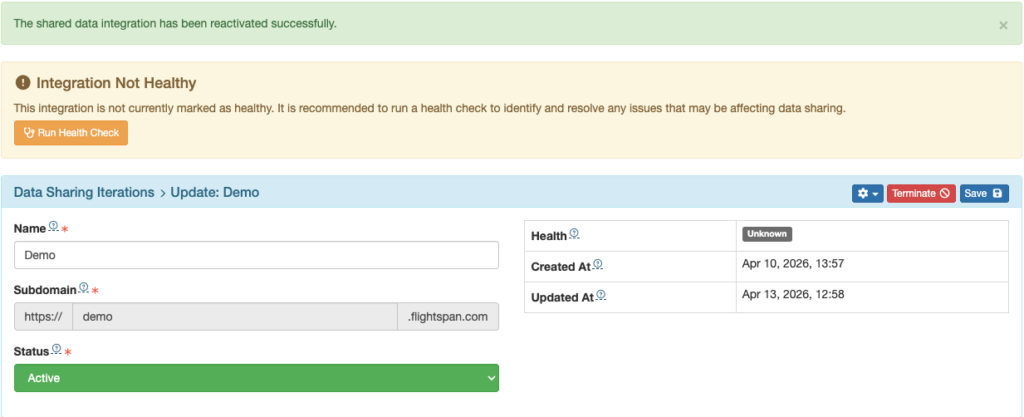
When both parties have entered the Send keys, selecting Request Reactivation will generate a green reactivation success banner.
Finally, run a Health check again.
If all the steps have been completed correctly by both parties, the integrations will be marked Healthy.