Deleting a Scheduled Flight
If you wish to remove a scheduled flight from the calendar, click on the flight to open the Schedule Detail.
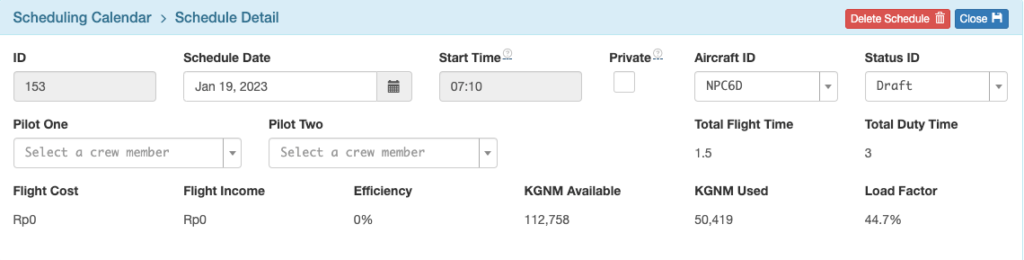
Click on Delete Schedule then confirm you want to delete the schedule.
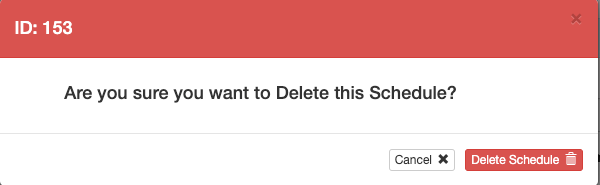
All flight requests associated with the deleted flight will be restored to the Requests sidebar.

Duplicating a Scheduled Flight
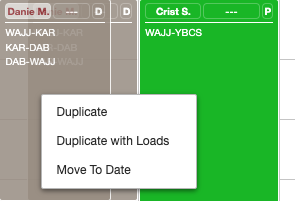
From the Scheduling Calendar, right click on a flight to duplicate it. You have the option to duplicate just the flight legs, or the flight legs plus loads.
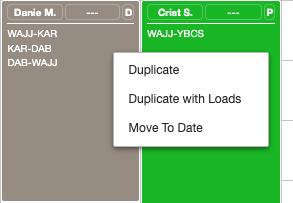
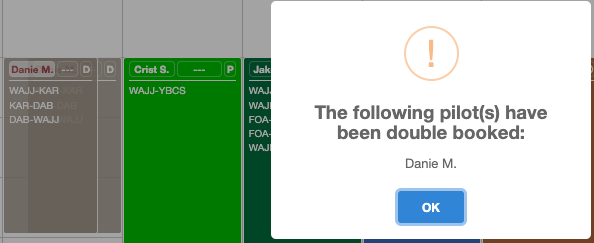
A warning will pop up since the duplicate flight is placed on top of the old flight.
Right click to change the date,
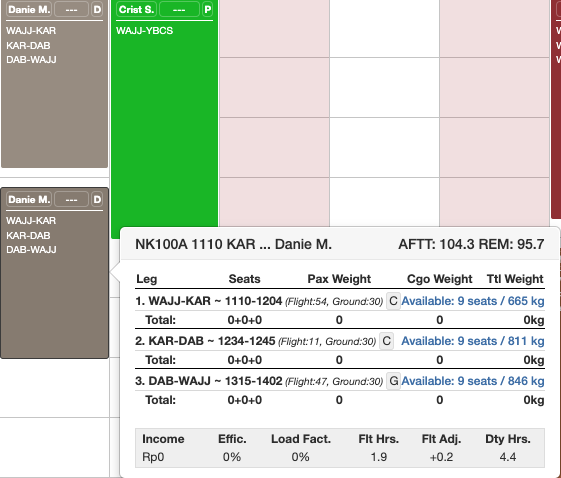
Drag the flight to its new location on the calendar,
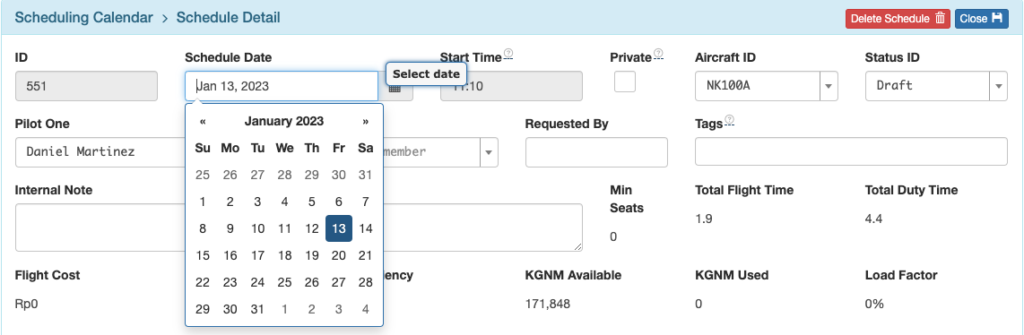
Or change the date and any other information in the Schedule Detail by clicking on the flight.
Merging Scheduled Flights
Drag to Merge
From the Scheduling Calendar, click and drag one flight onto the other.
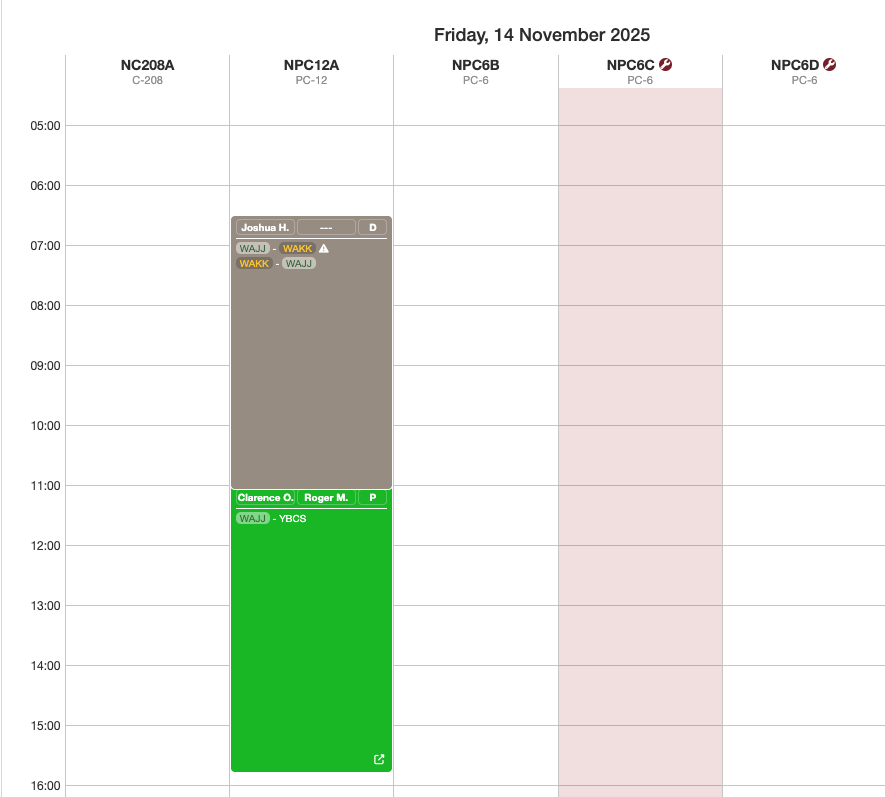
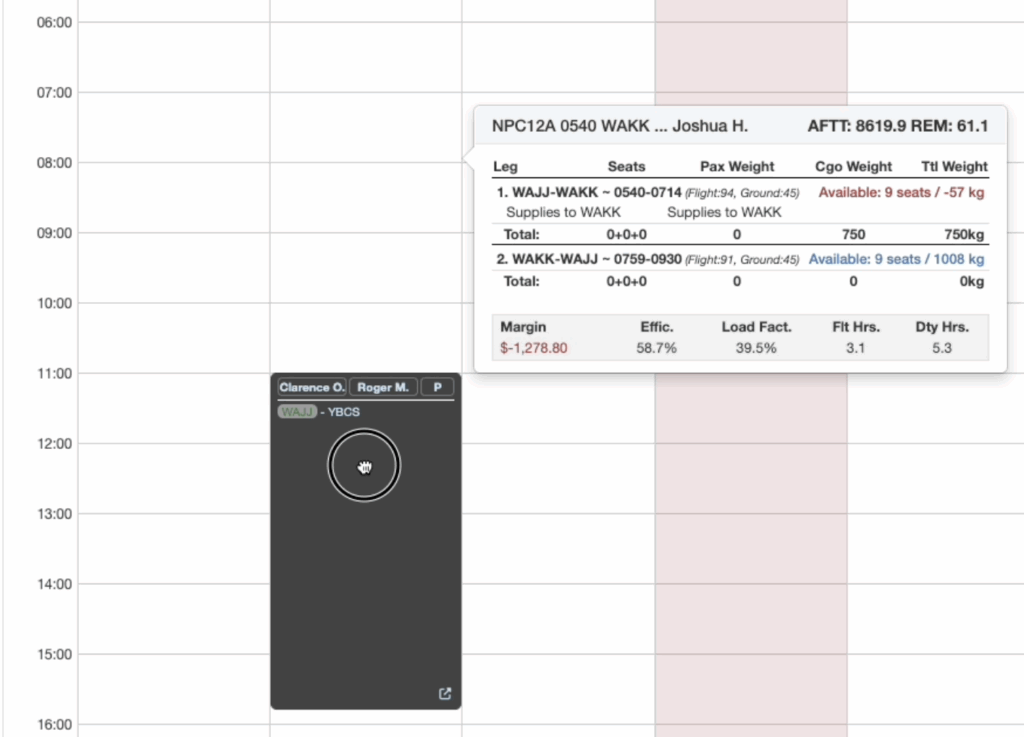
When the two flights overlap and turn dark grey, you can release the mouse click.
You will be prompted to confirm that you want to merge the flights.
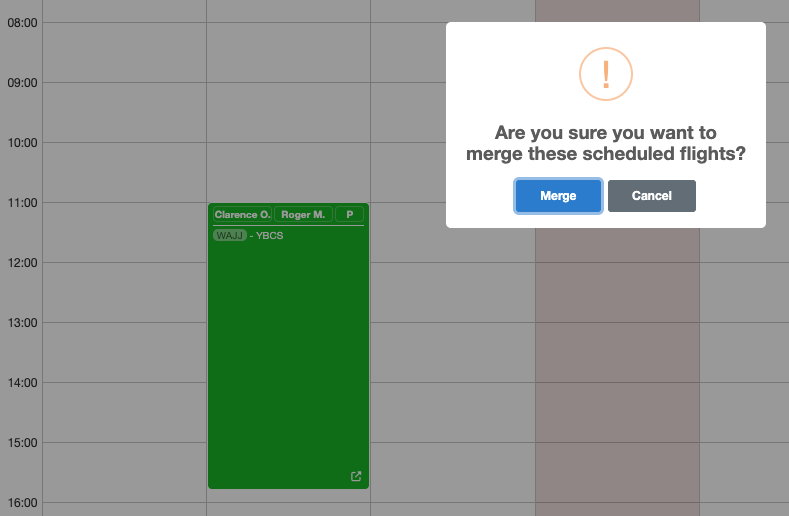
Click Merge, and the new merged flight will be displayed, with crew from the second flight retained. The flight legs from the original flight will be appended to the second scheduled flight.
Notes, loads and manifests from the original flight will also be added to the merged flight. The original flight will be deleted.
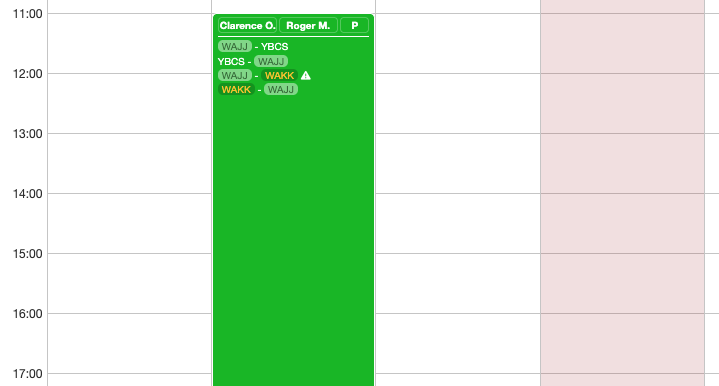
Open the Schedule Detail and edit legs and loads as necessary.
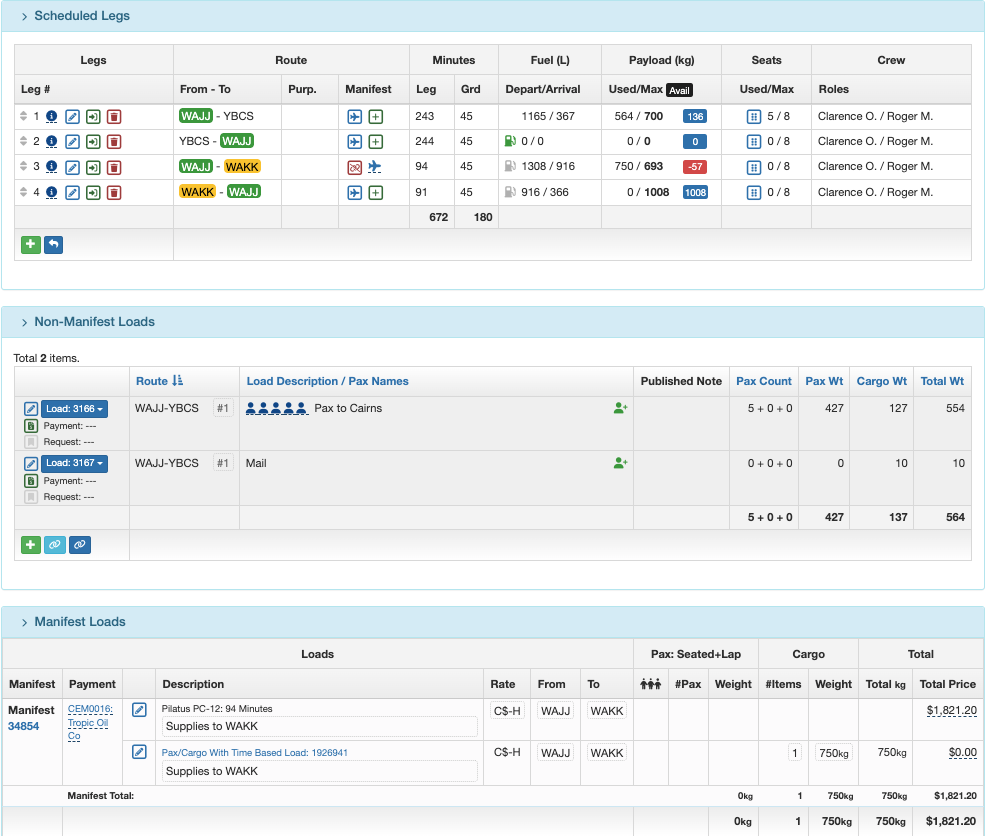
Note: It may be necessary to change the first destination on any attached Manifest.
Merge from Schedule Detail
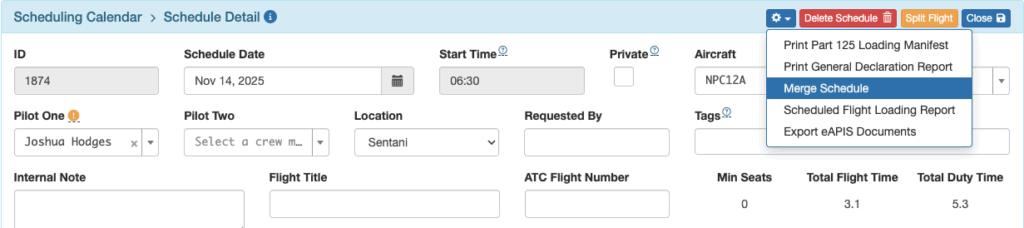
From the dropdown list, select Merge Schedule.
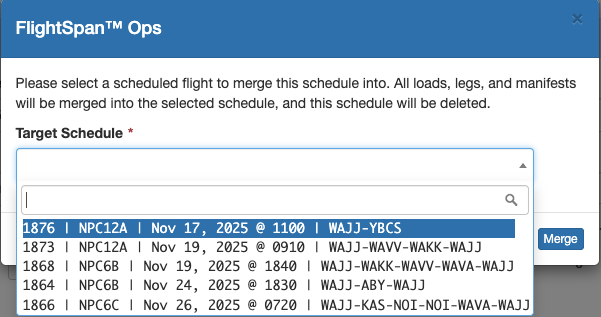
Search for and select the desired schedule, then click Merge. Only schedules from today forward will be listed.
The scheduled flights will be merged as previously described.
Video Version