For each of the currencies you will use, complete the following process:
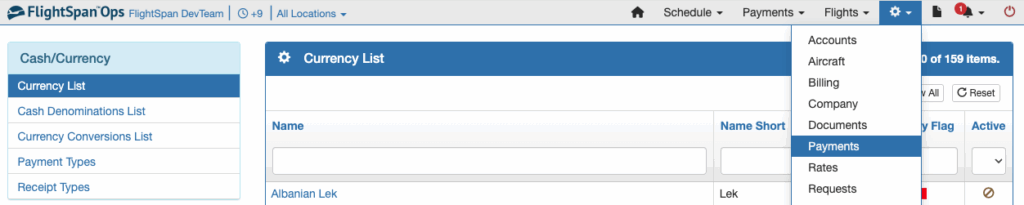
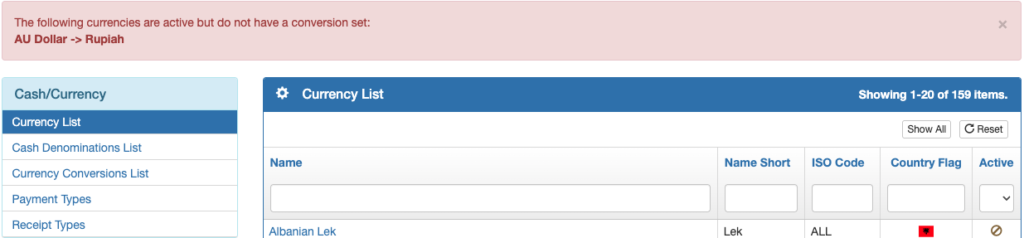
Select Payments from the Settings menu, then select Currency List from the Cash/Currency menu.
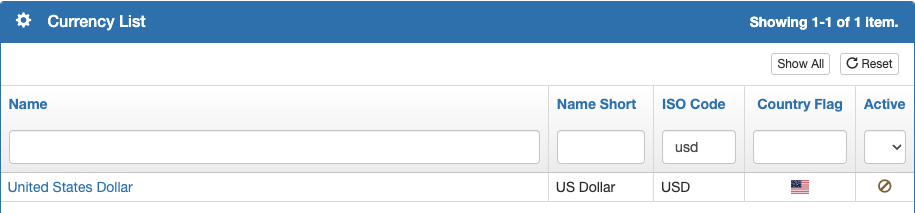
Search for the currency and click on the name.
Select Edit, switch the currency to Active, and edit the Currency Settings, including decimals displayed and rounding rules.
Use negative numbers to round to numbers left of the decimal; use positive numbers to round right of the decimal.
If necessary, set custom decimal and thousands separators. If you do not set them, the default setting for your currency will be used. When all settings are correct, Save.
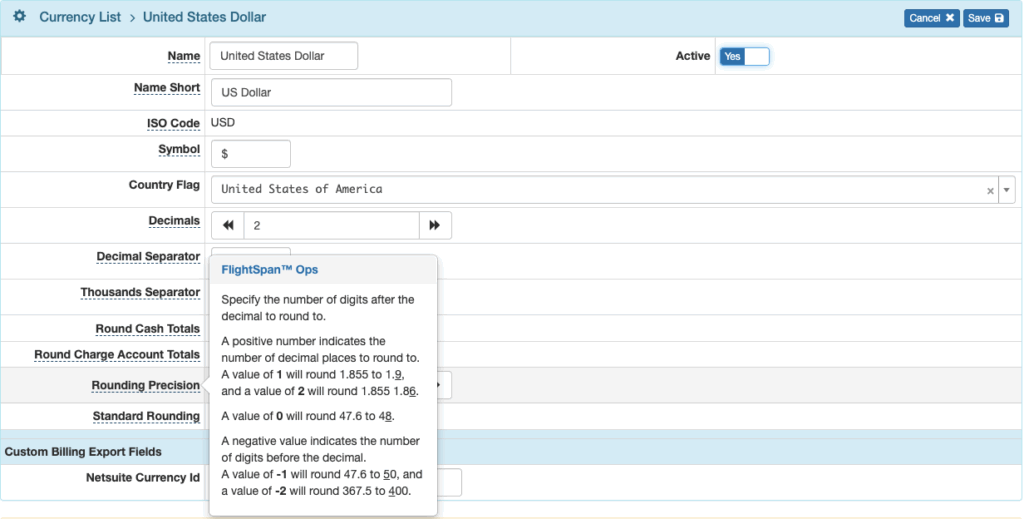
A rounding precision of 0 with Standard Rounding set to Yes will result in rounding to the nearest dollar in the standard manner. So for example, $5.79 would be rounded to $6.00, and $5.18 would be rounded to $5.00.

A rounding setting of 0 with Standard Rounding set to No will result in truncating the decimal portion of the total. So for example, $5.79 would be rounded to $5.00.

If you activate a currency that does not yet have a currency conversion, you will be reminded that the conversion is missing. See the Currency Conversion instructions below.
Cash Denominations
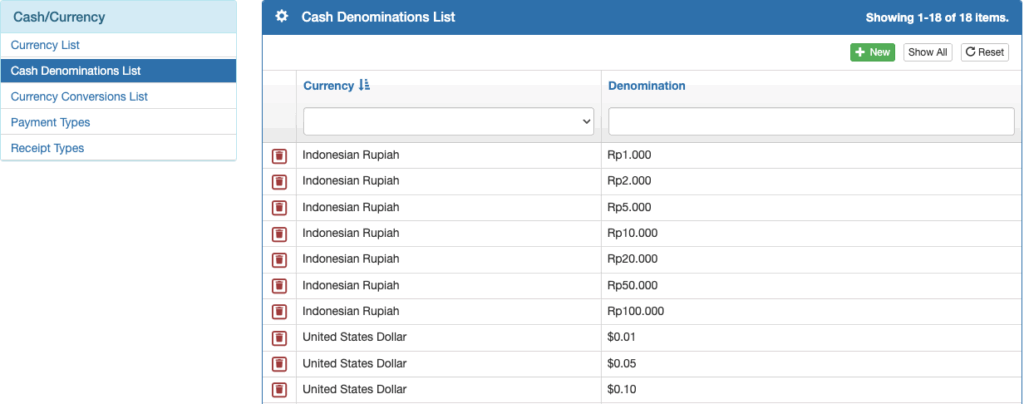
For each of the cash currencies you will be working with, define the denominations available by selecting Cash Denominations List from the Cash/Currency menu.
Delete a denomination using the red trash can icon or add a new one using the green New button.
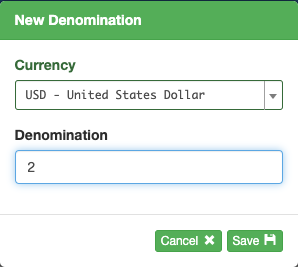
Search for the currency by name or ISO code, enter the denomination, and Save.
Currency Conversions
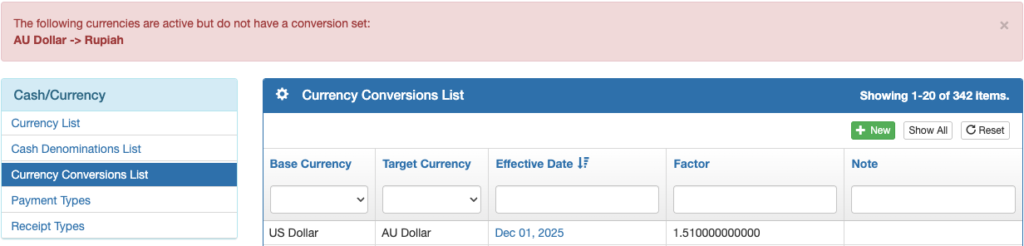
To set up a new currency conversion, or each time the exchange rate(s) change, select Currency Conversions list from the Cash/Currency menu, and click the green New button.
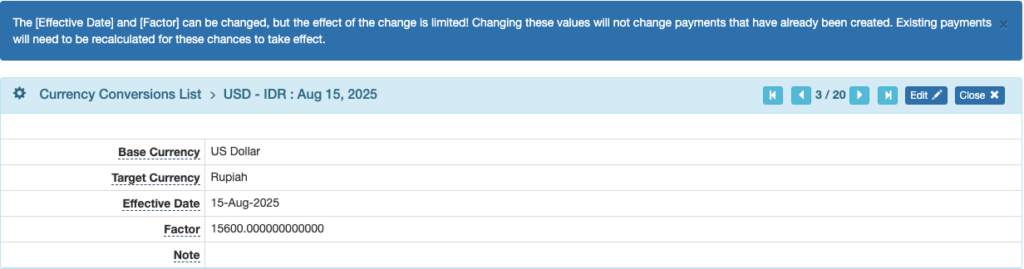
Note: Editing the existing currency conversion is not recommended since it can affect past Payments if they are opened for editing.
Select the base and target currencies, set the conversion factor, add a note if desired, and Save.
It is not necessary to set a conversion in both directions; FlightSpan™ will calculate the reverse conversion when needed.
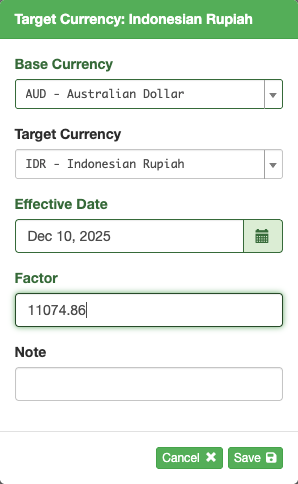
Note: It is recommended that each currency has a conversion factor to all other currencies, since results can be unpredictable without them set.
If you do need to edit an existing conversion, click on the Effective Date, then Edit, and change the date or conversion as necessary.
Existing Payments will not be changed unless each one is opened for editing. Completed cash Payments will not be changed.
Default Company Currency
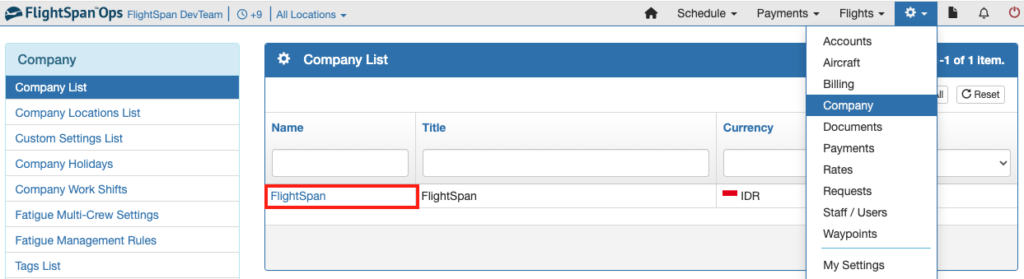
From the Settings menu select Company, then click on the company name.
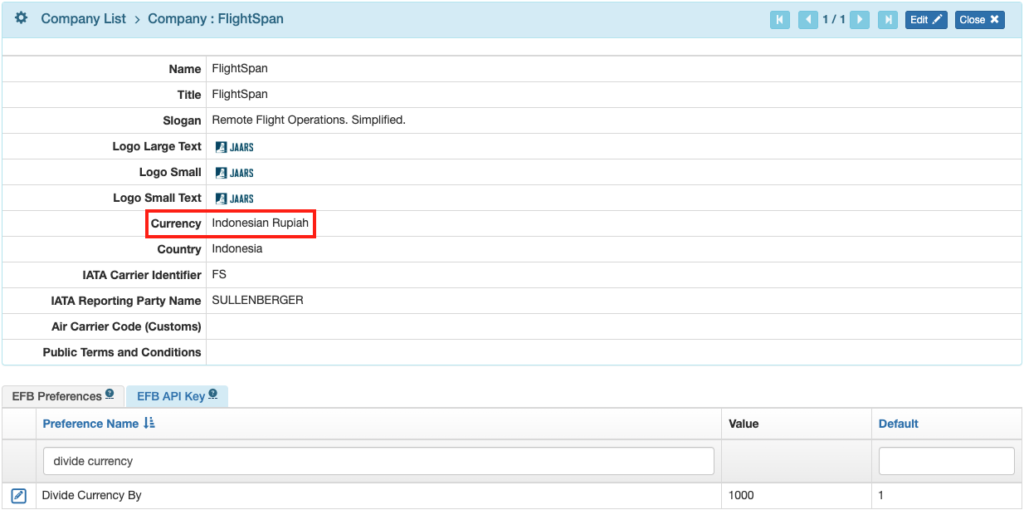
Select Edit, then select from the active currencies to change the default company currency if desired.
The selected currency will be used as the default throughout FlightSpan Ops.
Video Version