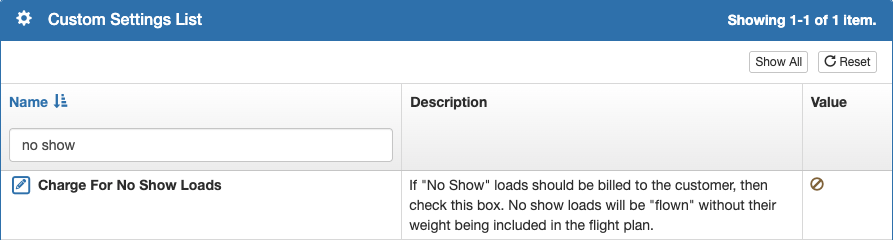
No Charge for No Shows
If your company does not charge for no shows, the Company Custom Setting should remain on the default disabled value.
Payment Not Created
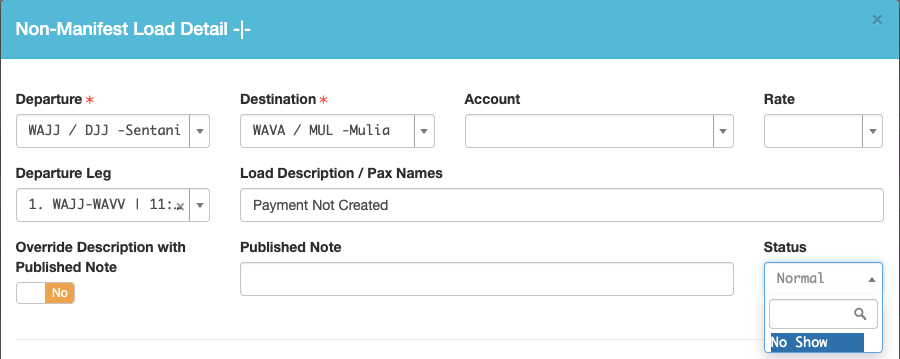
If a Payment has not yet been created for a load, from the Non-Manifest Load section of the Schedule Detail, click the blue pencil icon to edit the load.

Then change the Status to No Show and Save.
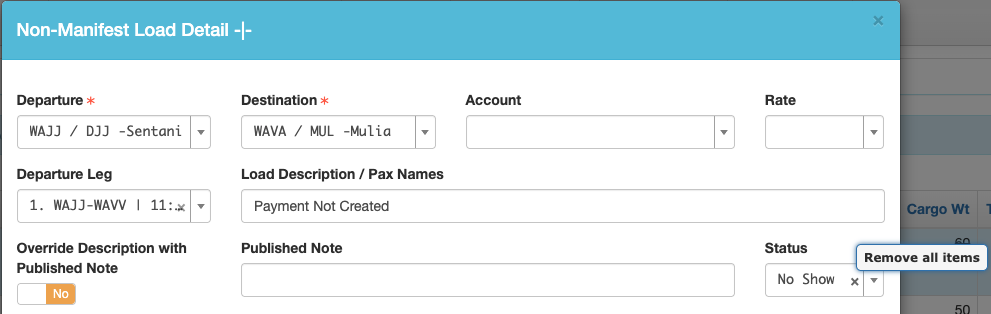
The load will be marked No Show, and the loading will be crossed out.
The load will remain on the Schedule, but will not be sent to the EFB.

To remove a No Show status, open the load for editing, and click the X by No Show then Save, and the status will be returned to Normal.
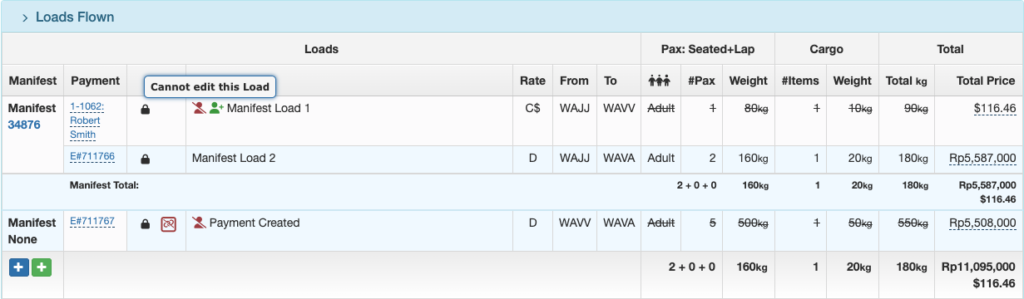
Payment Created – Non-Manifest Load
If a Payment has been created for a Non-Manifest load, click on the blue pencil icon, the Payment icon, or on the Payment number, and the Payment Detail will open.
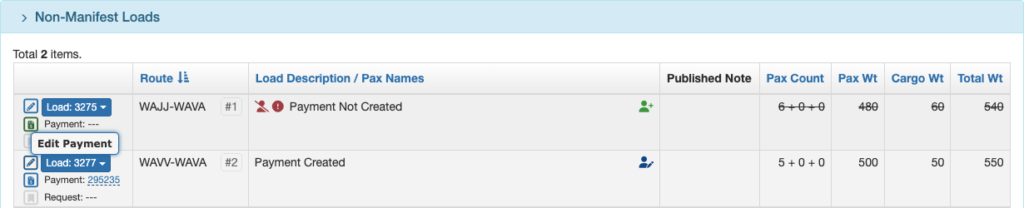
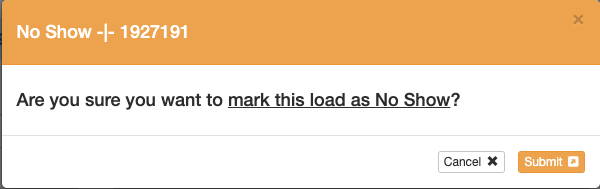
From the Payment Detail, click the Load Number, and select Mark as No Show.

Click Submit when you are asked to confirm.
The Payment will be marked No Show.
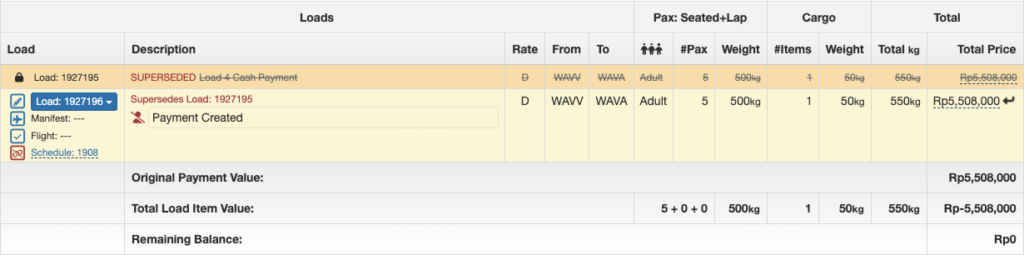
The load will remain on the Schedule Detail, but will not be sent to the EFB.

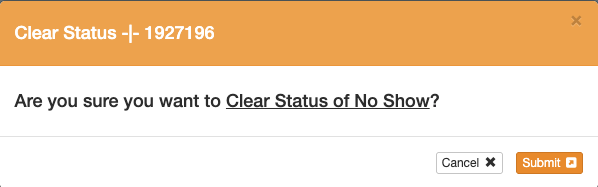
To remove a No Show status, click the Load Number, and select Clear Status: No Show.

Confirm clearing the status by clicking Submit.
Payment Created – Manifest Loads
For Manifest loads, click on the Payment number.

The Payment Detail will open. Mark the load as No Show as previously described.

The load will be removed from the manifest, but will remain on the Scheduled flight.
The Load will not be sent to the EFB.

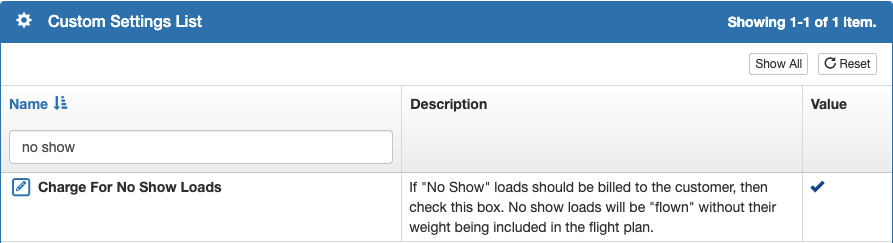
Charge for No Shows
If your company charges for no shows, first set the Company Custom Setting to Yes.
Payment Not Created
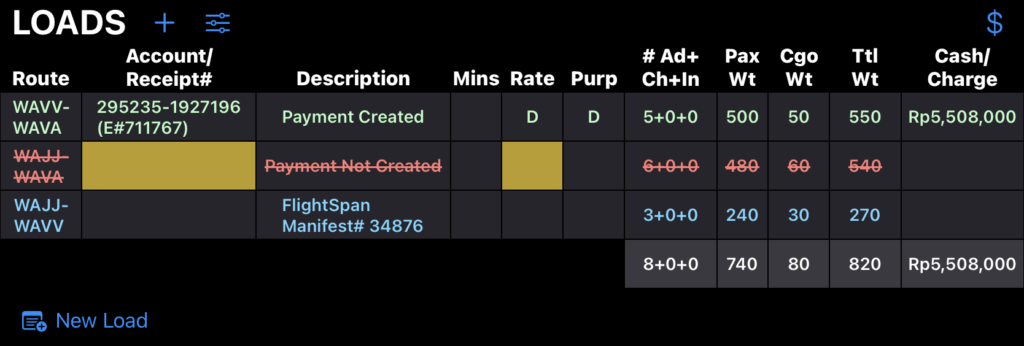
If a Payment has not been created, mark the load as No Show as previously described.

The load will remain on the Schedule, and the load will be sent to the EFB with a No Show status indicated.
Payment Created – Non-Manifest Load
Mark the load No Show as previously described.
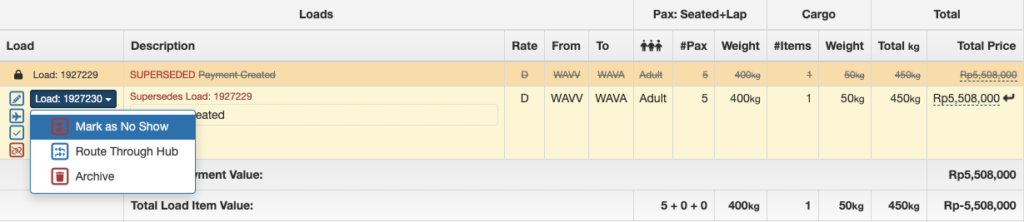
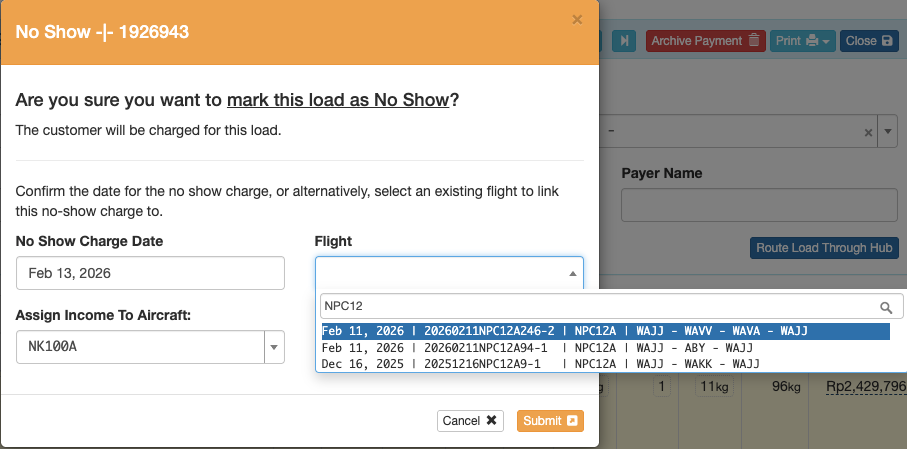
If the load is on a completed Flight Record, you will be asked to confirm.
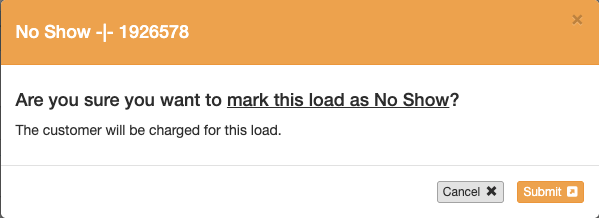
If the load is not already part of a completed Flight Record, search for and select the Flight Record the No Show load was on, and Submit.
Alternatively, if there is no actual flight that it should be associated with, select a date and aircraft for the No Show charge, then Submit.
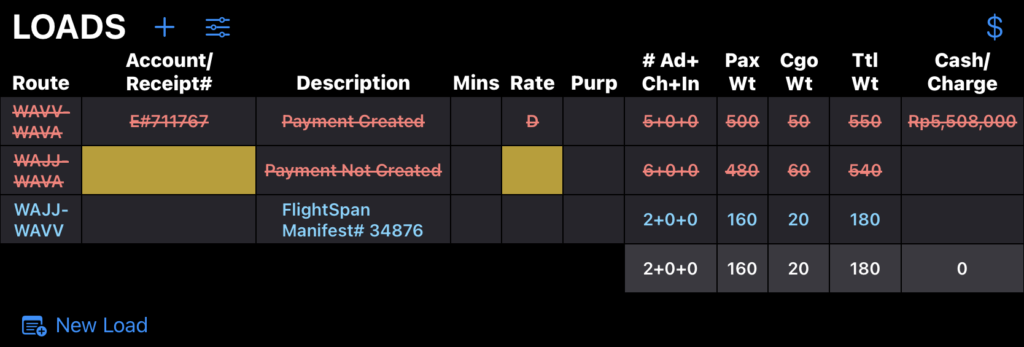
The Payment Load will remain on the Schedule and will be marked as previously described.
If the scheduled flight has not yet occurred, the load will be sent to the EFB with a No Show status indicated.
Payment Created – Manifest Loads
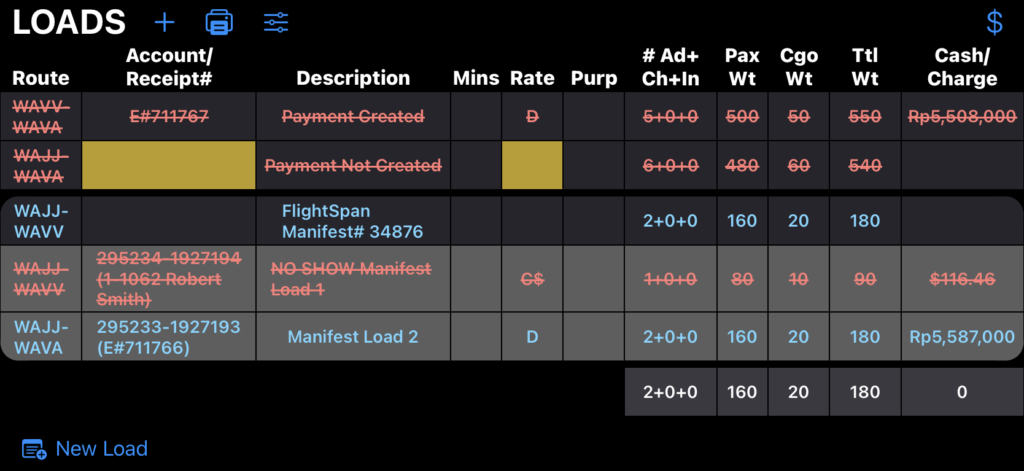
Mark the load No Show as previously described.
The load will be marked No Show, and will remain linked to the Manifest.

The load will be sent to the EFB with a No Show status indicated on the manifest.
No Show Payment Upload
Both Non-Manifest and Manifest loads can be marked No Show from either FlightSpan™ Ops or the EFB.
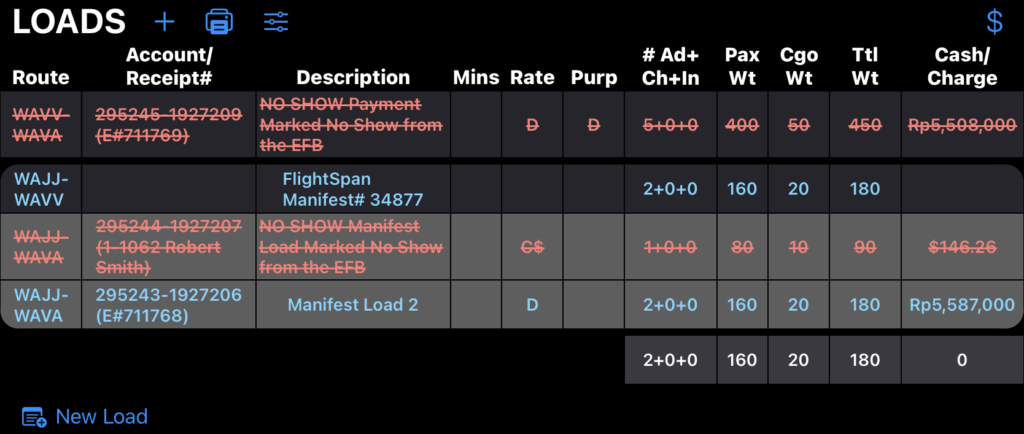
When No Show Payments Loads are uploaded, Non-Manifest loads will be under the No Show section of the printed DFR.
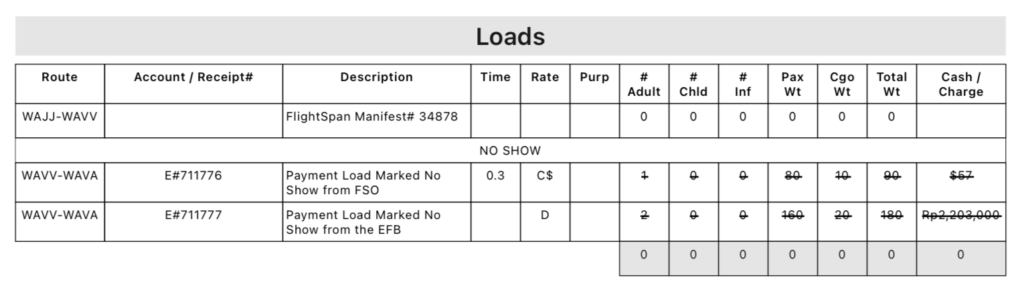
No Show Payment records will be displayed in the Loads Flown section of the Flight Record for both Manifest and Non-Manifest loads.
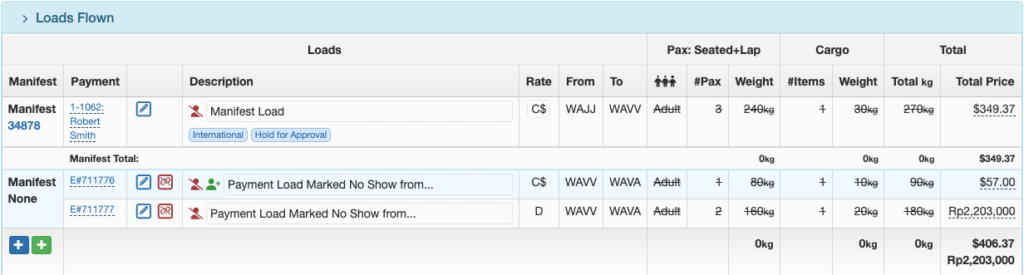
The No Show status can be changed on a Flight Record by clicking on the Payment number as previously described.
But once the Payment record has been exported the Payment is locked and the No Show status can no longer be changed.