Setup
Checklists can be enabled and customized from Aircraft Type EFB Preferences.
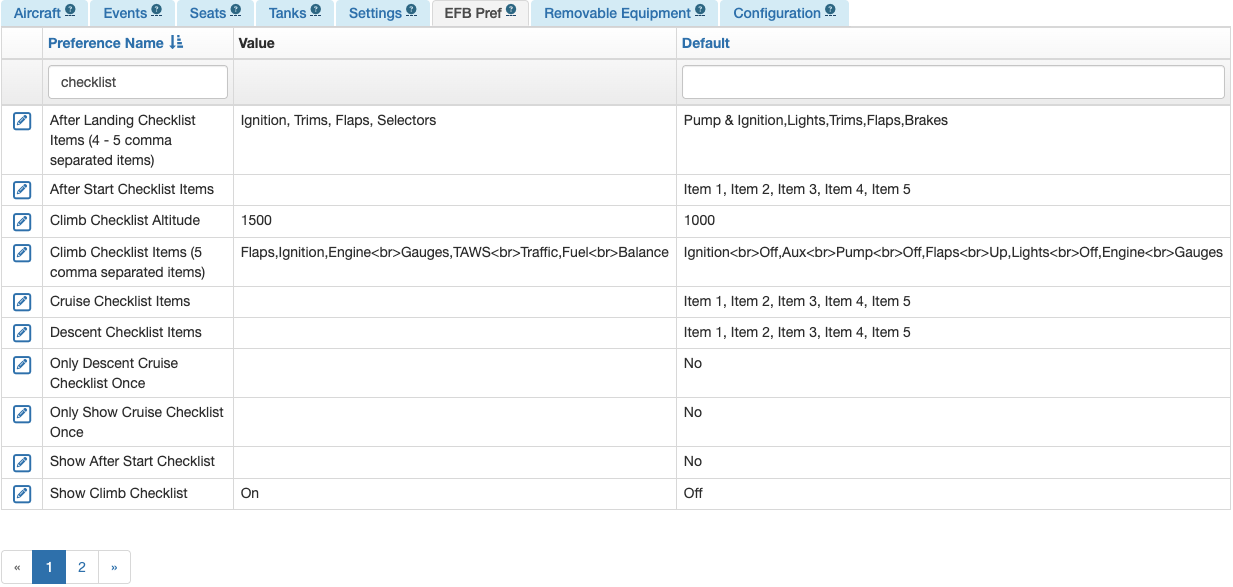
Enable a particular checklist by changing “Show Checklist” to On.
When defining the Checklist Items, separate the items by commas. If you want to define a line break for a checklist item, insert <br> between the words.
Any checklist can have as many items as you wish, since they automatically scroll on the EFB.

Checklist Use
Assuming you have all checklists enabled, they function as follows.
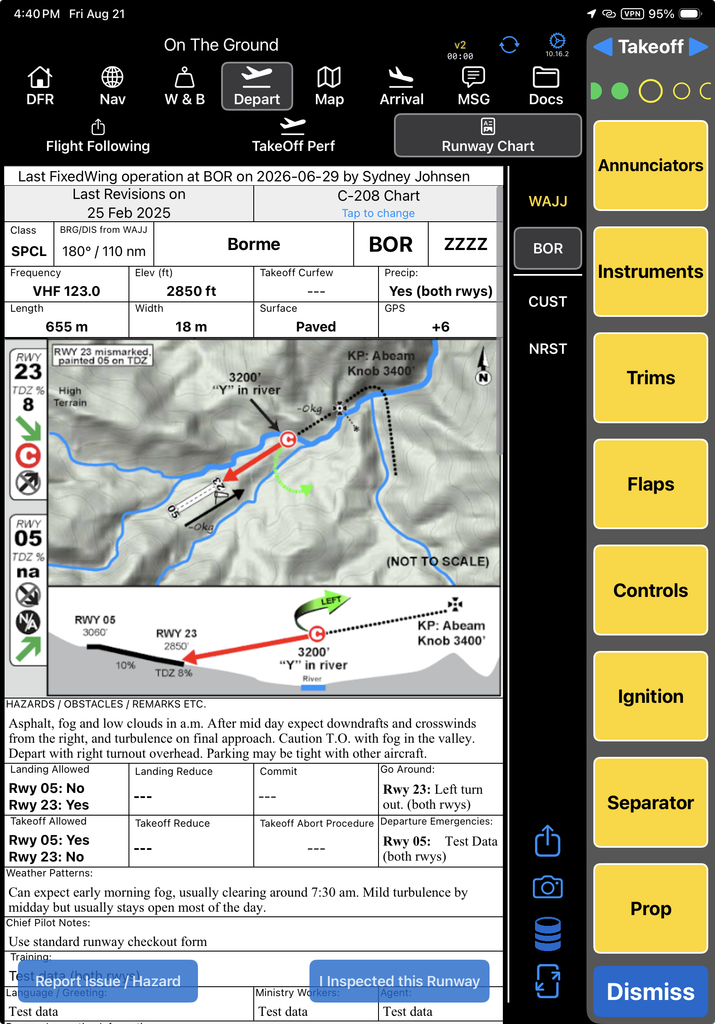
When you send the trip manifest, the Start checklist opens. Tap each item to complete it, and when all items have been tapped, the checklist will automatically dismiss.
Temporarily close an incomplete checklist with the Dismiss button.
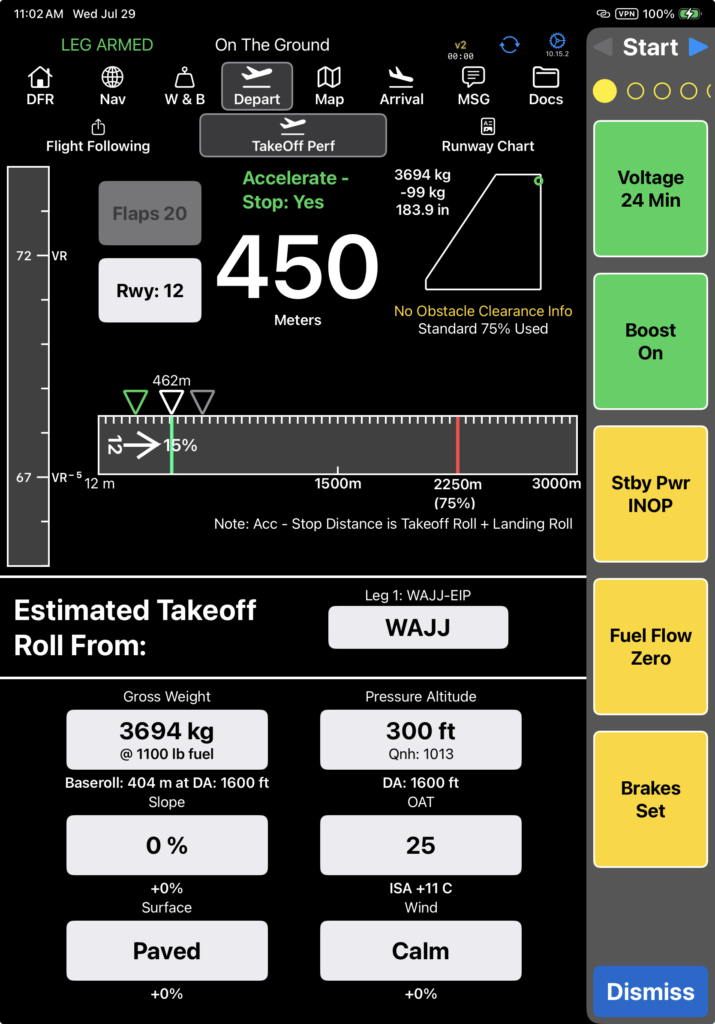
Note: For v2track equipped aircraft, if you need to resend a trip manifest, and the engine is already running, the Start checklist will not re-fire a second time.
Four seconds after the Start checklist is complete, the After Start checklist will open so that it will be available after the start sequence is complete.
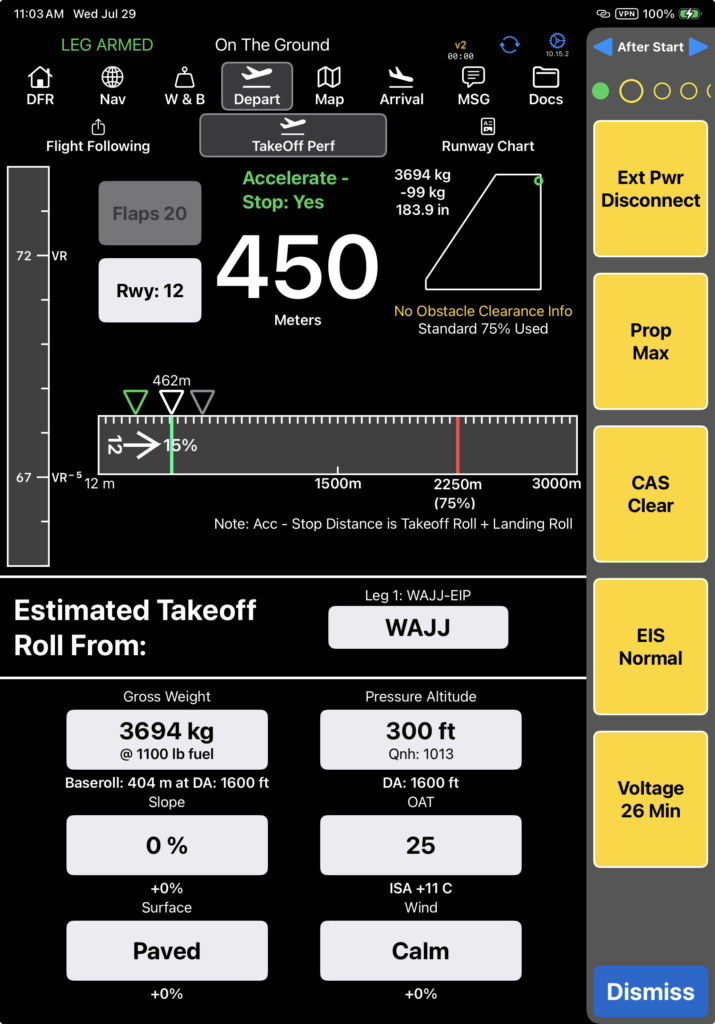
Four seconds after the After Start Checklist is complete, the Takeoff Checklist will open.
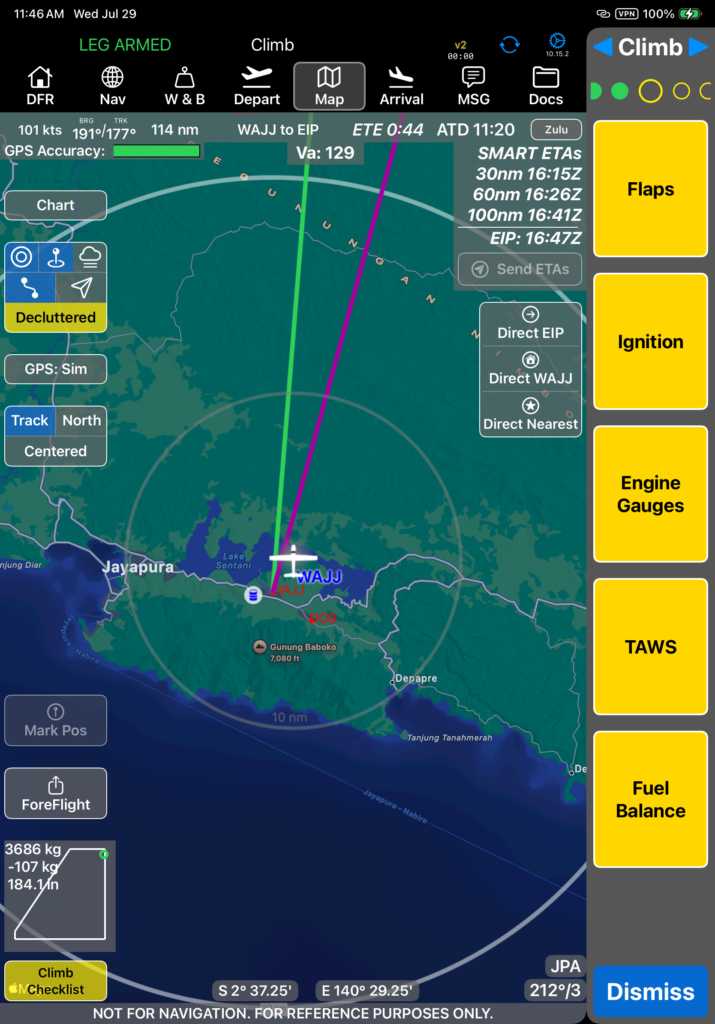
Once airborne, the Climb checklist will open at the altitude specified in the Aircraft Type EFB Preferences, or 3 minutes after takeoff, whichever comes first.
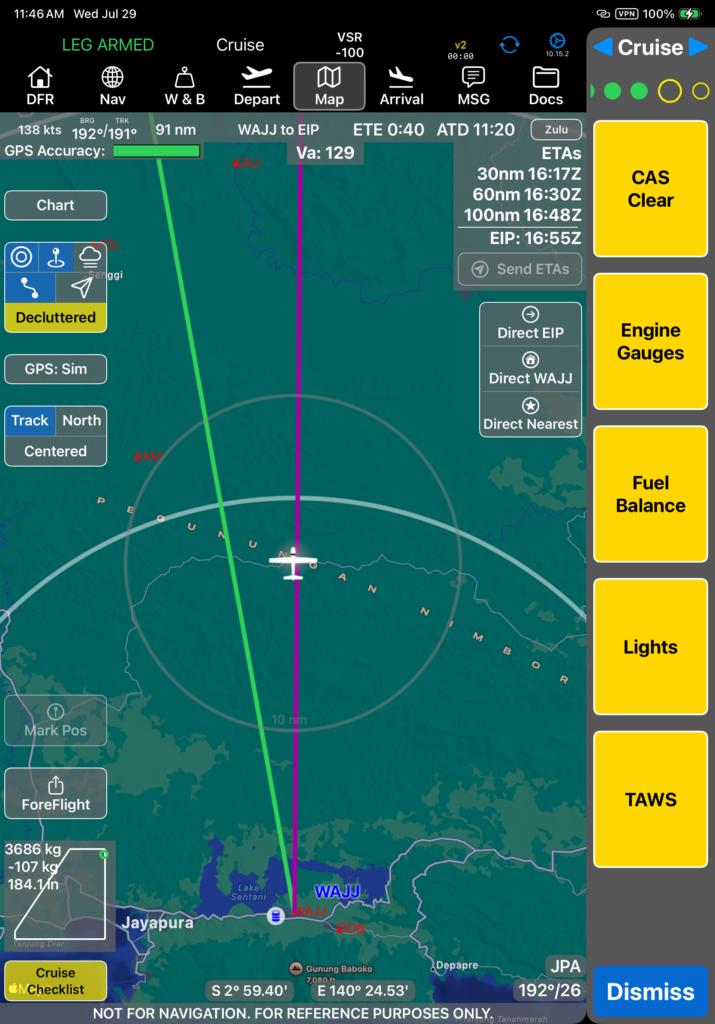
The Cruise checklist will open when FlightSpan™ detects that the aircraft has entered a cruise state.
If you are doing a step climb, the Cruise checklist will reopen each time you level off unless the Aircraft Type EFB Preference “Only Show Cruise Checklist Once” is set to Yes.
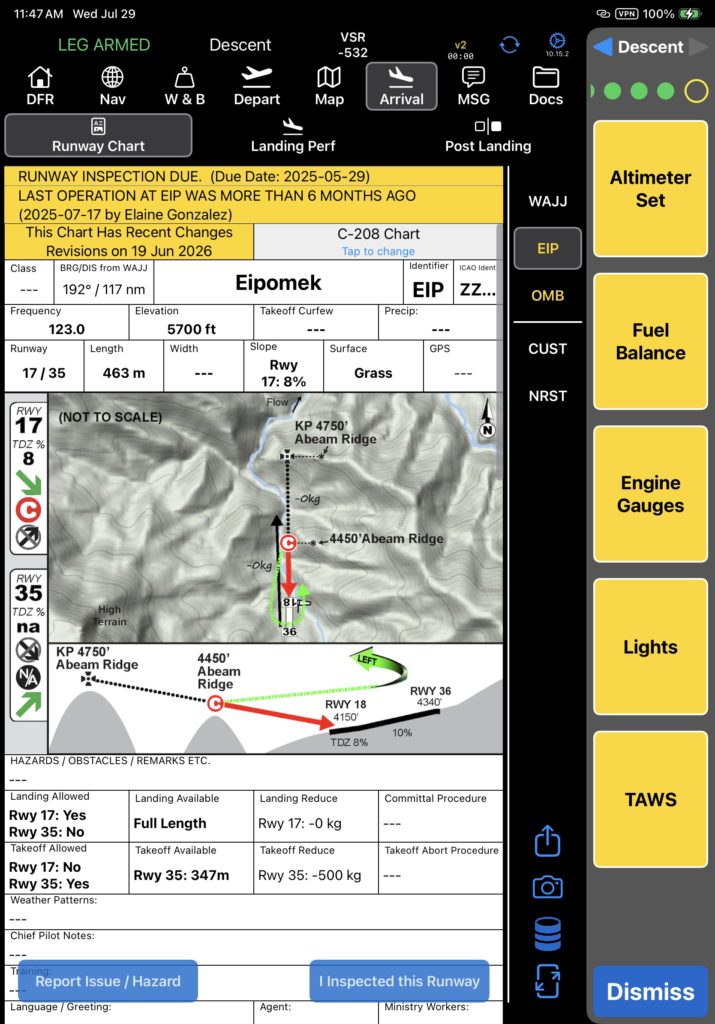
The Descent checklist will open when FlightSpan detects that the aircraft has entered a descent state.
If you are doing a step descent, the Descent checklist will reopen each time you begin descent unless the Aircraft Type EFB Preference “Only Show Descent Checklist Once” is set to Yes.
The Landing Checklist will open when the aircraft is within 3 minutes and 2500 feet of the destination.
However, if another checklist is open, the Landing Checklist will not open until the previous checklist is complete. And if another checklist was dismissed but not completed, the incomplete checklist will reopen first, and the Landing Checklist will open after the previous checklist is completed.
No other checklist will open until the Landing Checklist has been completed.
If the Landing Checklist opens prior to the Cruise and/or Descent Checklist (such as during a very short flight where the app never senses a cruise state, or a low altitude flight where the app never senses a descent), those checklists will be suppressed and will not subsequently open.
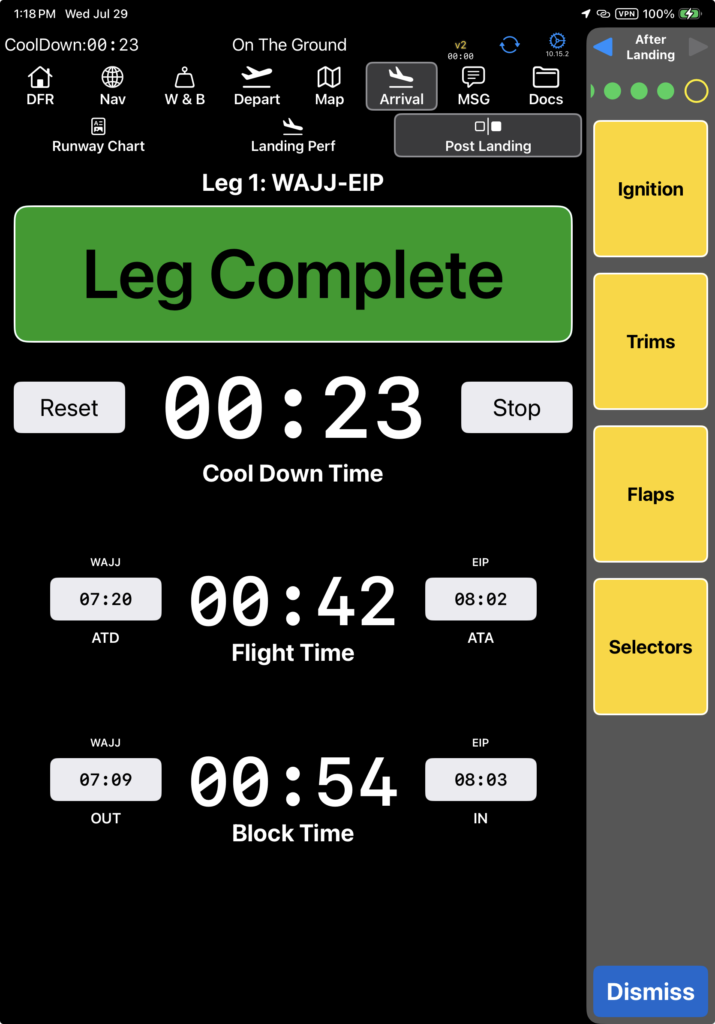
The Post Landing tab will open when FlightSpan detects that the aircraft is on the ground, and the After Landing checklist will open after the pilot has tapped On the Ground.
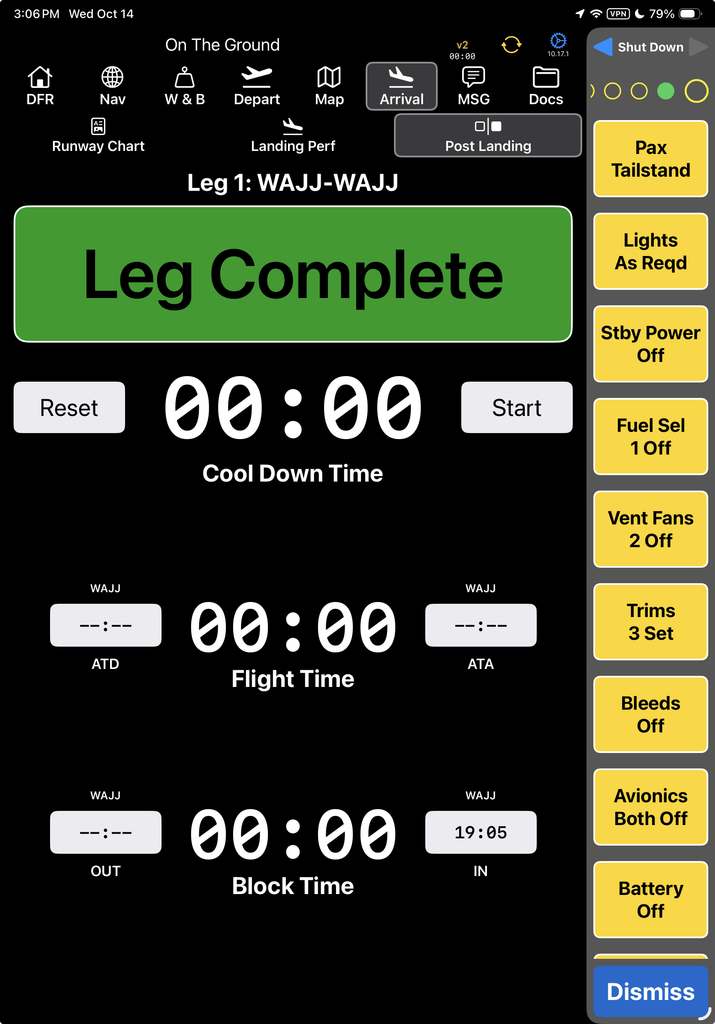
One and a half seconds after the After Landing Checklist is completed, the Shut Down Checklist will open.
Traffic Patterns
When navigating from Point A to Point A (such as during traffic pattern work), the Climb, Cruise and Descent checklists are suppressed if you remain within 3 nautical miles of the departure airport.
After takeoff, when FlightSpan cycles to the Arrival / Runway Chart tab, the Landing Checklist will open.
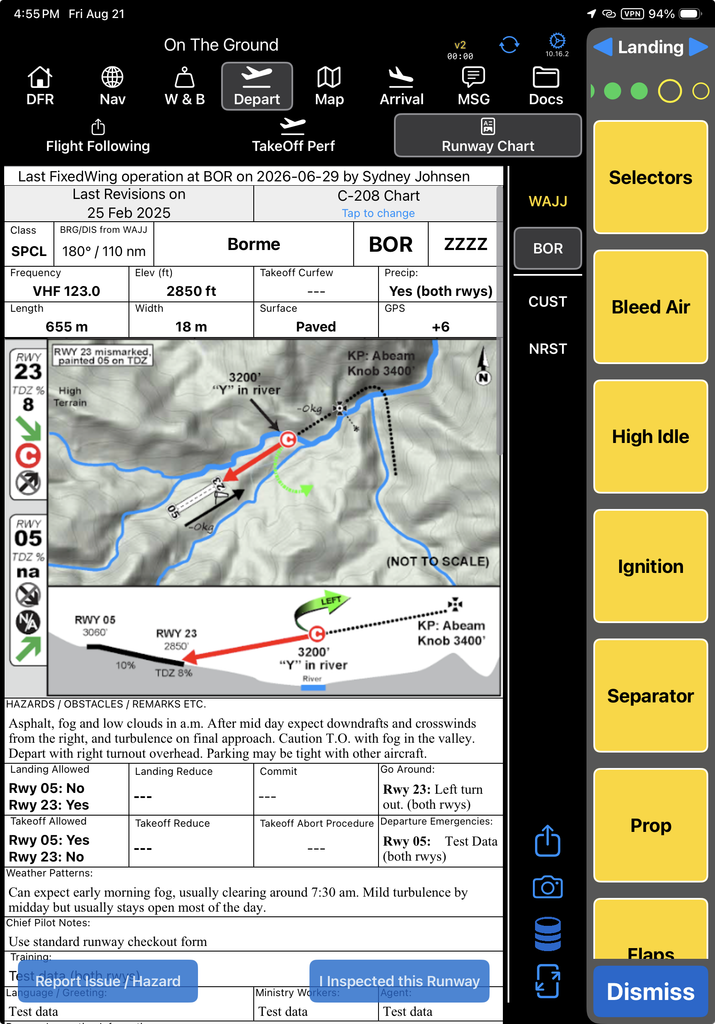
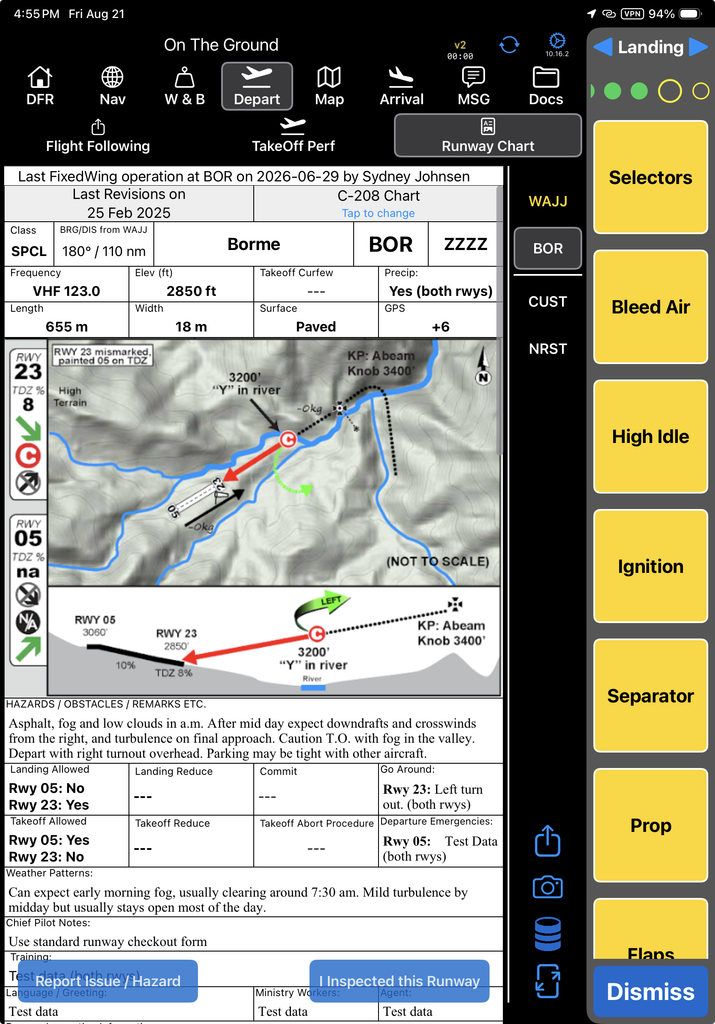
After landing, when FlightSpan cycles to the Depart / Takeoff Performance tab, the Takeoff Checklist will open.
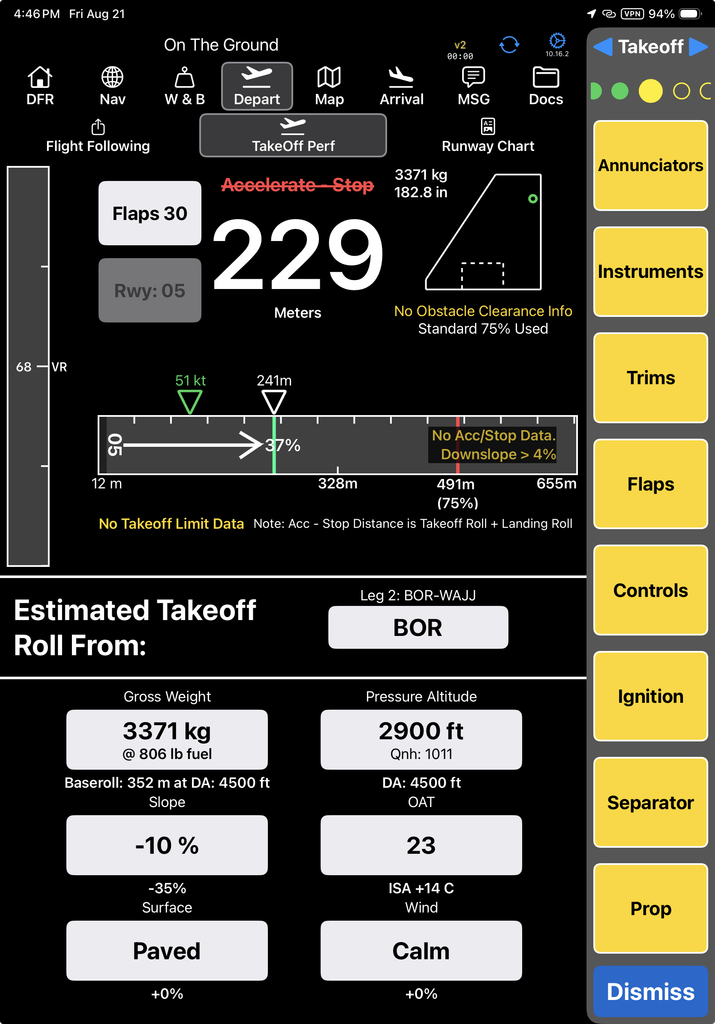
Note: After your final landing, when you switch to the Post Landing tab and tap On the Ground, the Takeoff Checklist will be dismissed and the Post Landing Checklist will open.
A-A Flight with a Route Waypoint
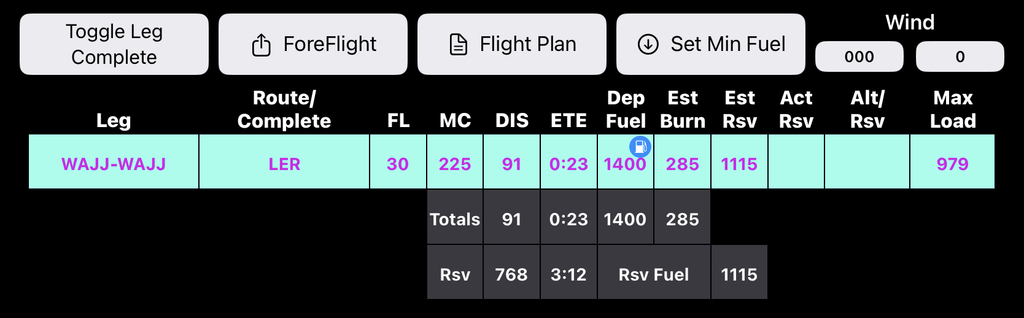
When an en route waypoint is added to an A-A flight, as in this example, FlightSpan will revert to cycling through all active checklists.
General Checklist Principles
Open checklists will remain open and visible even when switching tabs.
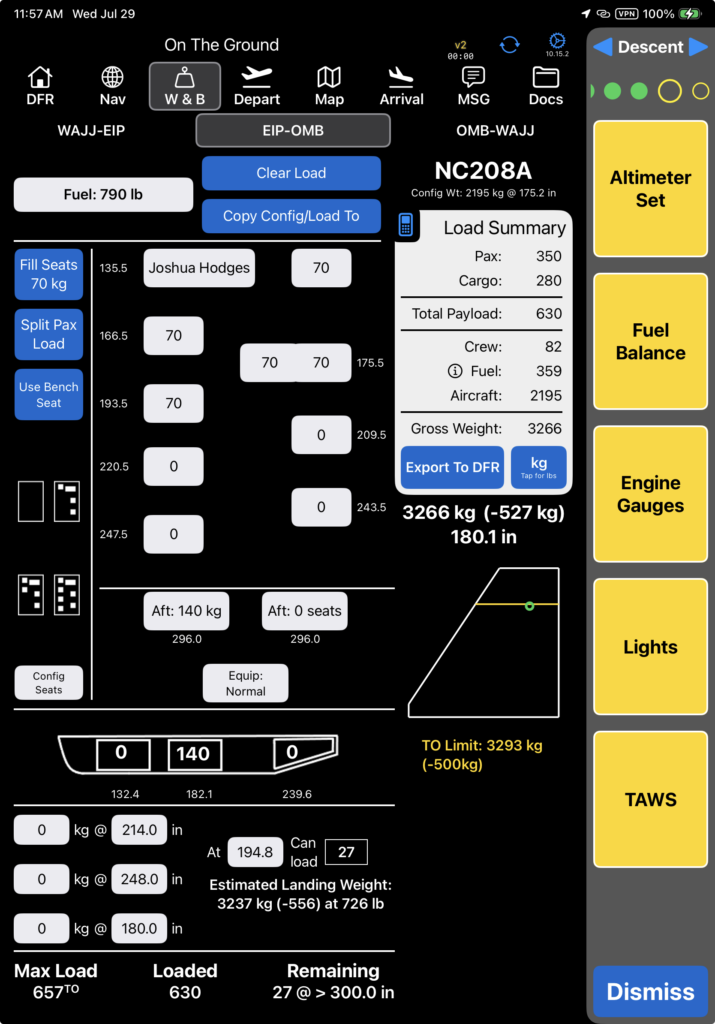
Long checklists will automatically scroll down as checklist items are completed.
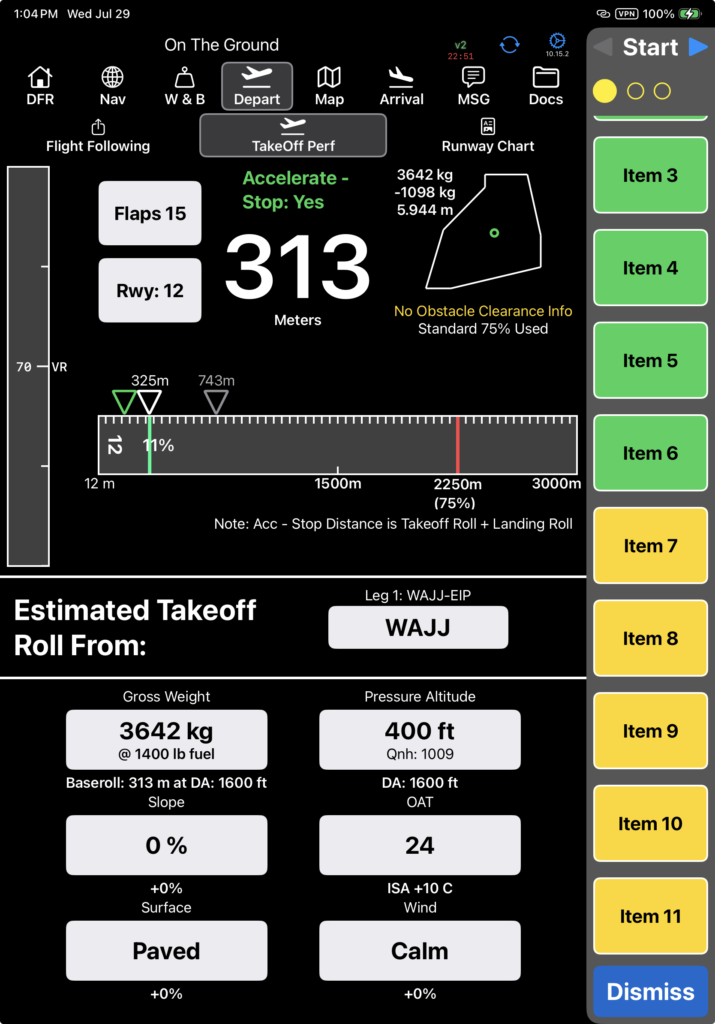
Manually open a checklist from any tab by swiping left from the right edge.
Dismiss a checklist prior to completing it with the Dismiss button.
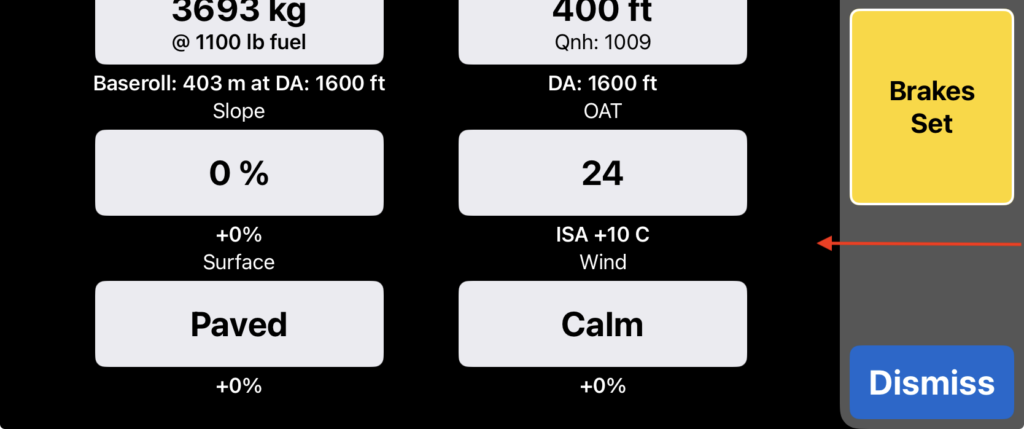
A manually opened checklist that has not yet been started will be dismissed.
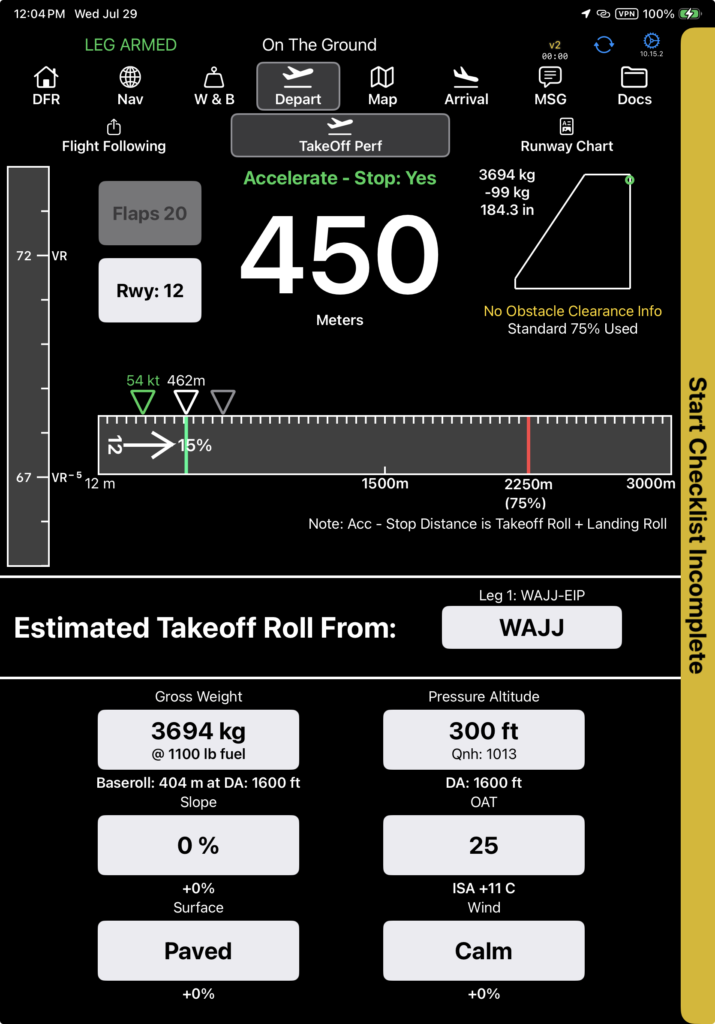
If the checklist opened automatically, or if the pilot manually opened the checklist and completed at least one item, a “Checklist Name Incomplete” banner will be displayed.
The Takeoff and Landing Checklist Incomplete banners pulse to help ensure they aren’t missed, and they automatically reopen after 60 seconds.
Reopen a checklist by tapping the banner or swiping from the right edge.
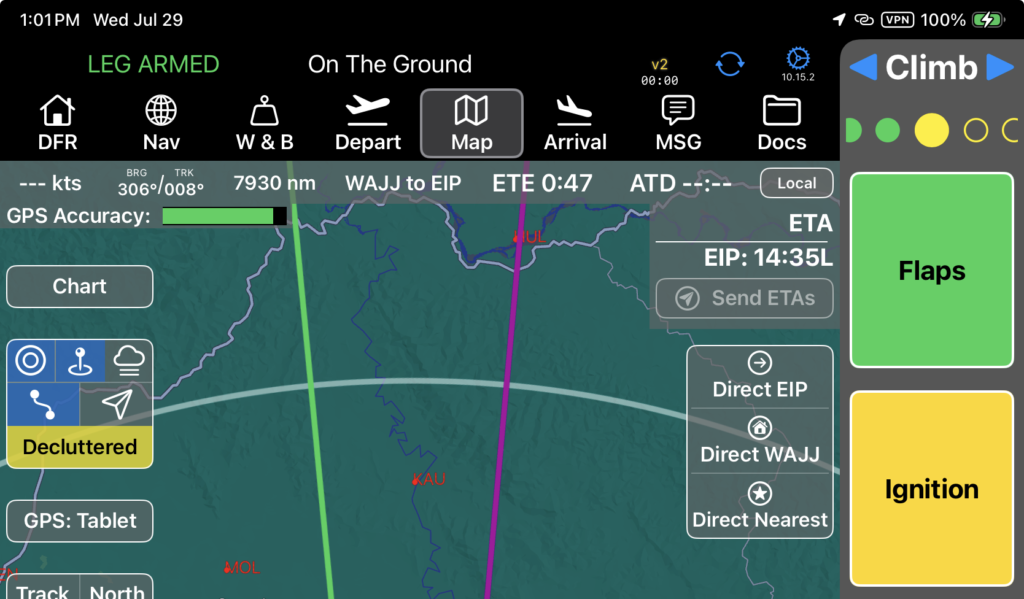
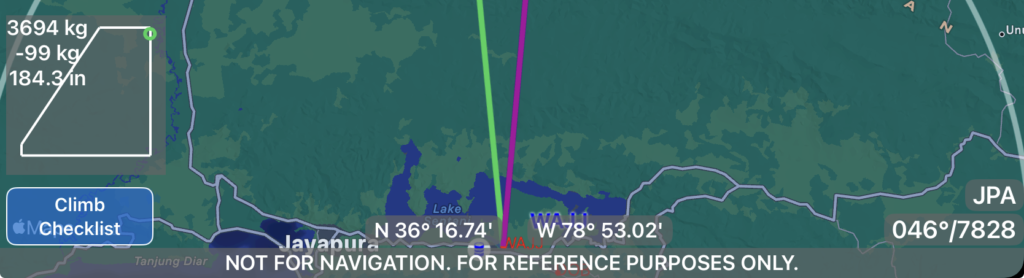
On the Map tab, the checklist button indicates which checklist is currently active, and its state.
- Gray – Pre or post flight status. (Trip Manifest has not been sent, or On the Ground has been reported.)
- Blue – Armed. The Trip Manifest has been sent, or the previous checklist is complete, and the next checklist in sequence is indicated.
- Yellow – The checklist was either opened automatically and is incomplete, or was opened by the pilot, and at least one item was completed, but the checklist is incomplete.
- Green – The checklist is complete.
Tap the button to manually open the checklist.
The status of each checklist is indicated by the bubbles at the top.
- Larger Bubble – current checklist
- Open Yellow – checklist not started
- Solid Yellow – checklist partially complete
- Green – checklist complete.
Tap a bubble to jump to another checklist; tap the blue arrows to cycle forward or back through the checklists.