As a best practice, the first thing to do at any fuel cache location is to conduct a fuel audit. See the Advanced Fuel Audit documentation.
Drop Fuel
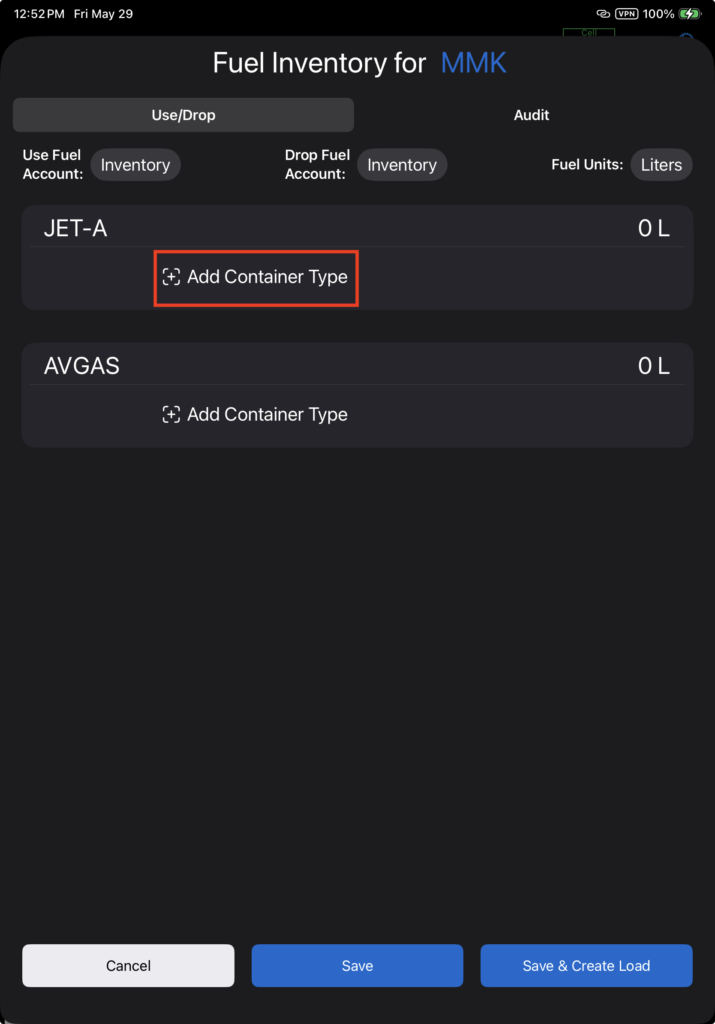
If you are dropping fuel for the first time at a location, first add a container type for each type of fuel you are dropping.
Select the container type from the list, then continue with the Drop Fuel transaction as described below.
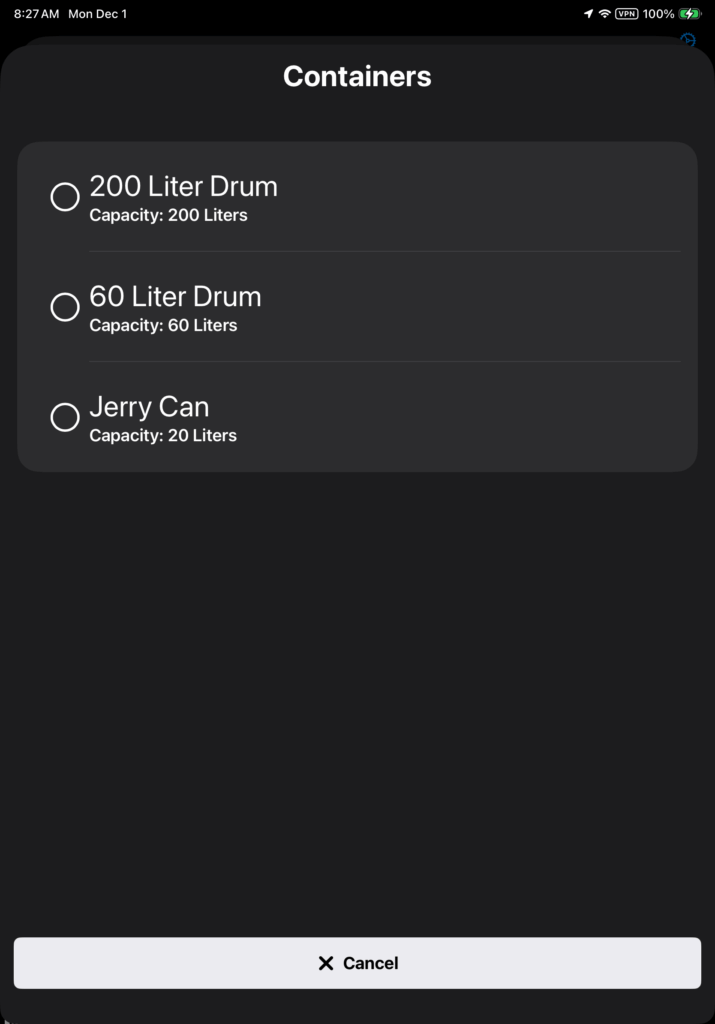
Note: If you need to add a container type that is not listed, see the Fuel Management Setup documentation.
If there is already fuel at a location, total fuel in each container type is listed together with total capacity available.
The fuel units will default to your aircraft type units. If you wish to display and use alternate units, tap the Fuel Units button.
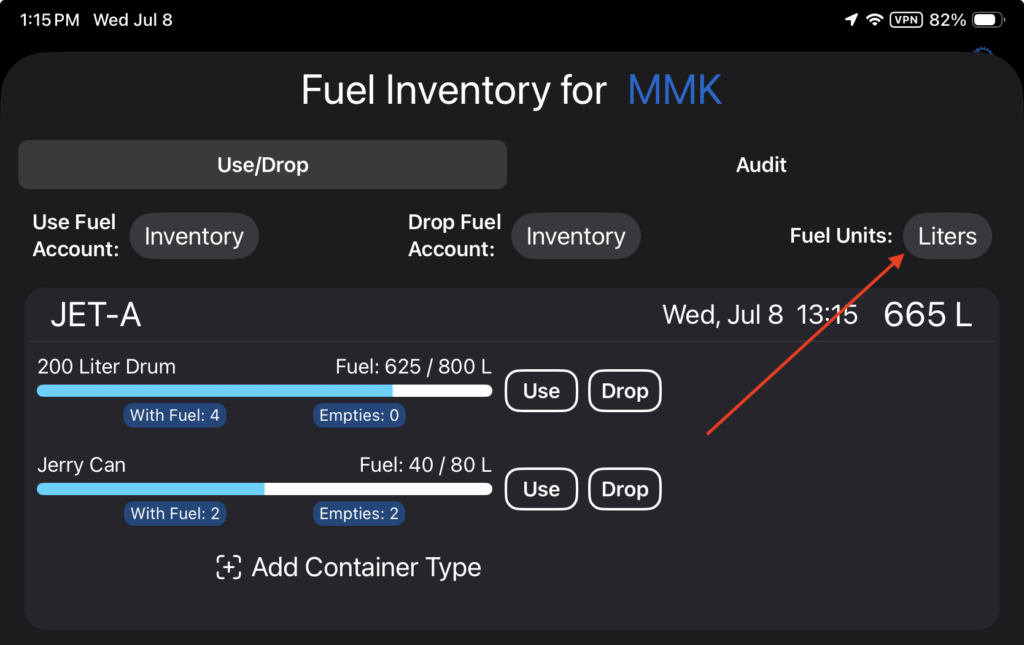
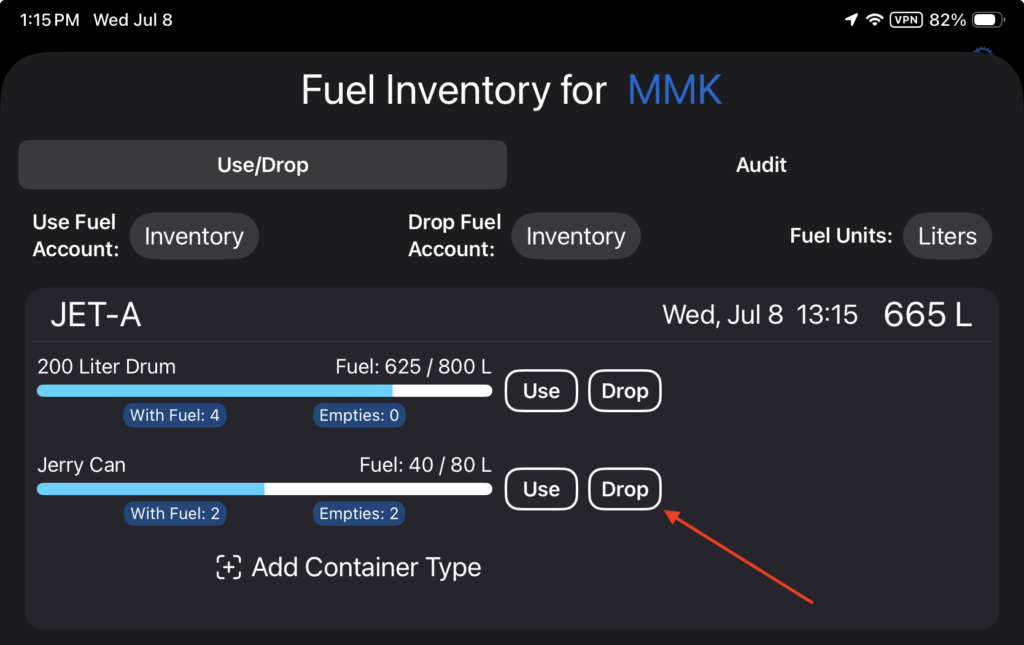
To drop fuel, tap the Drop button next to the container type for the type of fuel you will be dropping. In this example, fuel will be dropped in 20 liter jerry cans.
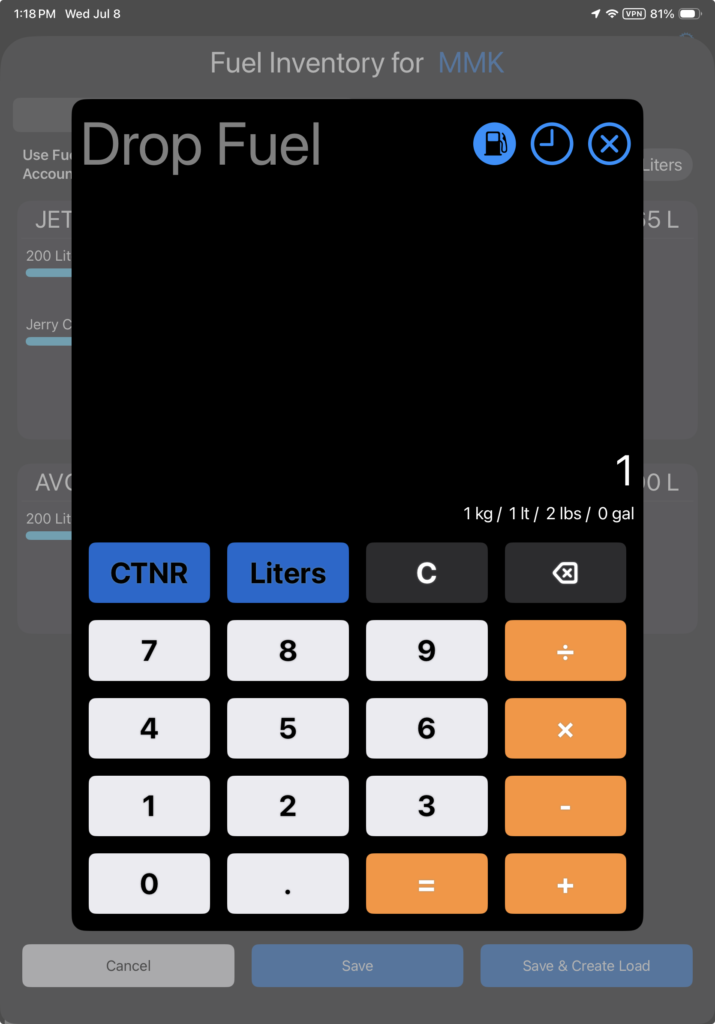
To drop an entire container, enter the number of full containers, then tap the blue CTNR button.
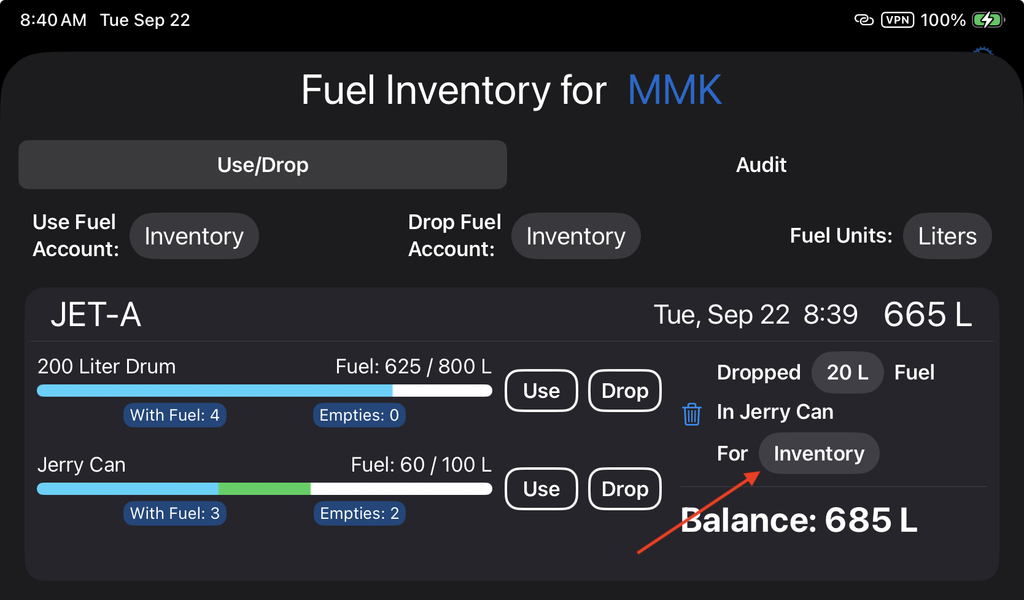
FlightSpan™ will
- Graphically display the amount of fuel dropped in green
- Add the corresponding number of containers with fuel
- Display the amount of fuel dropped.
- Display the container type
- Display the Drop Fuel account used
- Display the total balance
Note that the number of empty containers will be unchanged.
The account to be charged for dropping fuel is selected by default.
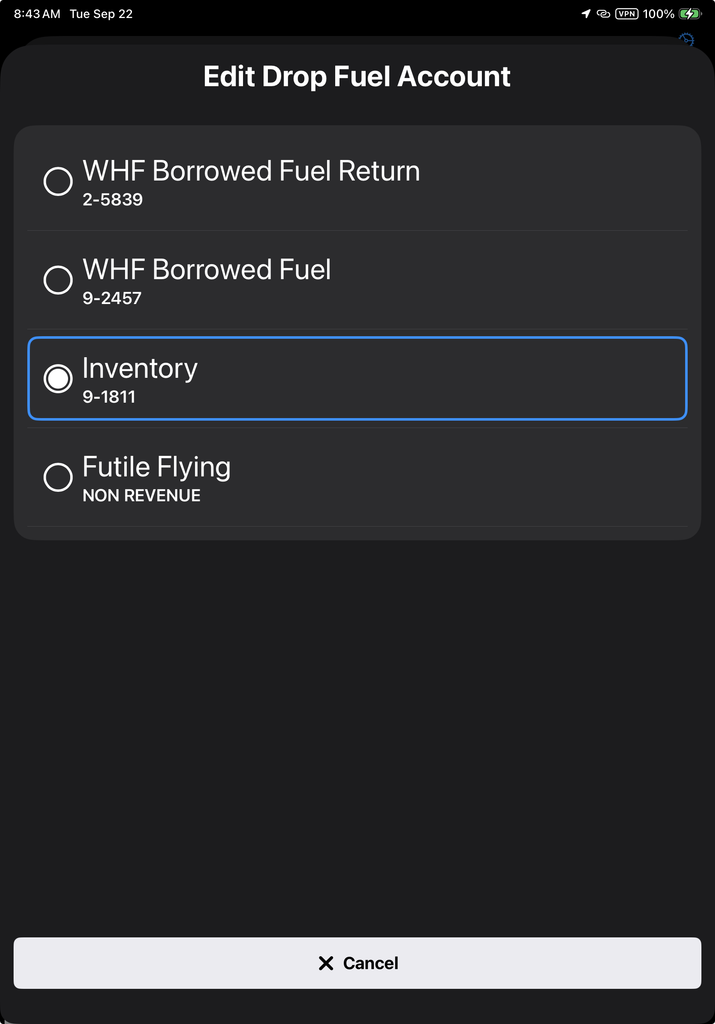
Tap the account name to pull up a list of other authorized accounts if needed.
Note: See the Fuel Inventory Management Setup documentation for instructions on setting default and alternate accounts and rates.
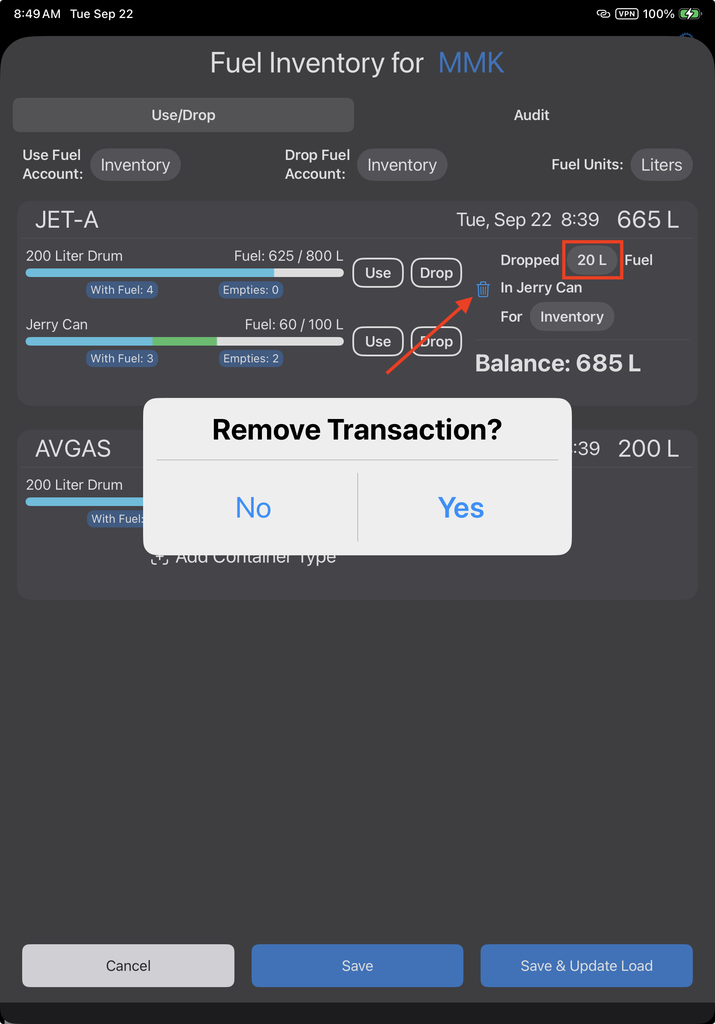
Edit the amount (by volume) of fuel dropped by tapping the fuel quantity.
Delete the transaction by tapping the trash can icon, then confirm.
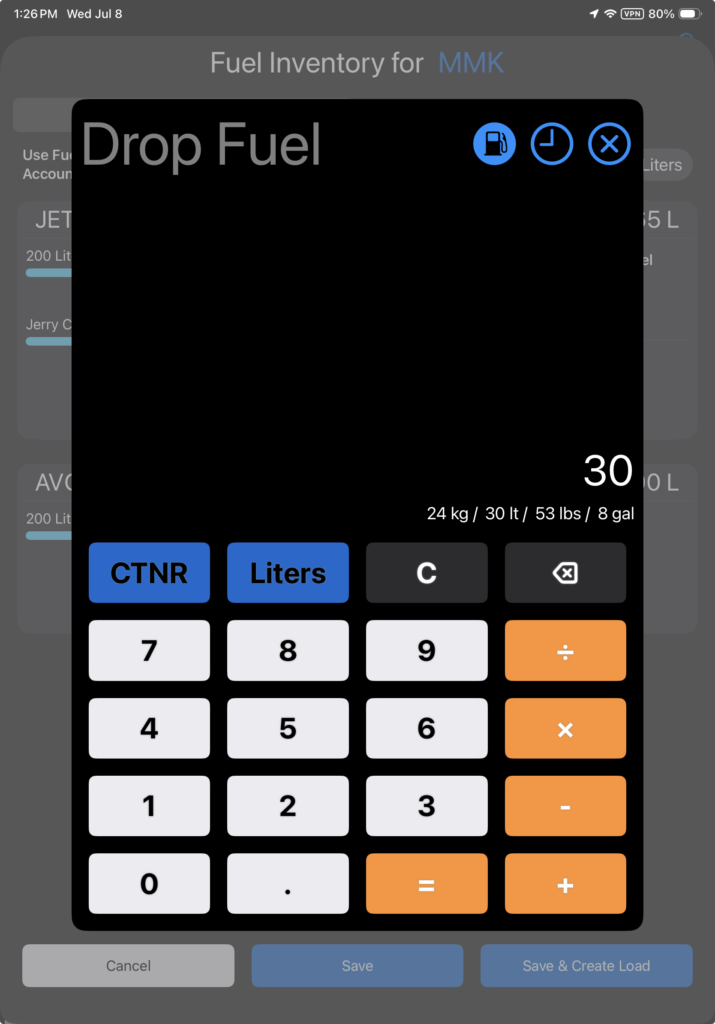
To add fuel to the containers by volume, enter the quantity of fuel you will drop, and tap the blue fuel volume button (Liters, in this example).
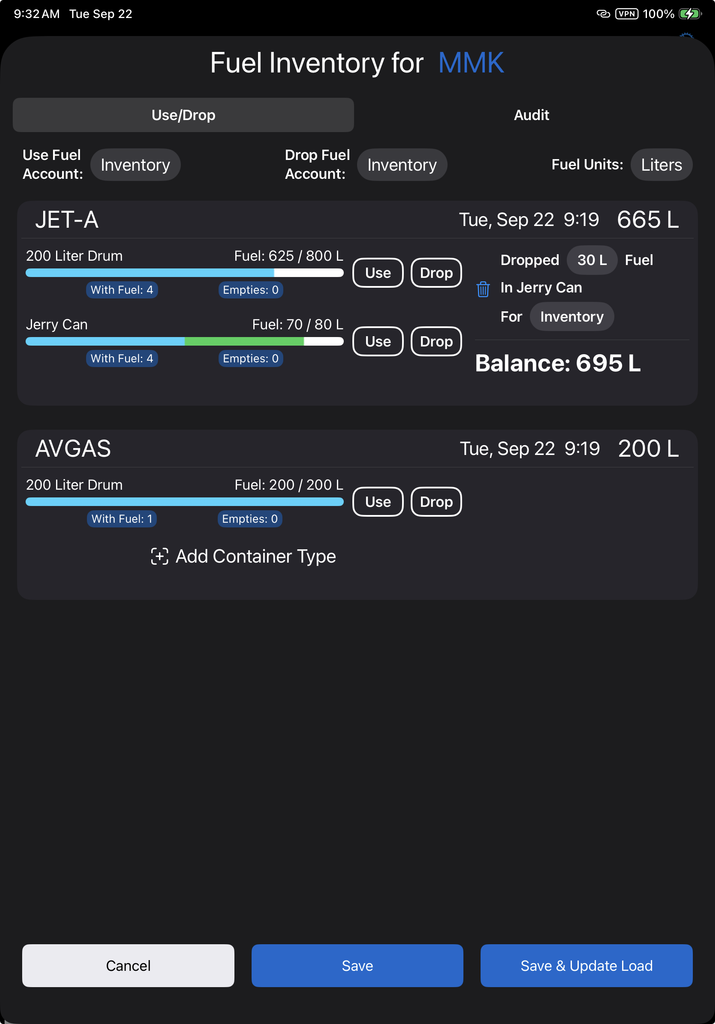
FlightSpan will
- Graphically display the amount of fuel dropped in green
- Update the number of containers with fuel
- Update the number of empty containers
- Display the amount of fuel dropped.
- Display the container type
- Display the account used.
- Update the total balance
Note that in this example, there were two full 20 liter containers and two empty containers. When 30 liters were dropped, FlightSpan filled one container, and added 10 liters to the other, leaving three full containers, and the final container half full.
Edit the account and quantity, or delete the transaction as previously described.
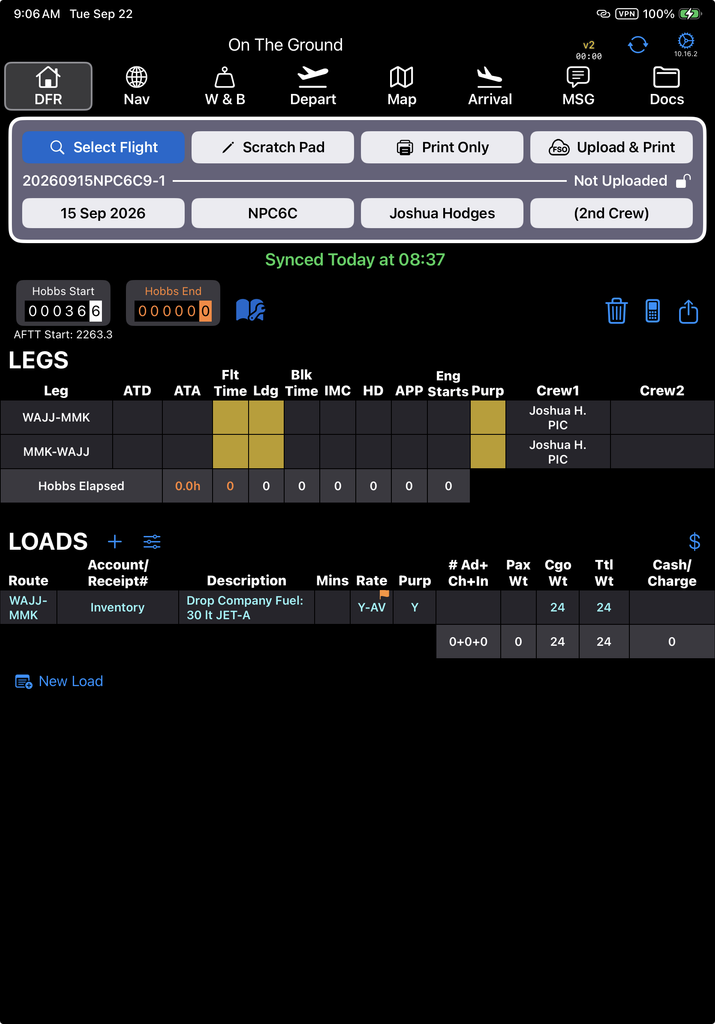
Otherwise, tap Save to simply save the transaction, or tap Save & Update Load, and the transaction will be recorded in the Loads section of the DFR.
IMPORTANT: The DFR load weight is only the weight of the fuel, and does NOT account for the weight of the container.
Use Fuel
Tap the Use button next to the container type with the correct fuel; in this example fuel will be used from the 200 liter Jet-A barrels.
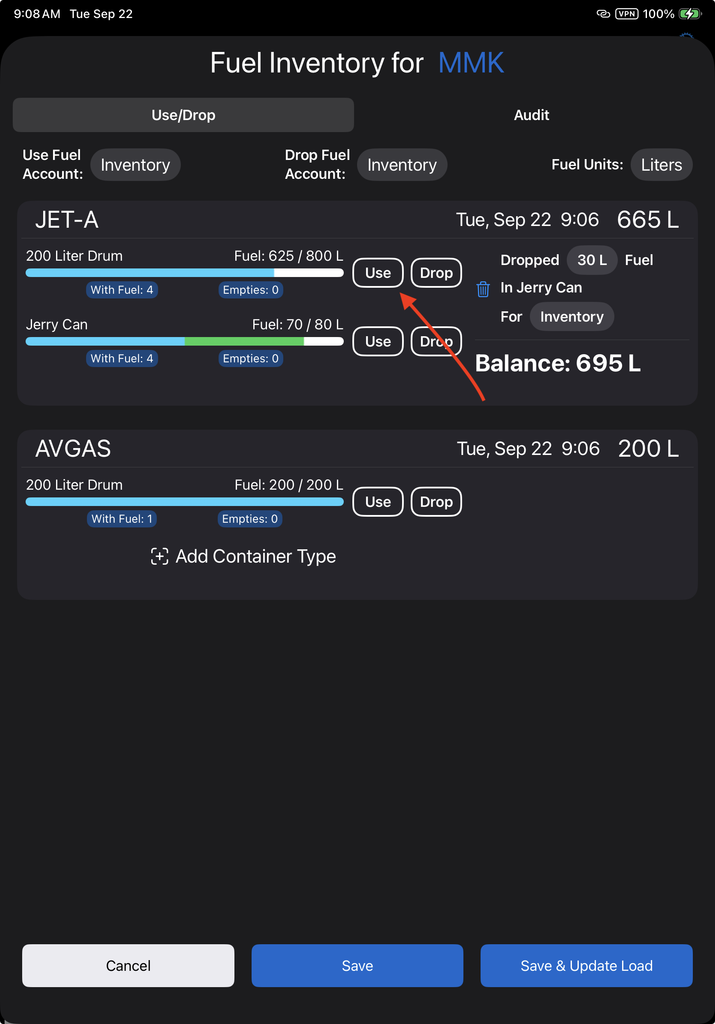
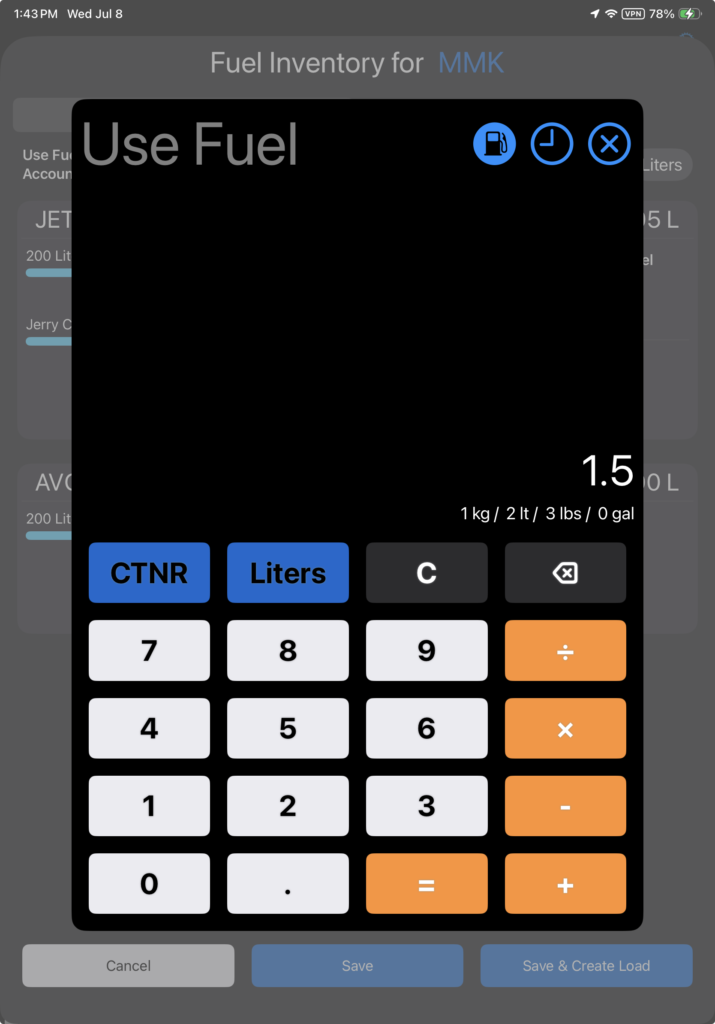
To record fuel use by the container, enter the number of containers, or fraction of containers, then tap the blue CTNR button.
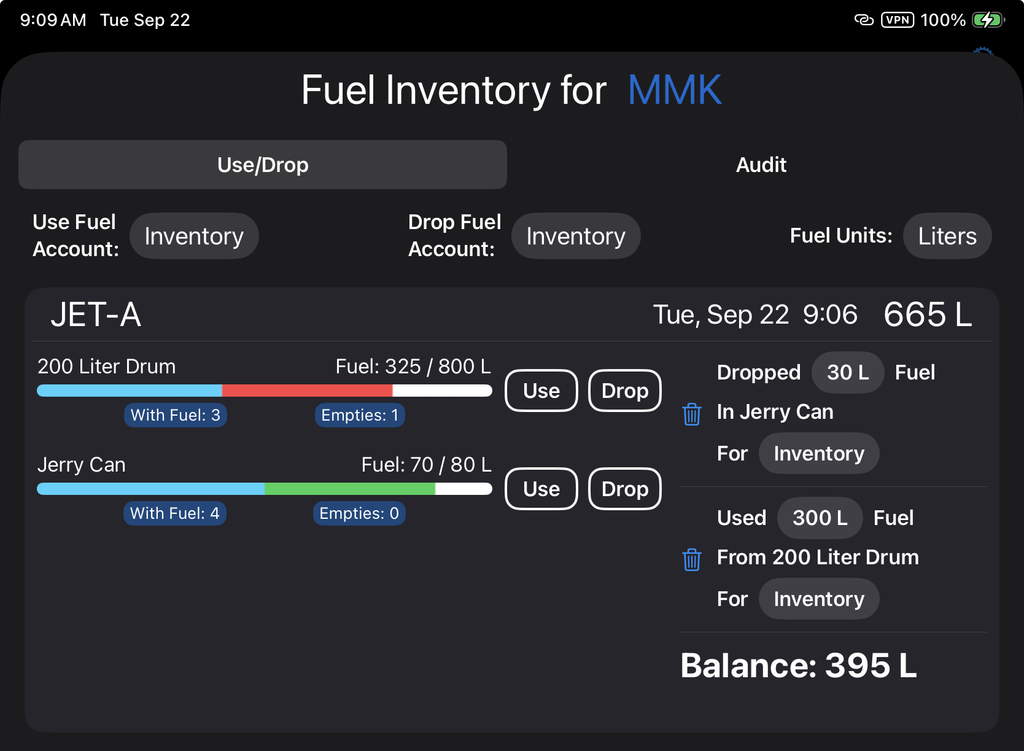
FlightSpan will
- Graphically display the amount of fuel used in red
- Update the number of containers with fuel
- Update the number of empty containers
- Display the amount of fuel used
- Display the container type
- Display the account used
- Update the total balance
Edit the account and quantity, or delete the transaction as previously described.
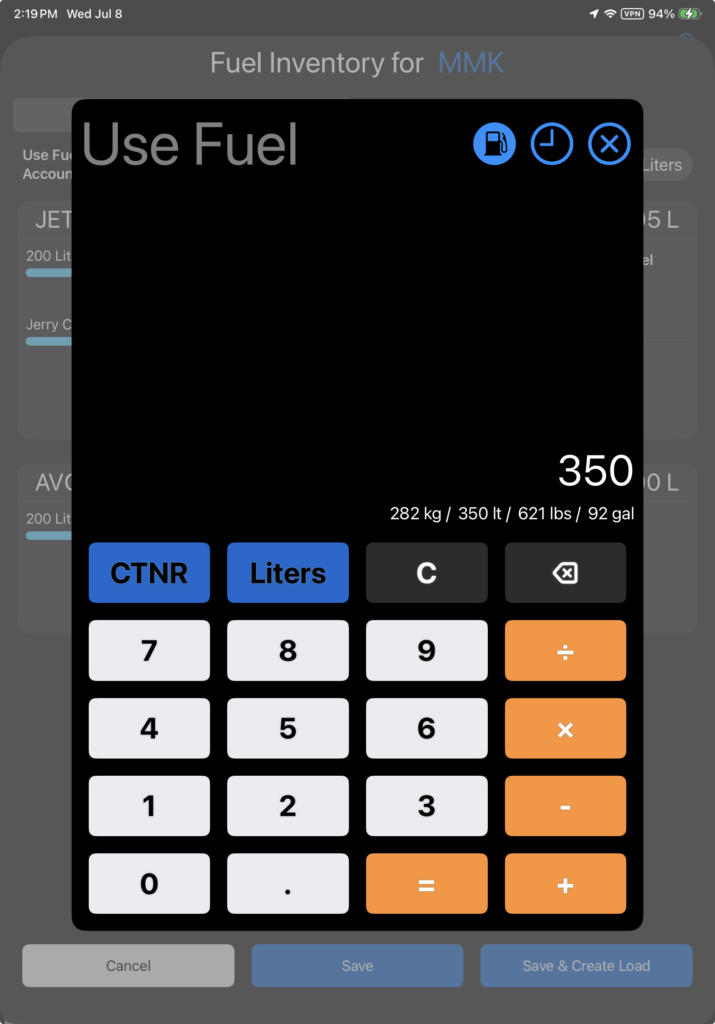
To record fuel use by volume, enter the quantity used, and tap the fuel volume button (Liters, in this example).
FlightSpan will
- Graphically display the amount of fuel used in red
- Display the amount of fuel used
- Display the container type
- Display the account used
- Display the total balance
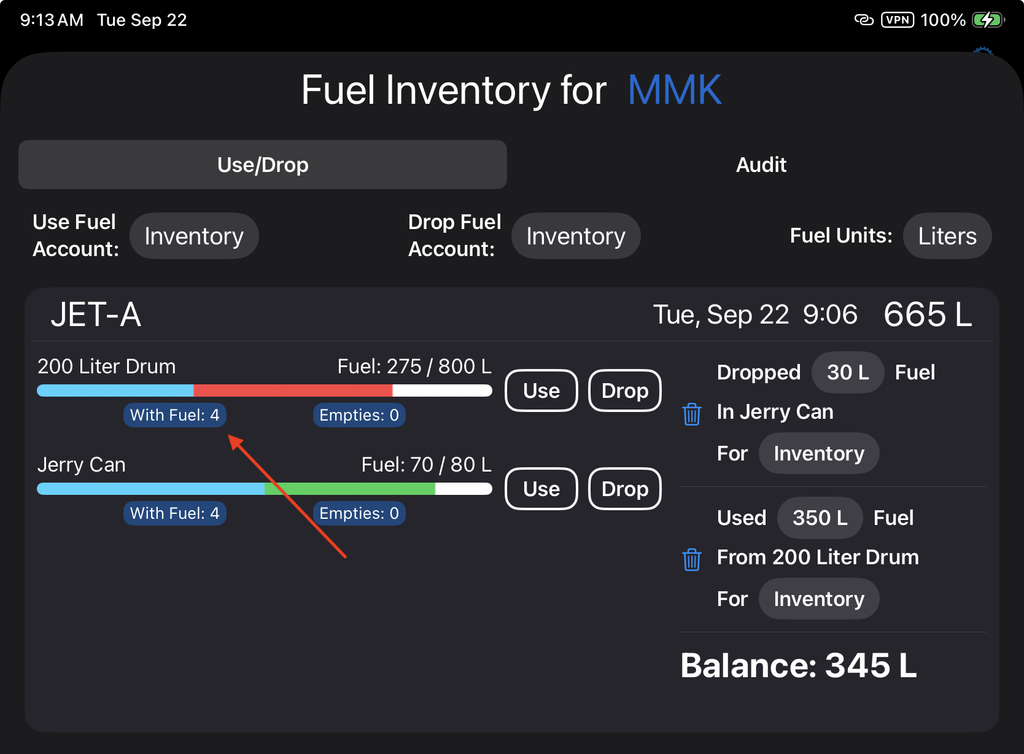
- NOT update containers with fuel or empty, since more than one partial container could have been used
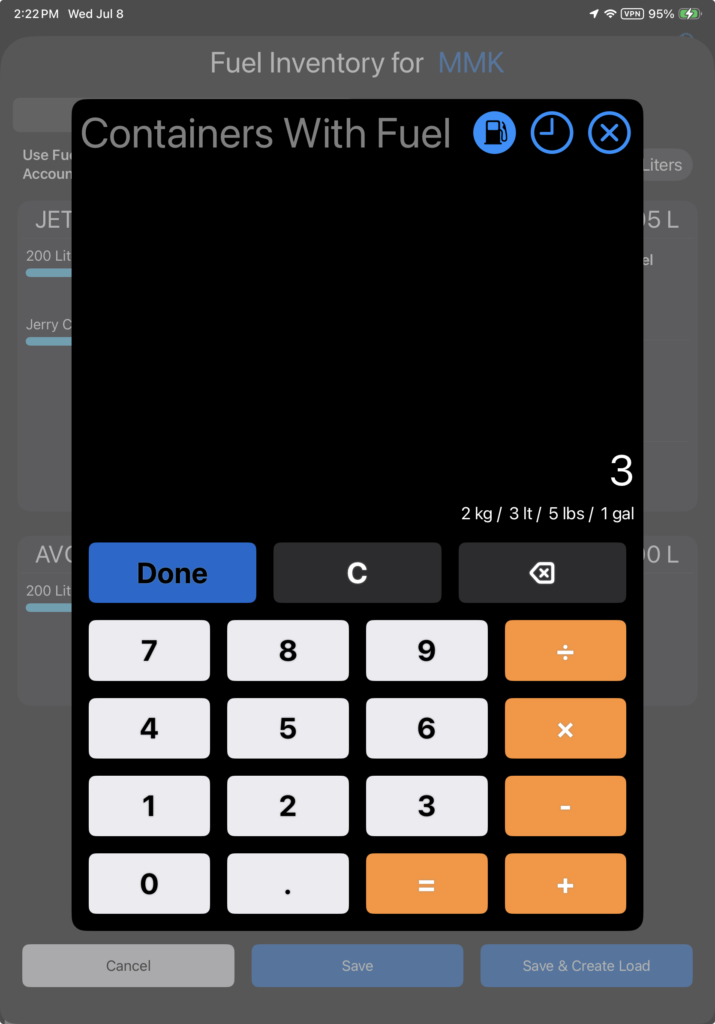
Adjust the number of containers with fuel by tapping on the With Fuel button.
Enter the appropriate number of containers with fuel and tap Done.
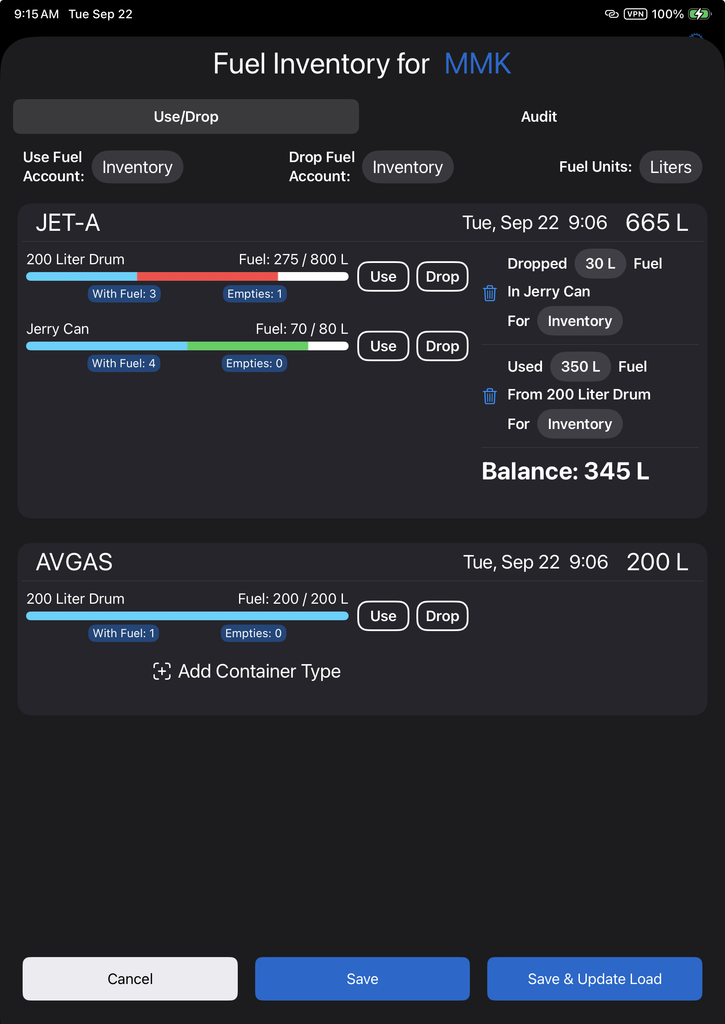
The number of containers with fuel and the number of empty containers will be updated accordingly.
Edit or delete the transaction as previously described.
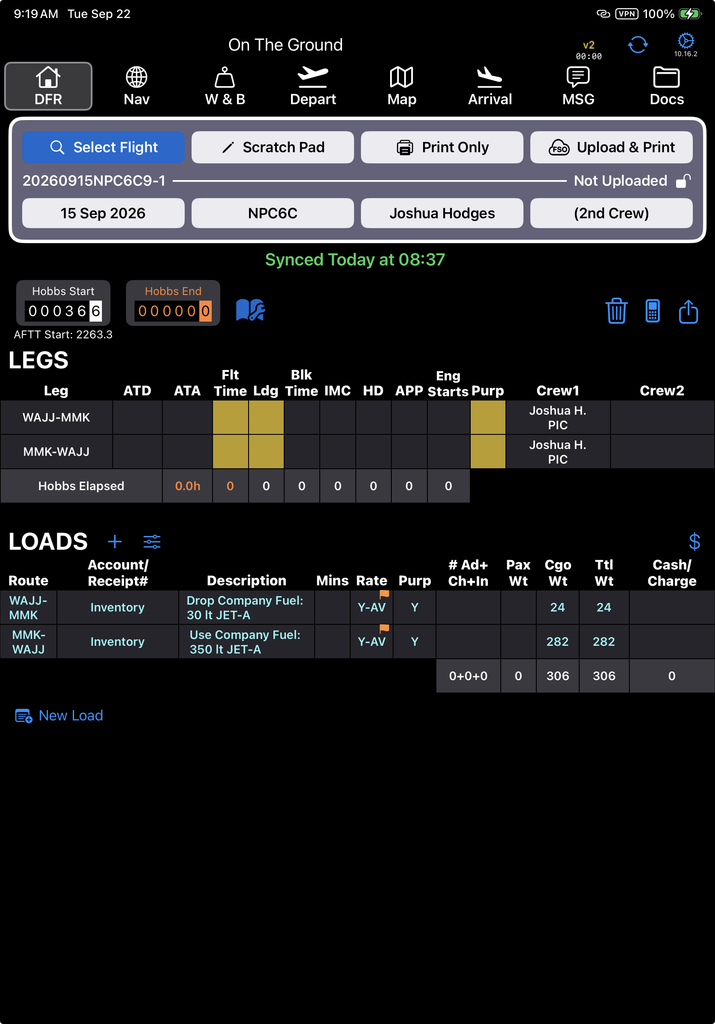
Otherwise, tap Save to simply save the transaction, or tap Save & Update Load, and the transaction will be recorded in the Loads section of the DFR.
Take Empty Containers
If you remove empty containers, tap the Empties button.
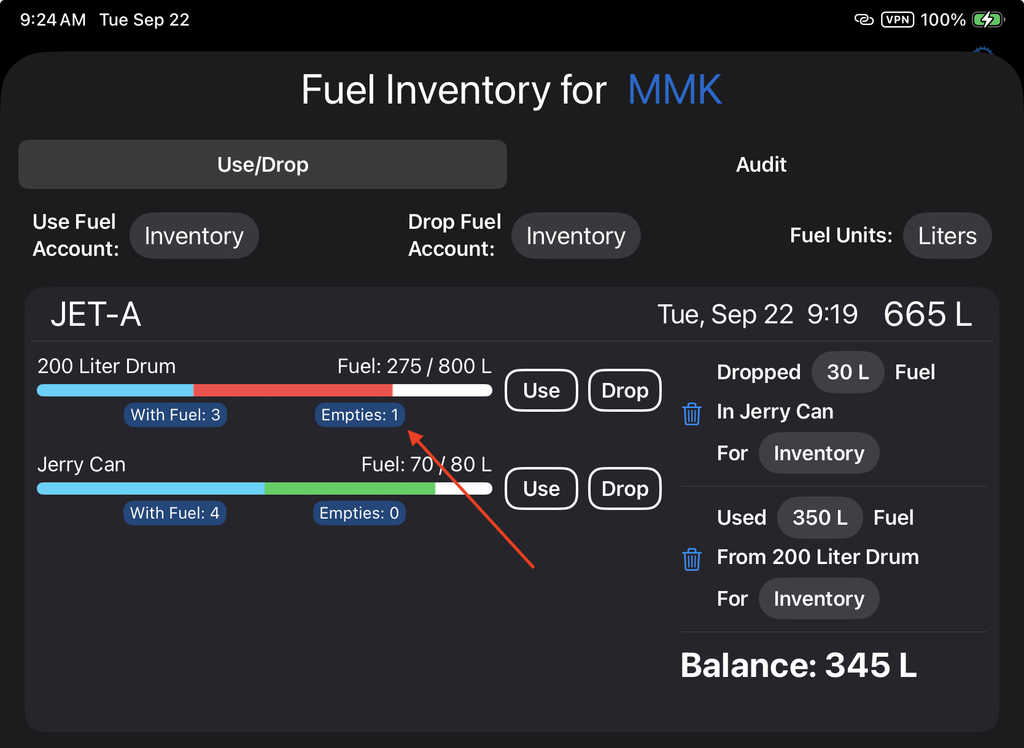
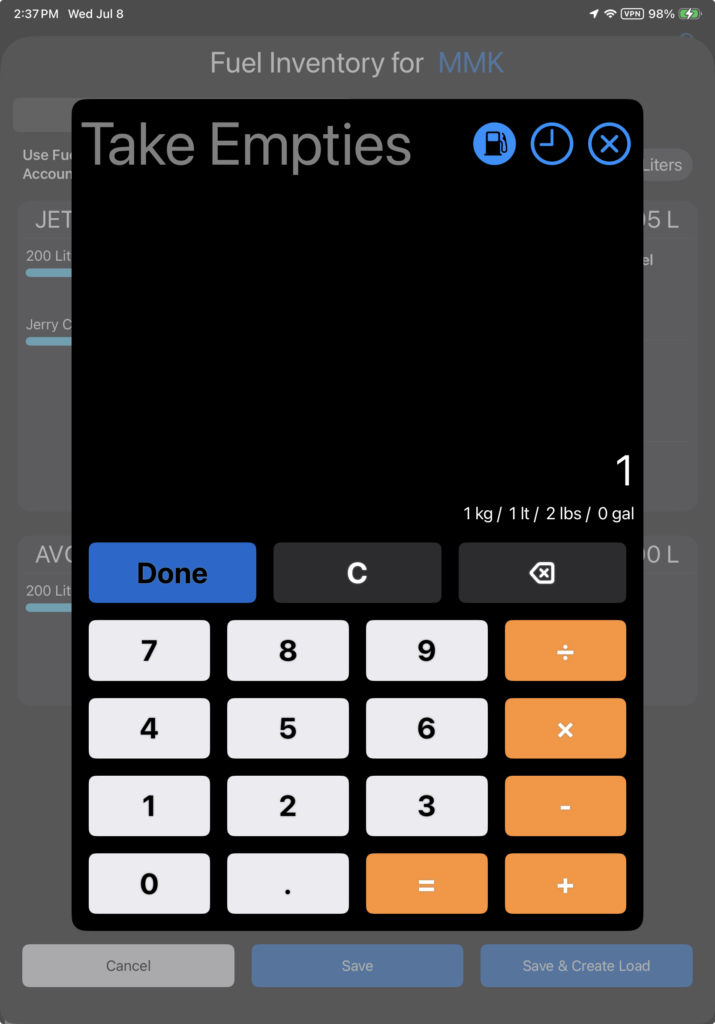
Enter the number of empty containers you are removing and tap Done.
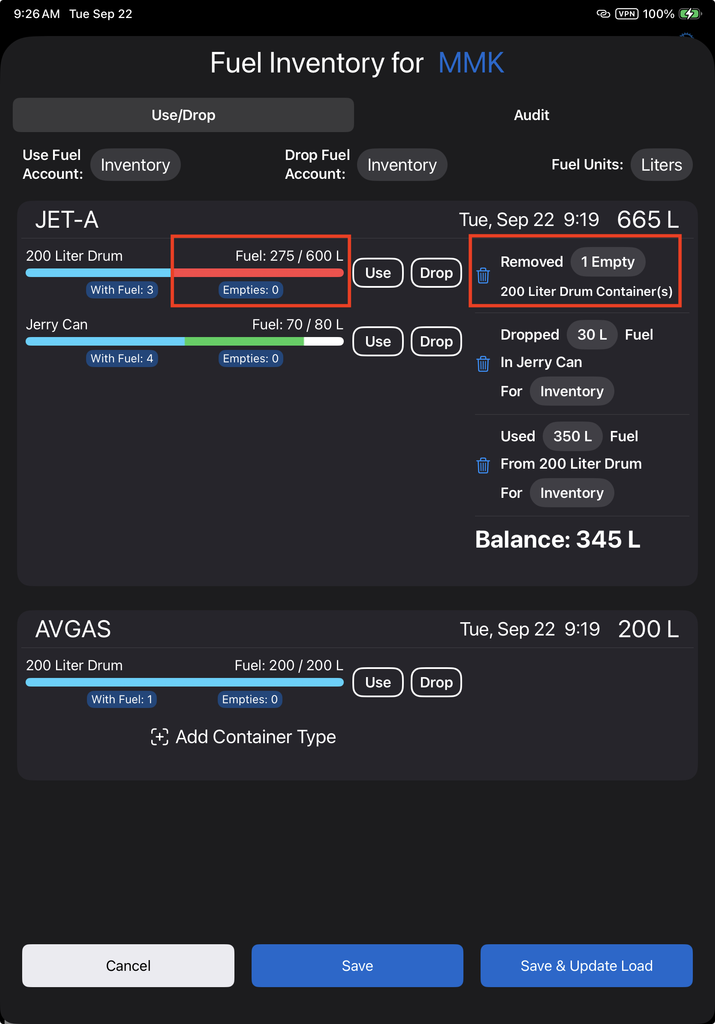
FlightSpan will
- Adjust the number of empty containers
- Graphically display the available fuel in relation to the remaining capacity
- Note the number and type of containers removed
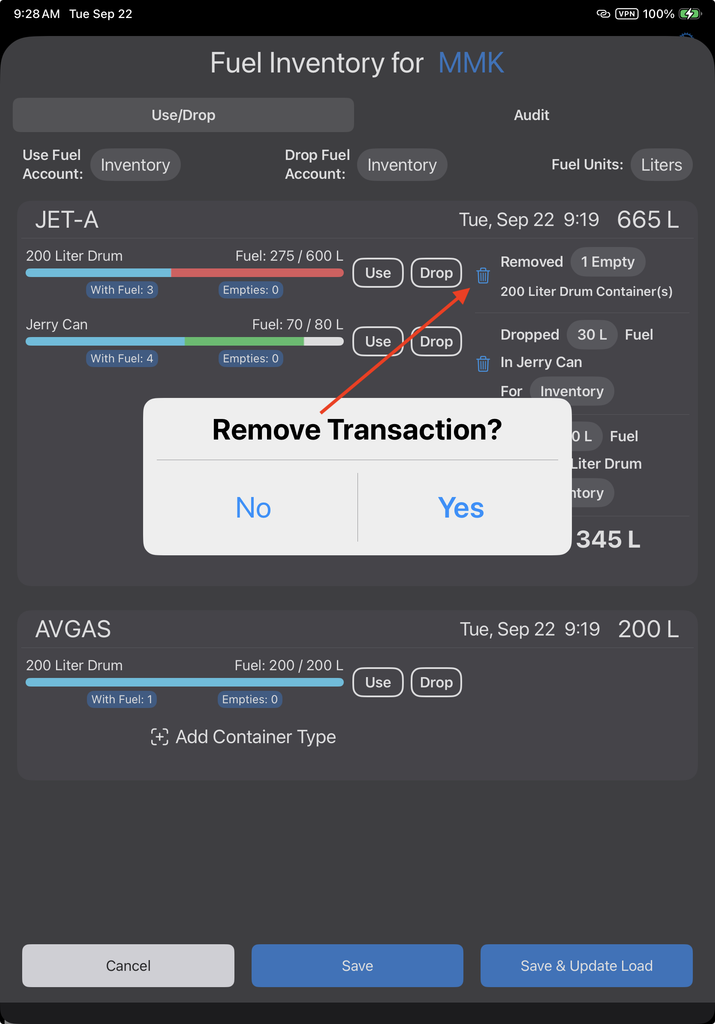
If you made an error and want to revert to the original container quantities, tap the trash can icon, then confirm. Otherwise, tap Save or Save & Update Load.
Note that even if you tap Save & Update Load, no transaction will be recorded on the DFR. If you want to record the number of empty containers as cargo, you will have to do that manually.
Video Version