As a best practice, the first thing to do at any fuel cache location is to conduct a fuel audit. See the Simple Fuel Audit documentation.
Drop Fuel
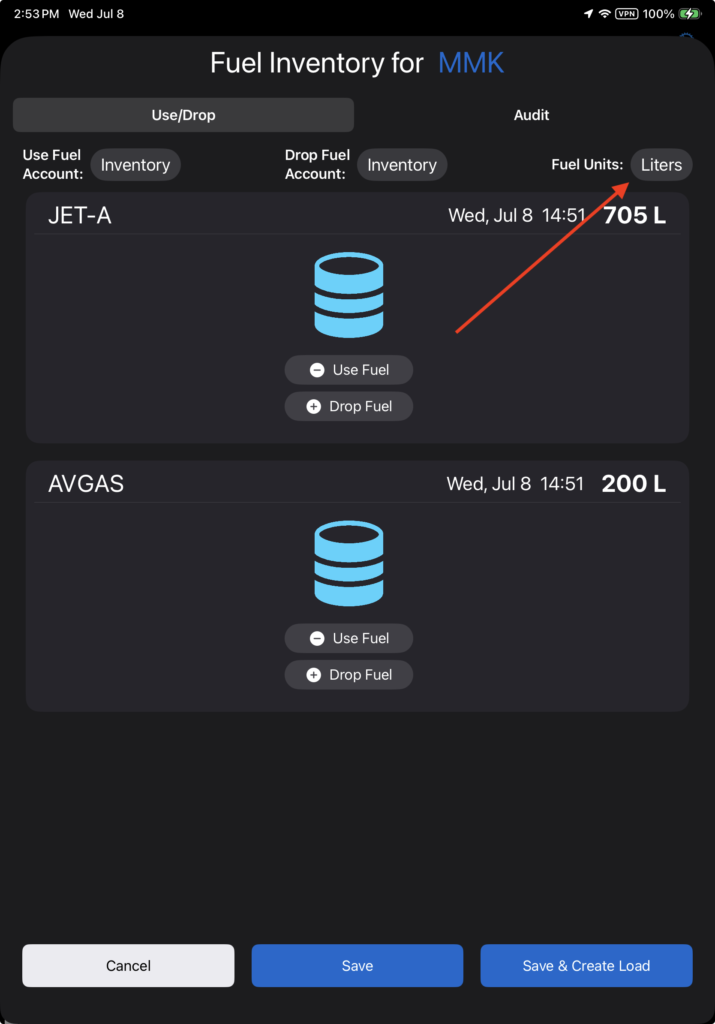
If you start the fuel transaction from the Runway Chart tab, tap the Drop Fuel button to add to the fuel quantity at this location.
Note that the fuel units default to the aircraft type’s units. If you wish to display and use other units, tap the Fuel Units button.
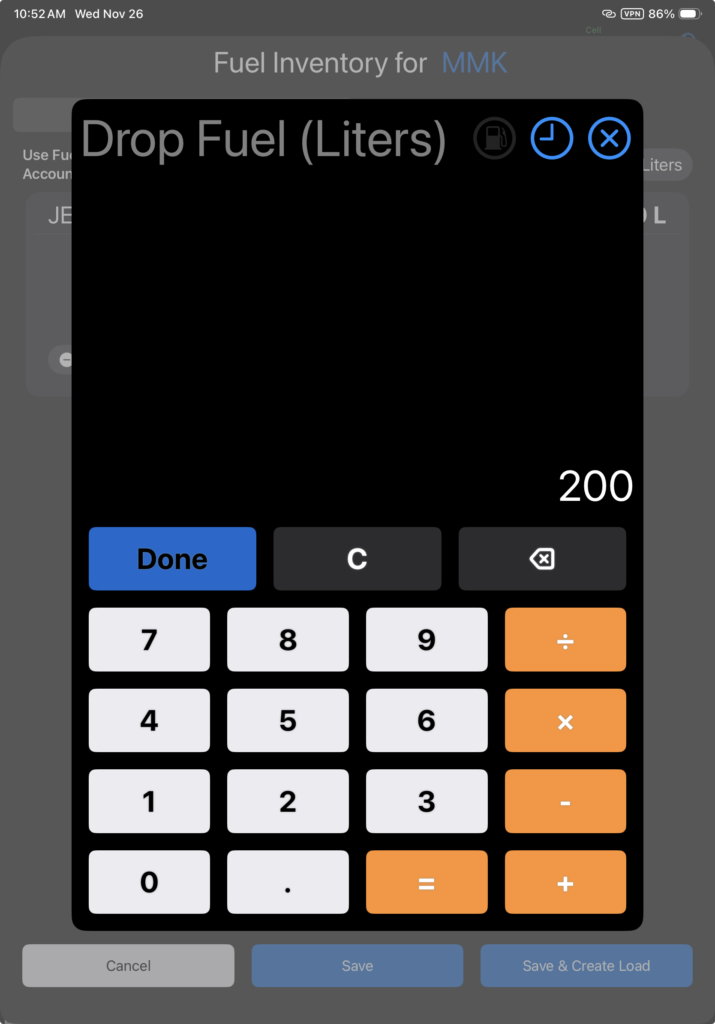
Enter the fuel quantity being dropped and tap Done.
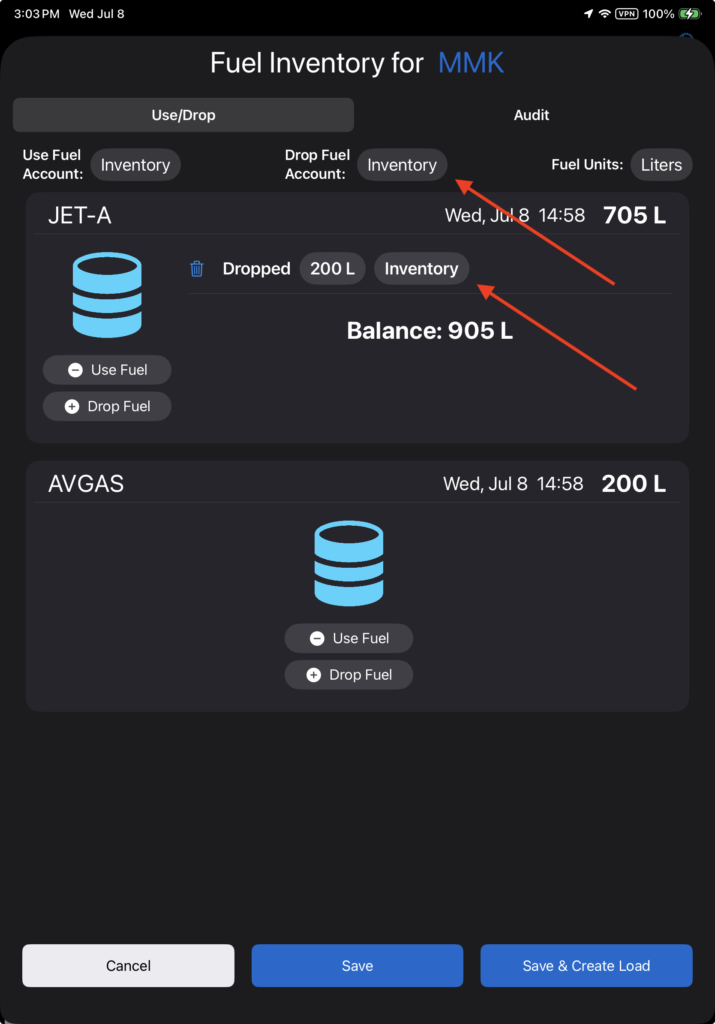
FlightSpan will
- Display a blue fuel barrel if there is any quantity of cached fuel at this location
- Display the amount dropped
- Display the updated balance
Note that if you start the fuel transaction from either the Weight and Balance or Nav tab, the previous steps are automatically completed.
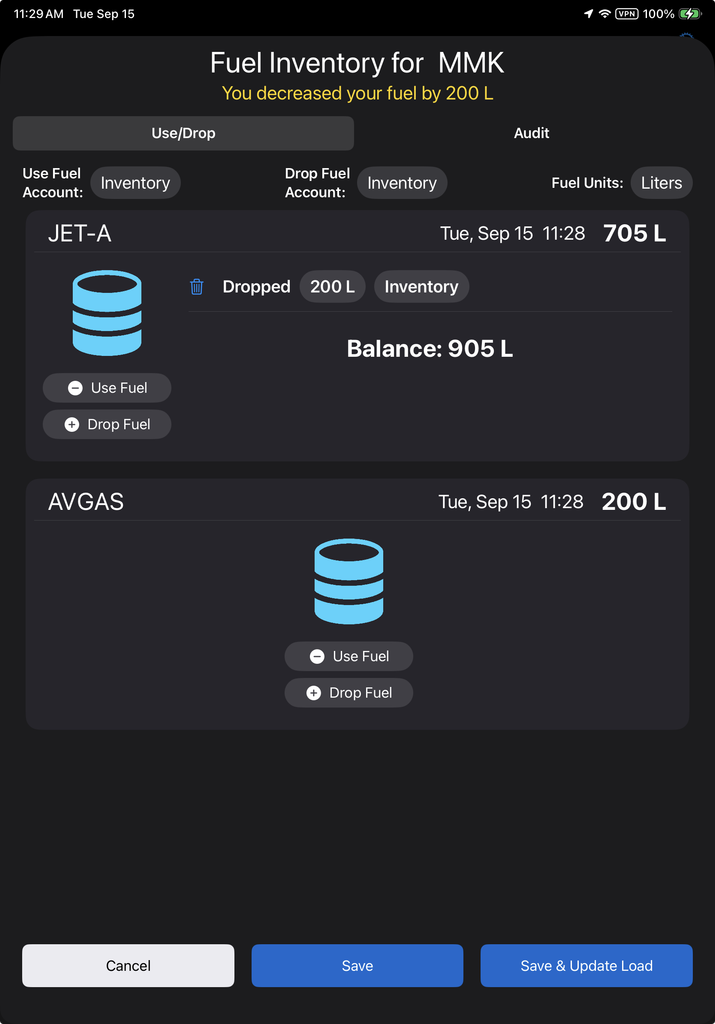
The account to be charged for dropping fuel is selected by default. Tap either of the Drop Fuel Account buttons to edit.
Select from the list of other authorized accounts if needed.
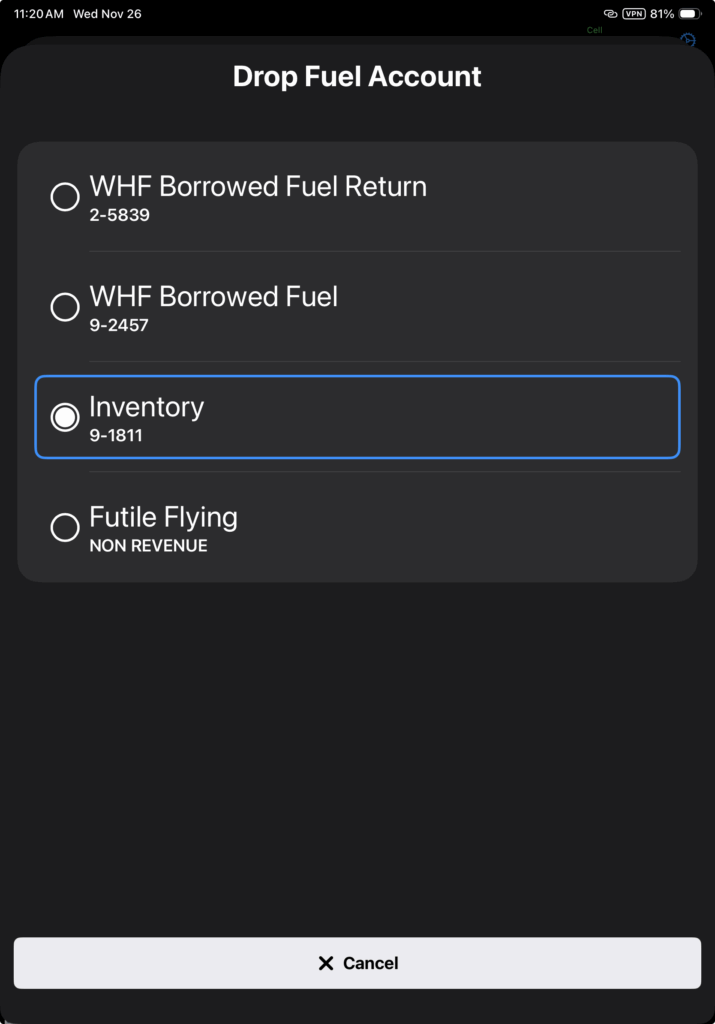
Note: See the Fuel Management Setup documentation for instructions on setting default and alternate accounts and rates.
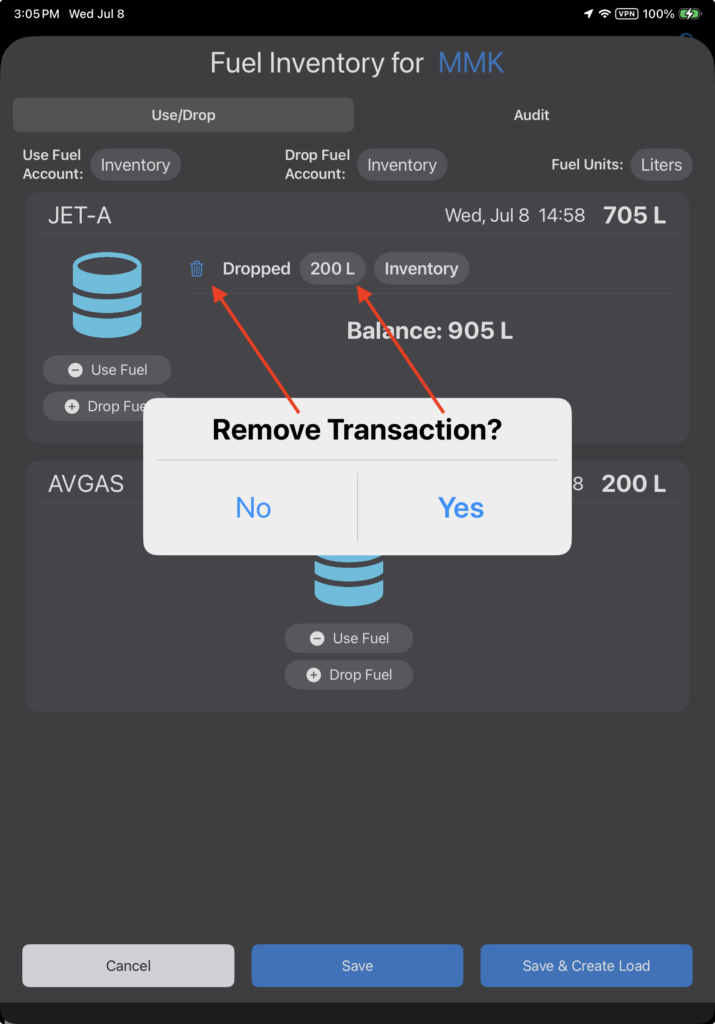
Edit the quantity by tapping the quantity button.
Remove the transaction by tapping the trash can icon, then confirm.
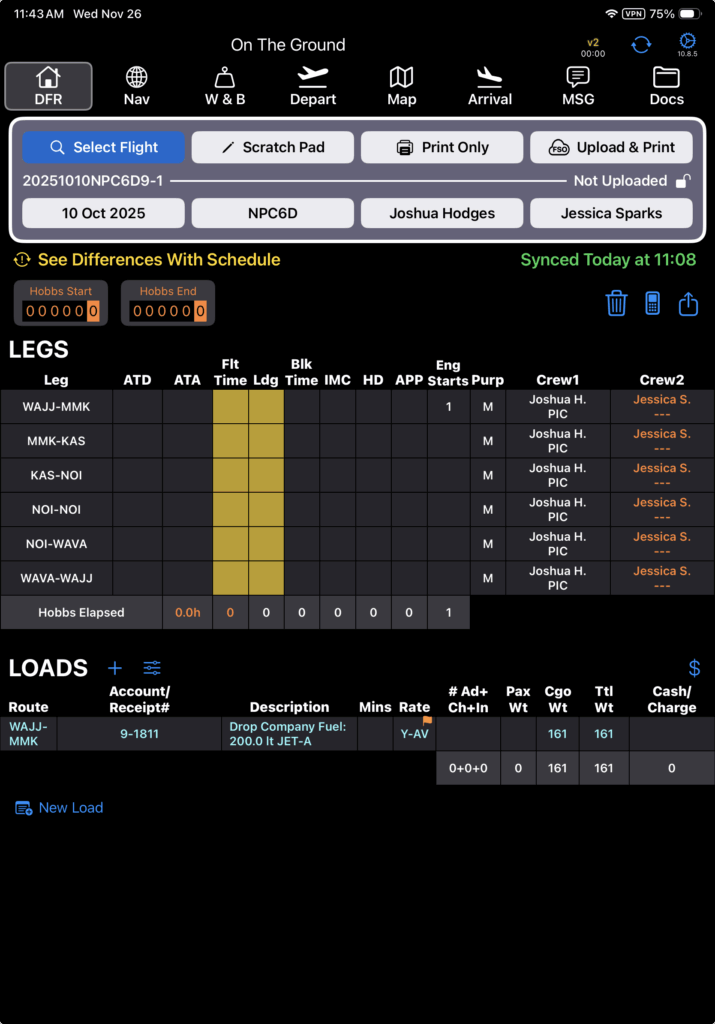
Otherwise, tap Save to simply save the transaction, or tap Save & Create Load, and the transaction will be recorded in the Loads section of the DFR.
IMPORTANT: The DFR load weight is only the weight of the dropped fuel, and does NOT account for the weight of the container.
Use Fuel
Tap the Use Fuel button to refuel from the fuel cache.
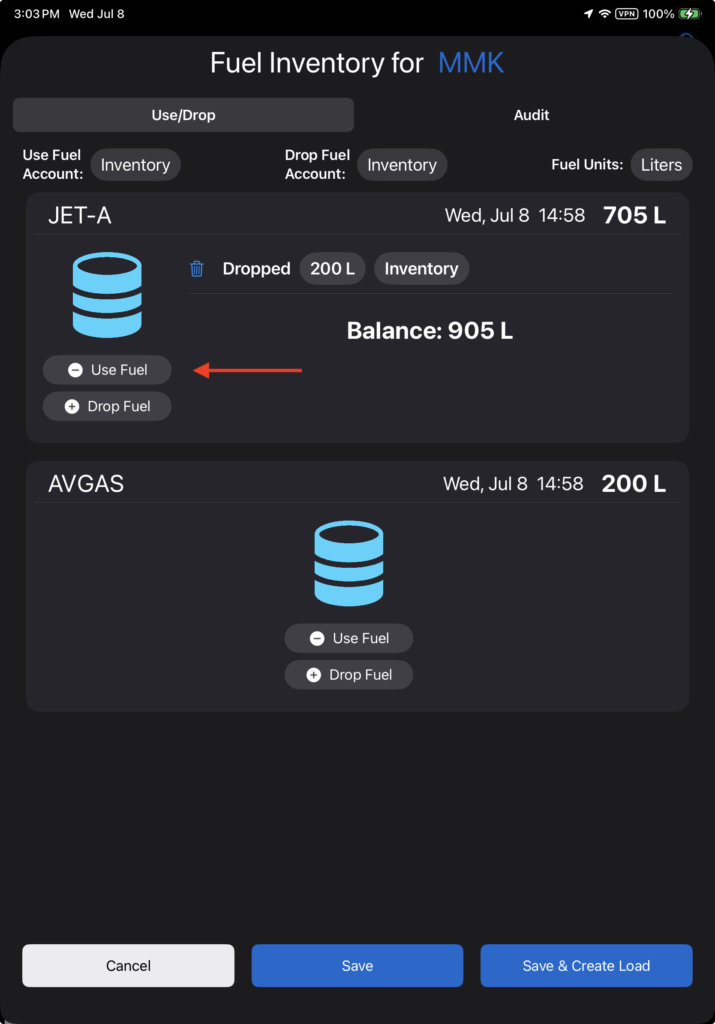
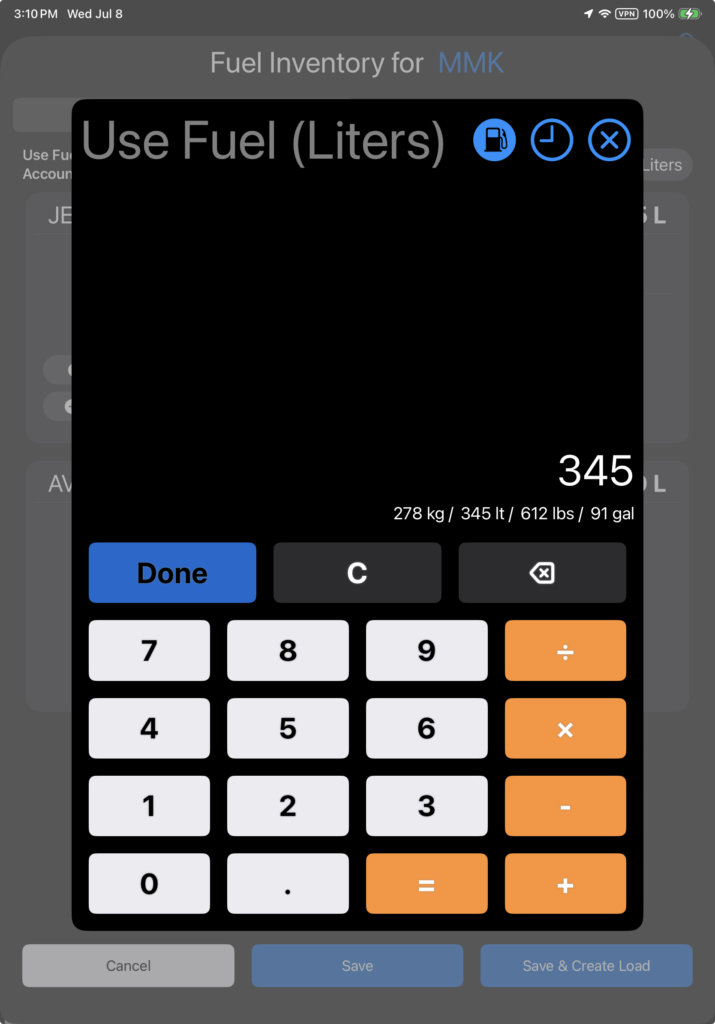
Enter the amount of fuel used and tap Done.
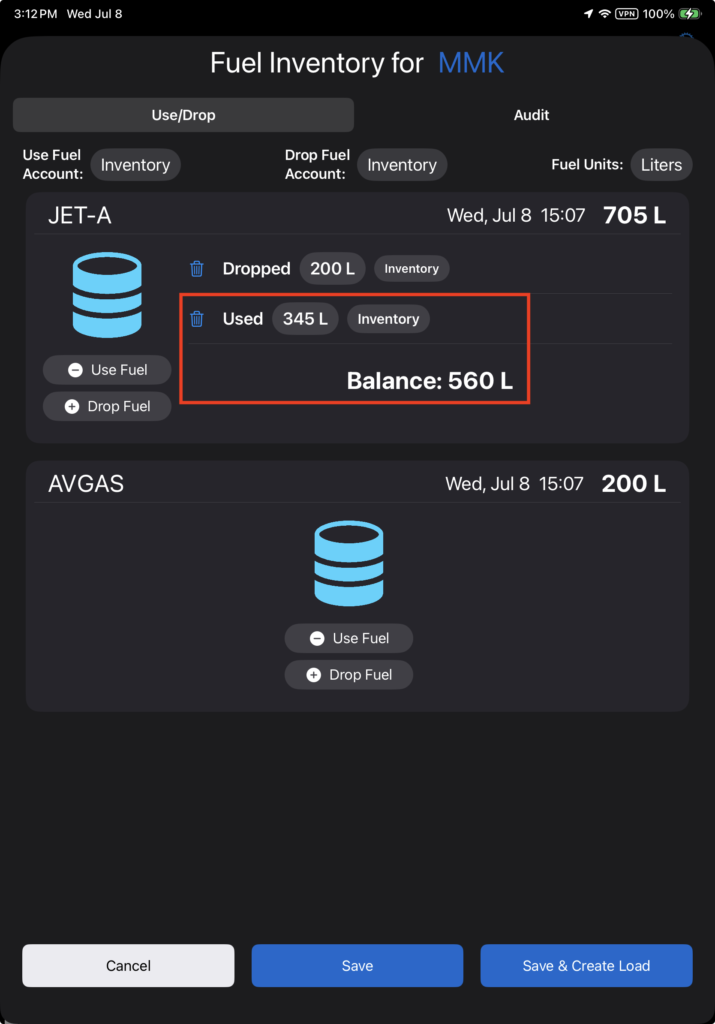
FlightSpan will
- Display a blue fuel barrel if there is any fuel remaining
- Display a gray fuel barrel if all of the fuel has been used
- Display the amount of fuel used
- Display the account used
- Display the updated balance
Note that if you start the fuel transaction from either the Weight and Balance or Nav tab, the previous steps are automatically completed.
Edit the account or quantity, or remove the transaction as previously described.
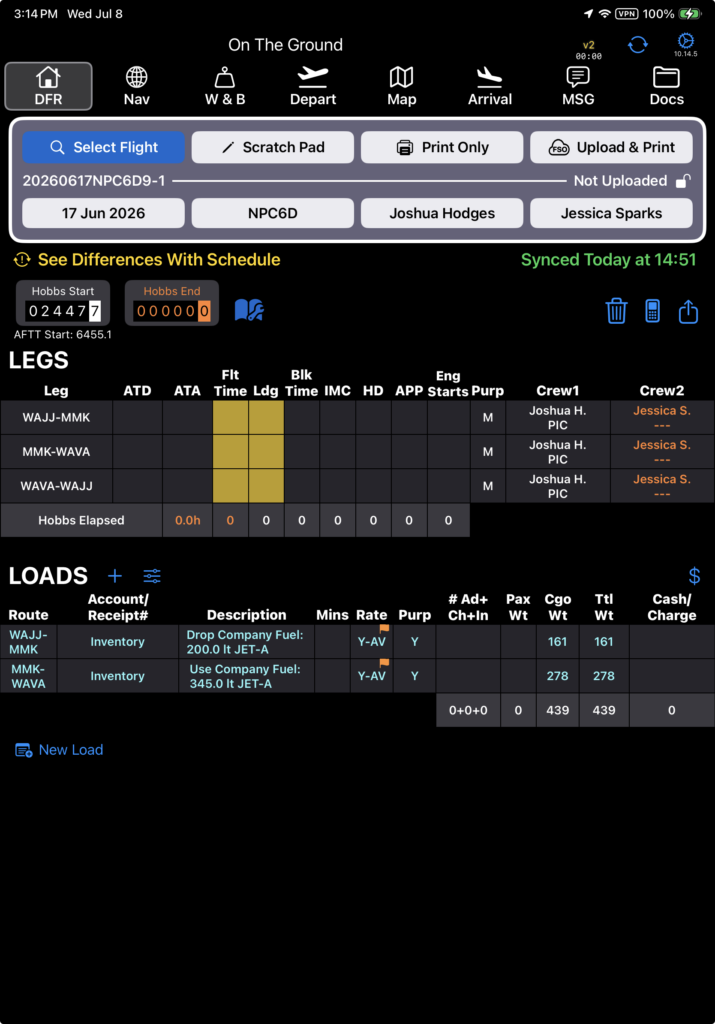
Tap Save to simply save the transaction, or tap Save & Create Load, and the transaction will be recorded in the Loads section of the DFR.
Video Version