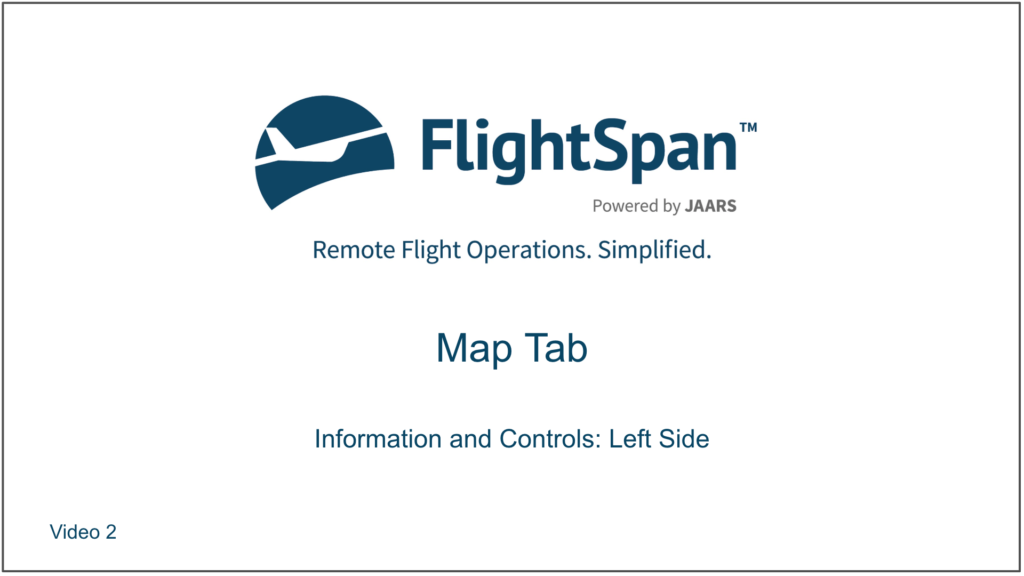
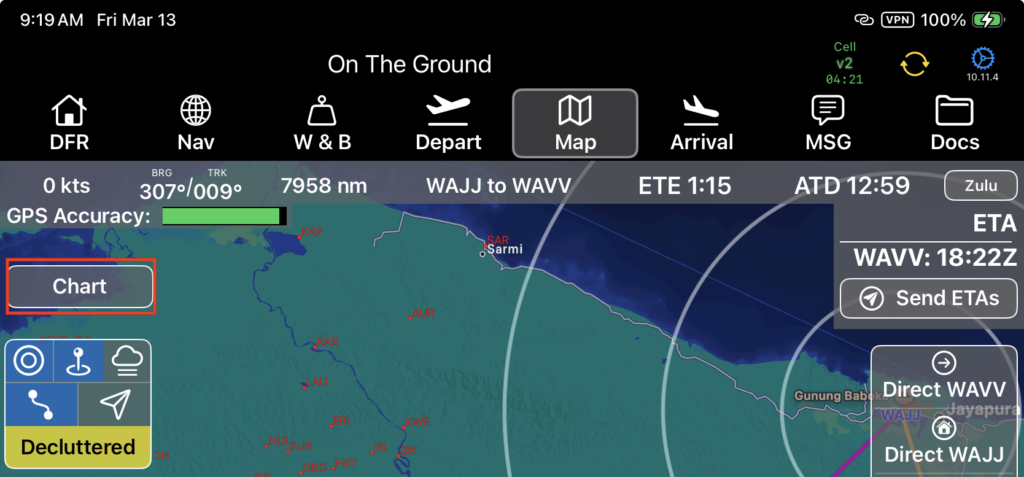
CHART – Tap the chart button to select nav charts. (Your company’s nav charts are managed in FlightSpan™ Ops.)
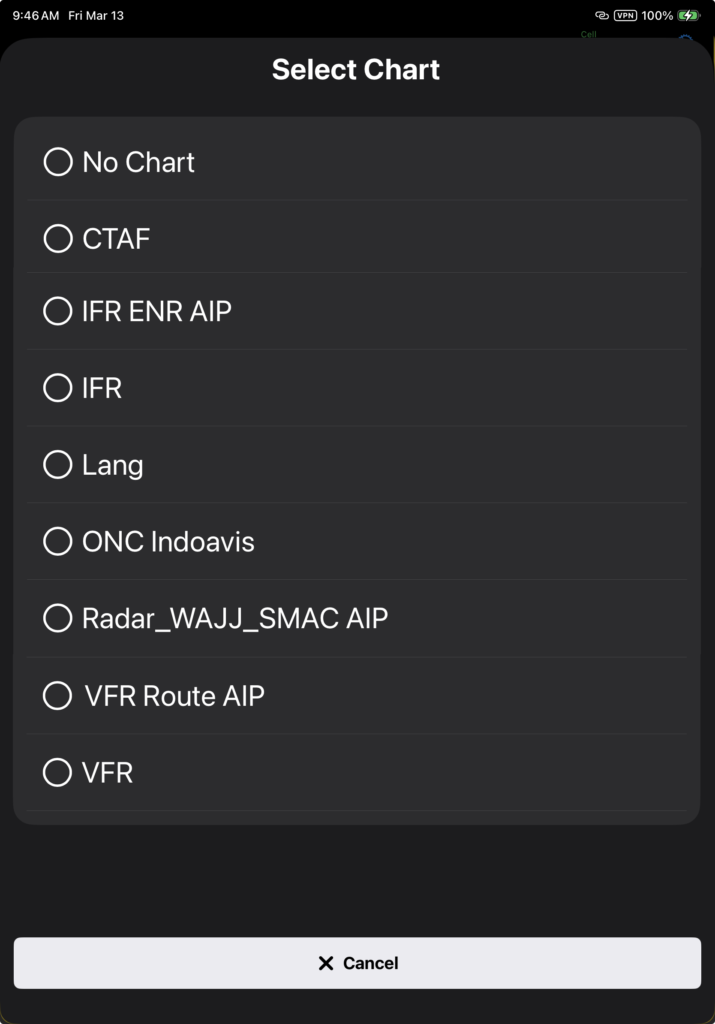
Select from the menu to choose which chart to display.
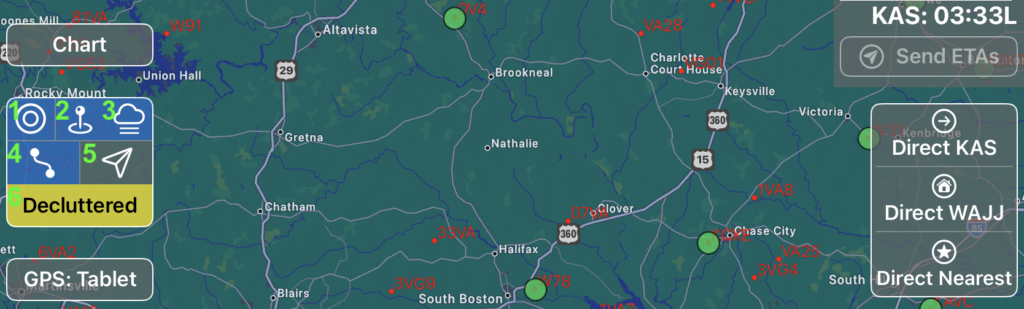
Overlay Legend:
- Range Rings from home base (distances are set in the Company EFB Preference “Mileage For Checkpoints”
- Waypoints (runways and LZs) displaying on the chart
- METARs displaying on the chart
- Route lines displaying on the chart
- Fleet positions displaying on the chart
- Declutter by hiding shorter runways. (Note: when the button is labeled ‘Decluttered’ and is yellow, this indicates that some airports with shorter runways are currently hidden from view to declutter the map. Tap the button to view all airports.)
METARs and TAFs
METAR and TAF data is downloaded to the EFB when you are connected to the internet. In flight, the data is not refreshed unless you have an internet connection.
When enabled, METAR and TAF reporting stations will be displayed on the map.
- Green – VFR
- Blue – MVFR
- Red – IFR
- Magenta – LIFR
- Gray – flight category was not included in the METAR data
- White – TAF available, but no METAR
As METAR data gets stale, the icons gradually fade (get more transparent) up to a maximum of 50% faded after one hour.
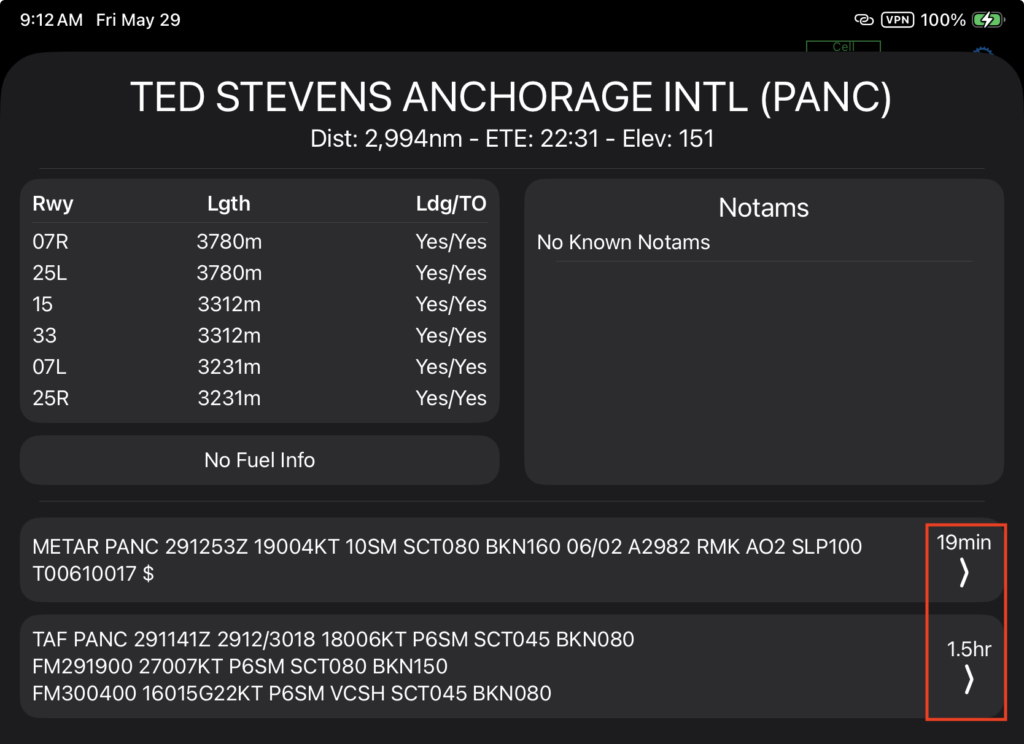
Tap on a METAR icon to bring up the raw METAR and TAF (if the selected location has one available). Note that the age of the reports are clearly shown.
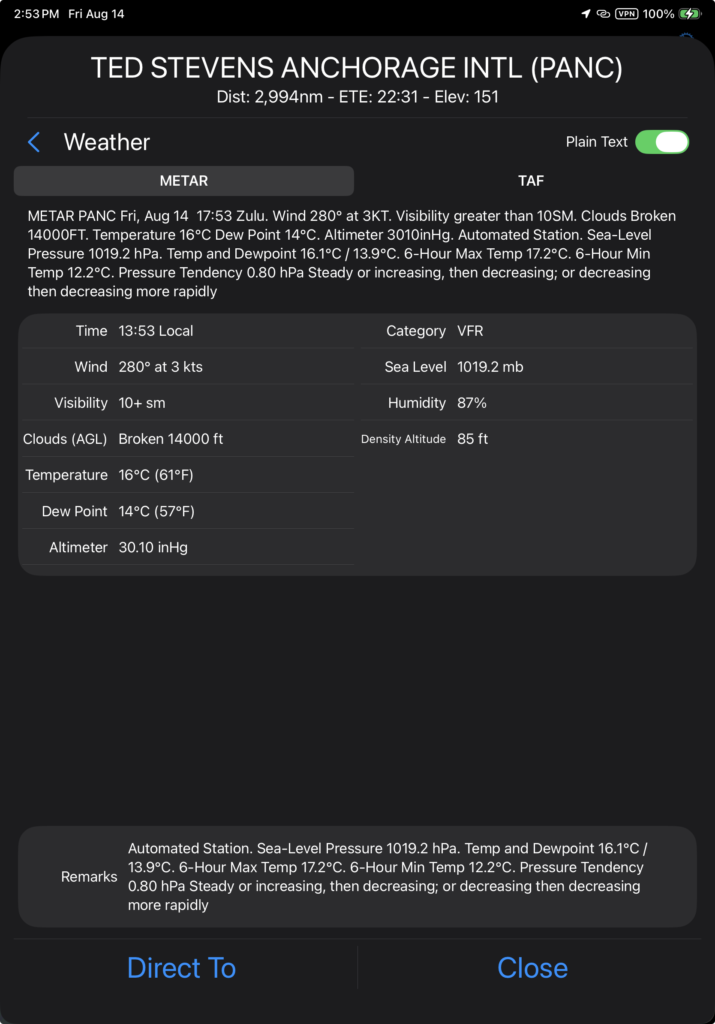
Tap on the report to see a decoded, plain text version.
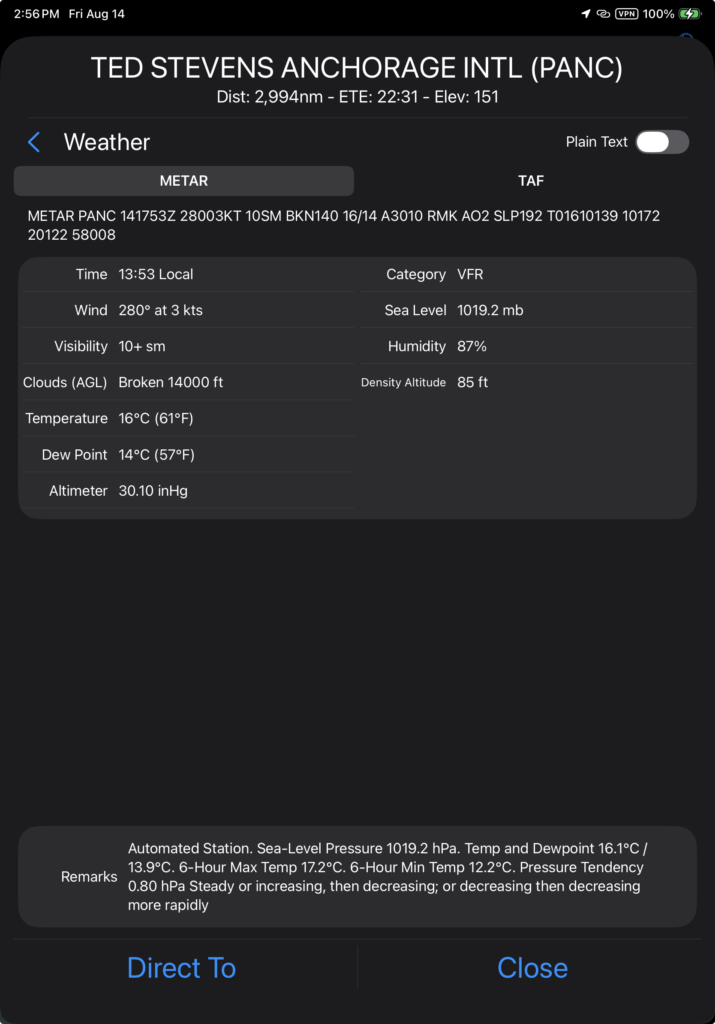
Tap the Plain Text toggle to revert to a coded version.
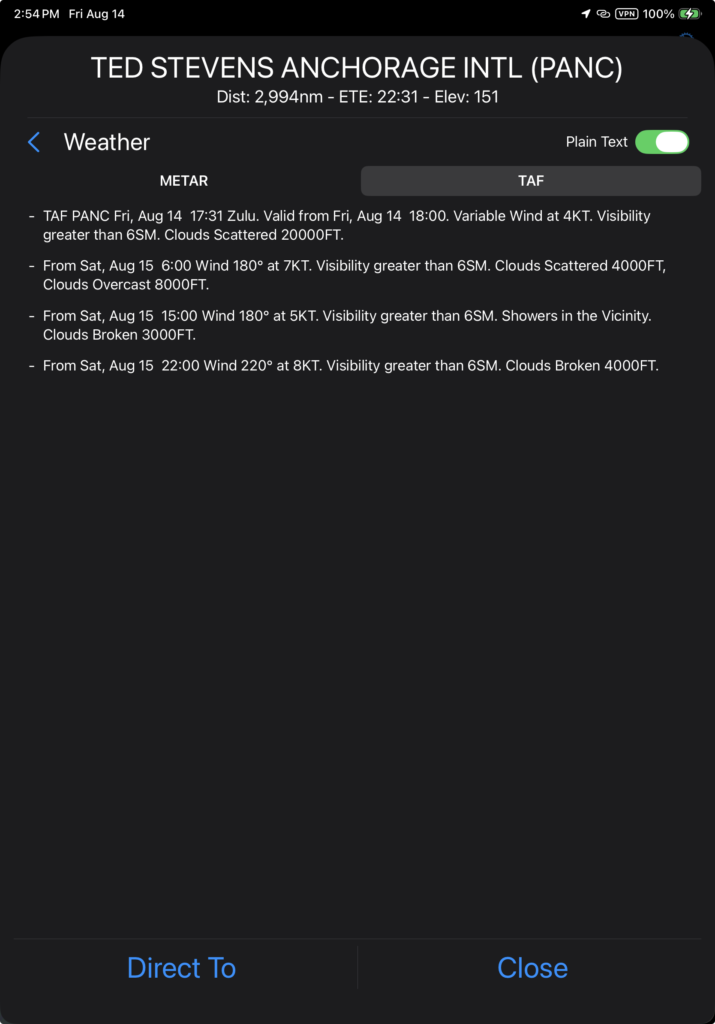
Tap on the TAF tab to view a plain text version of the TAF.
Tap Direct To to navigate to the selected location.
Note: METAR data is refreshed every 10 minutes when you are connected to the internet. It is stored locally on the iPad so it is available in flight, but will not be refreshed until the next time you connect.
Fleet Position
When you switch on the Fleet overlay, the v2 tracker will send a message requesting the positions of all aircraft in the fleet, and a new button will appear on the right side.
When on Cell, the data will be automatically refreshed every five minutes. When on Sat, the data will only be refreshed on demand.
Tap the Update Fleet button to manually refresh the data.
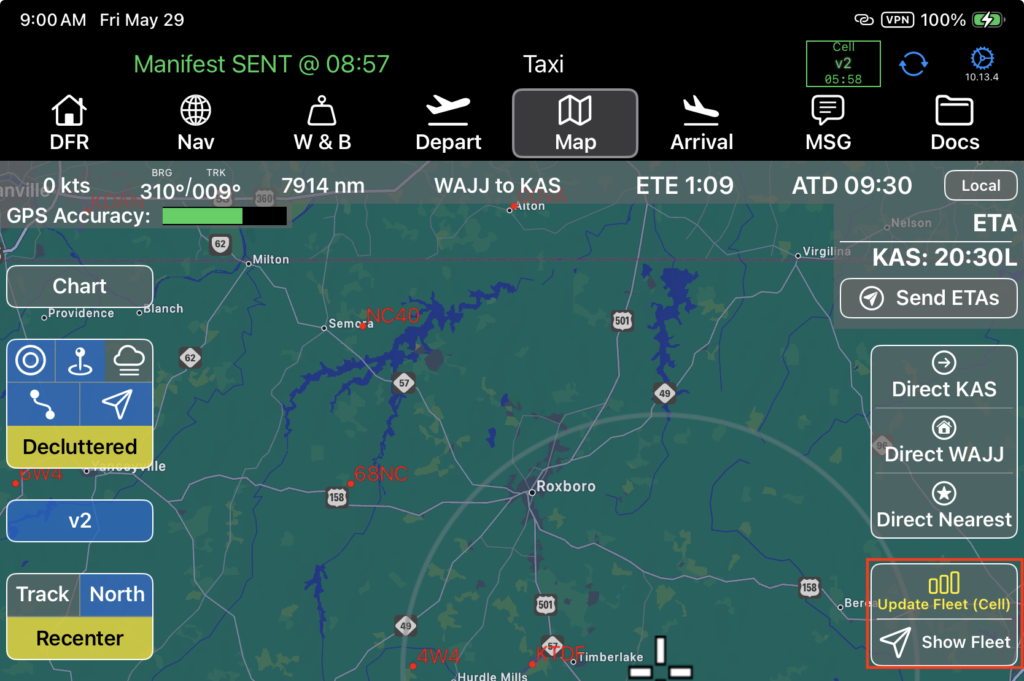
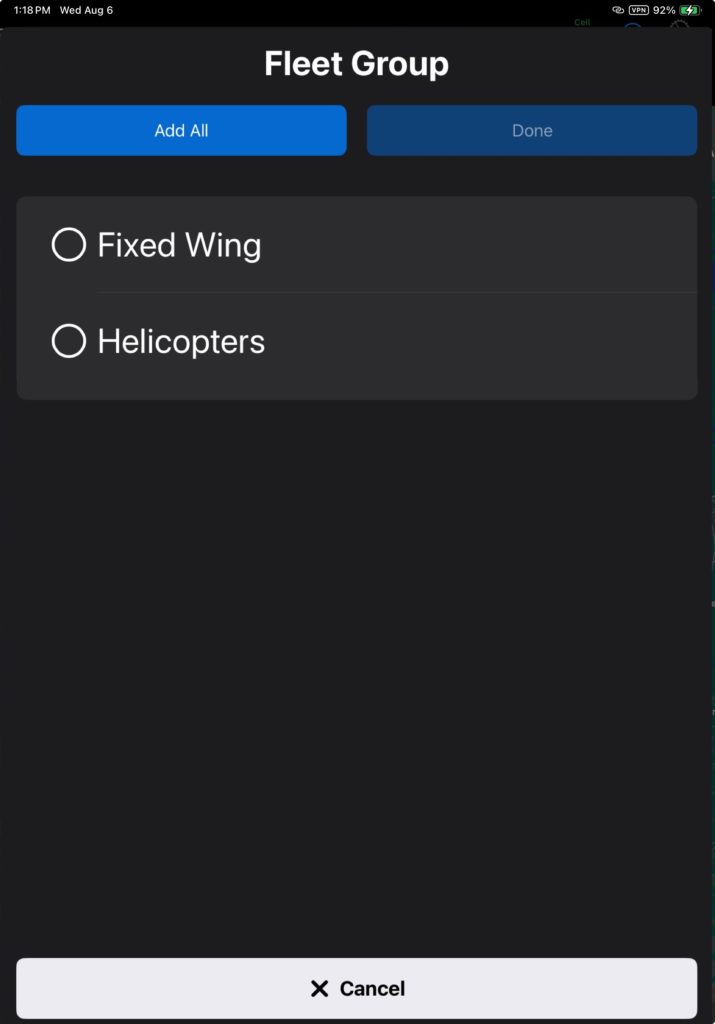
If fleet groups are set up, when you tap the Show Fleet button, select the fleet group you wish to view, or select Add All.
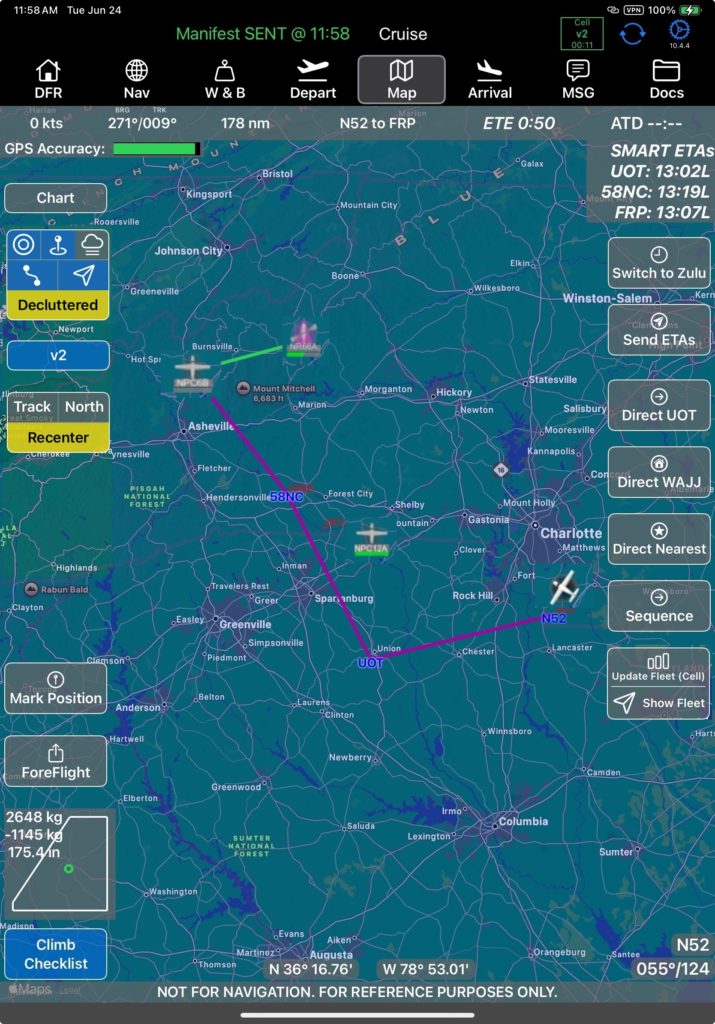
The chart will zoom out until your aircraft and all other aircraft in the fleet are visible.
The status bar under the aircraft icons changes depending on their status:
- Full green bar – position is less than 5 minutes old
- Half green bar – position is 5 to 30 minutes old
- Gray bar – more than 30 minutes old
Tap on an aircraft for status details.
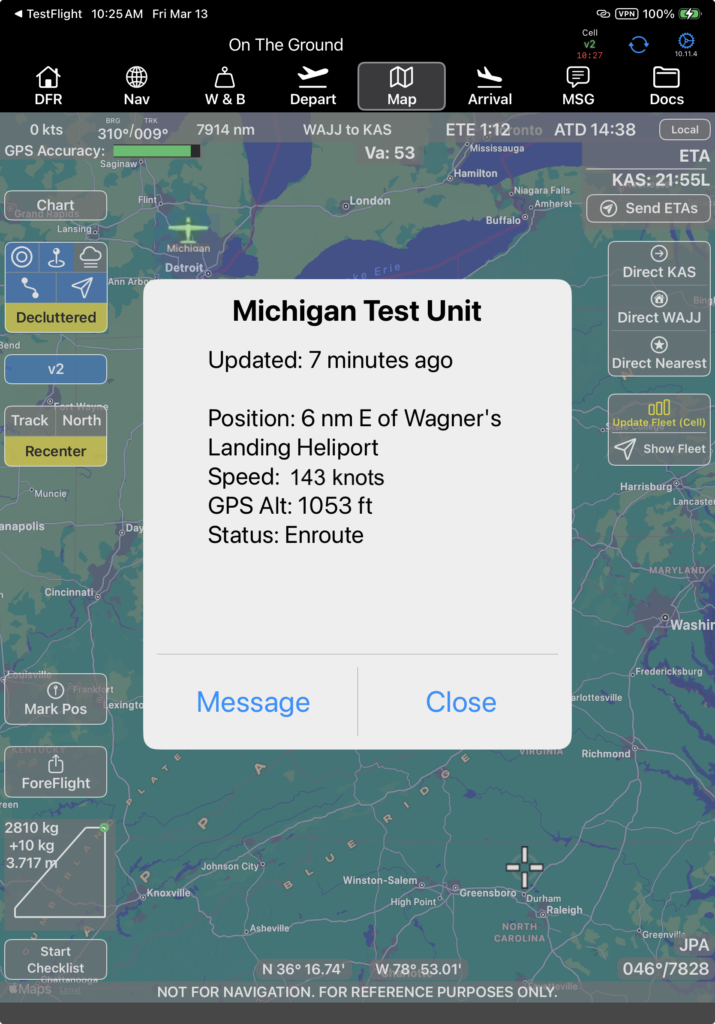
Tap Message to send a message to that aircraft.
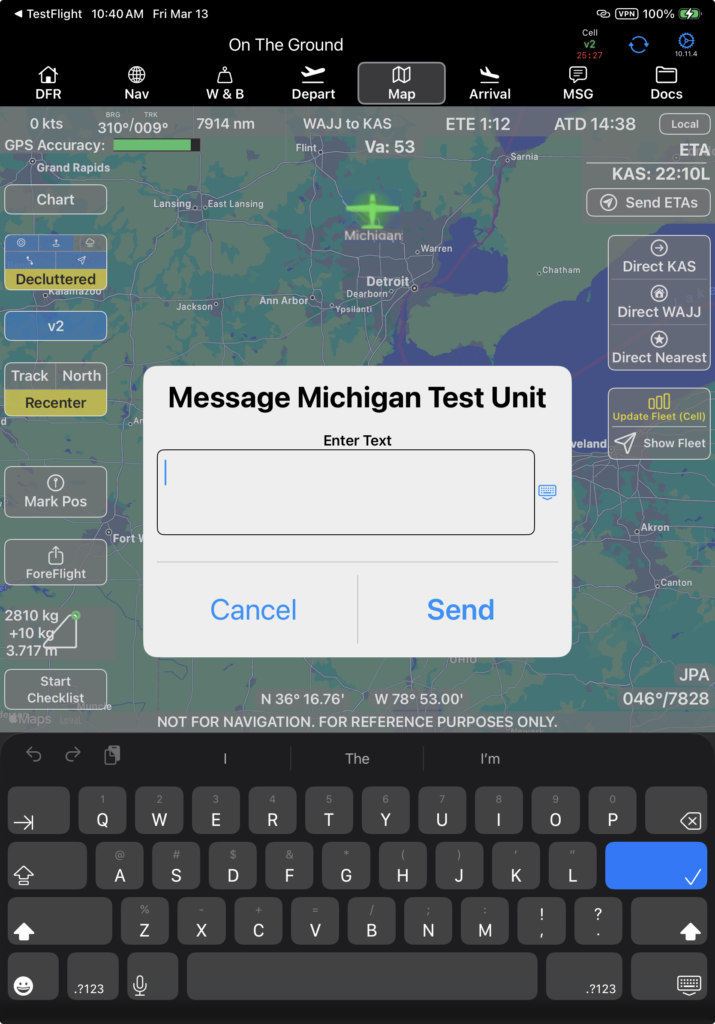
Left Side (Continued)
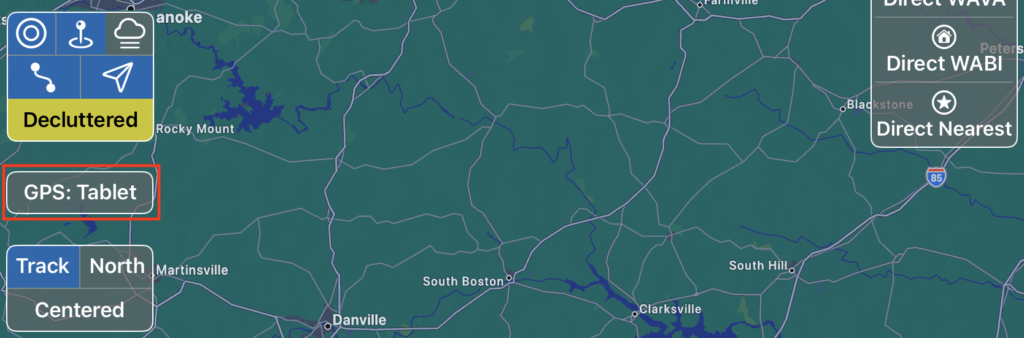
Tap the GPS button to switch GPS Source between:
- Off – no position information
- v2track
- Tablet (iPad)
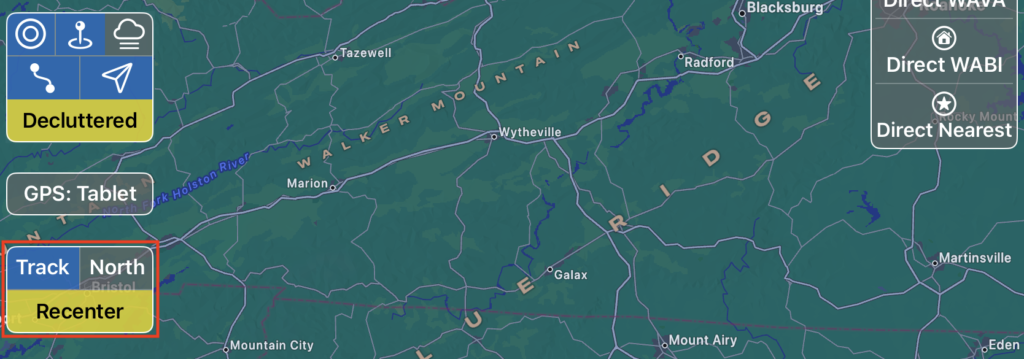
Change Map Orientation between:
- Track Up (when zoomed way out, the chart will automatically switch to North Up.)
- North Up
When the map is off center, the Centered button will be relabeled Recenter and will turn yellow. Tap to recenter on your current position.
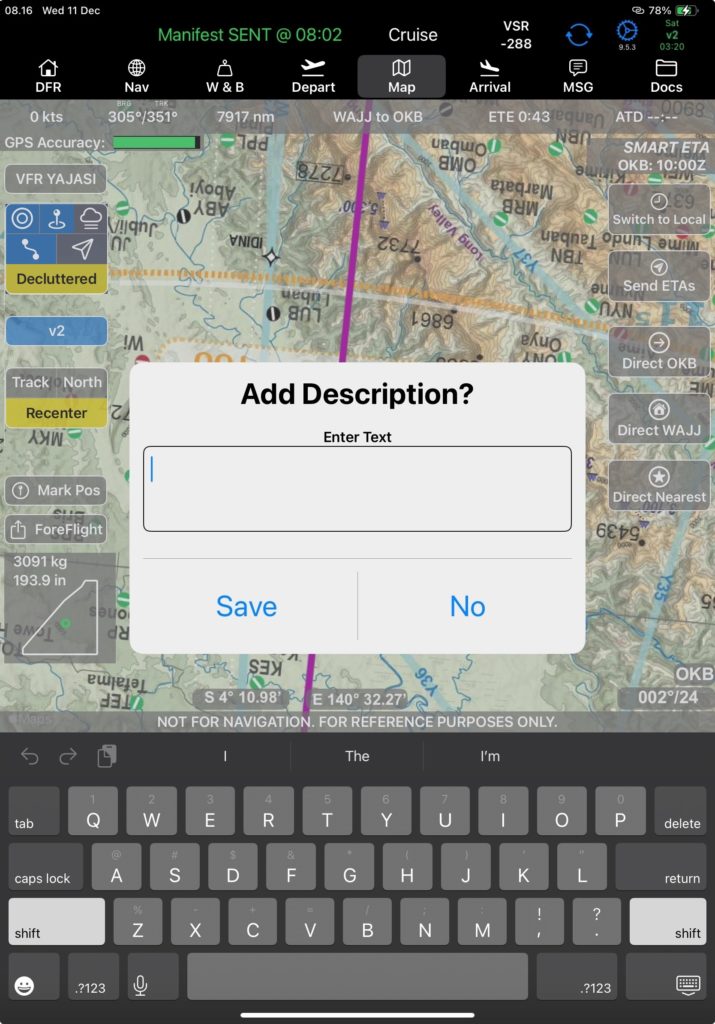
Mark and store your current position at the moment you tap the button (v2Track required).
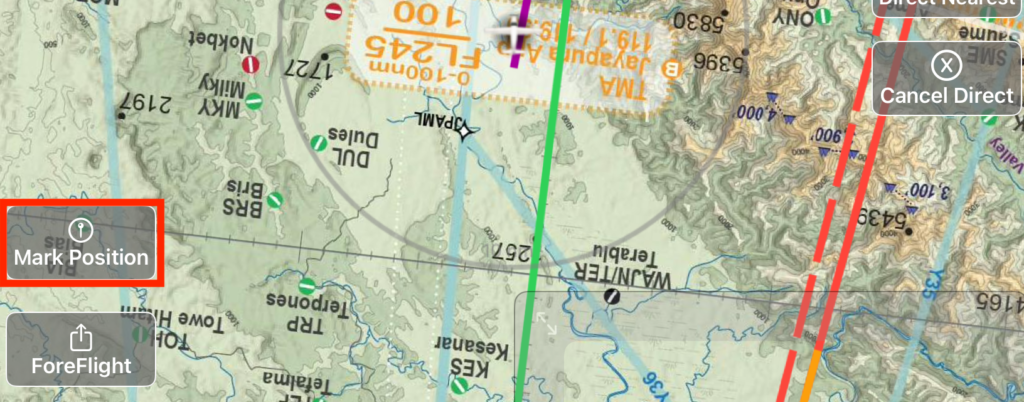
Enter an optional description and tap Save.
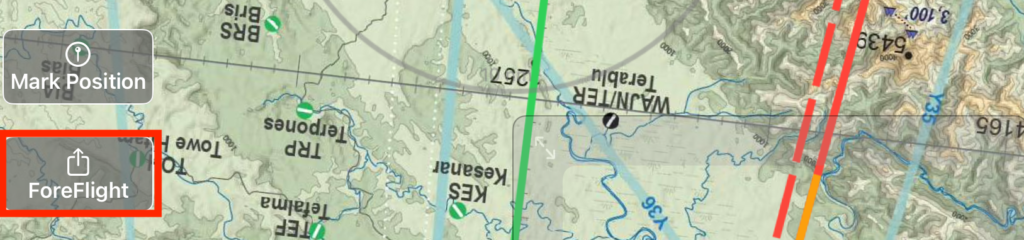
Export the route (All or Current Leg) to ForeFlight—same functionality as on the Nav tab.
The CG envelope displays your takeoff weight and balance.

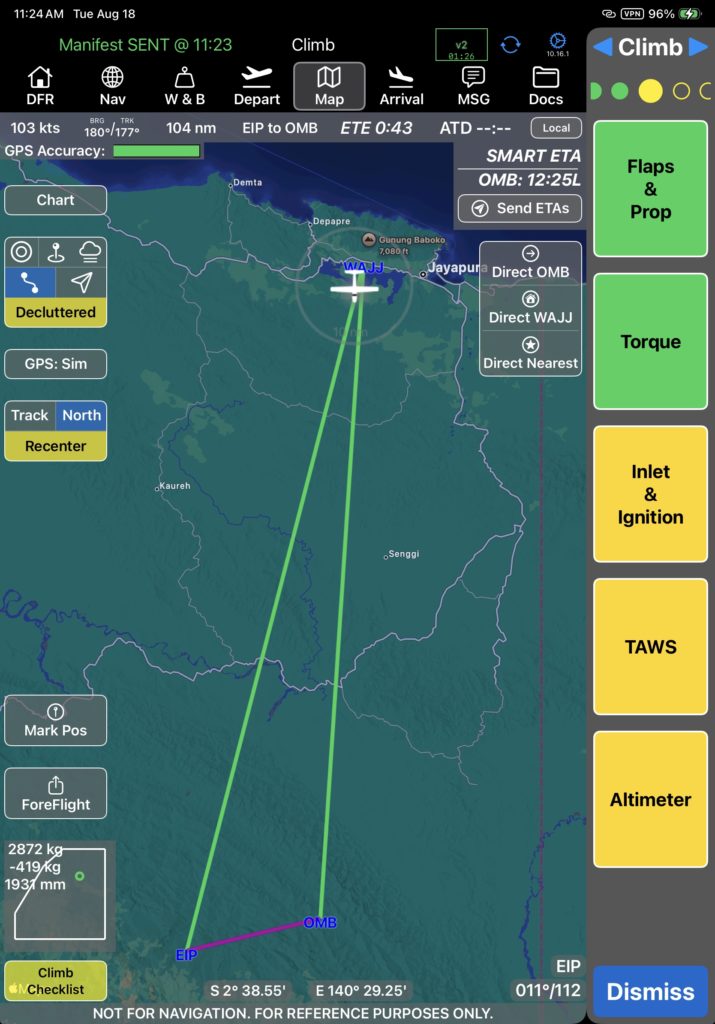
The Checklist button can be used to open a checklist at any time. The button is color coded to give you feedback on the status of the checklist for the active leg. There are four distinct statuses:
- Gray – Pre or post flight status. (Trip Manifest has not been sent, or On the Ground has been reported.)
- Blue – Armed. The trip manifest has been sent, or the previous checklist is complete.
- Yellow – The checklist was opened either automatically or by the pilot, but is incomplete.
- Green – The checklist is complete.

Note: See the Checklist documentation for details on checklist setup and use.
If any checklist is enabled, it will automatically open at the appropriate point in the flight. Tap each item to complete it.
Video Version