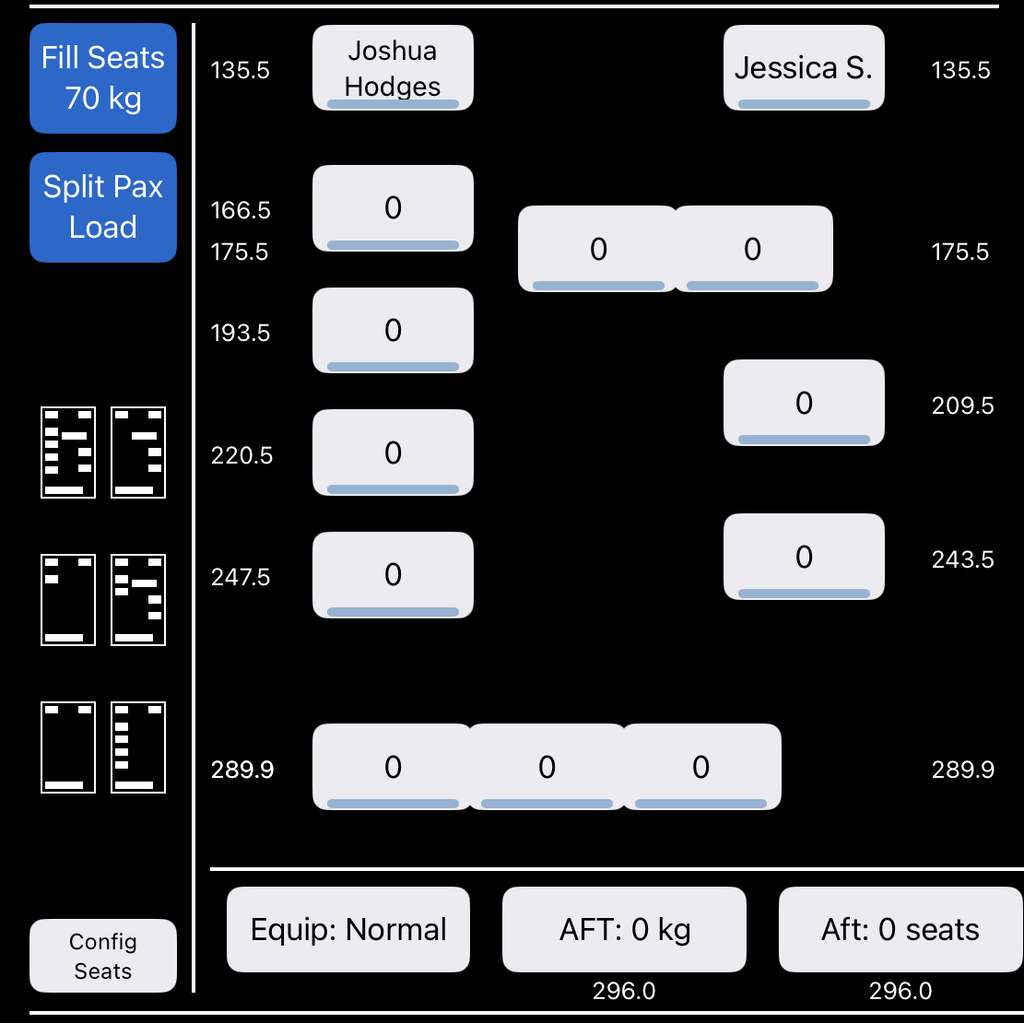
Crew
Tap a crew member’s name to change crew or to assign roles for this leg only.
Swap roles or seats by tapping the arrows.
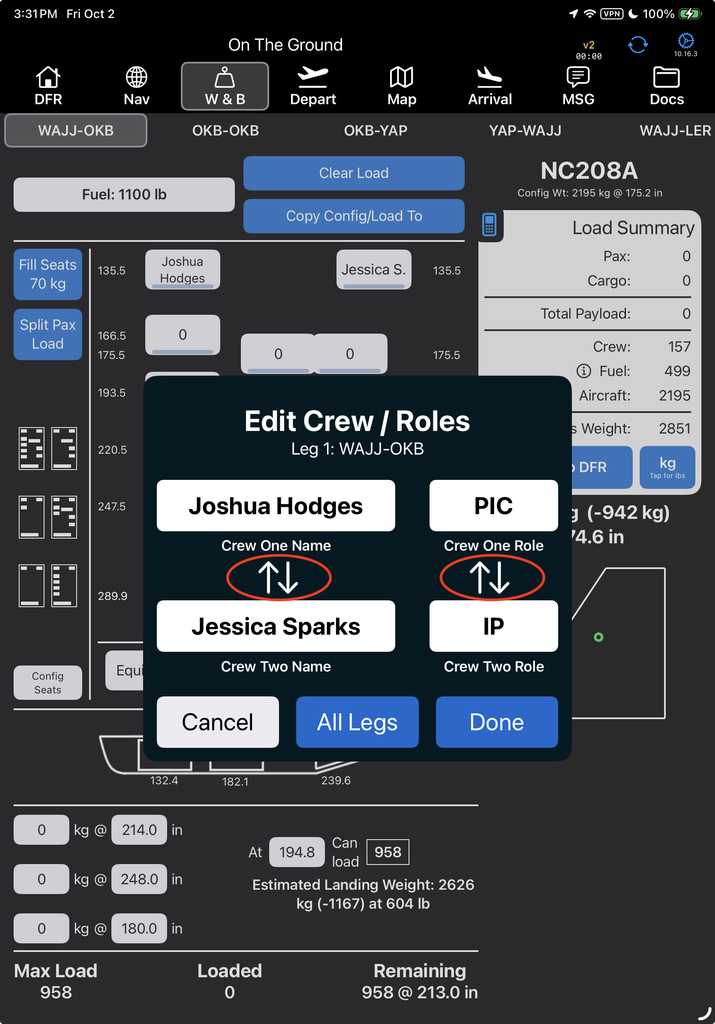
Or tap a crew member’s role to pull up a list of available roles. You cannot assign both pilots to the same role.

Change to a different crew member by tapping their name, then selecting from the list of active pilots.
Crew weight is included automatically based on the data in FlightSpan™ Ops.

Note: The Legs section of the DFR will also be updated with crew or crew role changes.
Seat Configuration
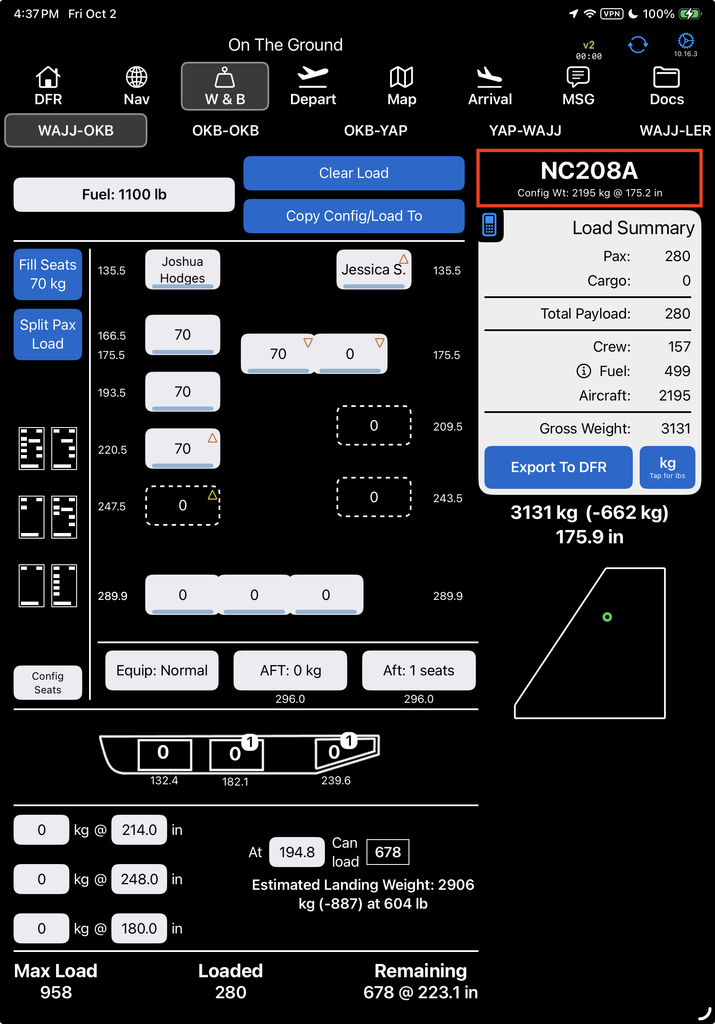
Either the default seat configuration as set in FlightSpan Ops or the specific configuration for that leg set in FlightSpan Ops will be preloaded, including stowed seats.
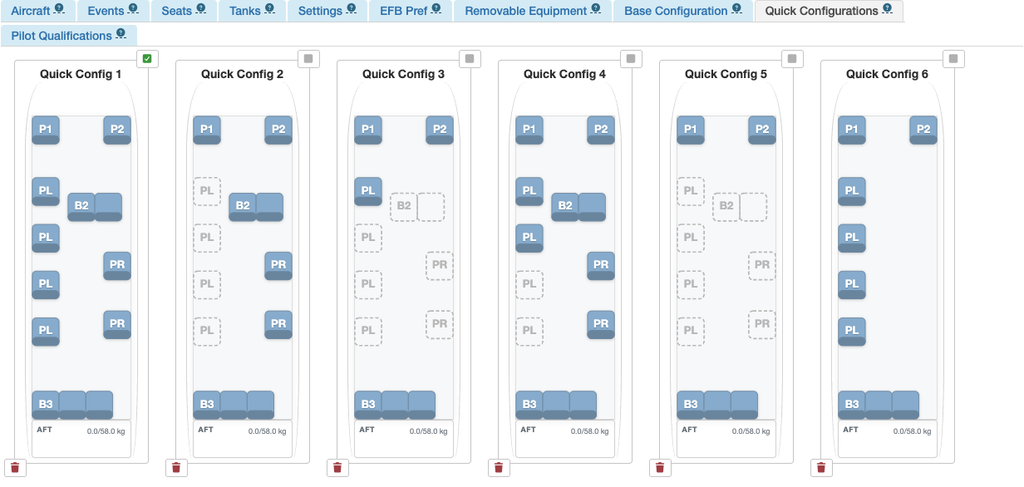
Tap one of the quick configure buttons to change to one of the standard seat configurations.
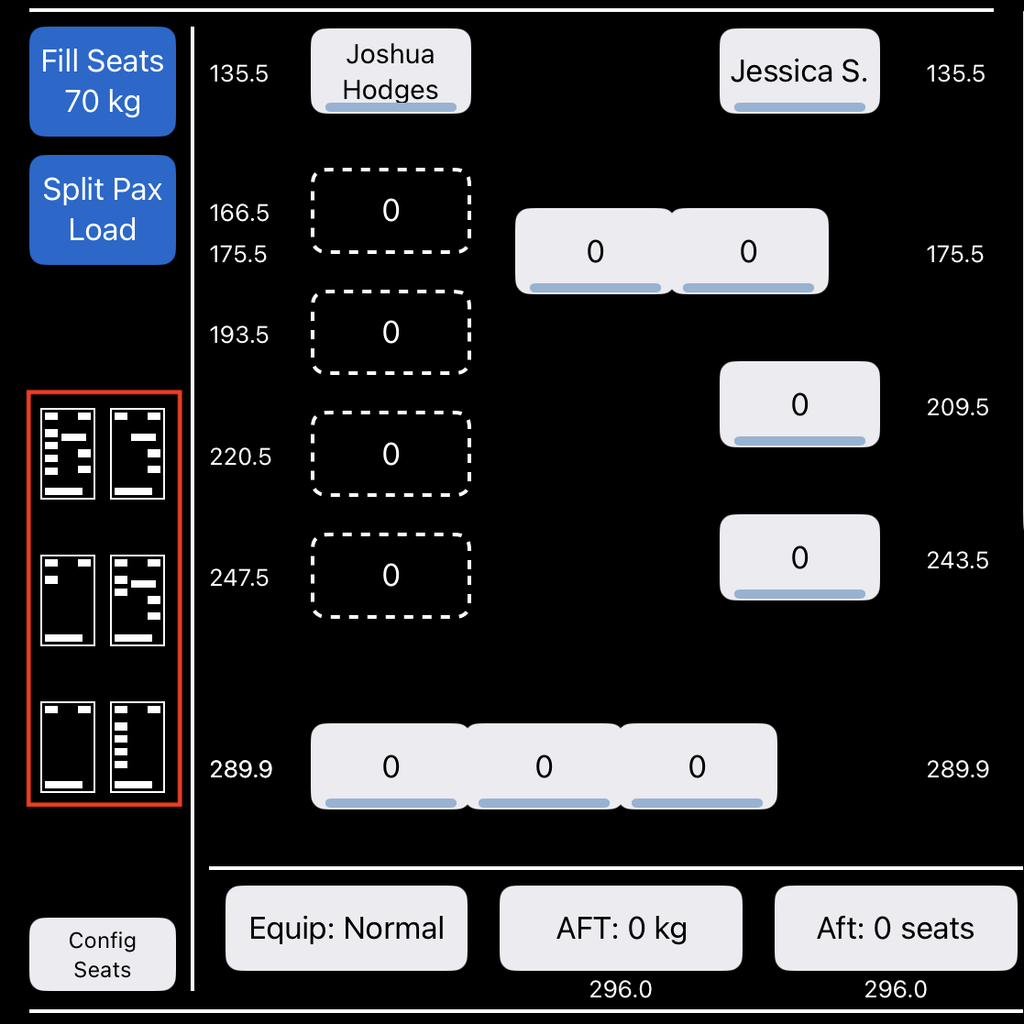
Note: The blue bar on a seat indicates the seat back, since side and aft facing seats can be added.
The seat configuration buttons and their associated configurations (including stowed seats) can be changed in FlightSpan Ops. See the Aircraft Seats and Configurations documentation.
Tap the Config Seats button to move seats fore or aft from their standard position.
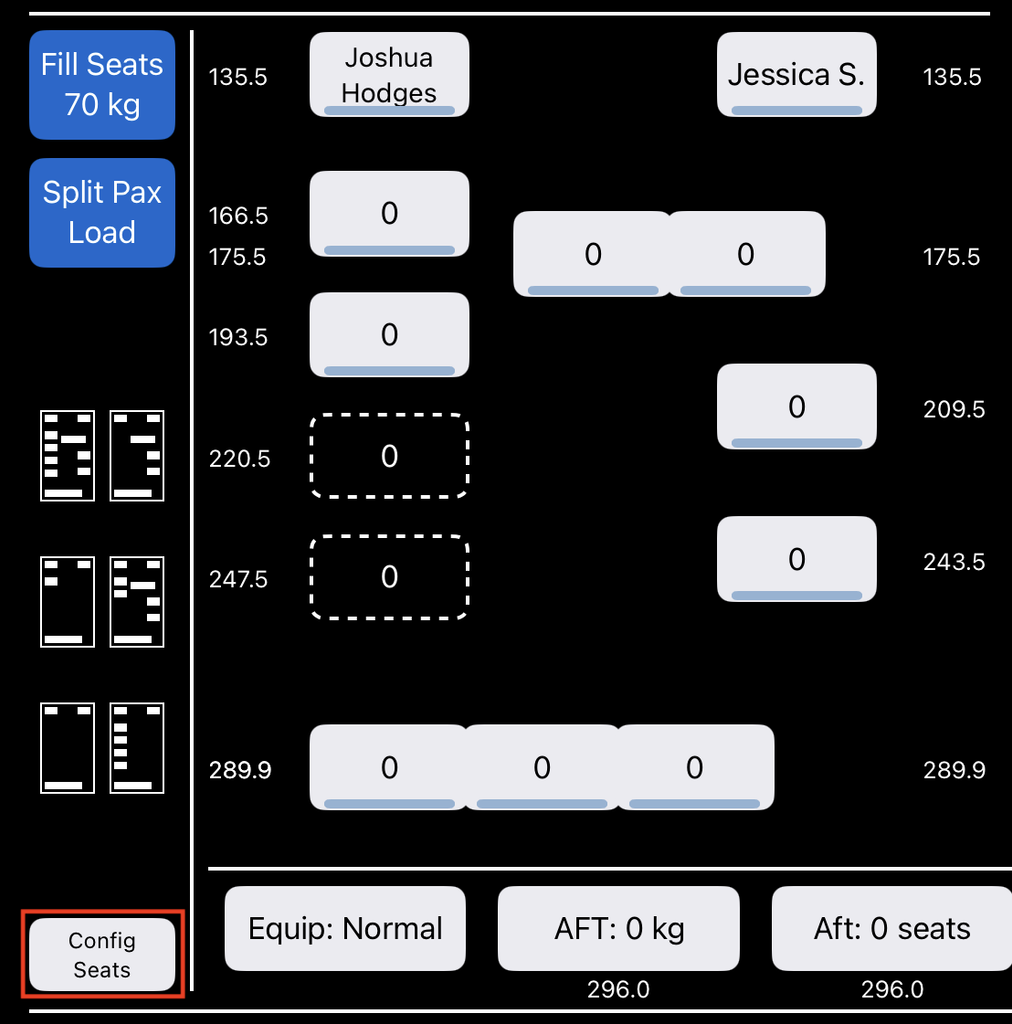
Seats and uninstalled seat positions can be moved fore or aft up to 250 millimeters / 9.8 inches. Each position displays its current arm and the offset from the standard position.
Tap Apply All Legs or Apply to Current Leg as desired.
Tap Reset to move all seats back to the standard positions.
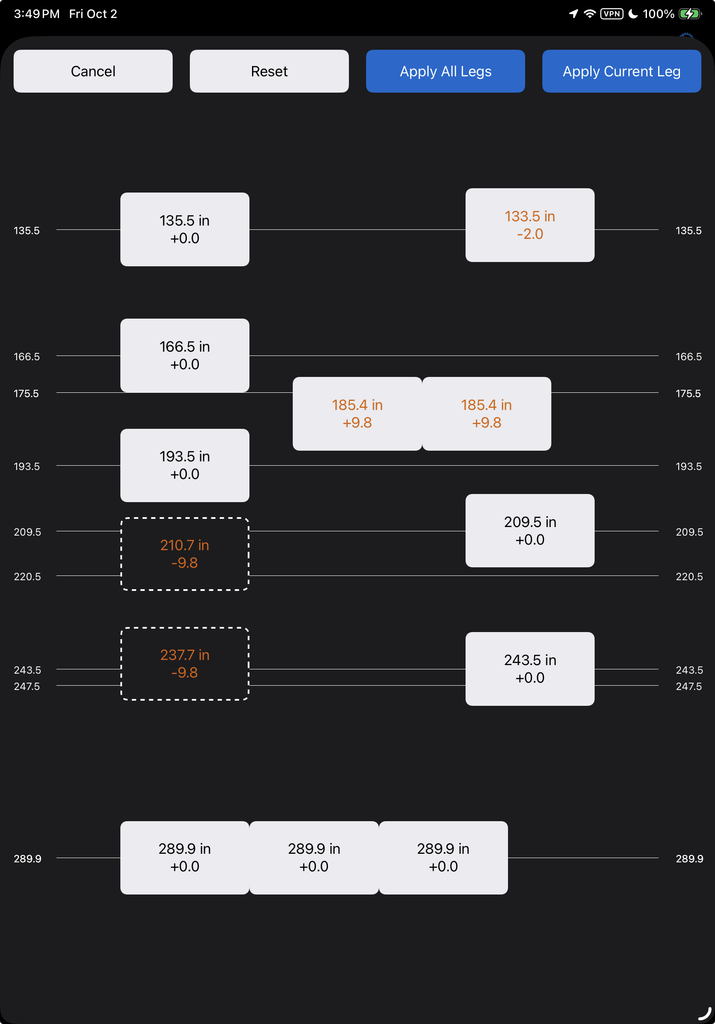
Move by sliding the seat position fore and aft, or by tapping the seat position and entering the arm offset.

When you apply the changes, the form will close and the offset positions will be displayed with an arrow.
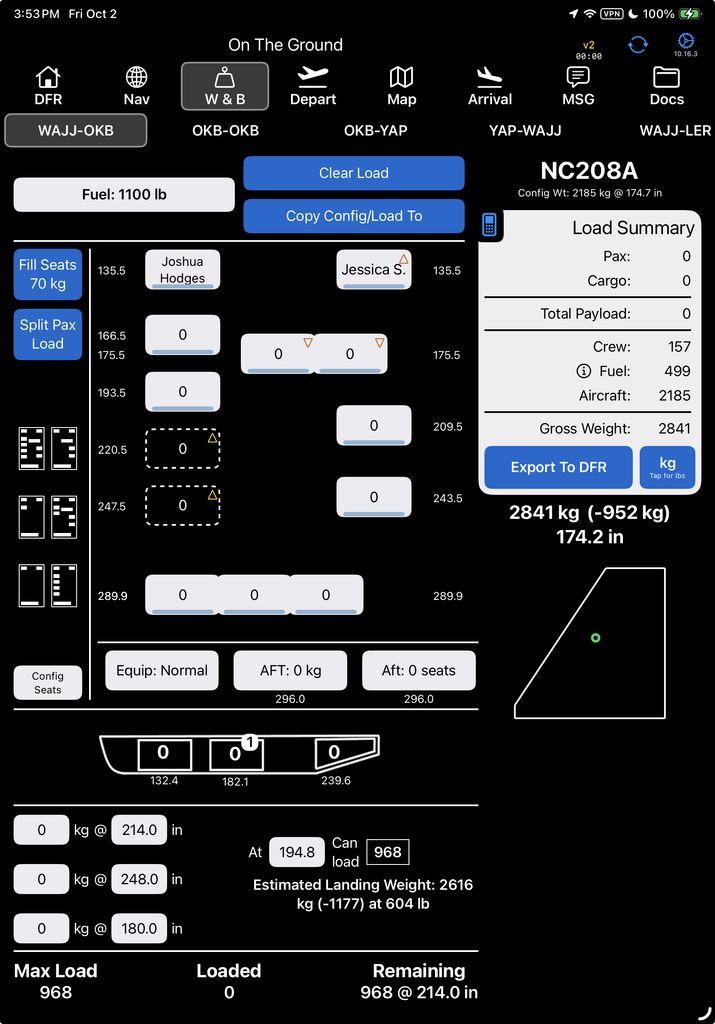
Tap an empty seat space to add either cargo or a seat and standard passenger.
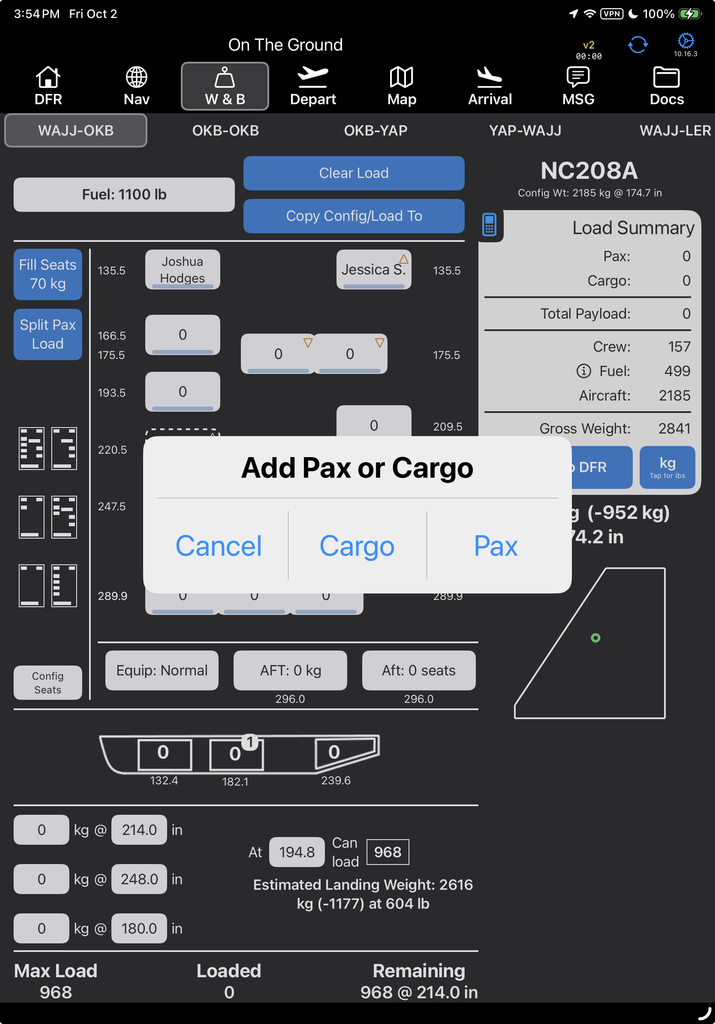
Note that the cargo feature can be switched off in the Aircraft Type EFB Preferences.

If you select Cargo, the calculator will open. Enter the amount of cargo and tap Done.

The cargo will be displayed in the empty seat position.
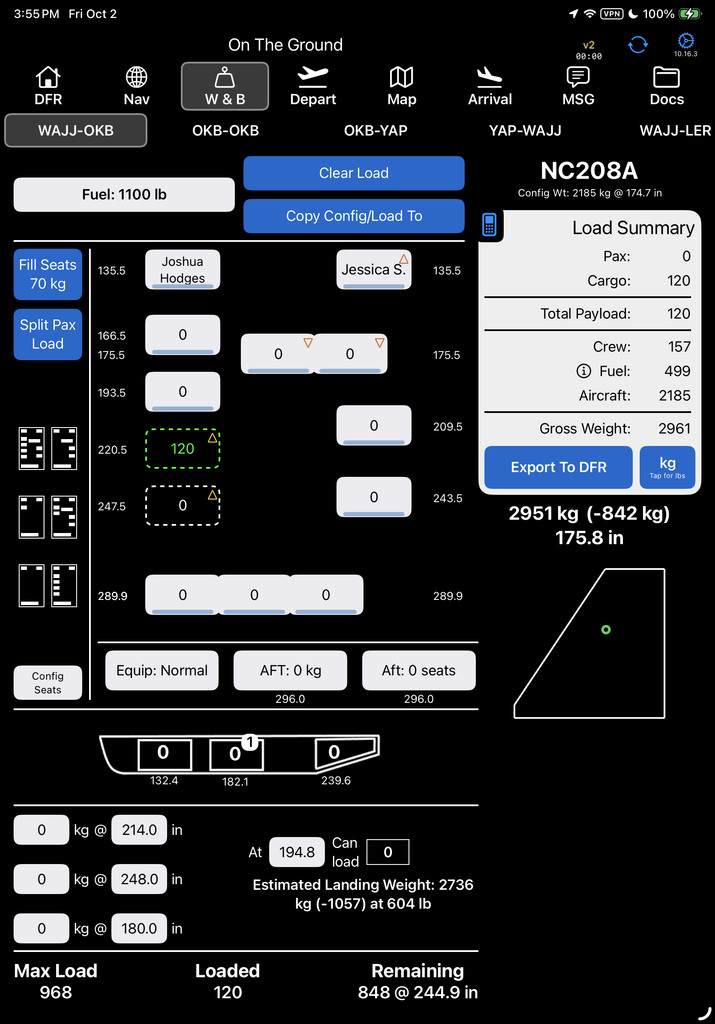
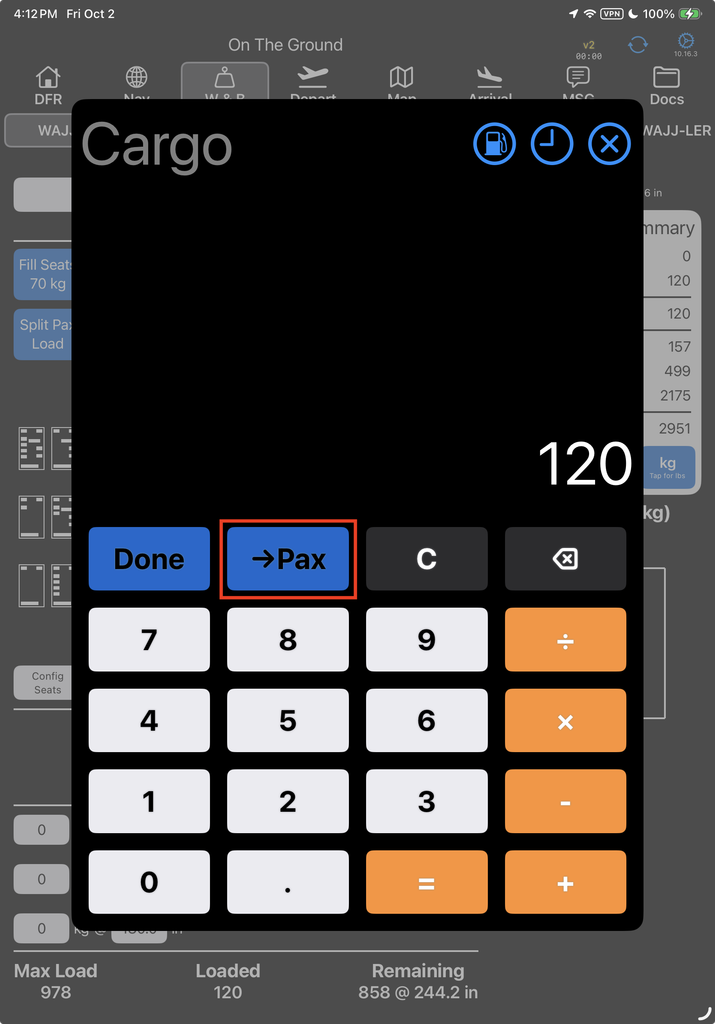
If while the calculator is open you tap the –> Pax key, the seat will be installed with a passenger of that weight.
When asked if you want to add Cargo or Passengers, if you select Pax, the seat and a standard passenger will be added.
In the case of a bench seat, the passenger will be added in the space you tapped.
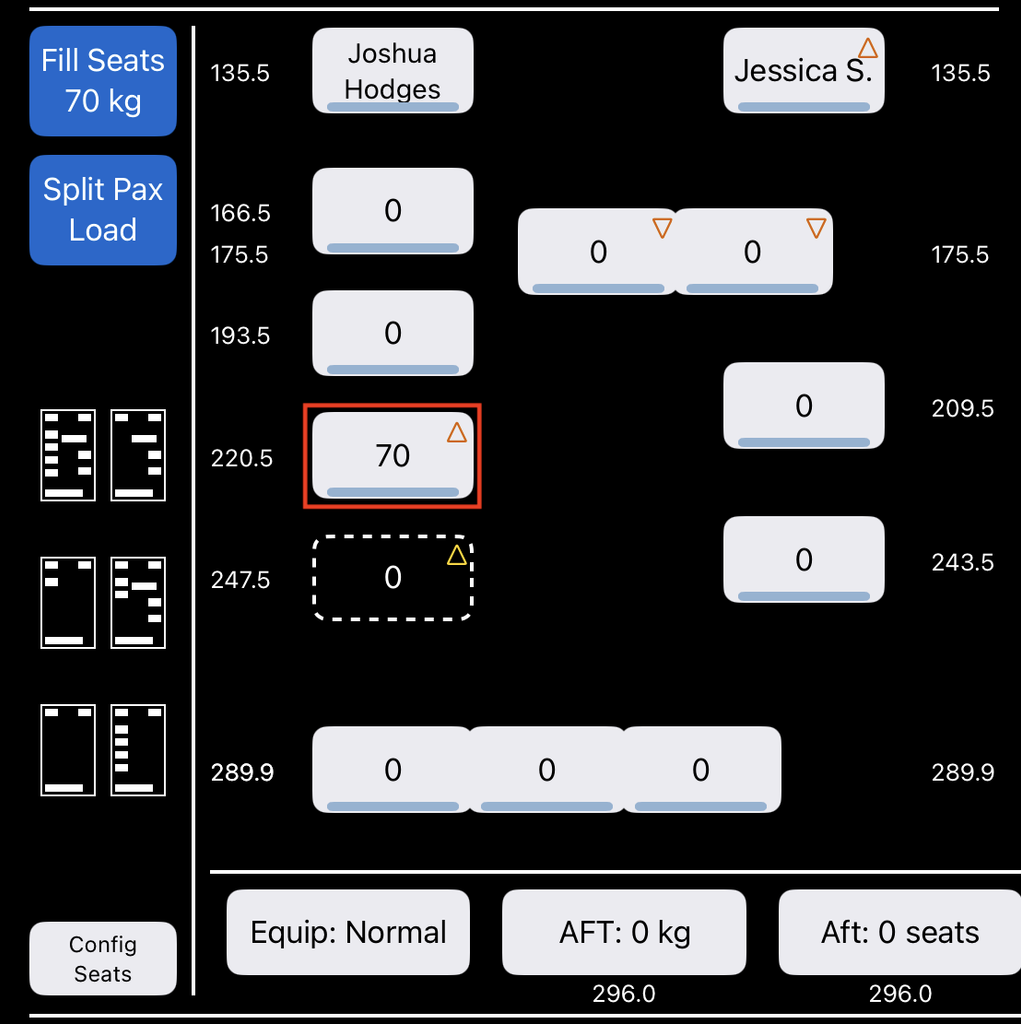
Long tap to add a seat with no passenger, or a seat with a custom passenger.
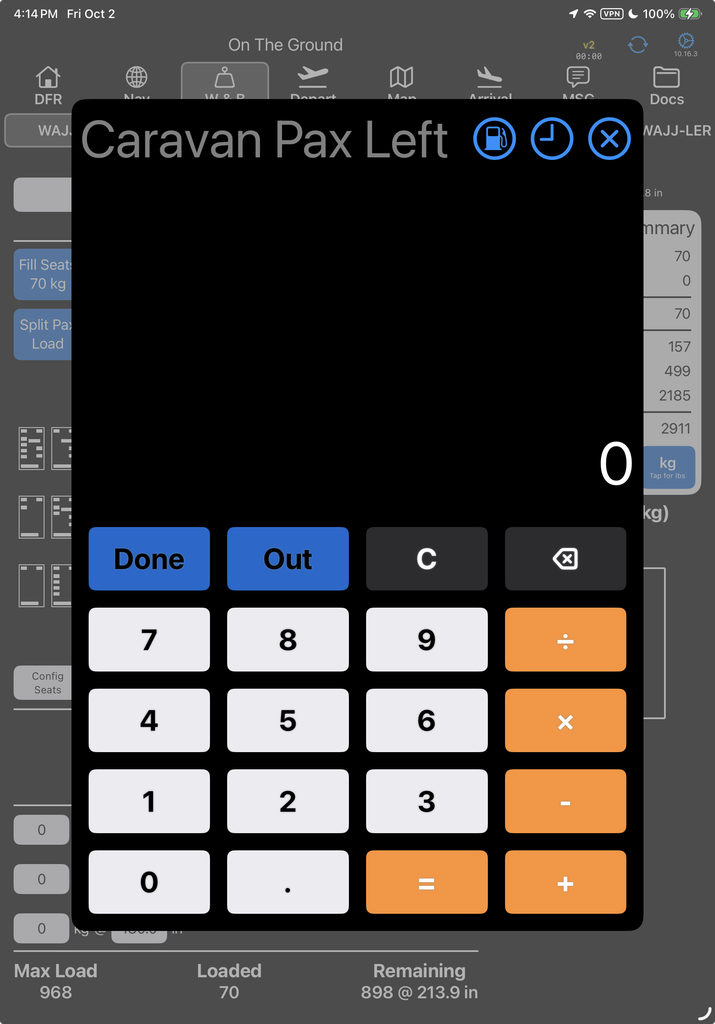
If there are seats of that type in stowage, a list will open and you can pick where to take it from.
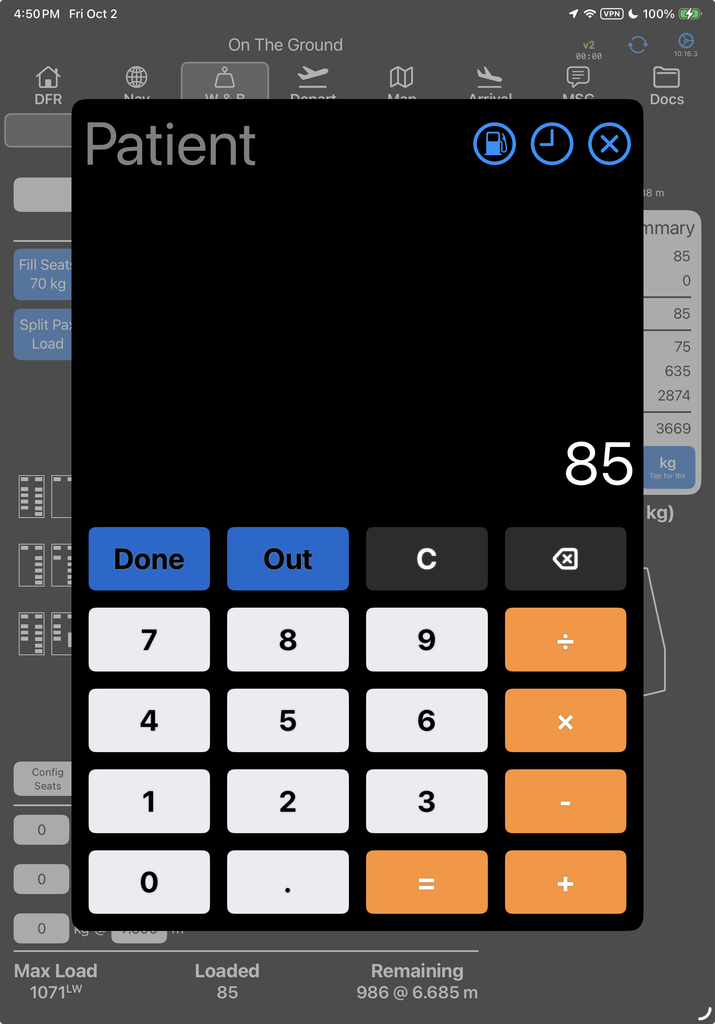
To remove a single seat, long press the seat to bring up the calculator and tap the ‘Out’ button
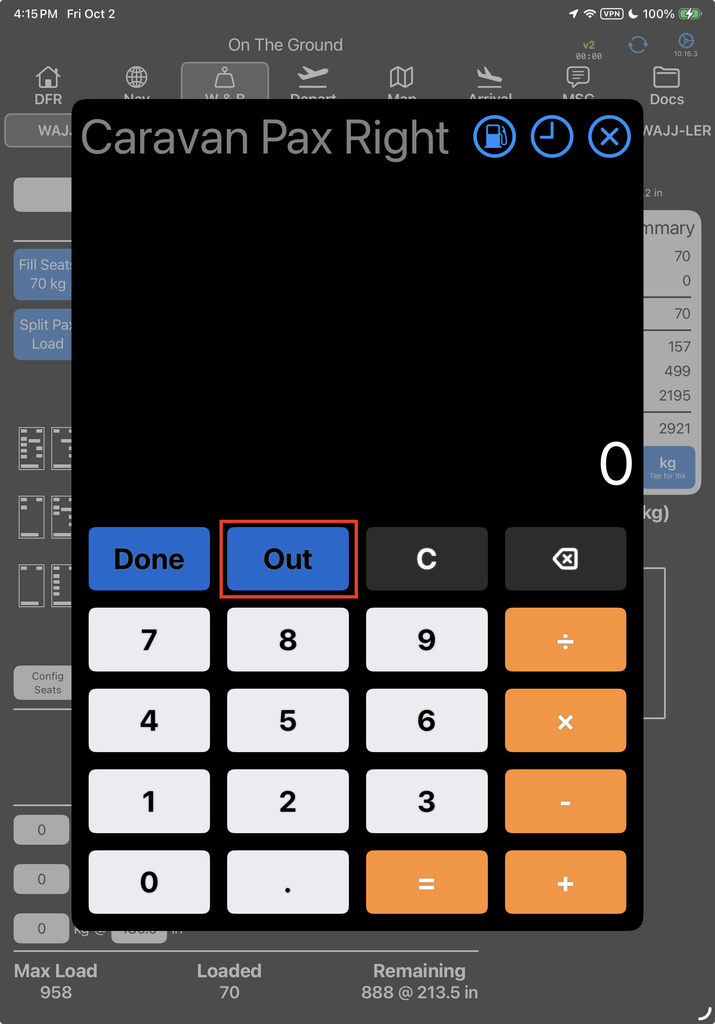
Select where you want the seat stowed.
You can remove the seat entirely or select a cargo compartment.

To stow seats in a cargo compartment, the Seats Capacity must be set in FlightSpan Ops.
The seat will be stowed in the selected location.
Cargo compartments will have a badge annotation indicating how many seats are stored in that compartment.
The Aft seat space will display the number of seats stowed.
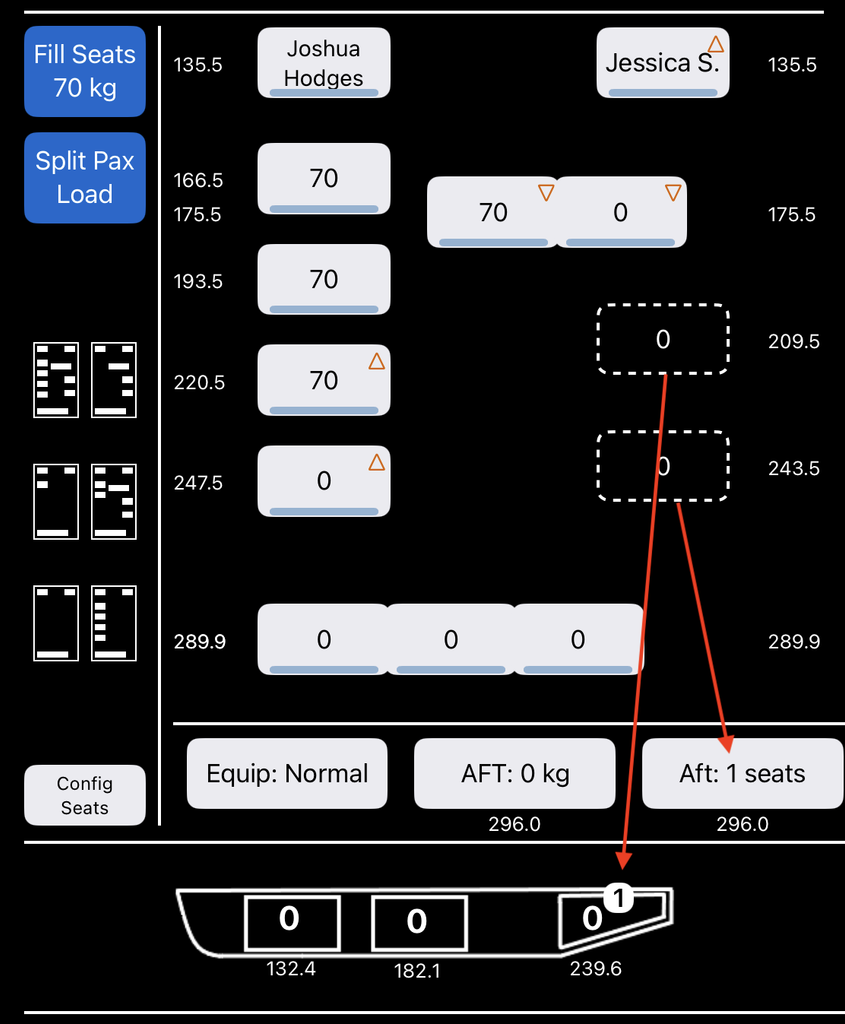
You can also store seats in Aft Stowage or a cargo compartment by long tapping the location. Choose which seat or seat types you want to add to that location.
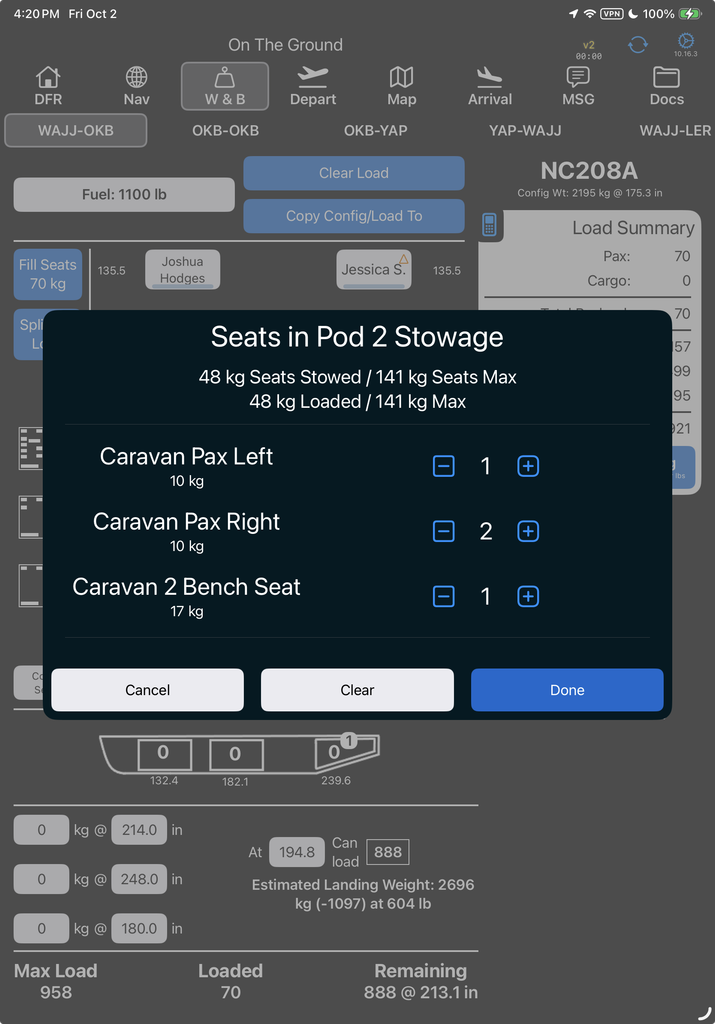
Note: Seats are not removed from the cabin when seats are added to cargo compartments in this manner.
The aircraft configuration weight and CG include both installed and stowed seats.
Stretcher Configuration
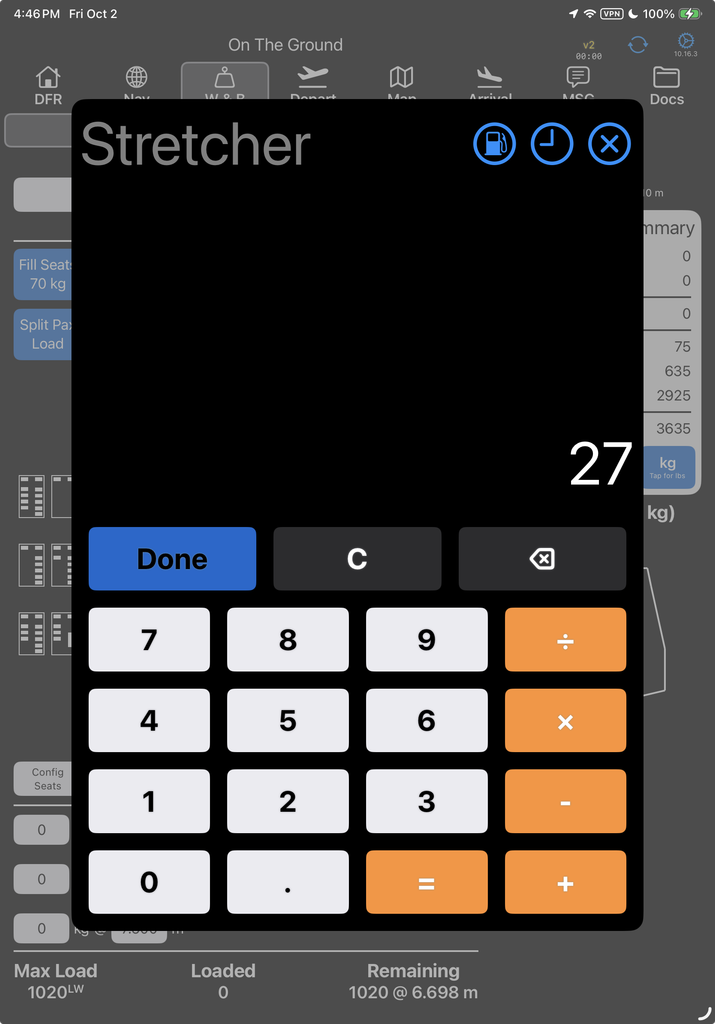
If you set up a stretcher Quick Configuration in FlightSpan Ops, and you select a quick link configuration that includes a stretcher, you will be asked to confirm or change the stretcher weight.
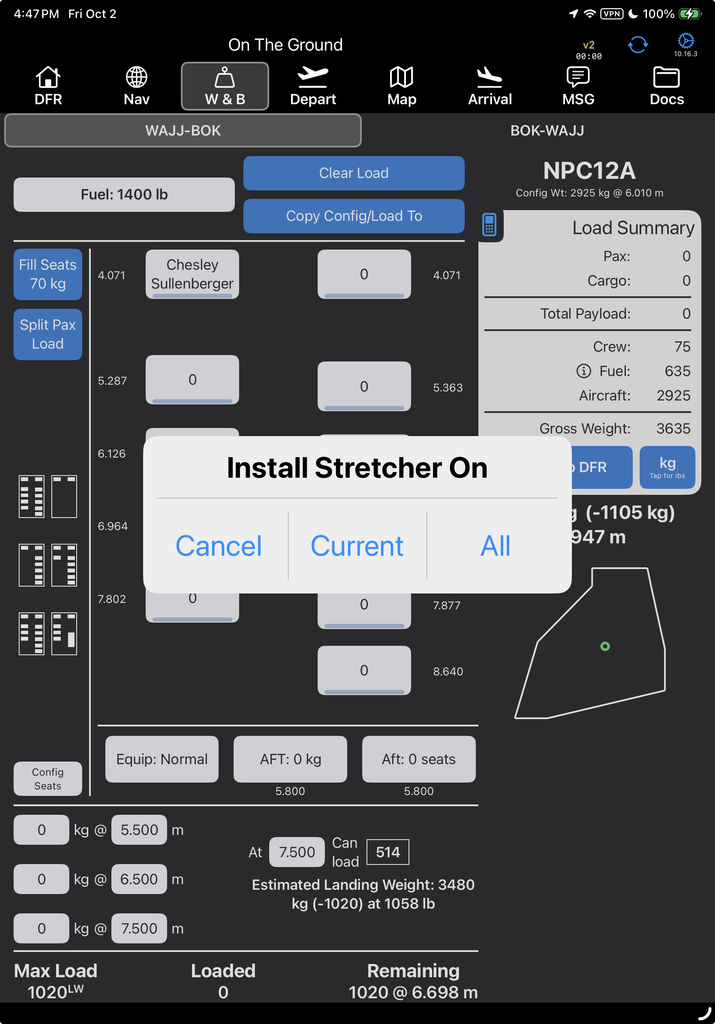
Then select which leg or legs to install the stretcher on.
Tap the stretcher to enter the passenger weight and tap Done, or tap Out to remove the stretcher.