When setting up your fuel inventory management system in FlightSpan™ Ops, you will select either Simple Management (total fuel quantity of each fuel type only) or Advanced Management (the number and type of fuel containers and how much fuel is in each container type). See the Fuel Management Setup documentation for details.
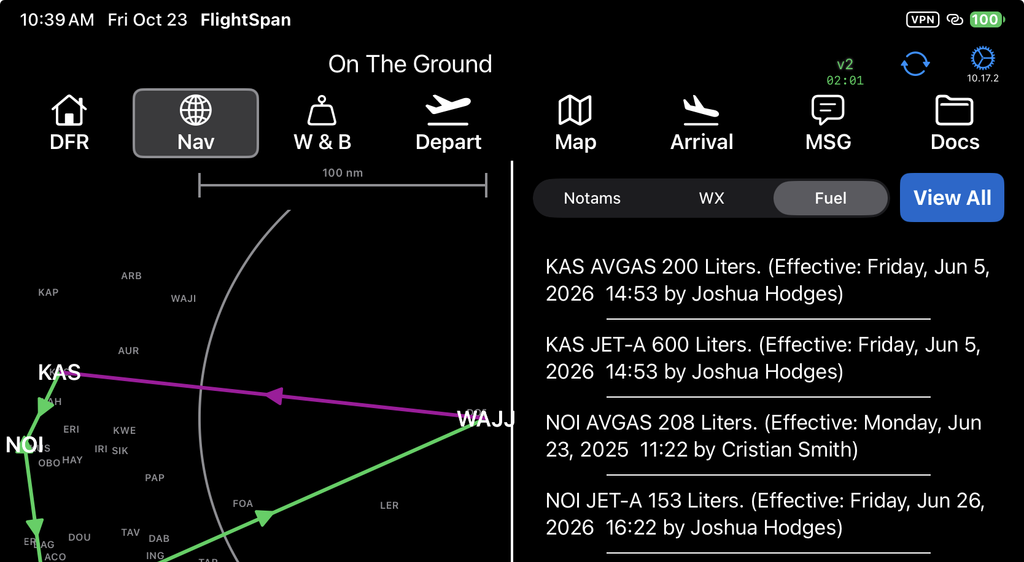
To see a list of fuel at waypoints included in your route, go to the Nav Tab, and in the NOTAMS window select Fuel. To see a list of all available fuel, tap the View Fuel Locations button.
The total is a sum of all fuel owners at each location. See the Nav Tab documentation for more details.
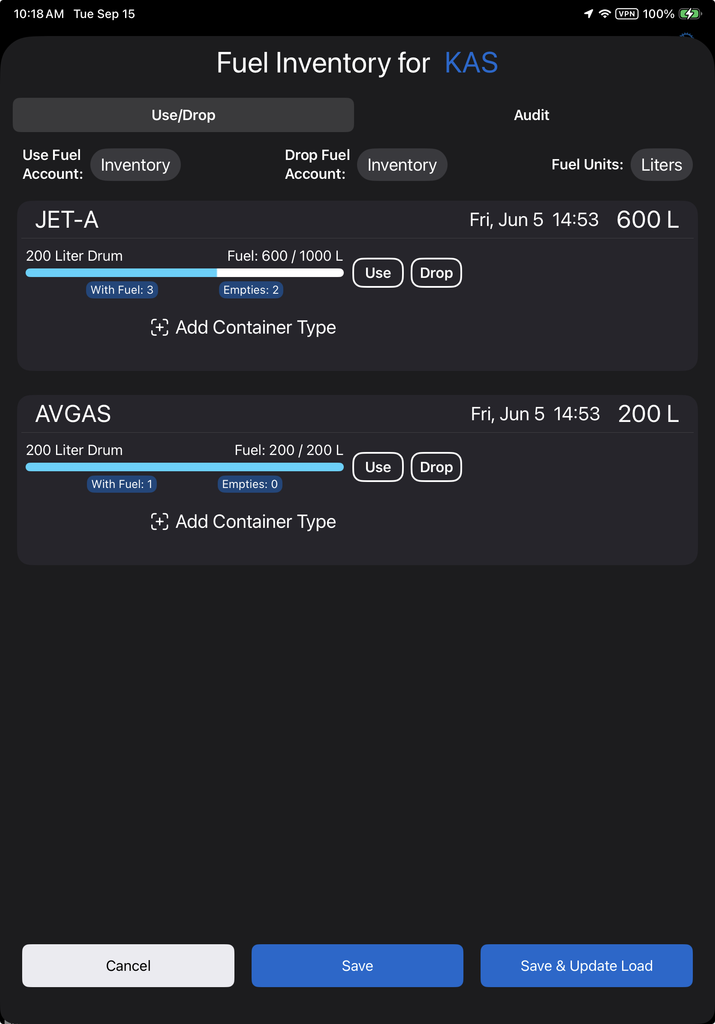
There are two ways to open the fuel inventory for a runway or LZ so you can enter audit results or a fuel transaction.
The first is by tapping the fuel barrel icon in the lower right corner of that Runway or LZ Chart page.

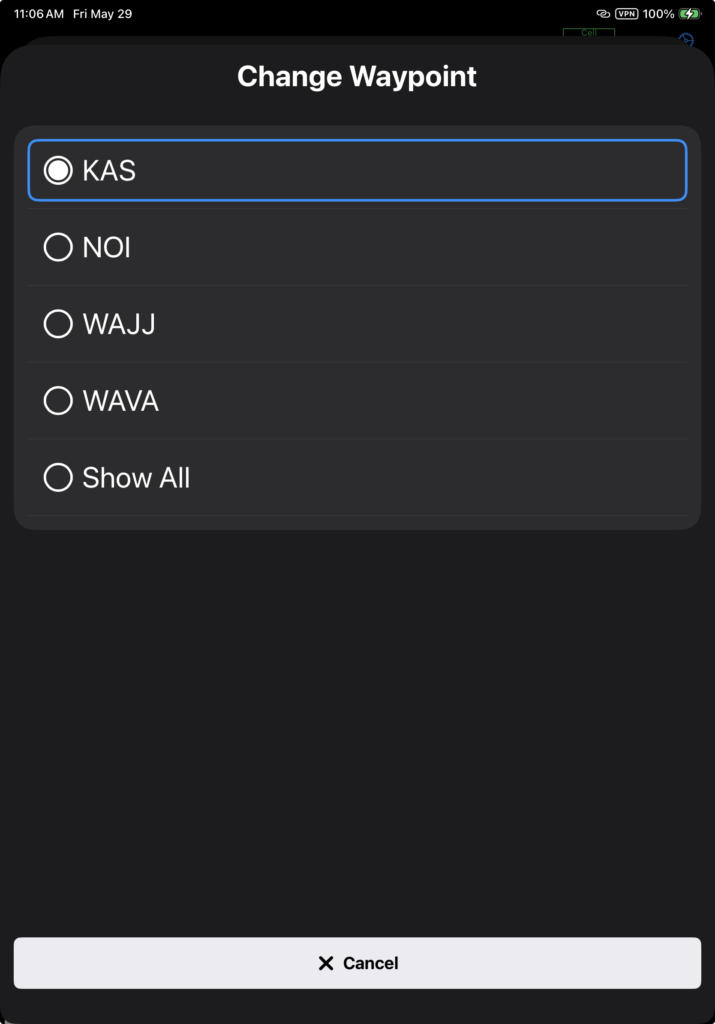
If you wish to change locations, tap the blue location identifier at the top.
Select from the list of waypoints in your route, or select Show All to view the entire waypoints list.
The second is when you update the fuel quantity from either the W&B tab or the Nav tab, if there is fuel stored at that location and the total fuel quantity on board changes by more than 10 kilograms, a pop-up will ask if you want to enter a fuel transaction.
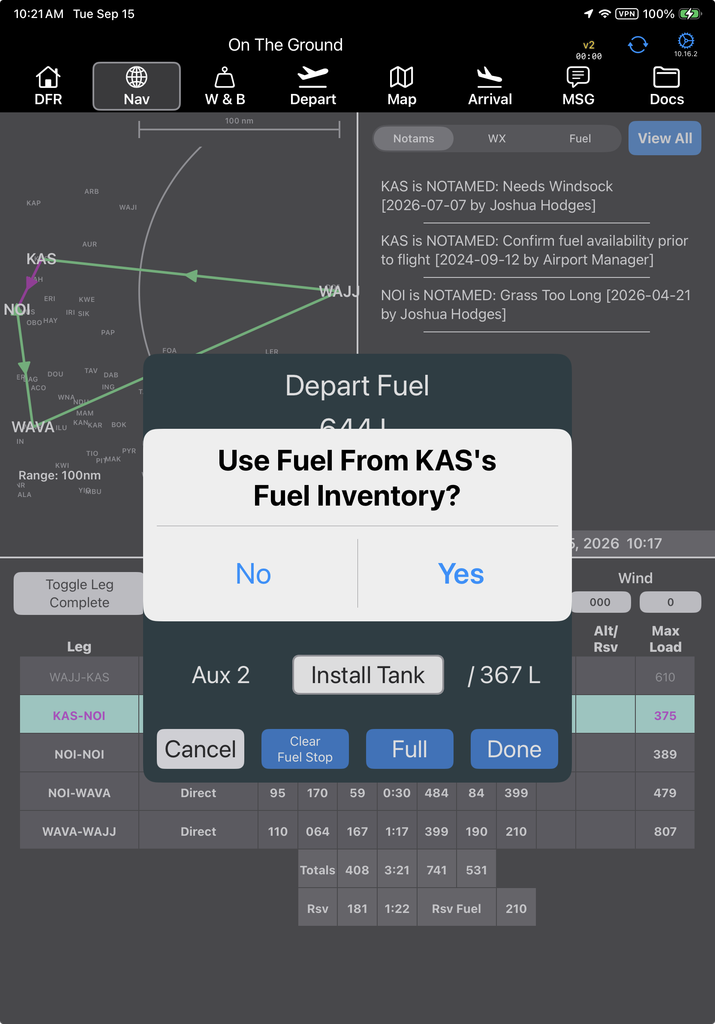
If you select Yes, the Fuel Inventory page for that runway will open with your total fuel quantity change listed in yellow in the header.
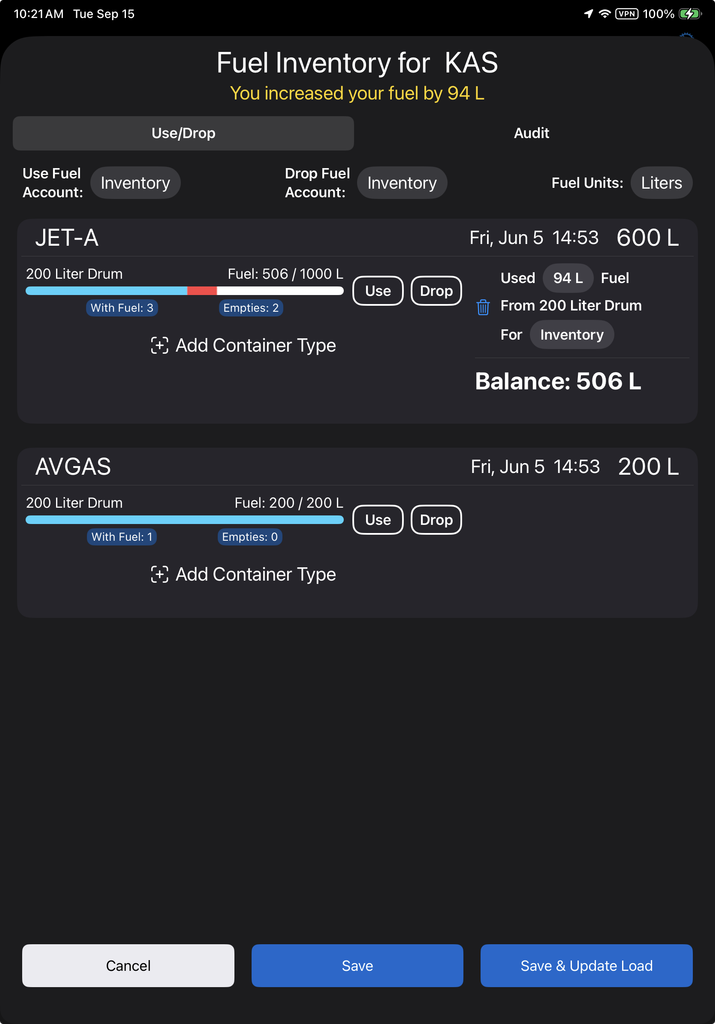
When you open either the Use/Drop or Audit tab for any location:
- FlightSpan will always show the fuel type for the currently selected aircraft type even if the amount is zero
- If another fuel type exists and is recorded at that location, that fuel type will also be displayed
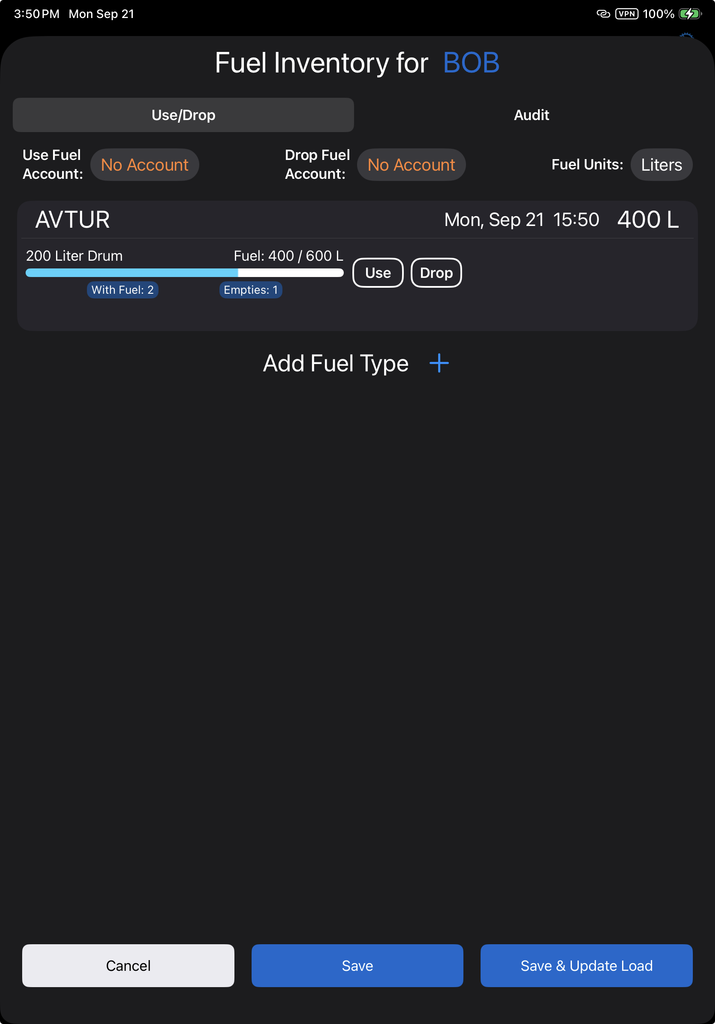
- If another fuel type exists but is not recorded at that location, an Add Fuel Type button will be displayed
Tap Add Fuel Type to add another type.
Select from the list of fuel types.
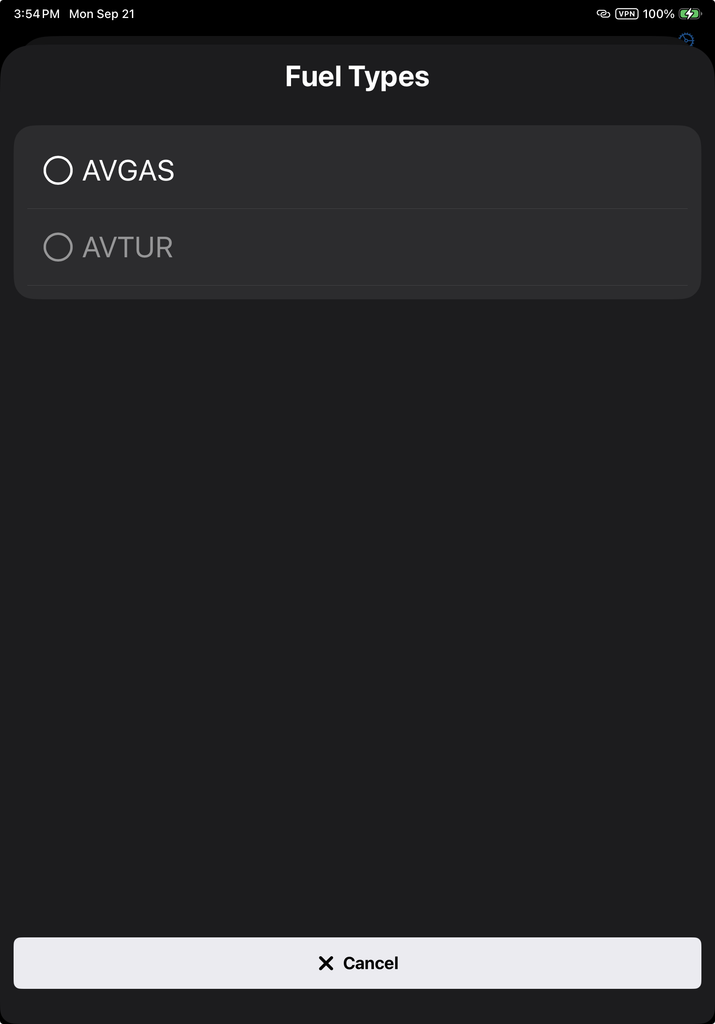
Note: If you need to add an additional fuel type, see the Aircraft Fuel documentation
See Simple Fuel Management or Advanced Fuel Management for how to record Drop or Use transactions.
If you are using the Simple fuel inventory tracking, continue reading; if you are using Advanced fuel inventory tracking, skip to the Advanced Fuel Audit documentation.
Simple Fuel Audit
To conduct an audit of the fuel on hand at a given location, switch to the Audit tab and tap the Fuel quantity button for the appropriate fuel type.
Note that the fuel units default to the aircraft type’s units. If you wish to display and use other units, tap the Fuel Units button.
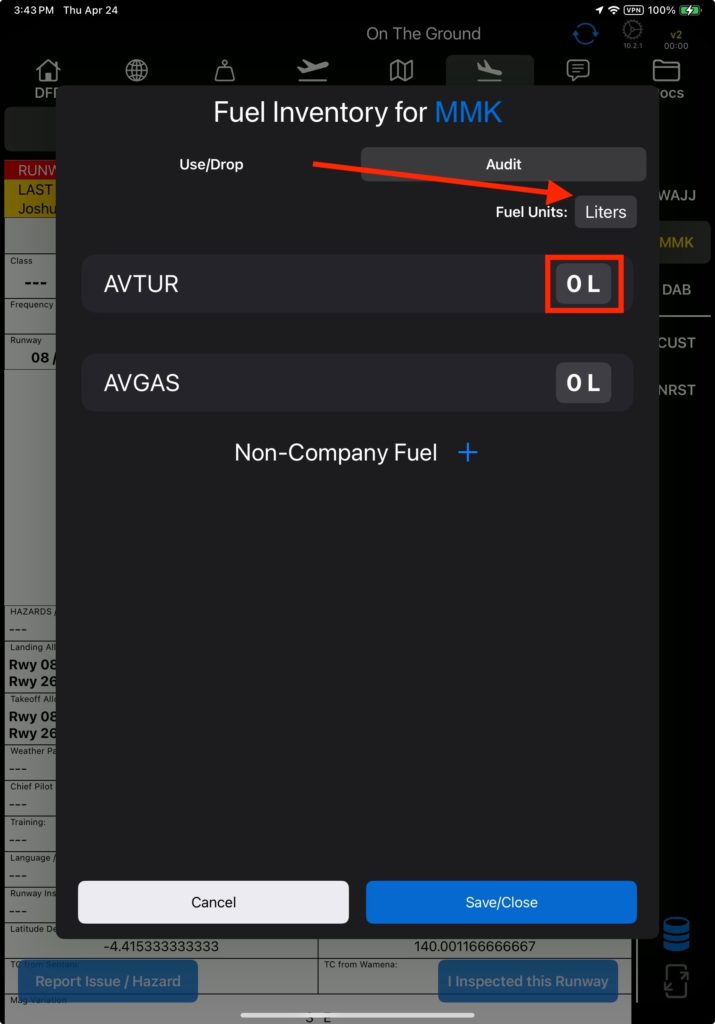
Enter the total quantity of fuel on hand and tap Done.

If another company has fuel at the cache and has given you access to their fuel, if you wish to inventory their fuel, tap the Non-Company Fuel button.
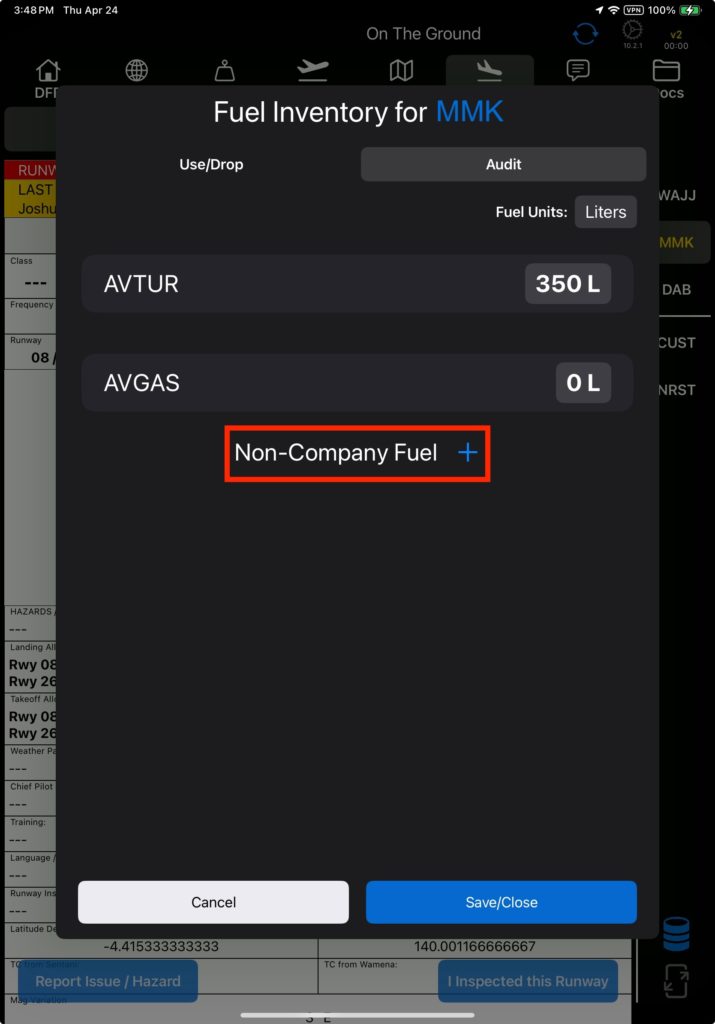
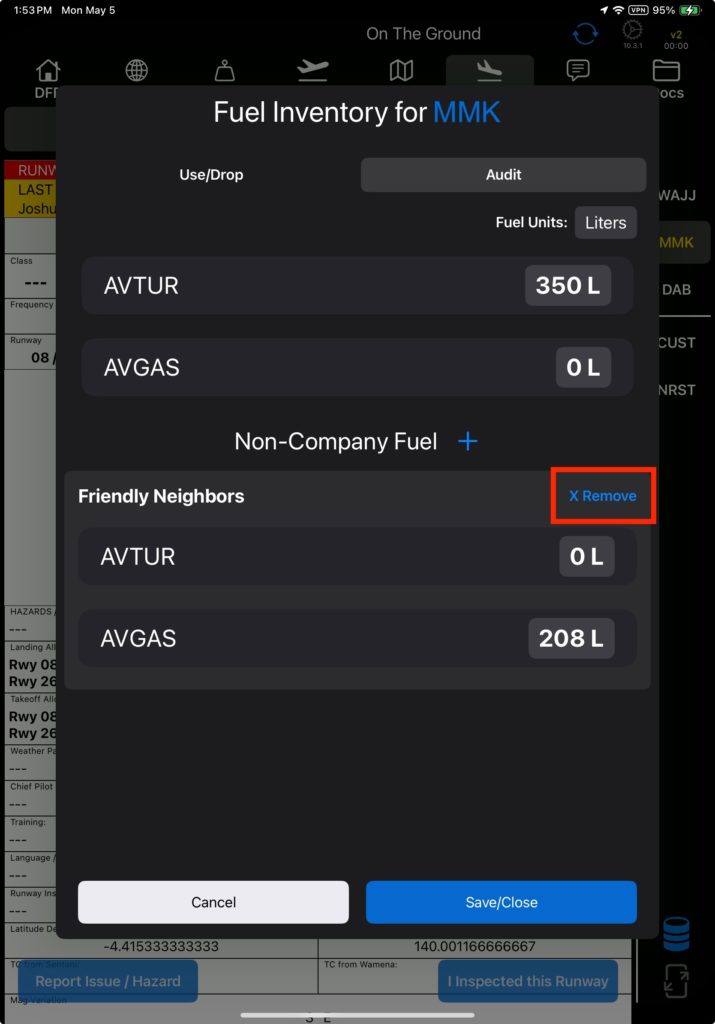
Select the Fuel Owner from the list.

If you change your mind, and do not wish to audit other company fuel after all, tap the Remove button. Note that if you zero the quantity but do not tap Remove, you will enter zero fuel for the non-company fuel when you save the audit.
Once fuel quantity has been entered for all fuel types and owners, tap Save/Close.
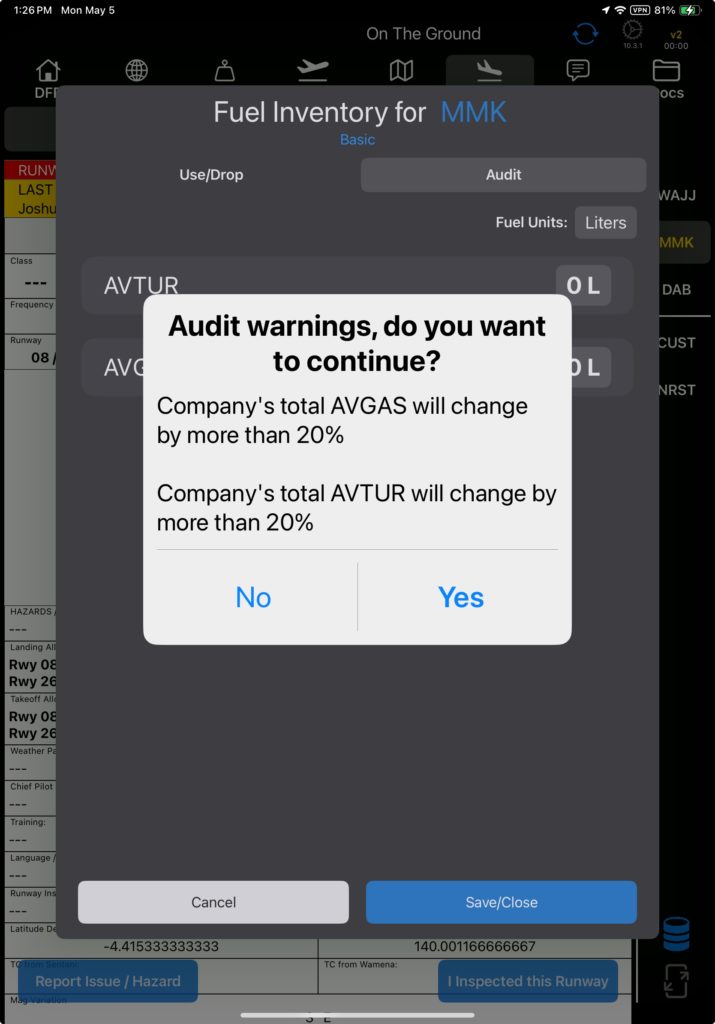
If total fuel quantity changes by more than 20%, there will be an audit warning to minimize the chances of inadvertent changes to the fuel inventory.
Select No to go back and correct the audit, or select Yes to save the audit.
Note: If you do not audit non-company fuel, no updates will be made to their fuel quantity.
When you save the audit, the window will close, but the next time you tap the fuel barrel icon, the Use/Drop tab will display the quantities entered on the Audit tab.
When your EFB is connected to the internet, the Audit will also be recorded in FlightSpan Ops.

Video Version