NOTAMS
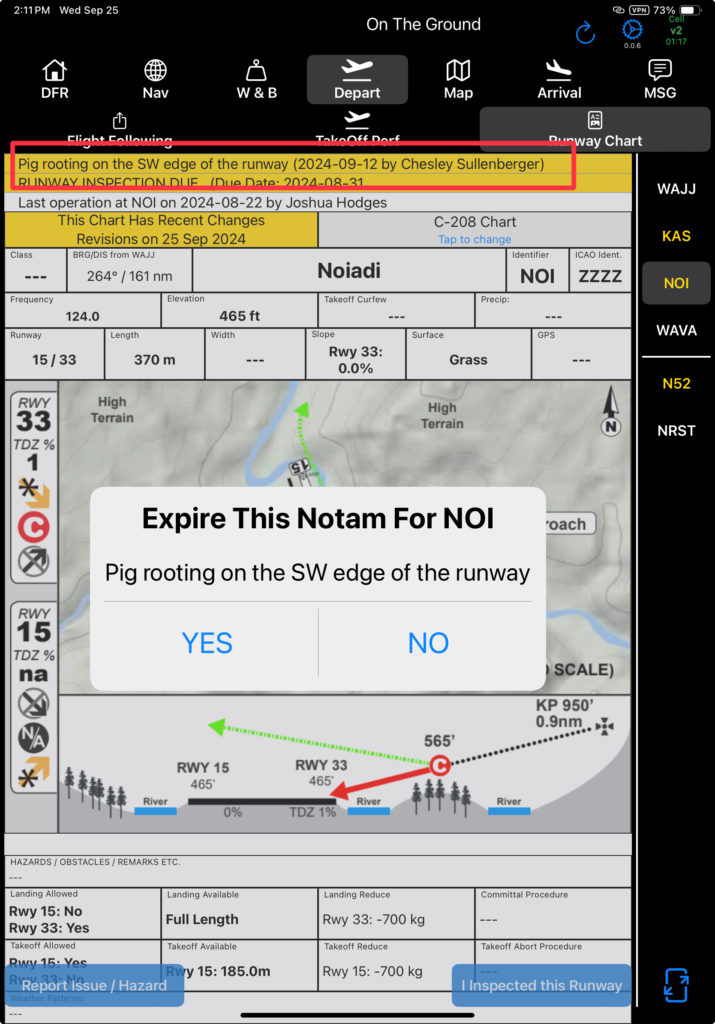
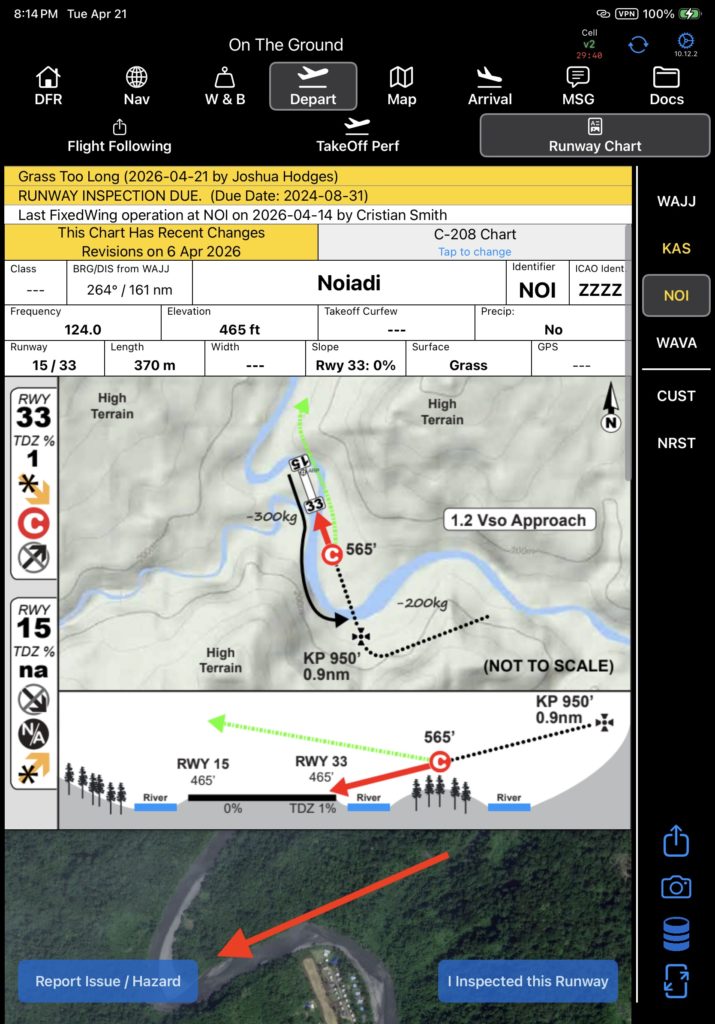
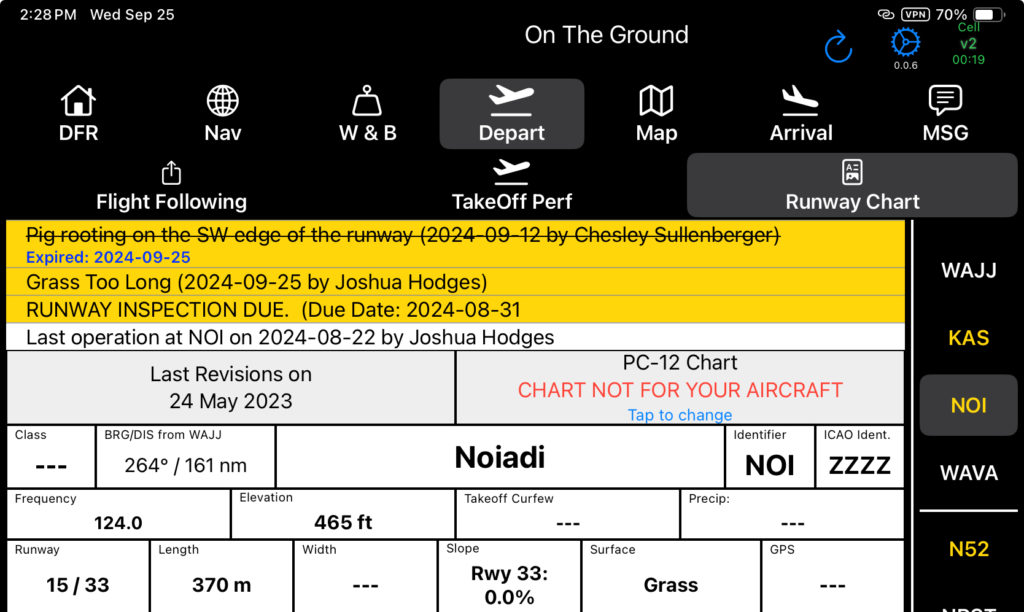
NOTAMs are listed at the top of each runway chart. Both the NOTAM and the runway selection tab will be yellow.
Tap a NOTAM at the top to remove it by expiring the NOTAM. Select Yes to confirm.
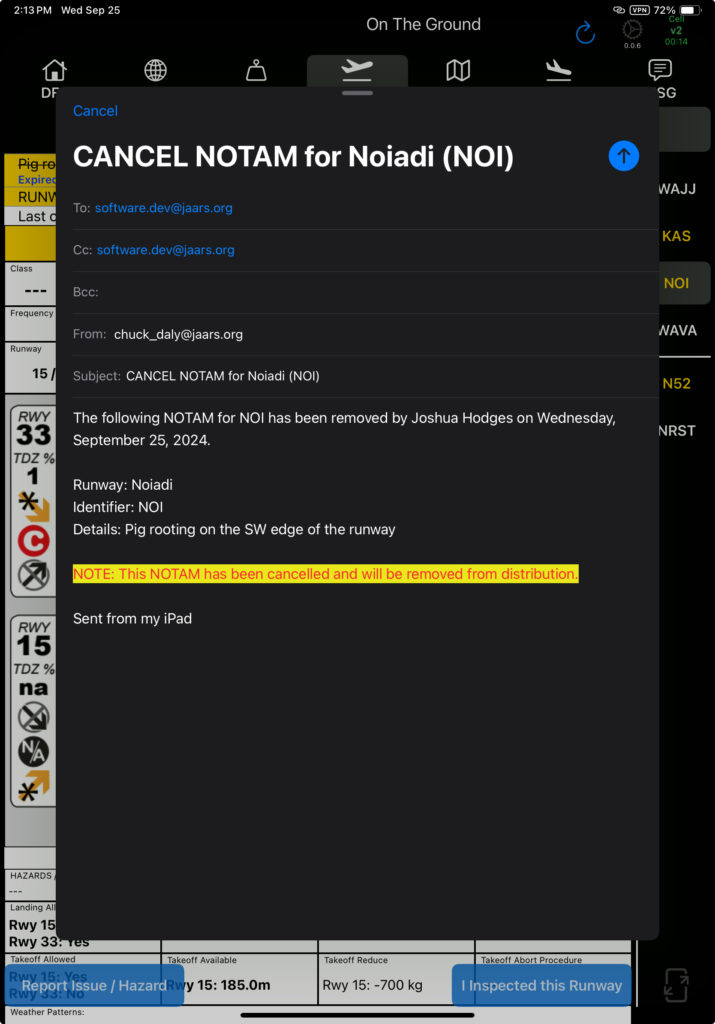
And send the email.
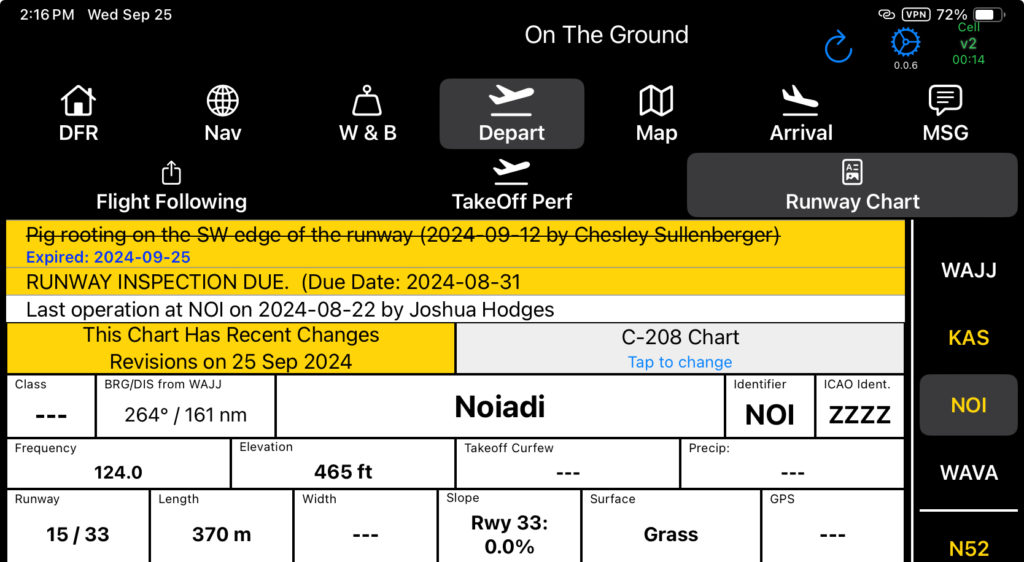
Recently deleted NOTAMs will be displayed with a strikethrough.
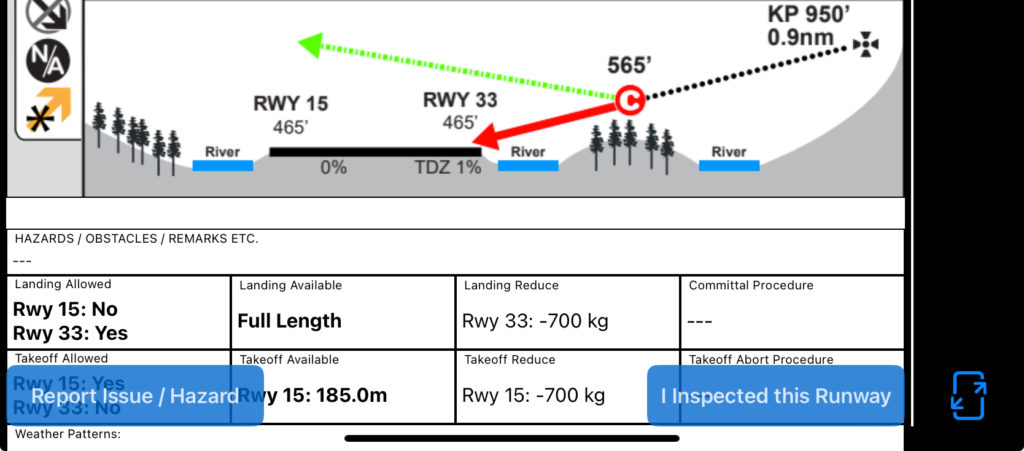
To create a new NOTAM, tap the Report Issue/Hazard button at the bottom of the page.
How long expired NOTAMs are displayed can be changed in Company EFB Preferences.

To create a new NOTAM, tap the Report Issue/Hazard button at the bottom of the page.
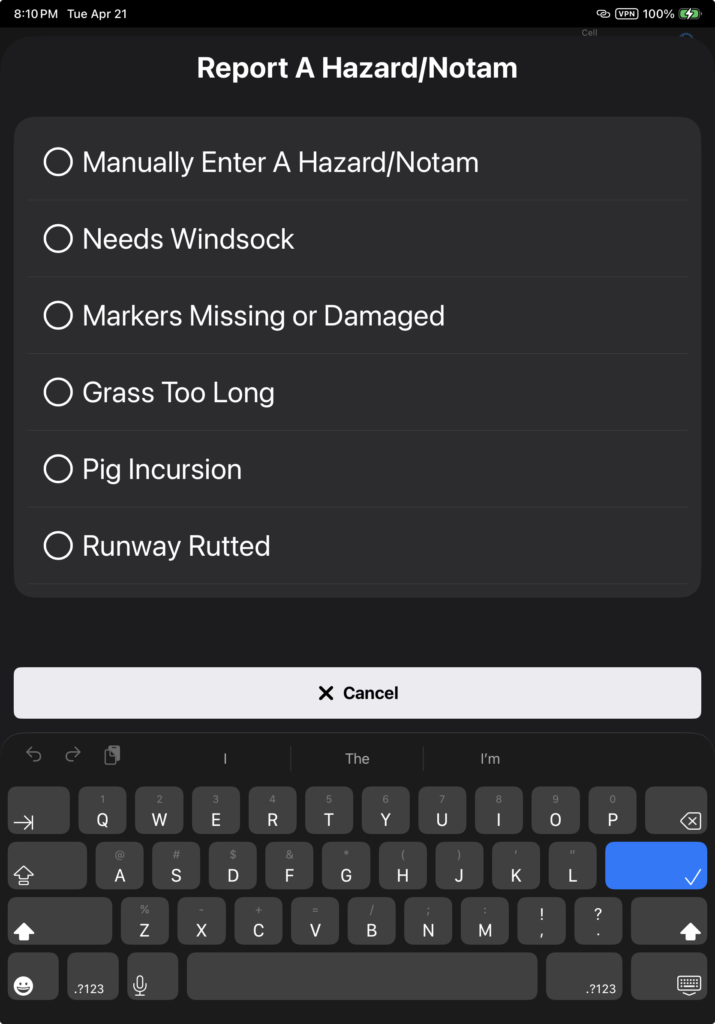
Select from the list or manually enter a description.
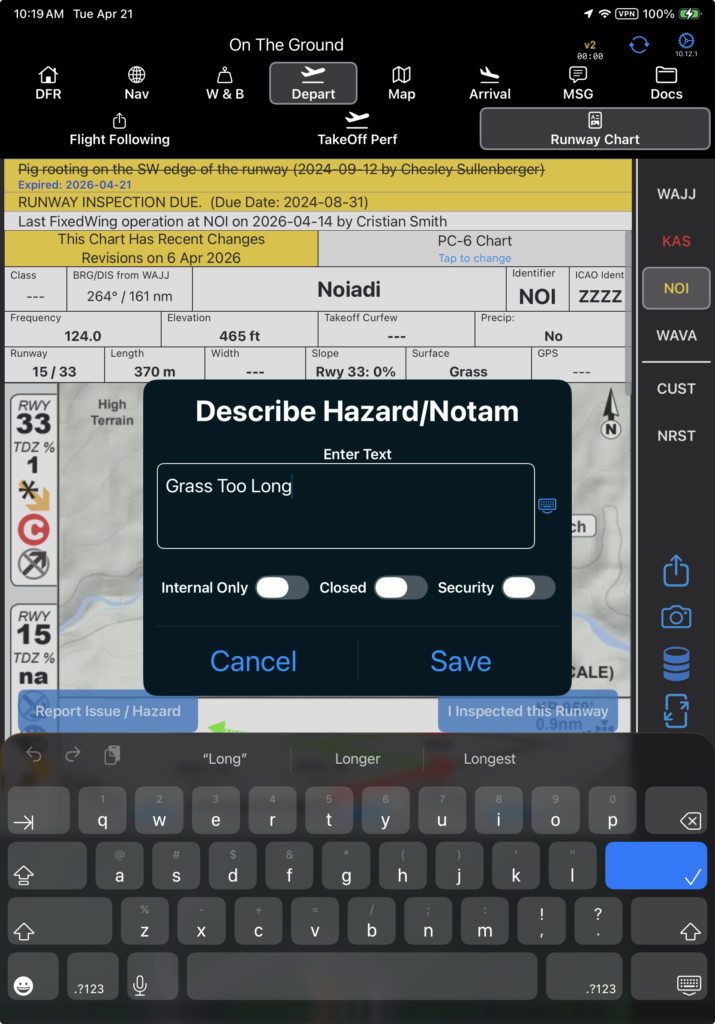
Next edit the NOTAM as needed and toggle one or more NOTAM types if desired.
If NOTAM sharing with another company is enabled, the Internal toggle will be visible. Internal NOTAMs will not be shared.
Save, then send the email.
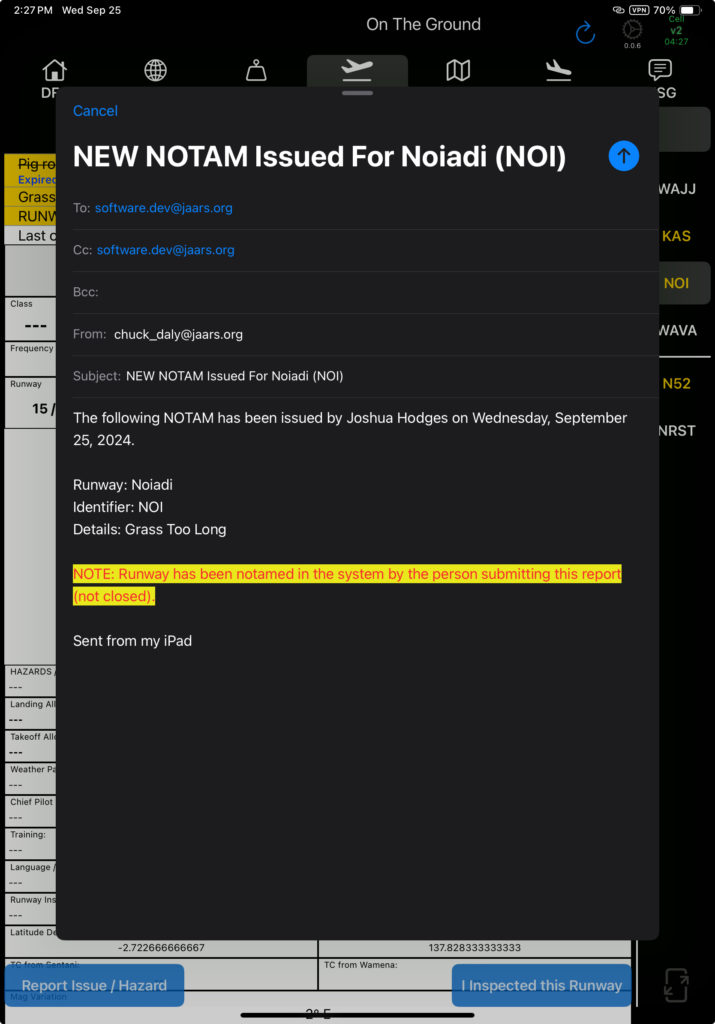
Note: Apple Mail or Gmail, depending on the Company EFB Preference, must be set up on the iPad.
The new NOTAM will be added at the top, and the chart selection tab will be yellow.
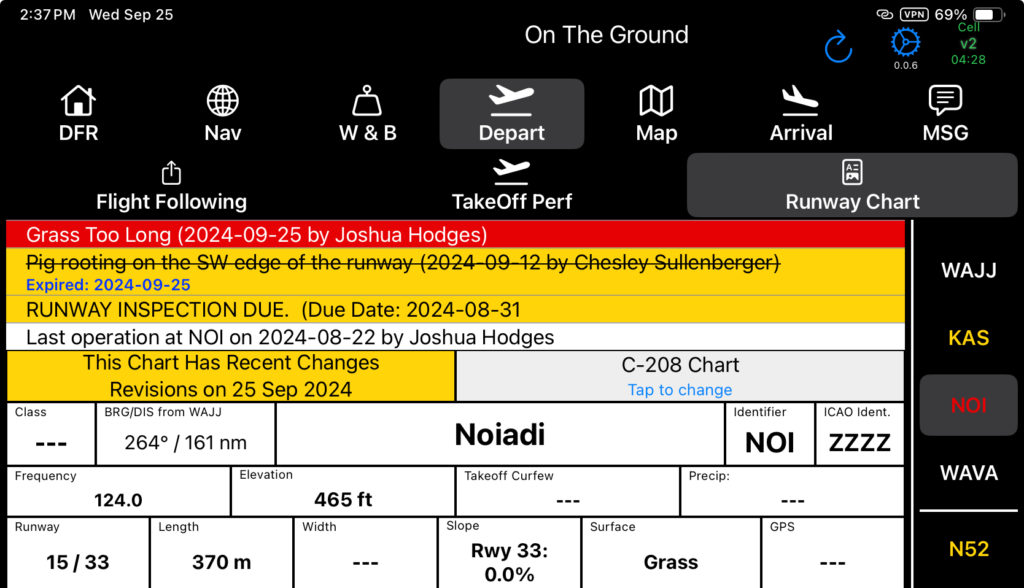
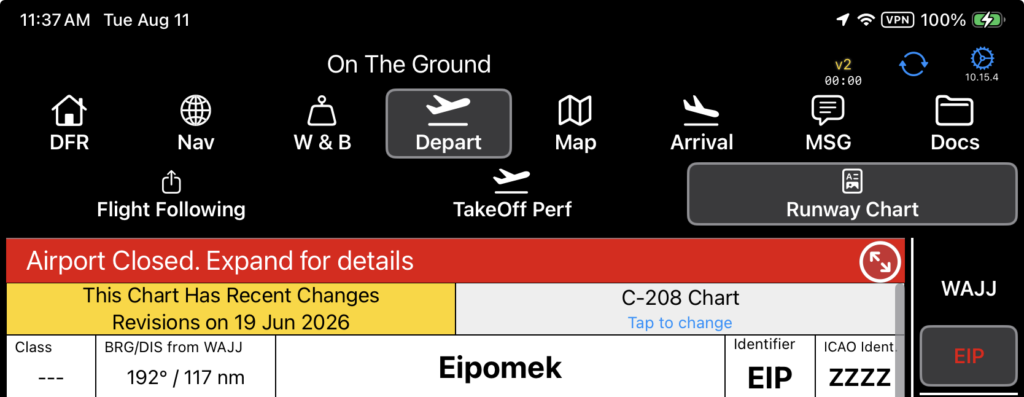
If you select the Closed toggle, both the NOTAM and the chart selection tab will be red.
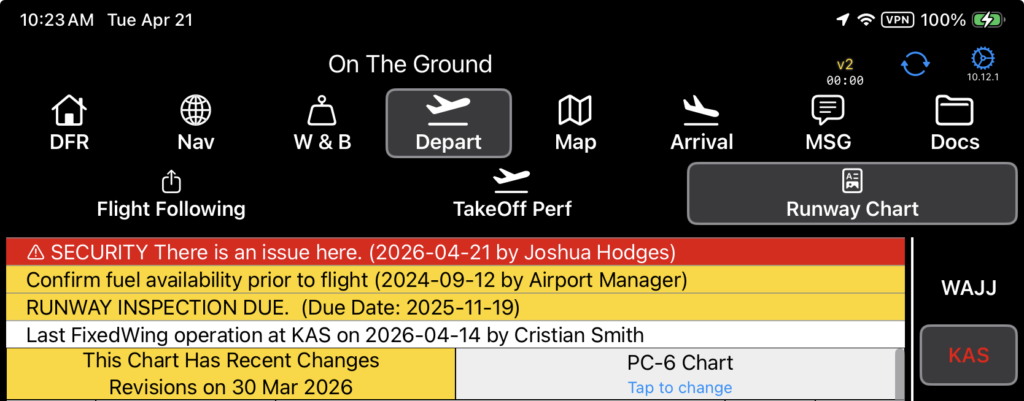
If you select the Security toggle, the NOTAM will include an alert badge.
The NOTAM will be yellow (if open) or red (if closed), and the chart selection tab will be marked with the corresponding color.
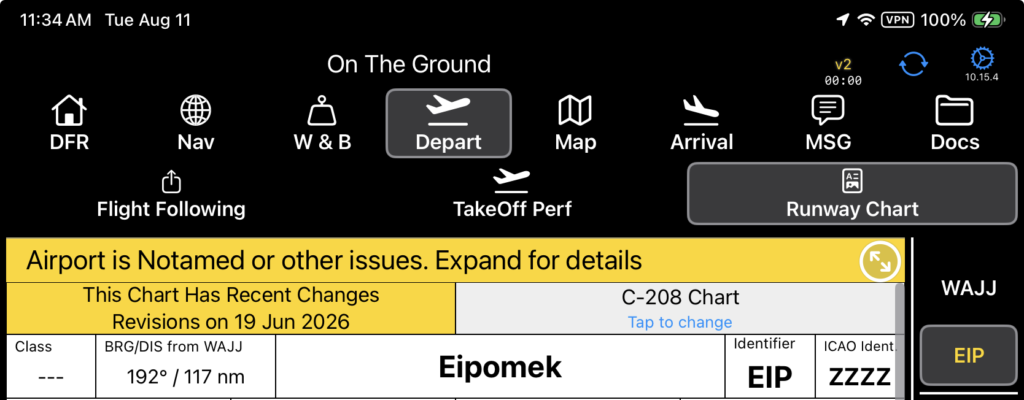
If there are multiple NOTAMs and notifications, a collapse symbol will appear. Tap to collapse the NOTAMs.
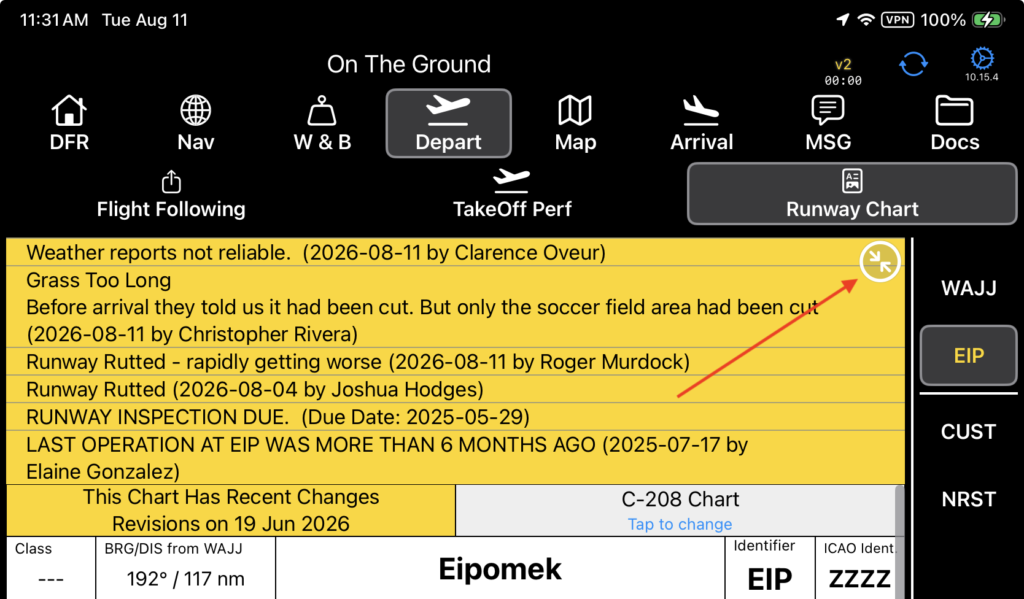
Tap again to reopen the NOTAMs.
If the airport is closed, the notification will be red.
Inspections
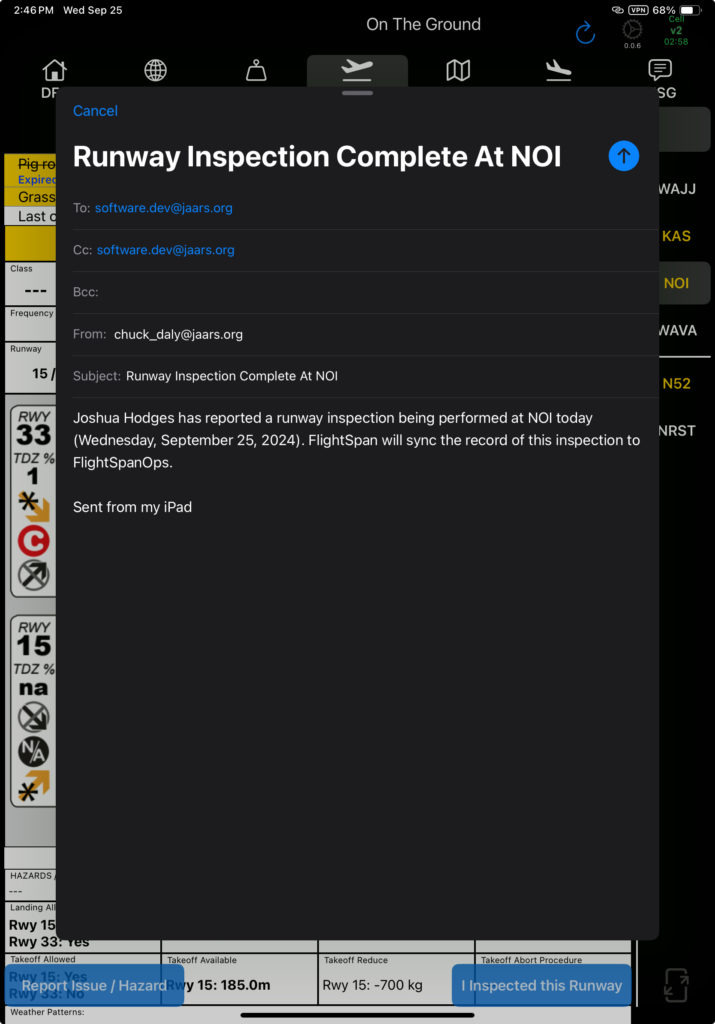
To report a runway inspection, tap the I Inspected this Runway button at the bottom, then select Yes.
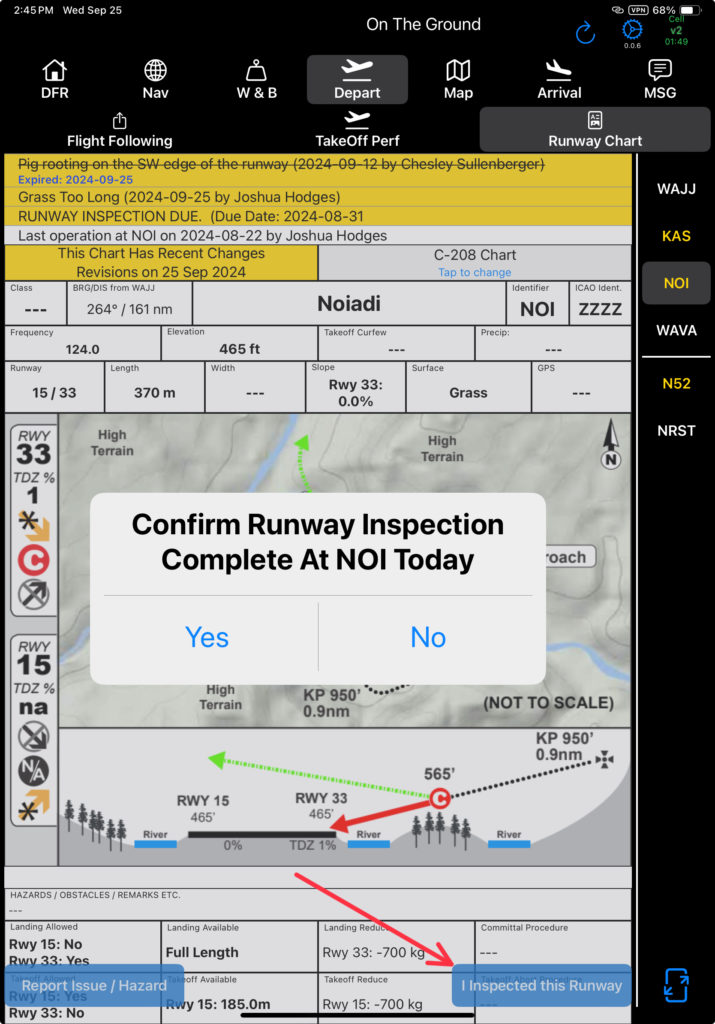
Then send the email.
The Runway Inspection Due note will be removed.
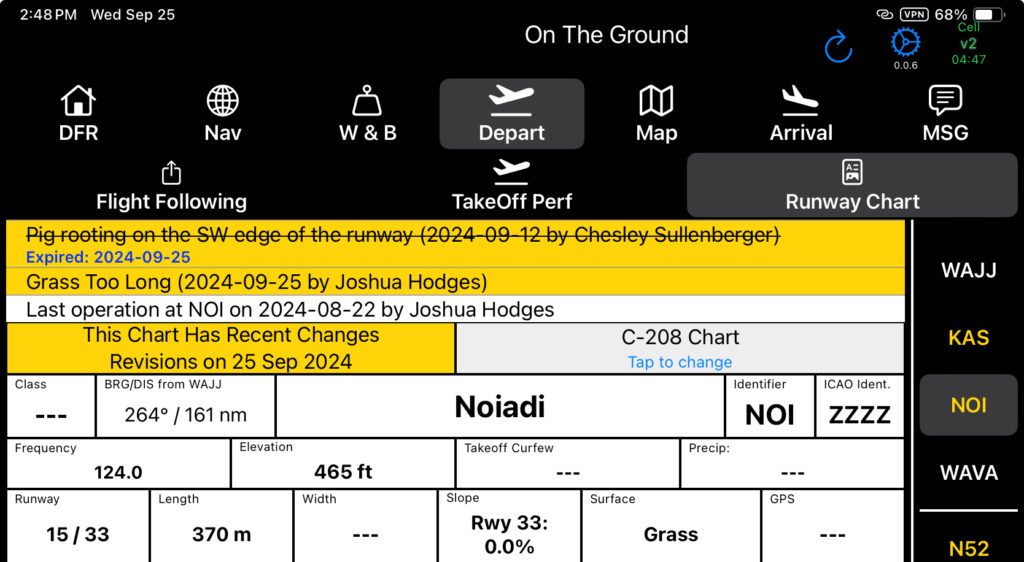
The next time the iPad is connected to the internet and one of the following four things happens, the emails will be sent, FlightSpan™ Ops will be updated, and the NOTAM and inspection status will be disseminated to the other company iPads:
- Opening the app from the iPad’s home screen (when it is not currently open)
- Performing a manual Sync
- Creating a new DFR or downloading a new flight
- Uploading or Printing a DFR
Video Version