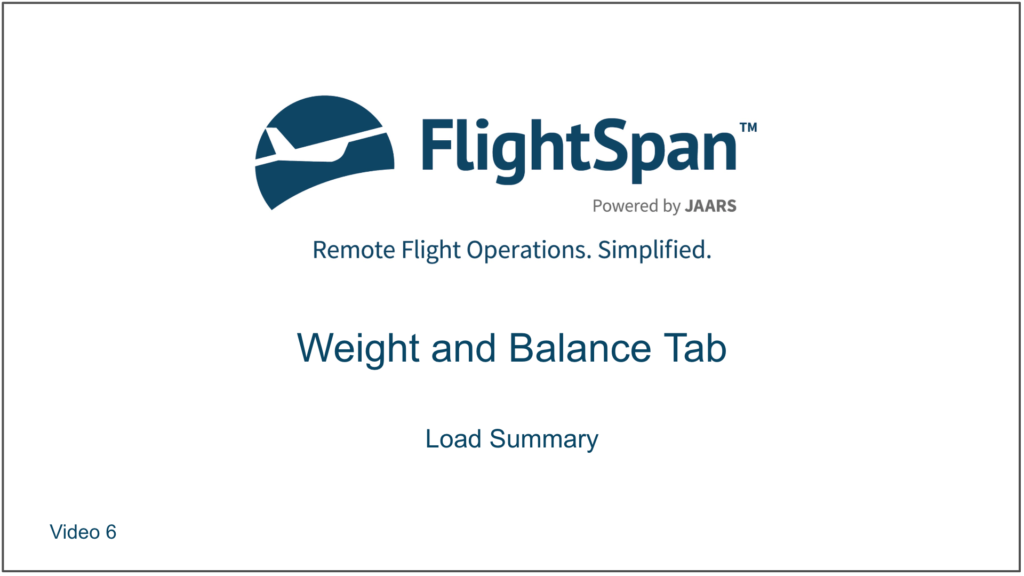
The configuration weight and CG, including stowed seats and aircraft equipment on board, is displayed under the registration number.
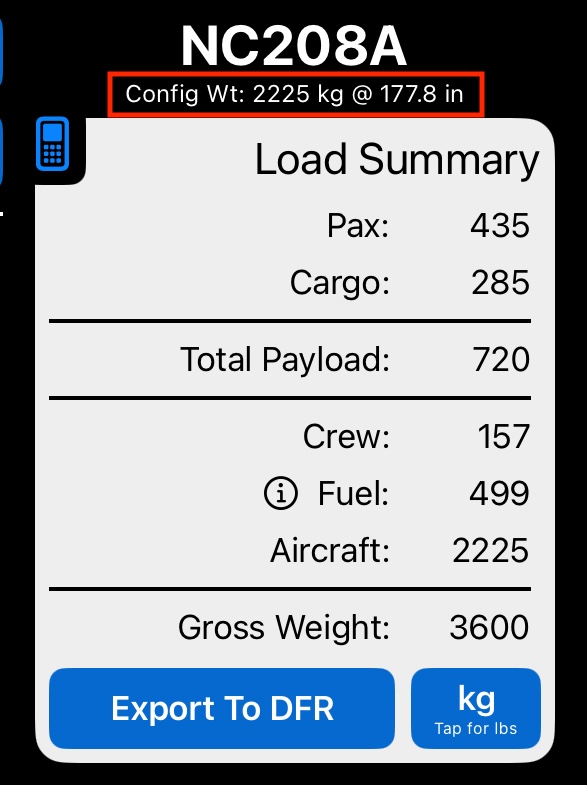
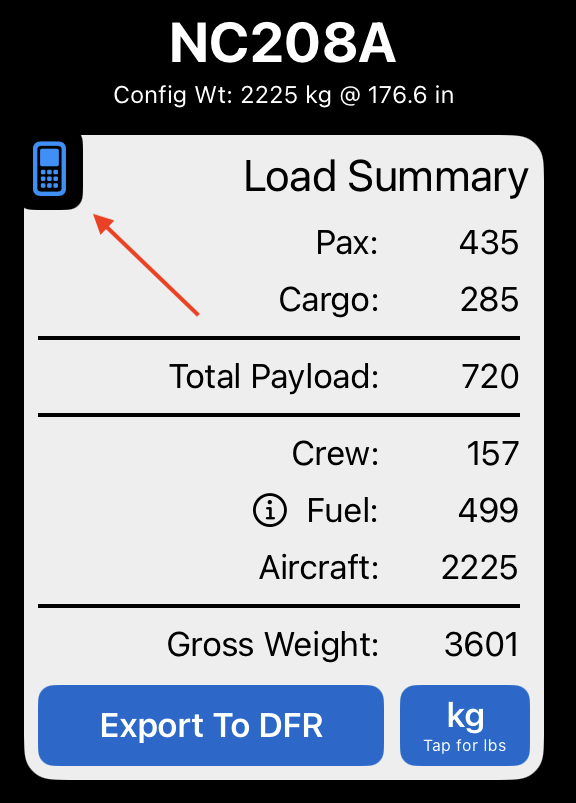
Tap the fuel information button to display fuel in other units.
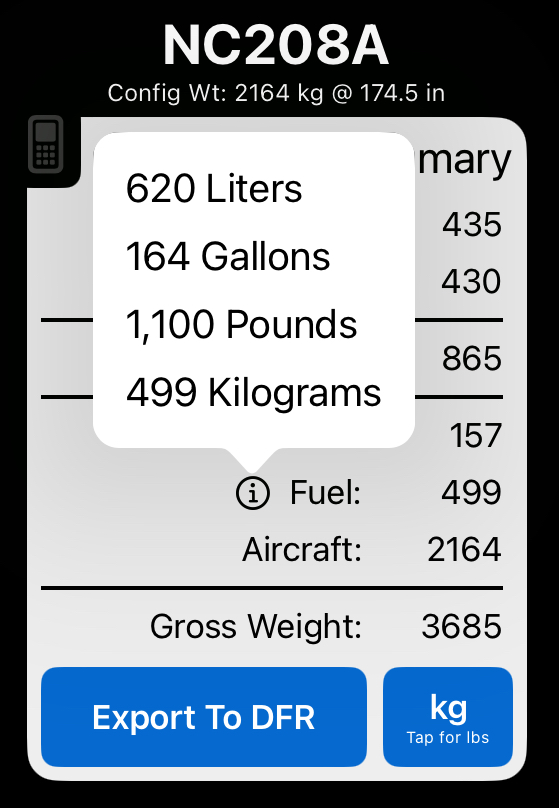
Tap the weight units button to display the load summary in non-standard units.
Calculator
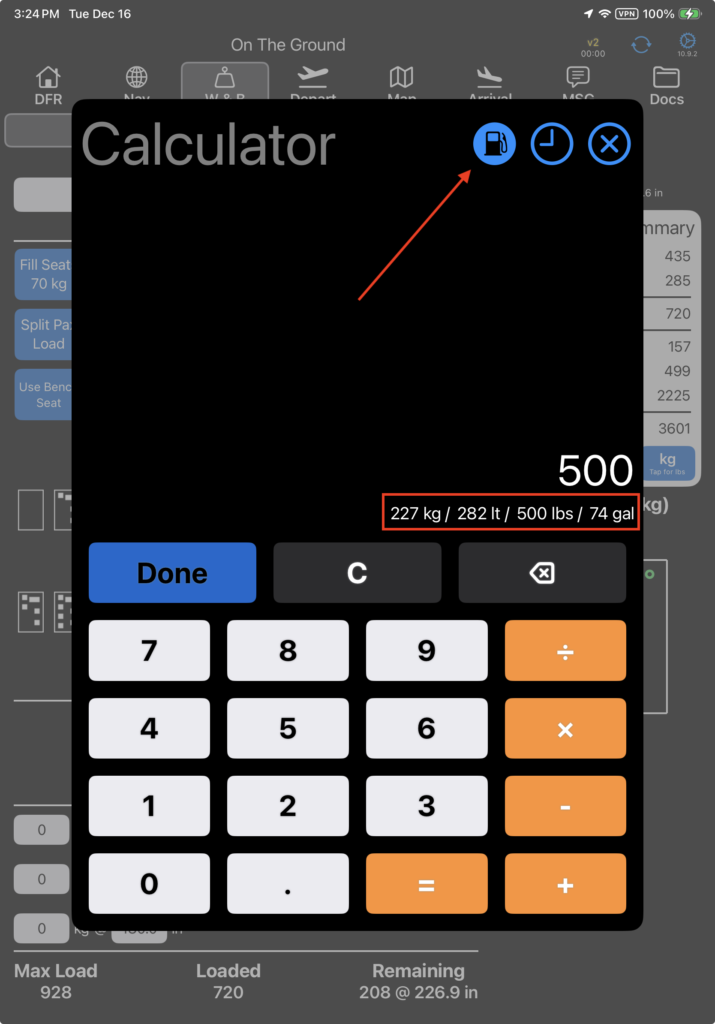
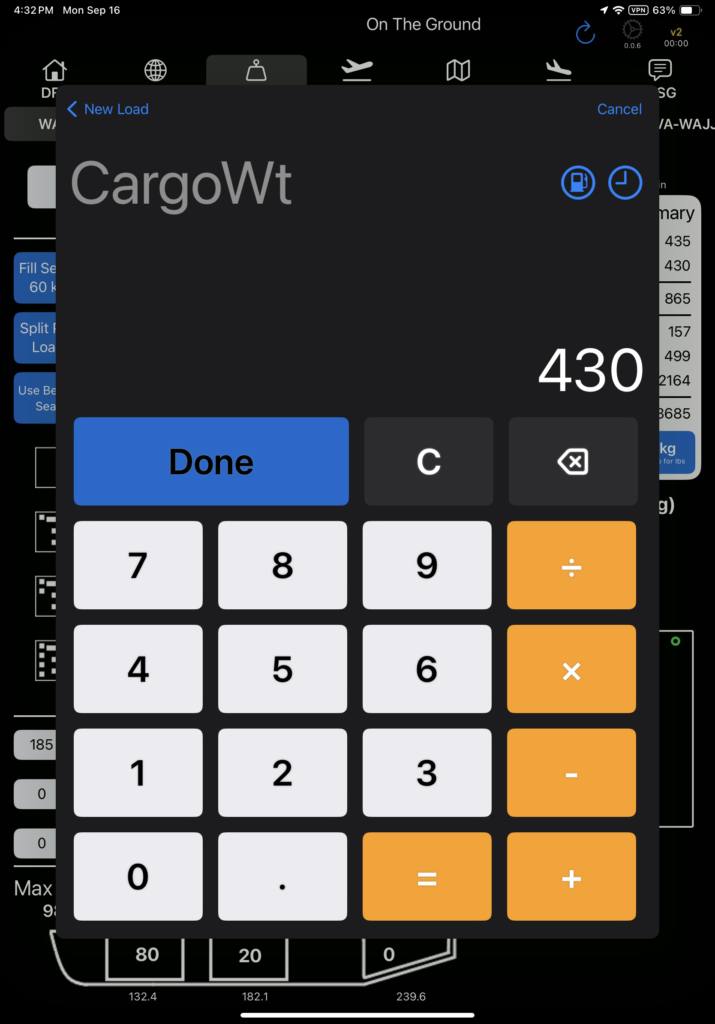
Here and anywhere else in the app you see a calculator icon, tap to open the calculator.
Tap the fuel pump icon in the upper right to display the amount in the calculator in all four fuel units.
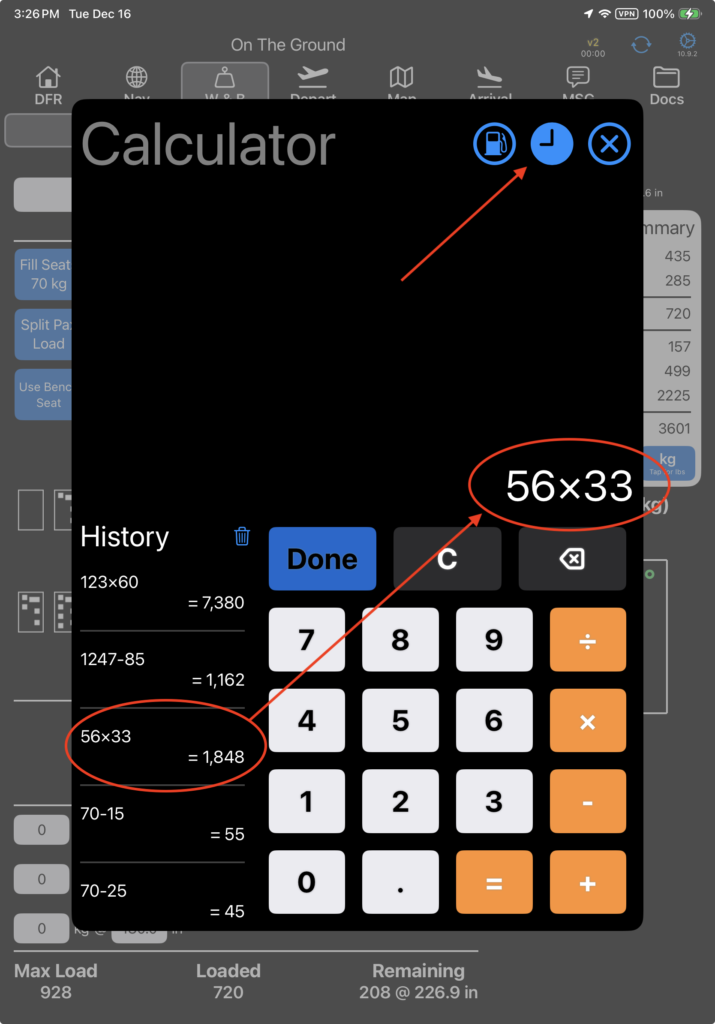
Tap the clock/history icon in the upper right to display previous calculations.
Tap on any calculation to restore it.
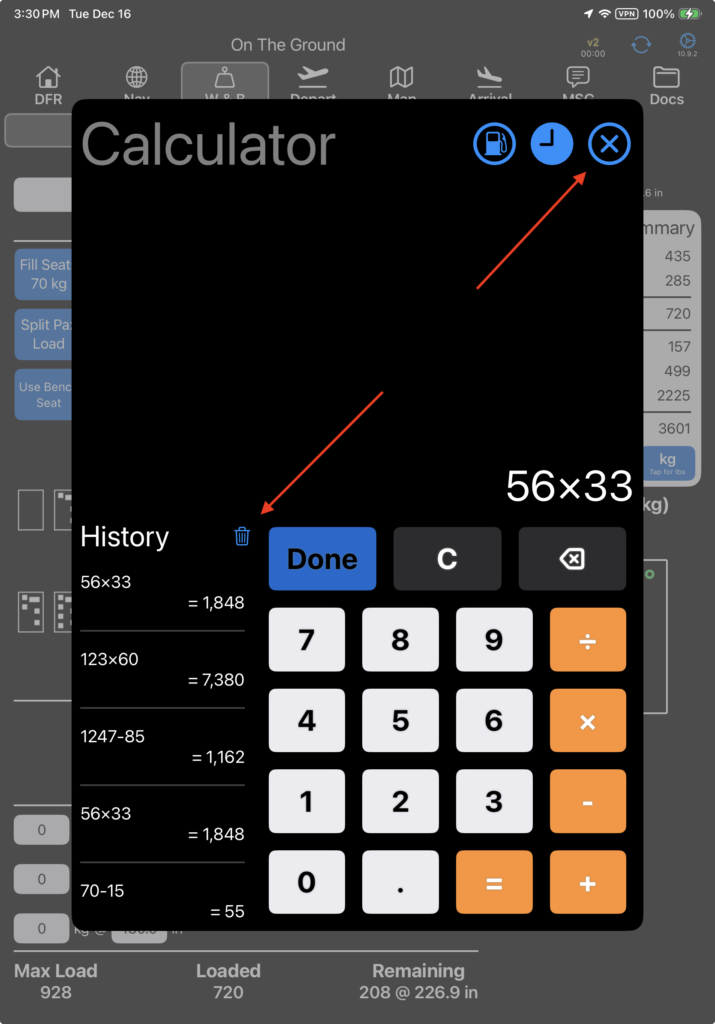
Click the trashcan icon to clear the history, and the X button to close the calculator.
Export to DFR
Tap Export to DFR to copy the load to the DFR. The route will default to the selected tab.
Next follow the steps described in the New Loads document.
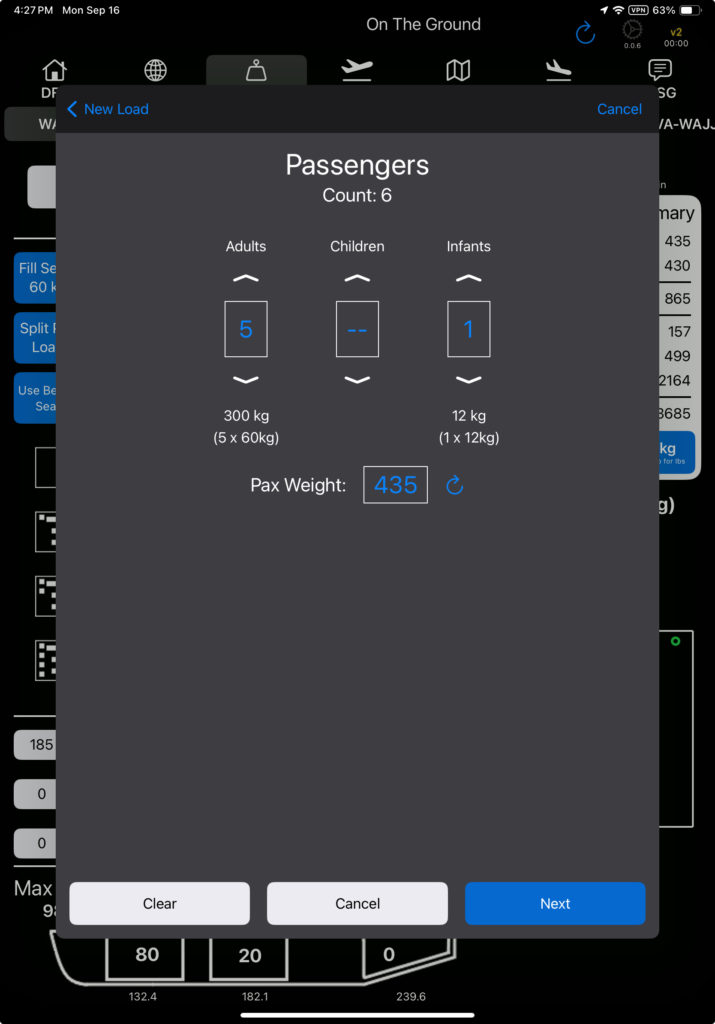
If there are passengers, FlightSpan™ will default to the same number of adults as there are filled seats. Adjust the passenger numbers, passenger types, and weights as necessary, then tap Next.
Then adjust the cargo weight as necessary – it will default to the full load.
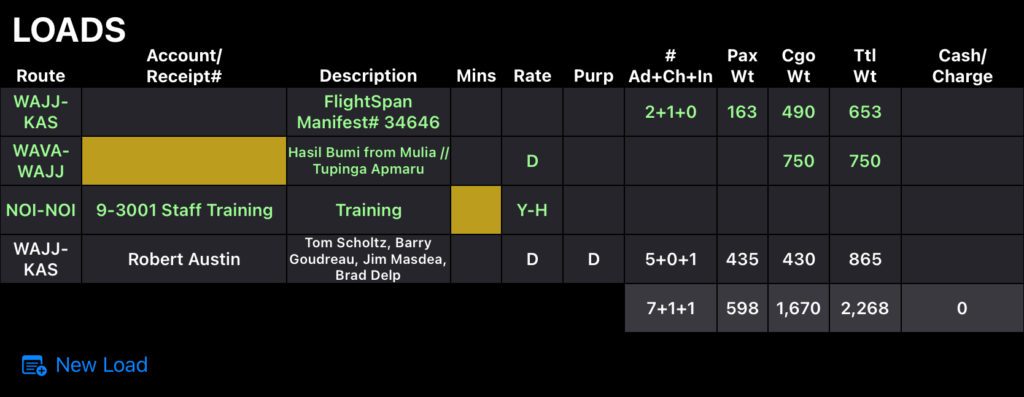
When all steps are complete, the load will be added to the Loads section of the DFR.
Envelope
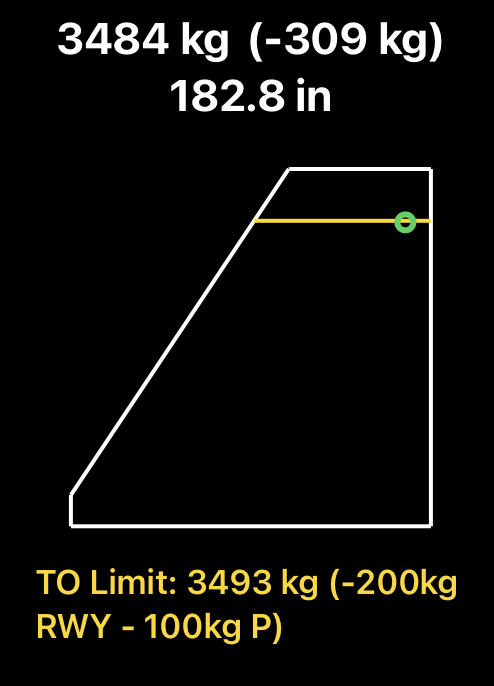
Above the envelope are gross weight, amount below maximum takeoff weight (aircraft or runway), and arm.
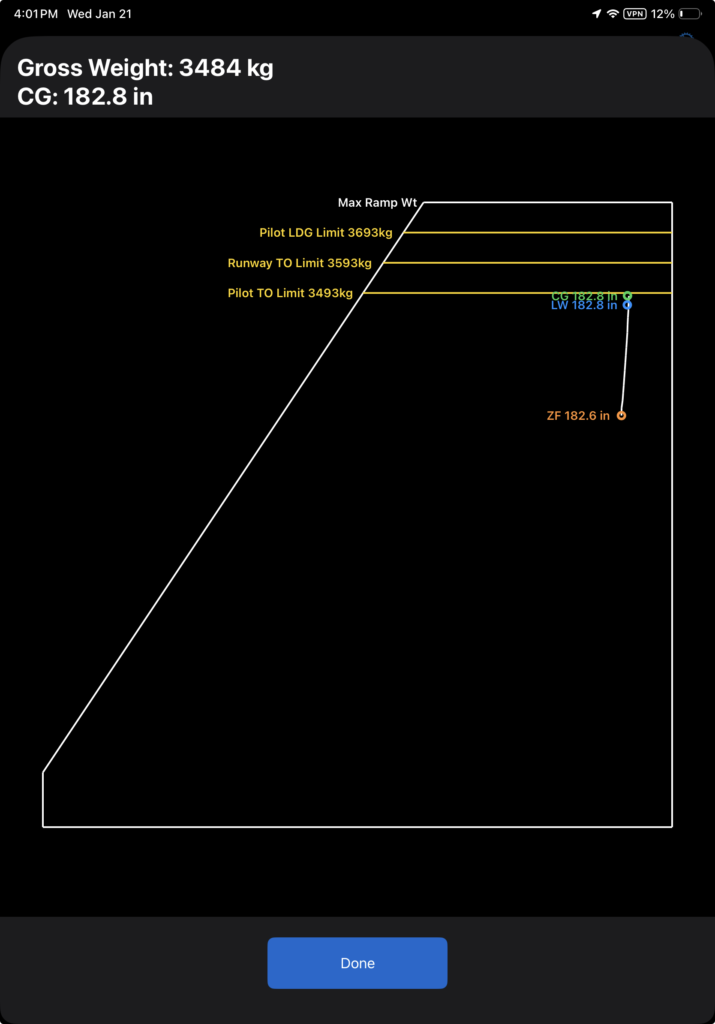
On the envelope, in addition to the weight and CG marker, the envelope will display a yellow line if there is a company runway weight limitation or a pilot waypoint weight limitation. Any pilot limitation will be added to a runway limitation. In the example below, there is a 100 kilogram pilot limitation in addition to the 200 kilogram runway limitation.
Below the envelope the runway weight limitation details will be displayed.
Note: The weight below maximum takeoff weight display may be switched off from Company EFB Settings.

Tap on the envelope to open an expanded view that includes landing and zero fuel weights and applicable weight restrictions.
If a Pilot Landing Limit is displayed, it is applicable to the destination runway.
Print Weight and Balance
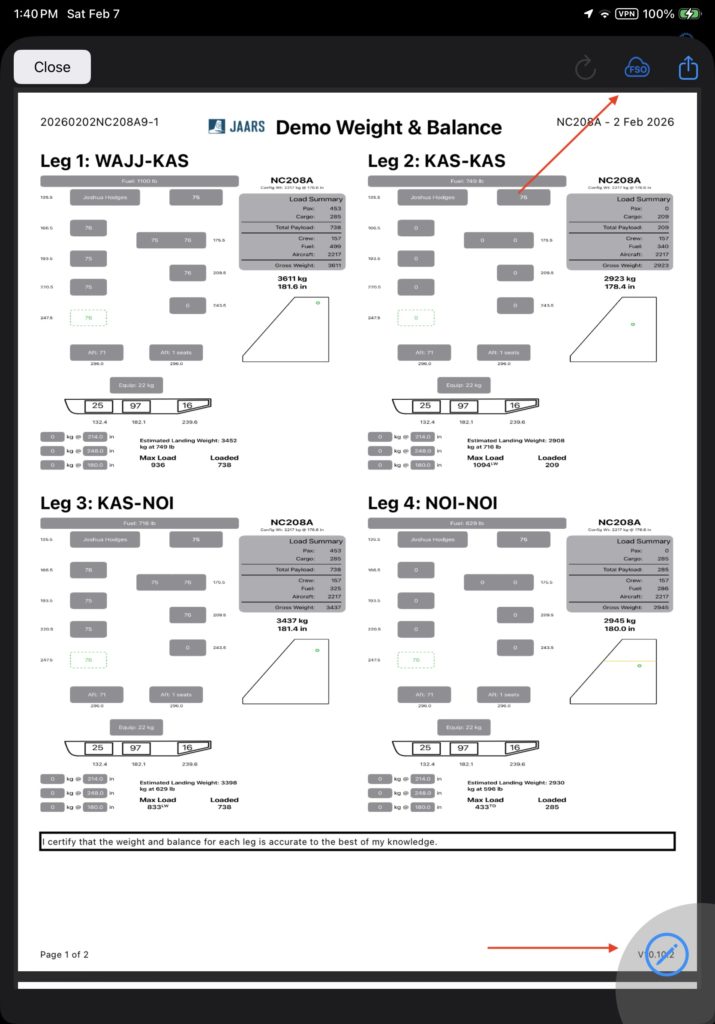
If you need to print the weight and balance form, first set the “Print Weight And Balance Form” Company EFB Preference to yes. If desired, add standard text that will be added to the bottom of each page from the Weight And Balance Form Boilerplate Notes preference.

When the DFR is uploaded, the forms will be automatically uploaded as well. Or tap the print button on the DFR page to view and share the form.
Tap the pencil to sign, and the FSO key to save and attach the signed copy to the flight for later upload.
Video Version