Aircraft
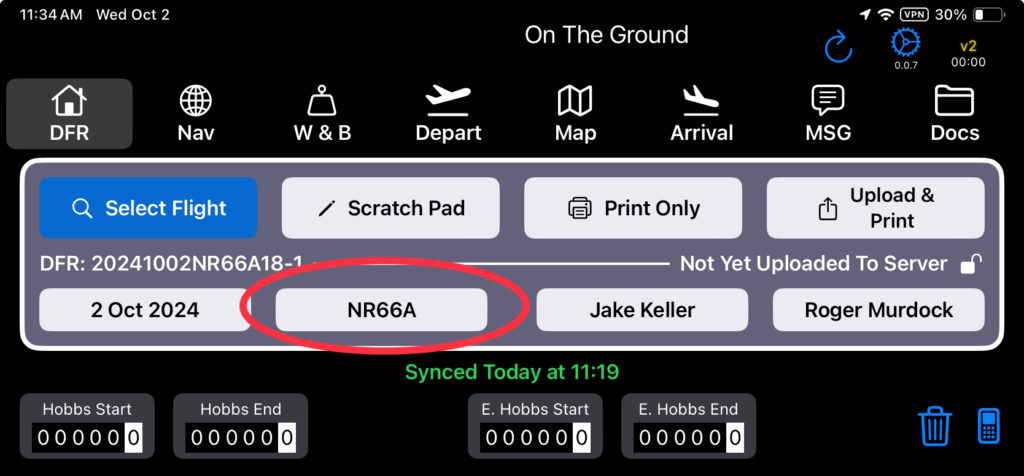
Tap the registration number to change aircraft.
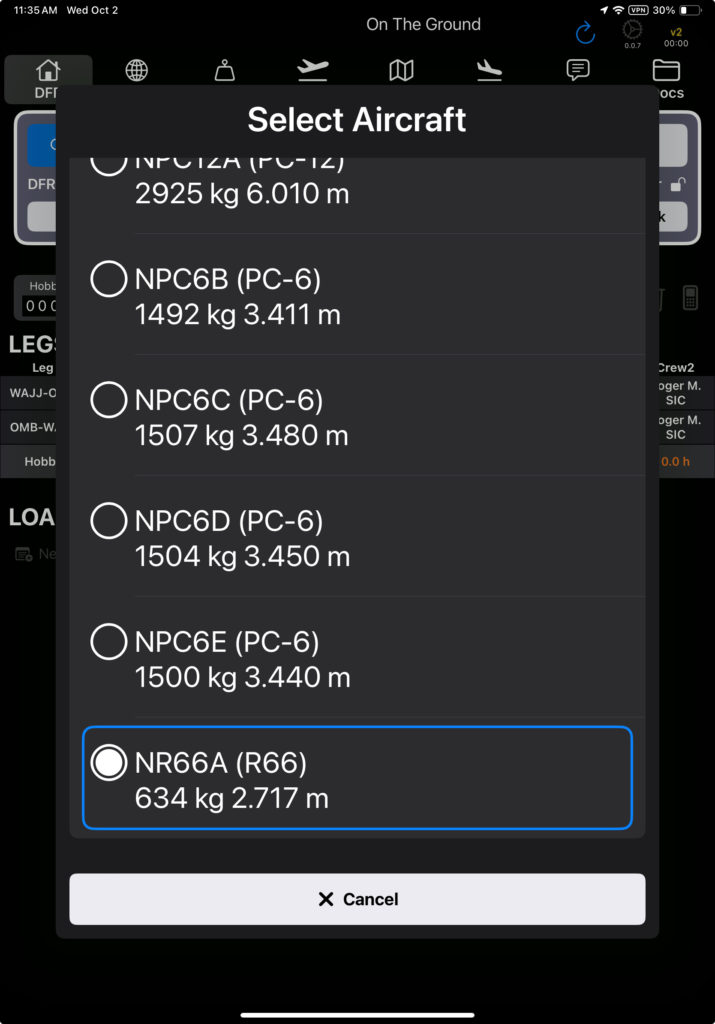
Select the desired aircraft from the list.
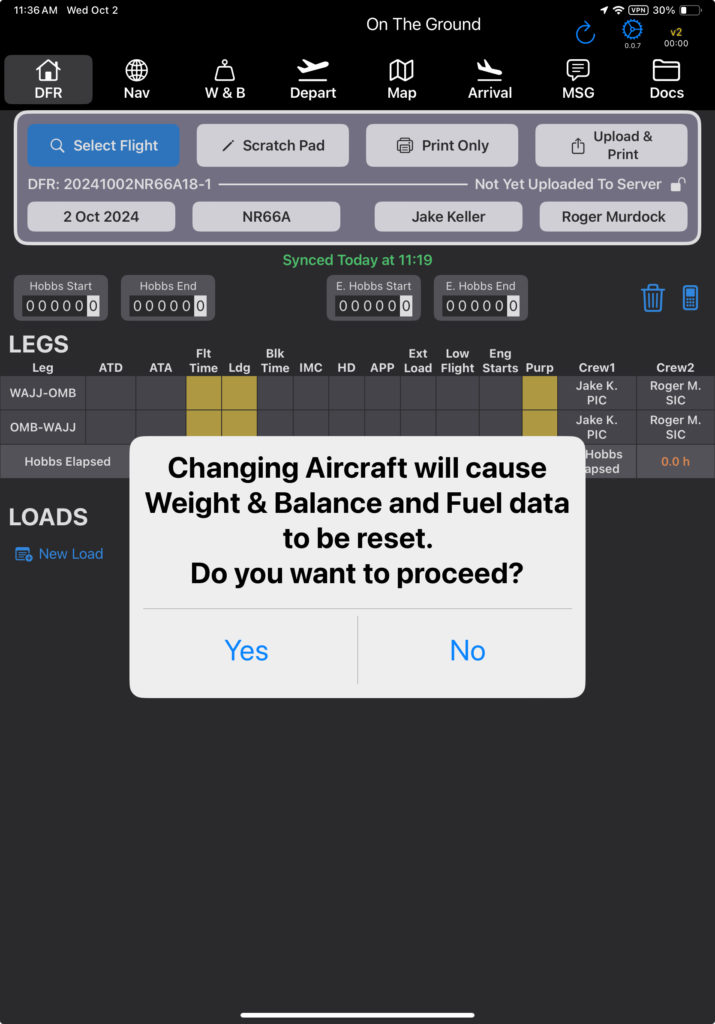
If you change to a different aircraft of the same type, all changes you have made will be retained.
If you change to a different aircraft type, weight and balance and fuel planning will be reset. The original route and all loads will be retained.
Crew
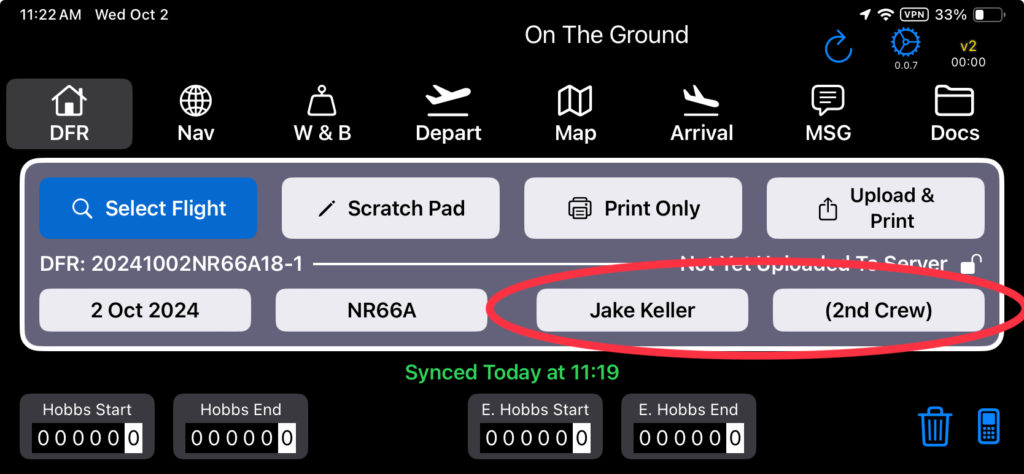
Tap on the pilot name to change pilots. Tap on (2nd Crew) to add another crew member.
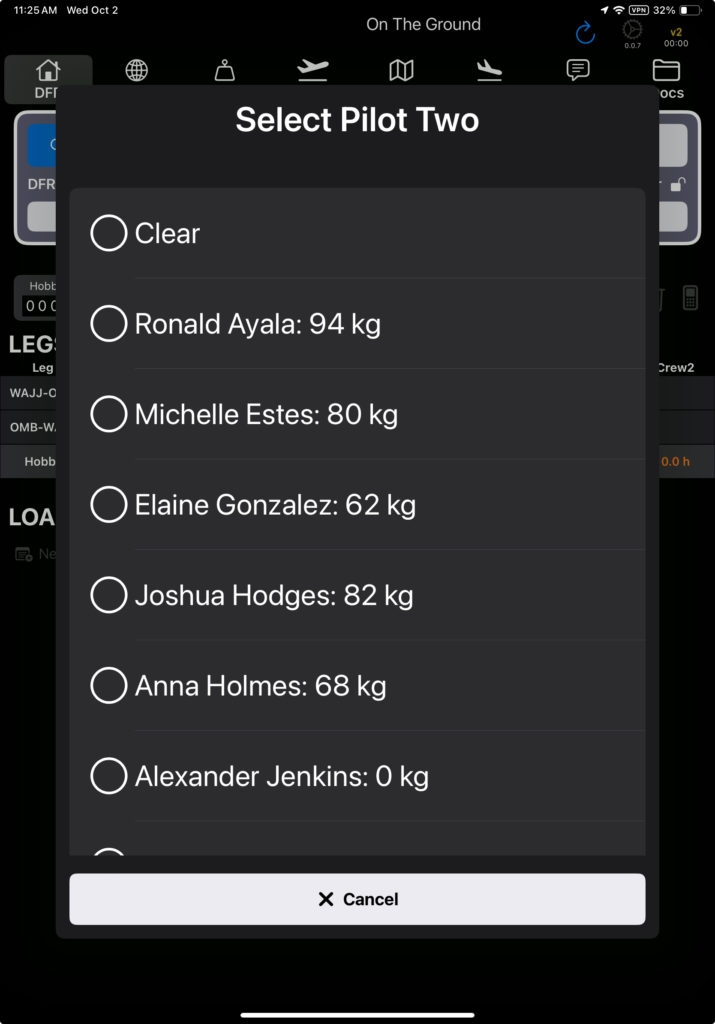
Select from the list of pilots. To remove a second crewmember, select the Clear option.
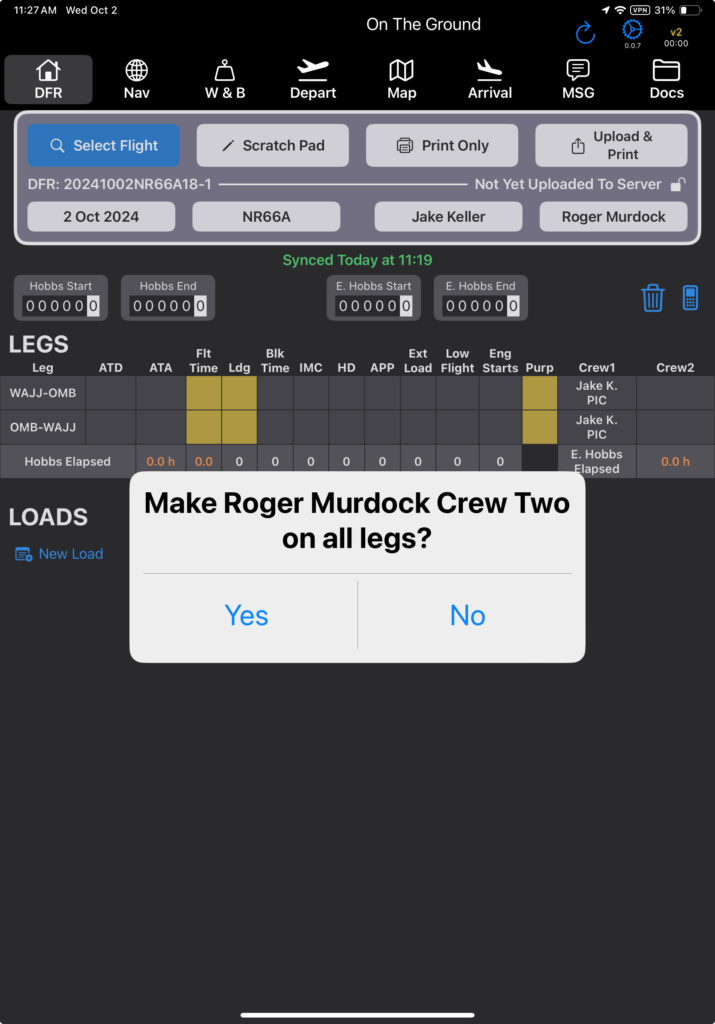
Select Yes to add the pilot to all legs; select No to add the pilot to the header only.
Then select the desired crew role.
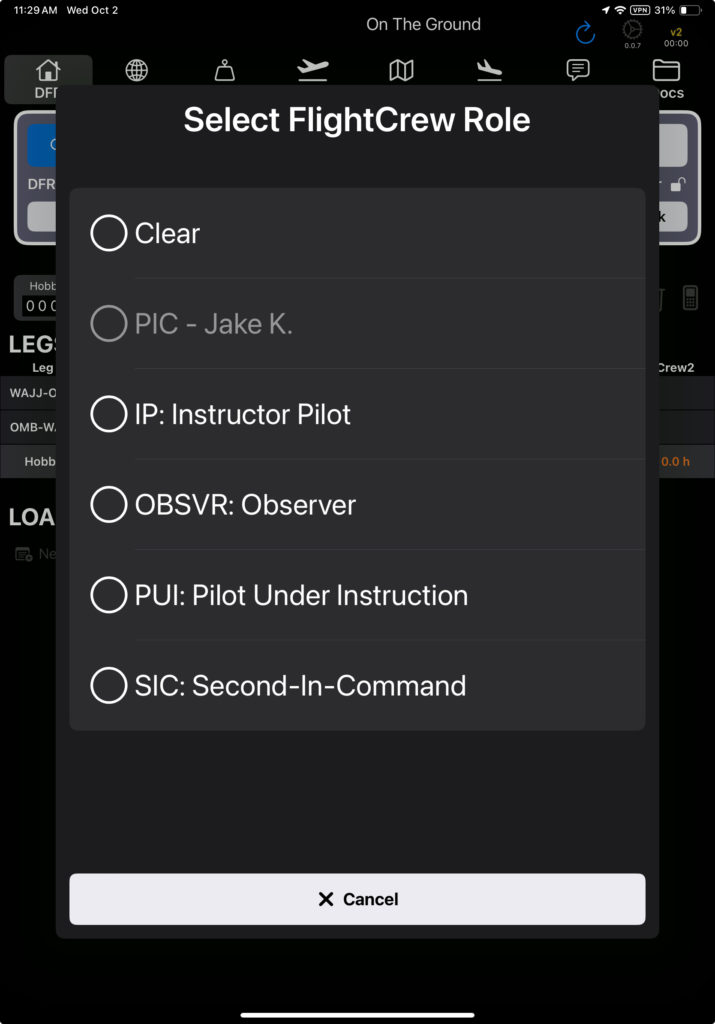
The pilot will be added to the header and to all legs of the flight with the assigned role.
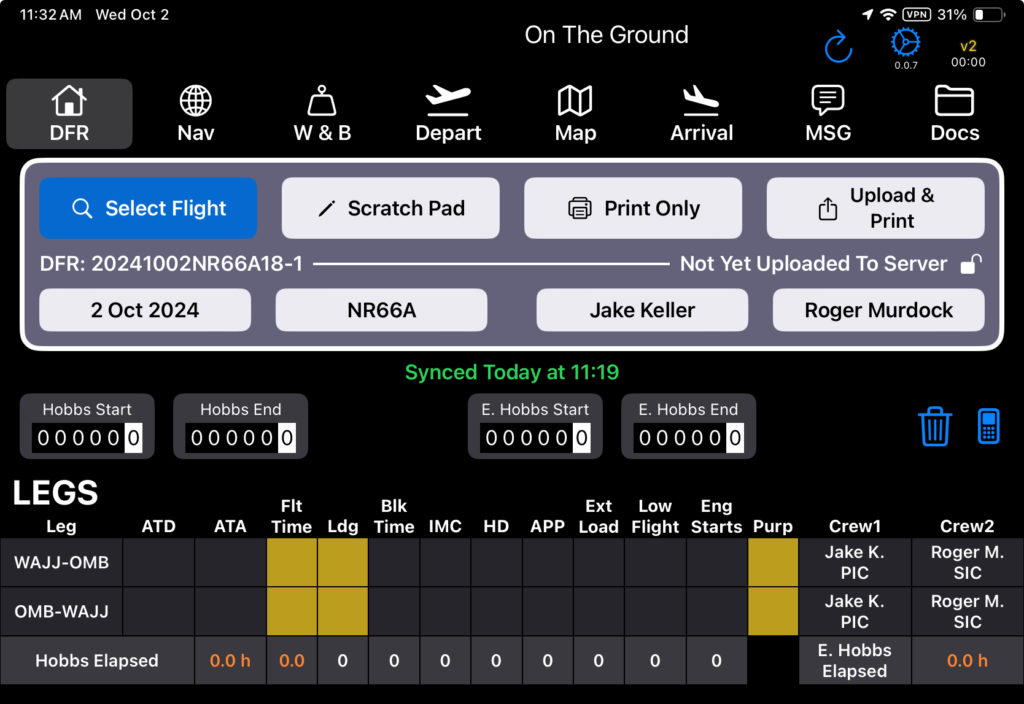
Hobbs
Aircraft Hobbs and Engine Hobbs Start are prefilled based on the last flight uploaded. Enter Hobbs times by tapping their respective meters.
Airframe Total Time, displayed directly under Aircraft Hobbs, is automatically calculated based on the Aircraft Hours History List in FlightSpan™ Ops.
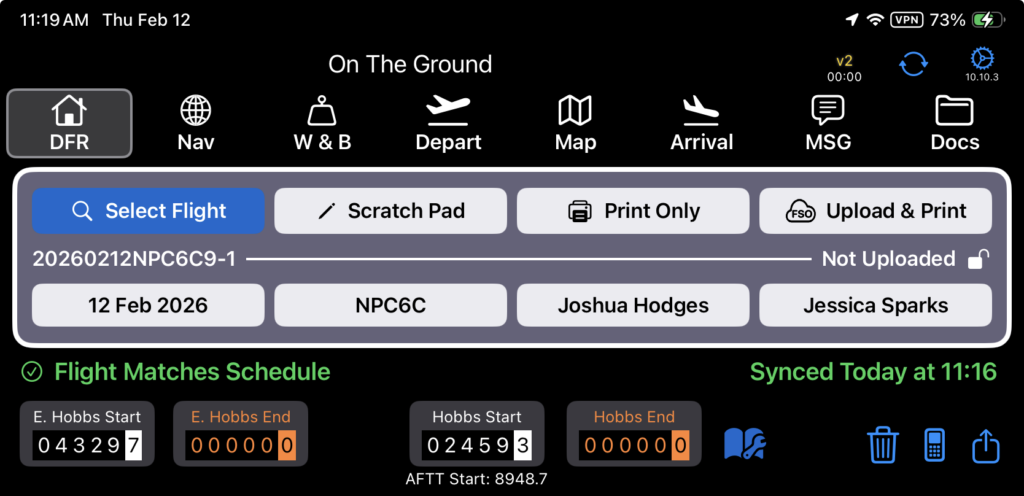
The option to record engine Hobbs time can be switched on or off from Aircraft Type EFB Preferences.

Maintenance Status
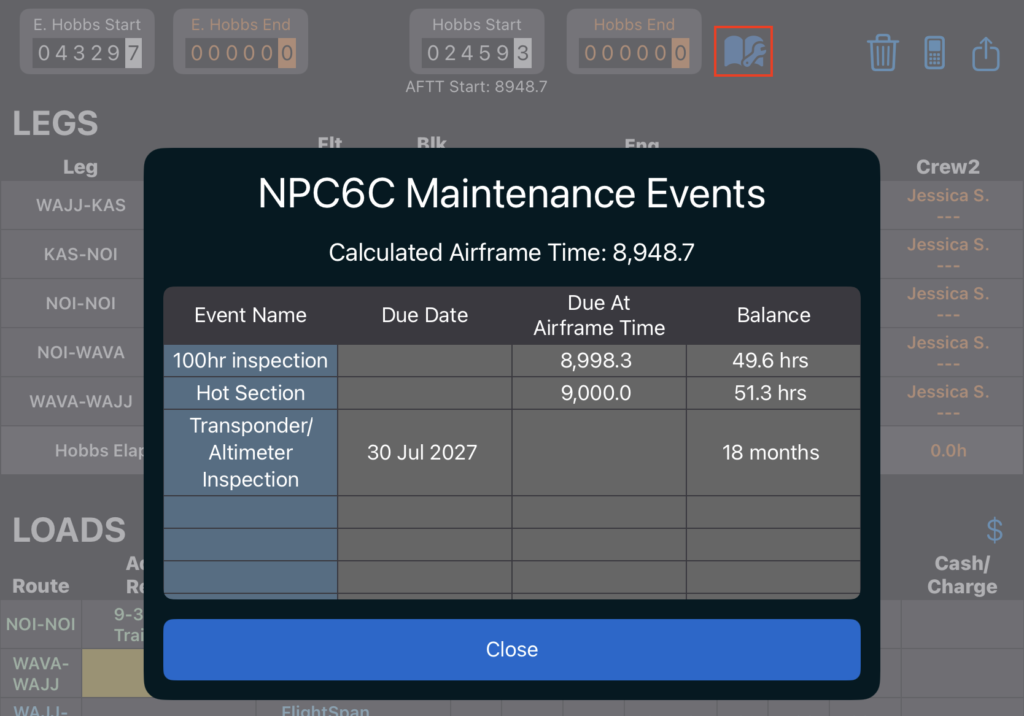
If there are any recorded maintenance events, a maintenance logbook icon will be visible to the right of aircraft Hobbs.
Tap on the icon to view the maintenance status. Throughout the flight, as legs are completed, both the calculated airframe time and the balance will update.
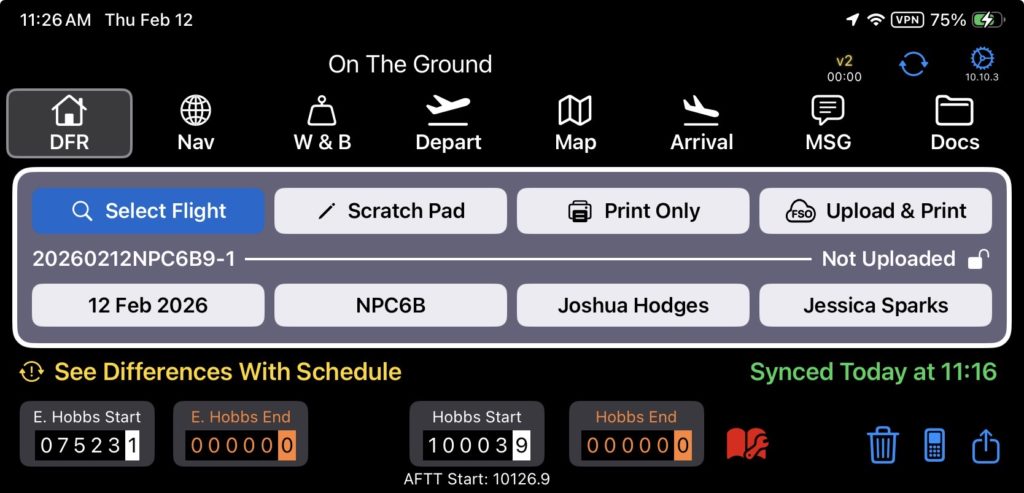
The logbook icon is color coded:
- Yellow
- if the recorded AFTT is within 5 hours of a maintenance event, or
- If the Hobbs end has not been entered and the AFTT is projected to be within 5 hours of a maintenance event at the end of the flight, or
- If within 2 days of a calendar based event
- Red
- if the AFTT is past a maintenance event, or
- If the Hobbs end has not been entered and AFTT is projected to be past a maintenance event at the end of the flight, or
- If the current date is past a calendar based event
- Blue
- Normal—no yellow or red events
Video Version