When you send the trip manifest, FlightSpan™ will automatically switch to the TakeOff Perf tab.
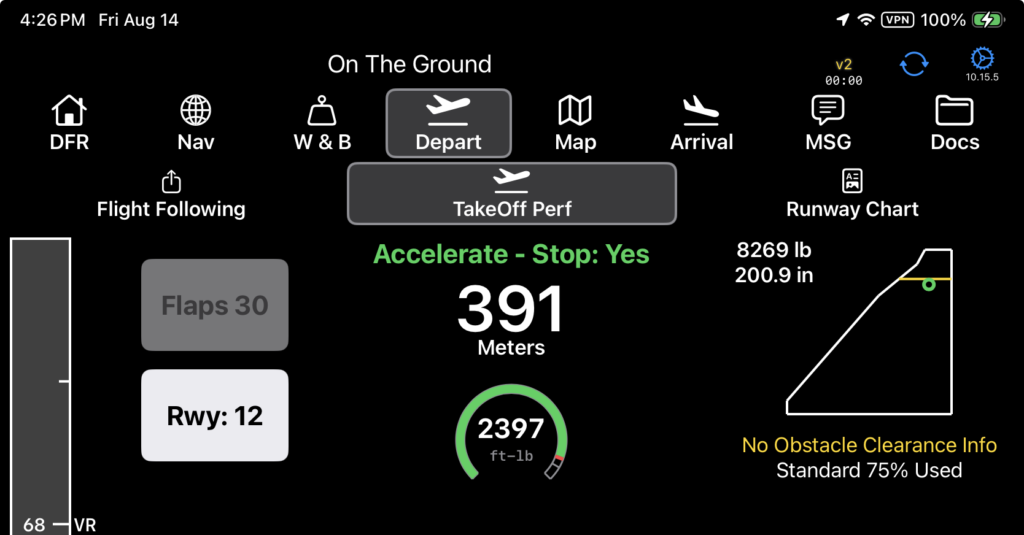
The takeoff performance page is separated into three sections – the header, the runway, and the parameters.
Header
In the header section you can
- View calculated V speeds for your computed takeoff weight (see below)
- Change the takeoff flap setting if more than one setting is approved for your aircraft type (the button will be grayed out if only one option is available)
- Change the runway if more than one runway is available for takeoff (see below)
- View the projected takeoff roll
- View the takeoff target power (if you have supplied the data to FlightSpan)
- See whether or not the estimated takeoff roll provides accelerate-stop distance
- See your W&B envelope and whether a non-standard liftoff requirement exists
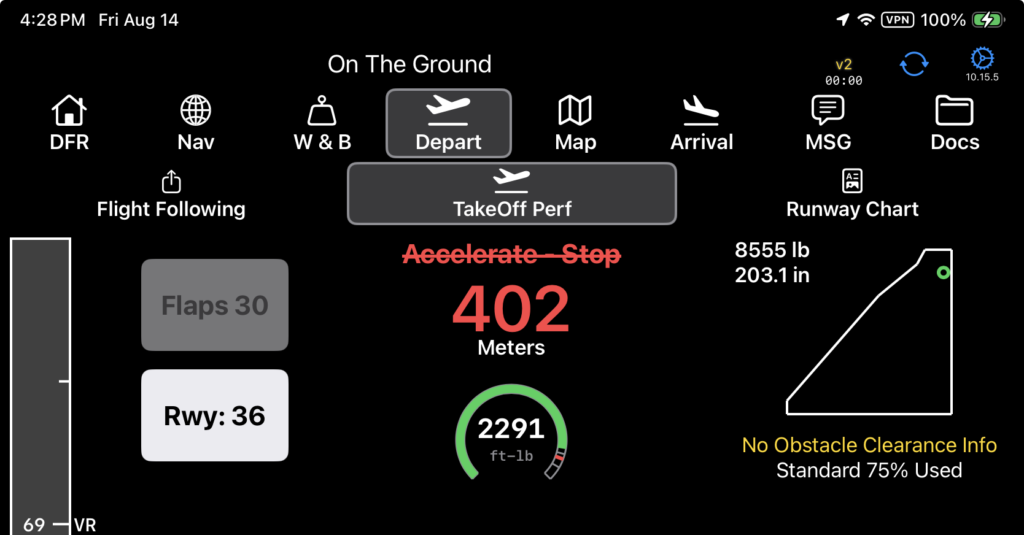
If the estimated takeoff roll exceeds the maximum amount of runway your company allows for takeoff, the estimated takeoff roll number will turn red.
Vspeeds
Vr, Vx, Vy, and Vg at the calculated takeoff weight can be displayed by first providing the V Speed data to FlightSpan Support for setup in the database, then by enabling them in Aircraft Type EFB Preferences.


If you elect to add an extra rotation speed, set the speed difference in the Aircraft Type EFB Preferences.

The V Speeds are displayed on a tape on the left.

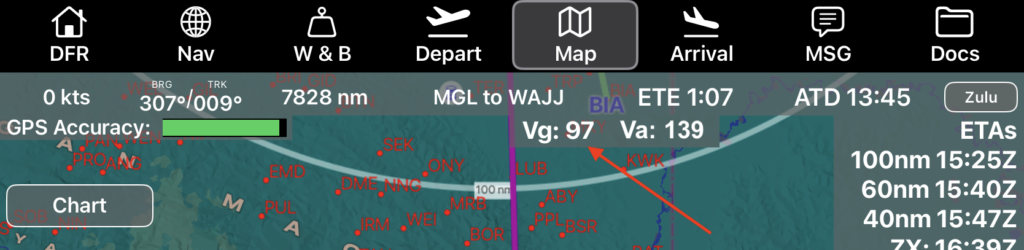
Note: If Vg is enabled, the flaps up Vg for the estimated current weight will also display on the Map Tab once ATD has been captured.
Change Runways
FlightSpan defaults to the most advantageous runway for takeoff considering company weight restrictions, slope, length, and surface.
If only one runway is approved for takeoff, the runway selector will be grayed out.
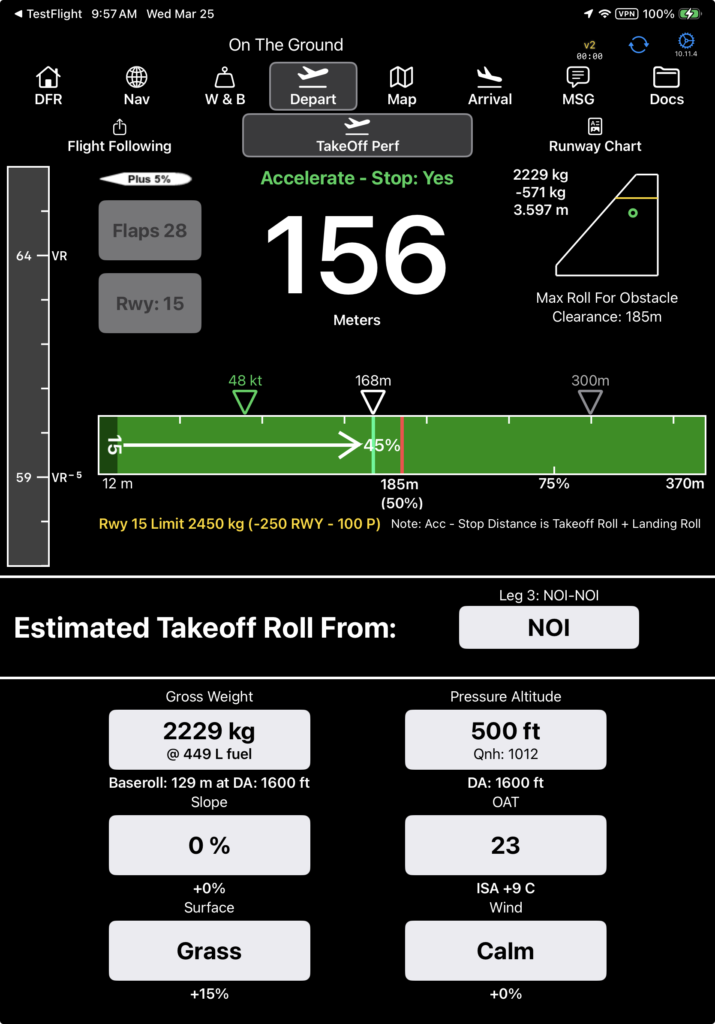
If more than one runway is available, tap the runway number to change runways. If there are only two runways, FlightSpan will toggle to the opposite runway.
If there are multiple runways, select from the list. Disapproved runways will not be selectable.
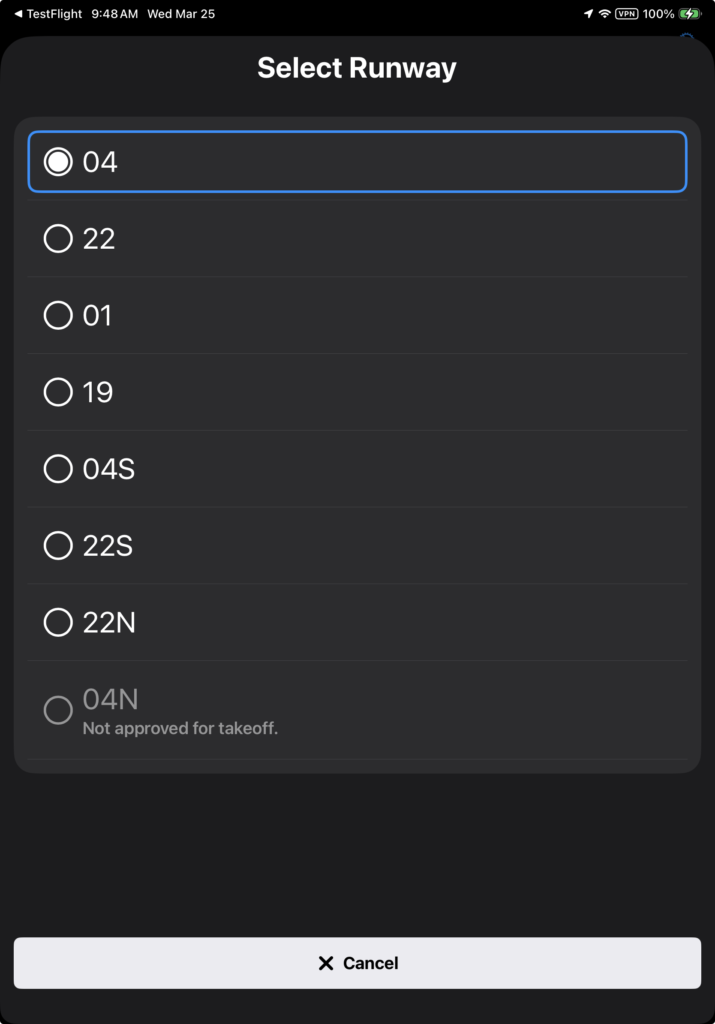
Runway approvals and disapprovals are set for each aircraft type from the Runways tab of the Waypoint Detail.

If you select a runway shorter than a specified length that has not been authorized for your aircraft type, you will receive a warning.
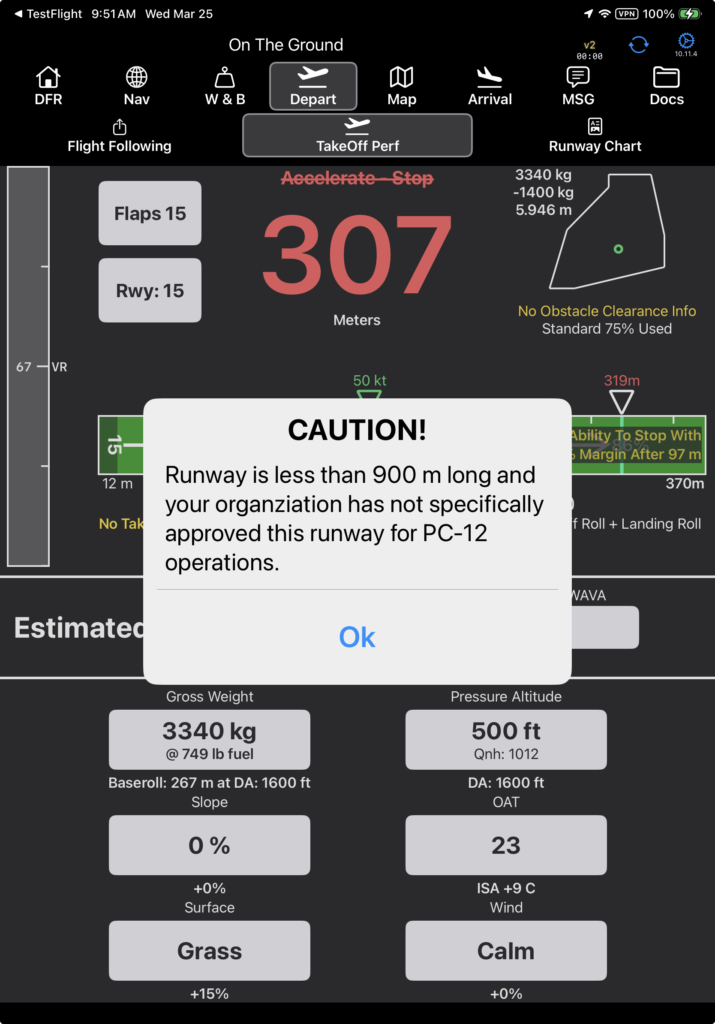
The minimum runway length can be changed in Aircraft Type EFB Preferences.

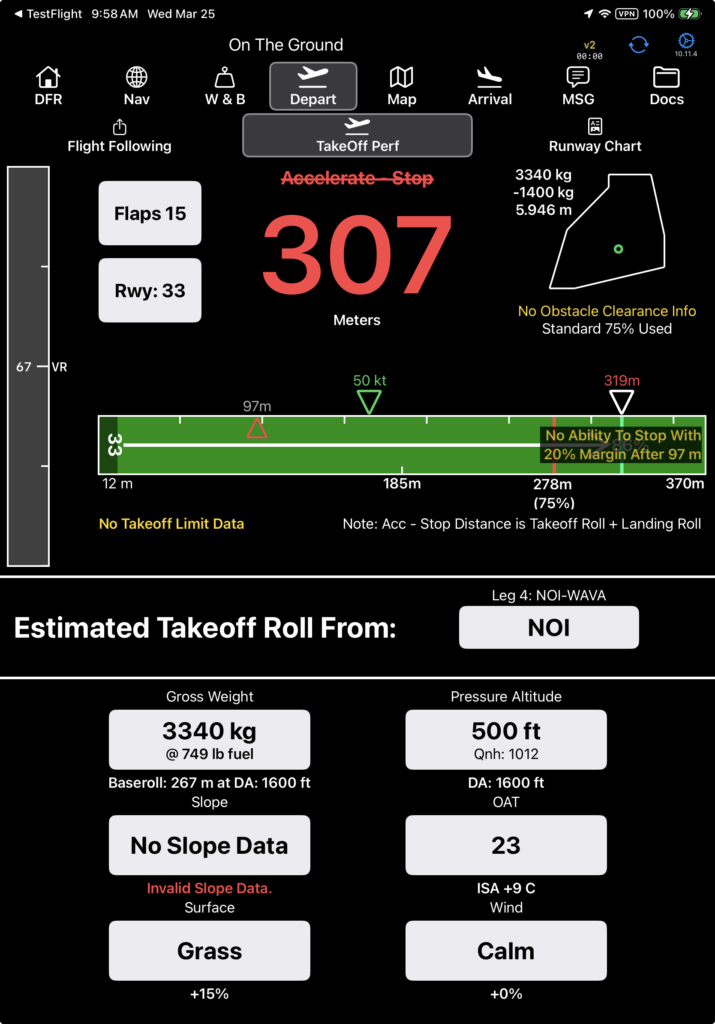
If you select a runway without valid slope data, there will be a warning.
0% slope will be used for the calculation.
Change Airport
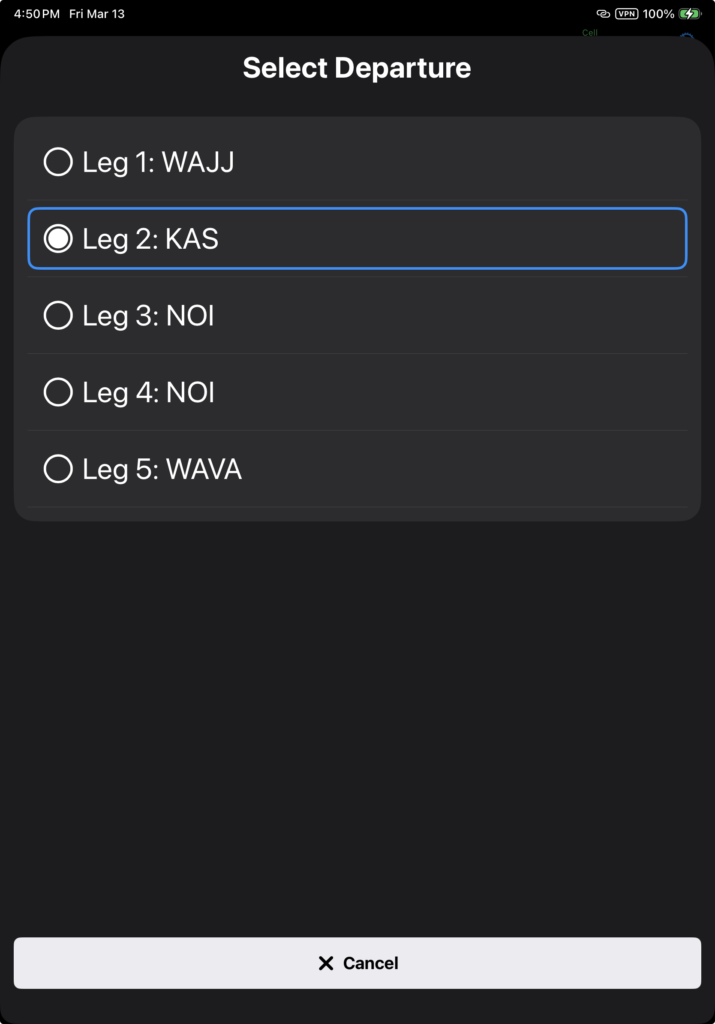
If you wish to view performance for a runway at a different airport in your route, tap the waypoint identifier.
Then select from the list.
Runway
Takeoff will always display left to right regardless of runway orientation.
Paved runways will display dark gray; gravel runways light gray, grass runways green, and water runways blue.
Runway edge markings are spaced either 50 meters or 100 feet apart, depending on your default length units.
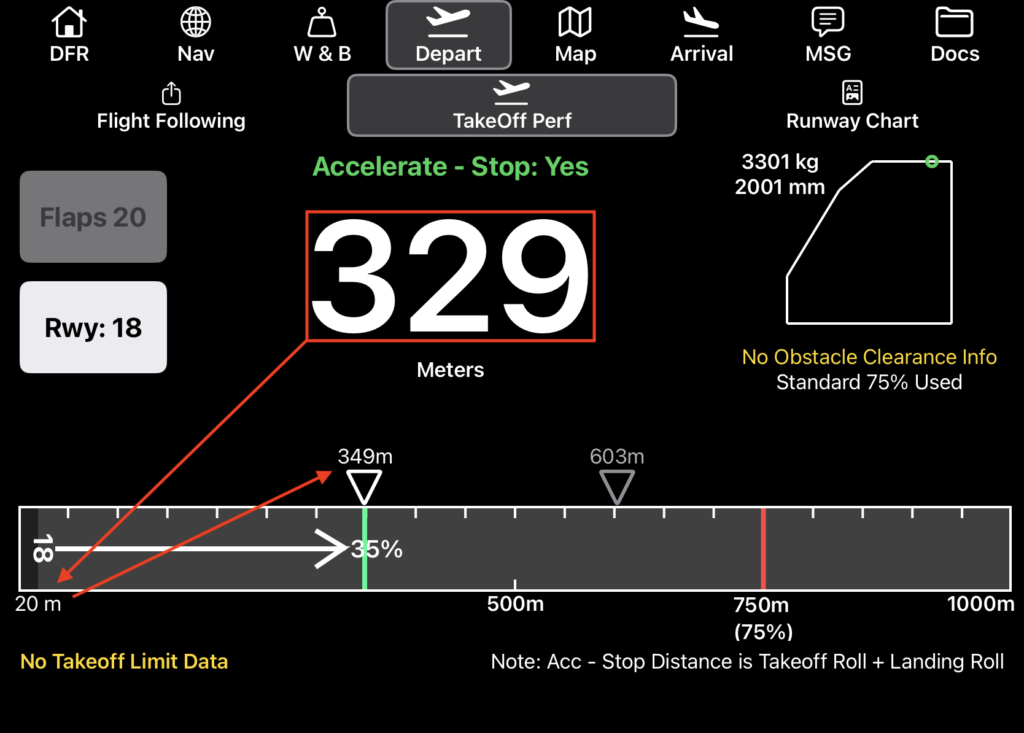
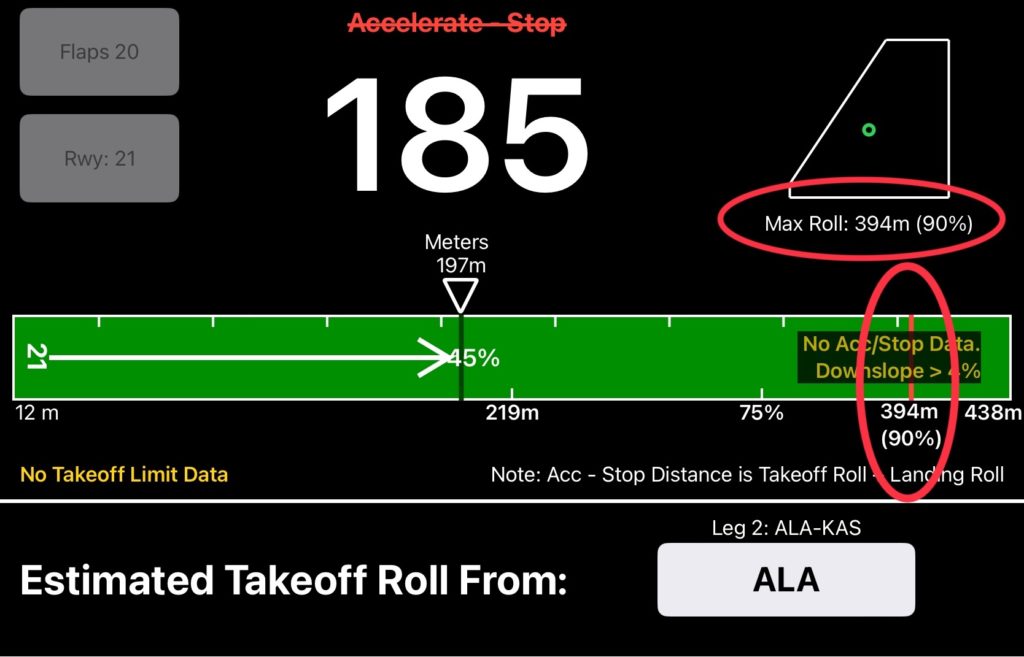
The estimated liftoff point is marked by a green line across the runway, and a white triangle along the top of the runway, with the expected liftoff point and percentage of runway. The estimated takeoff roll distance is calculated by adding the distance required for turnaround (marked by darker shading and the distance required) to the calculated takeoff roll. Distance required for turnaround can be changed inAircraft Type EFB Settings.
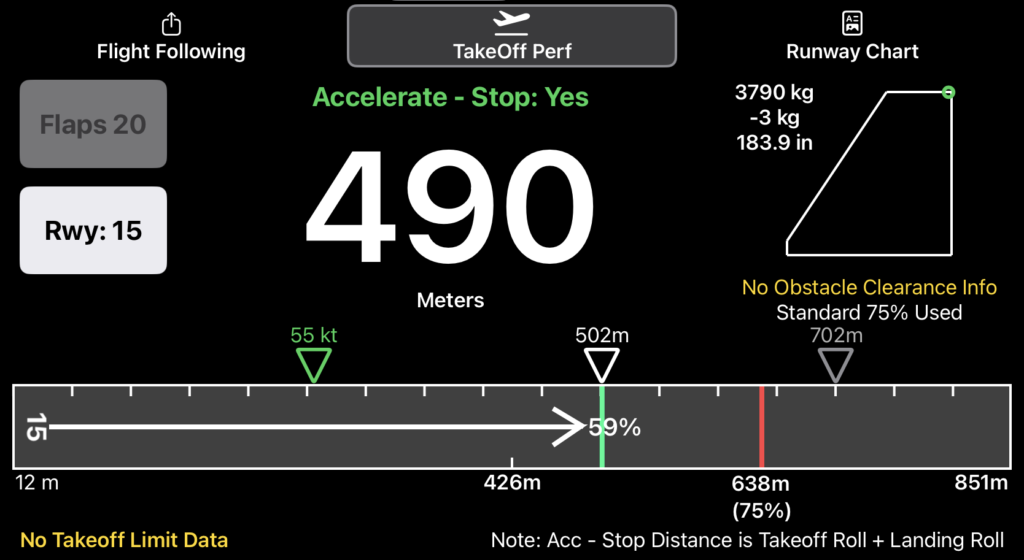
An optional performance checkpoint as a percentage of Vr can be displayed with a green triangle. The default is 75% of Vr at 50% of the takeoff roll.
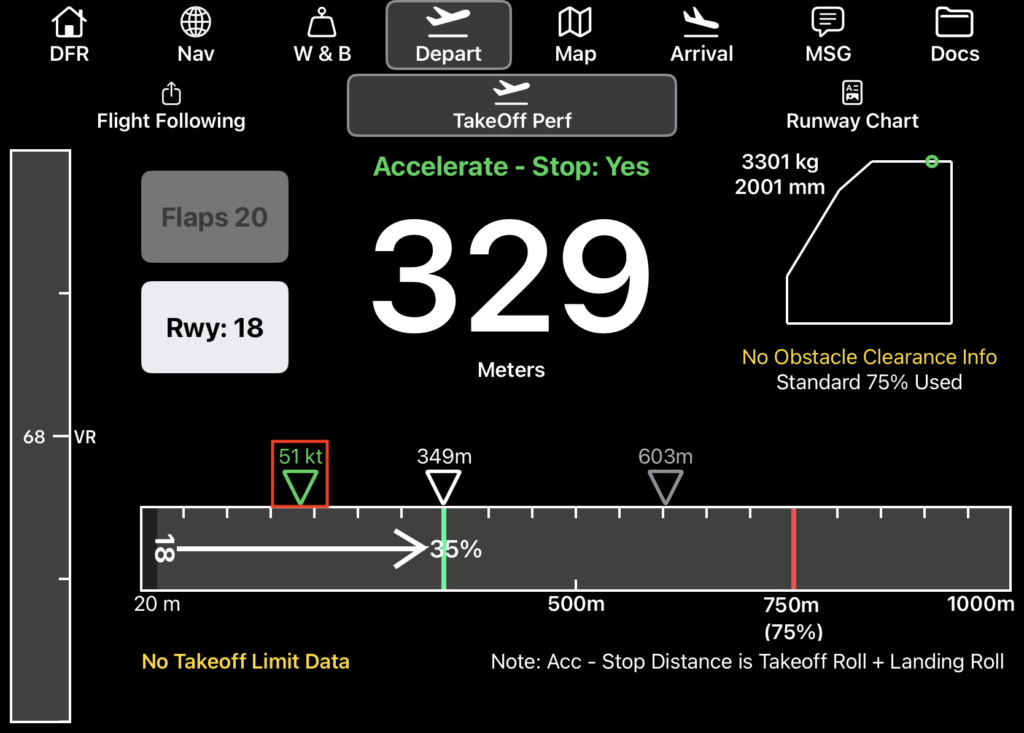
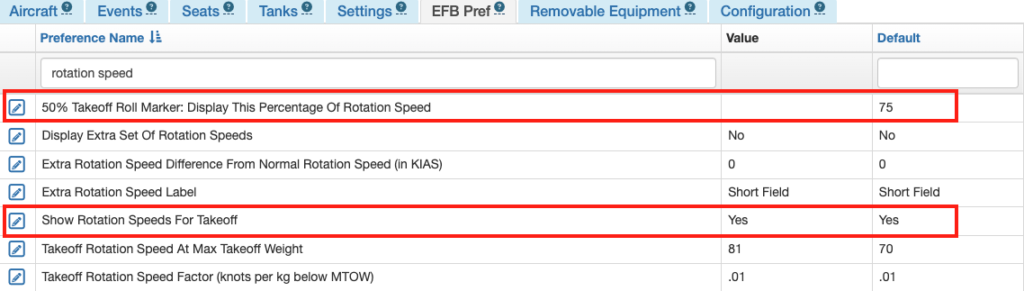
The performance checkpoint and the displayed rotation speed can be enabled by setting the Aircraft Type EFB Preference Show Rotation Speeds For Takeoff to Yes, and the default percentage of Vr can be changed with the 50% Takeoff Roll Marker: Display This Percentage Of Rotation Speed Preference.
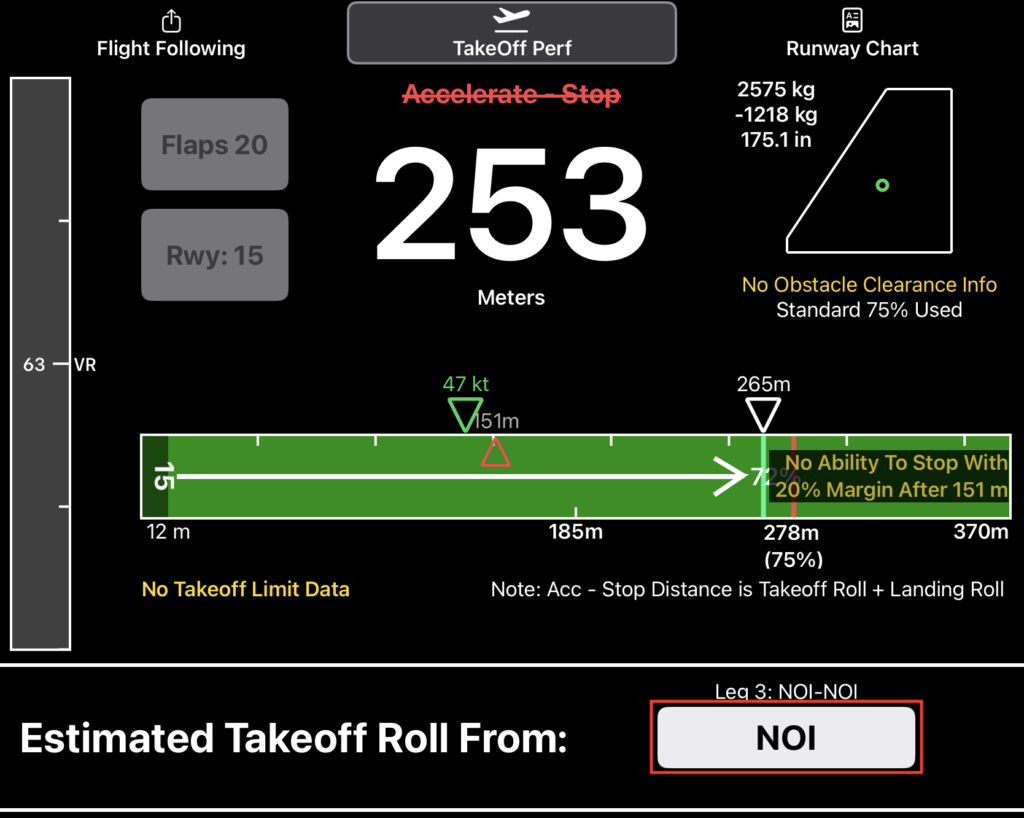
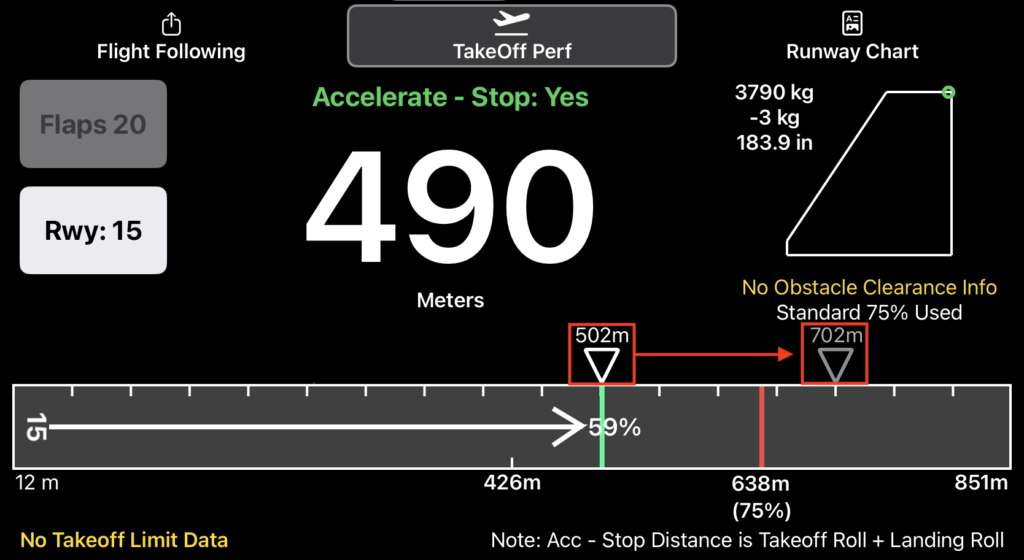
FlightSpan does calculations in the background to determine a projected abort point that allows you to stop on the runway with a 20% margin built in.
If accelerate-stop is available, the calculated stopping point for an abort initiated at liftoff speed will be displayed. In the example below, the calculated stopping distance at the gross takeoff weight is 200 meters, so the estimated stop point is marked at 702 meters.
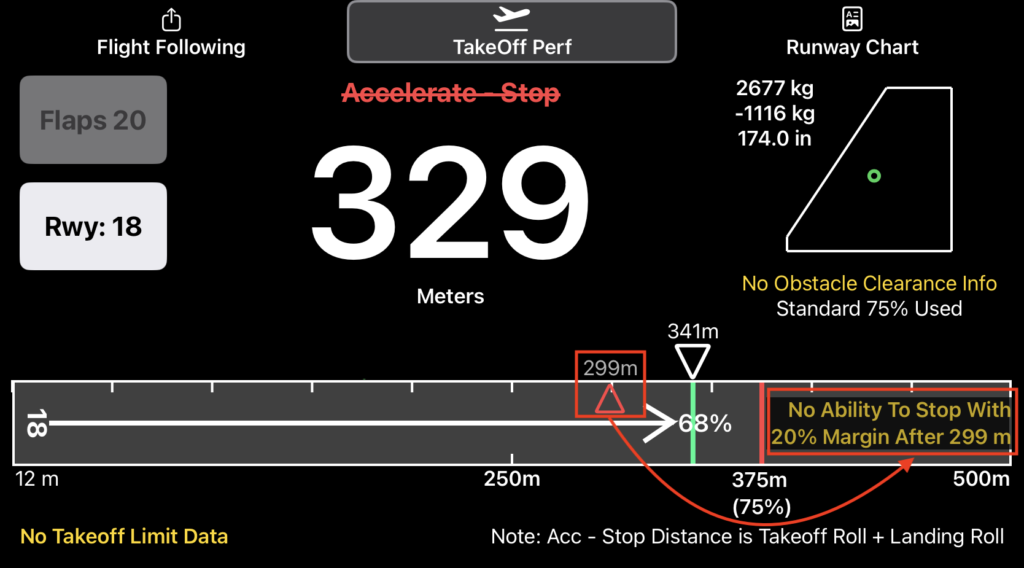
If the calculations determine that you cannot accelerate to liftoff speed and get stopped on the runway with margin, that point will be marked with a red triangle. The abort point distance is noted above the marker and in the “No Ability to Stop” warning (in this case, 299 meters).
Maximum Runway
Redline on the runway is the latest liftoff point allowed for the runway based on the value set in FlightSpan Ops. It may be defined by a percentage of the runway (the default is 75%) or for specific runways it may be changed due to climb requirements or other factors. If it is different from the standard distance, there will be a note under the takeoff envelope.
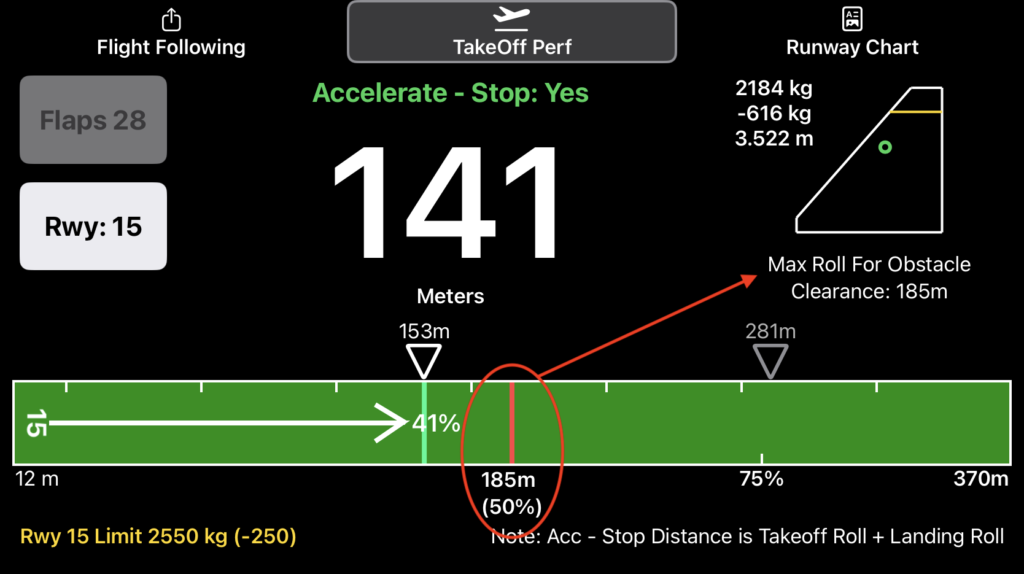
The standard redline is set using the Aircraft EFB Preference Takeoff Max Runway Usable (%).
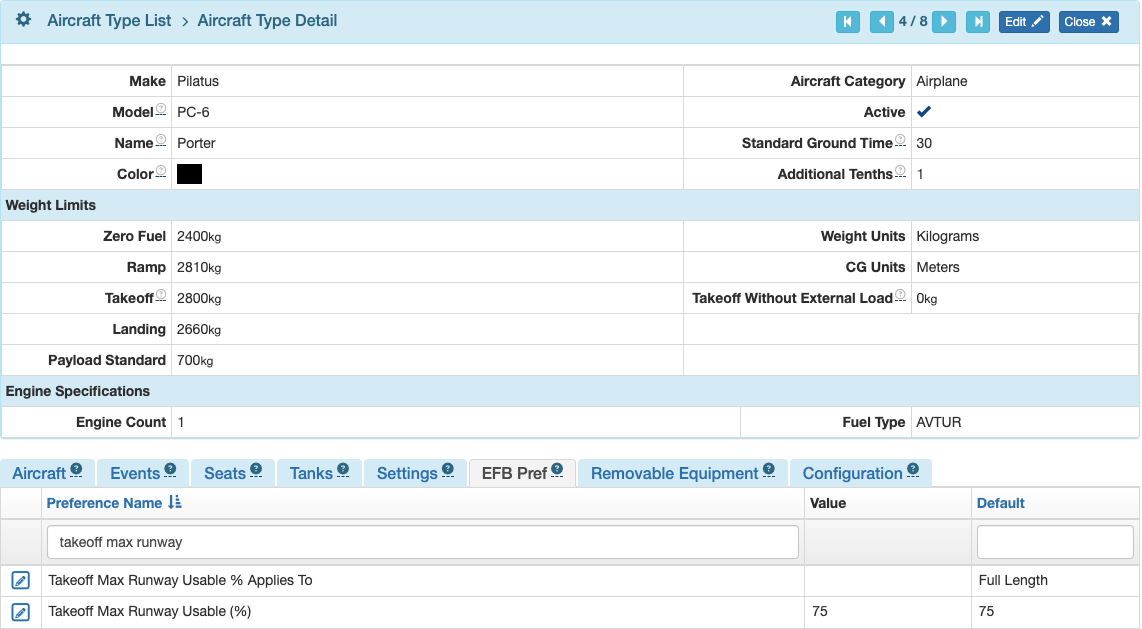
Runway specific redlines are set in the runway’s “Available” setting under Takeoff Restrictions.
- If no available length is set then Takeoff Max Runway Usable is used for the redline.
- If a runway has available length set to less than Takeoff Max Runway Usable, then the shorter length is used for the redline.
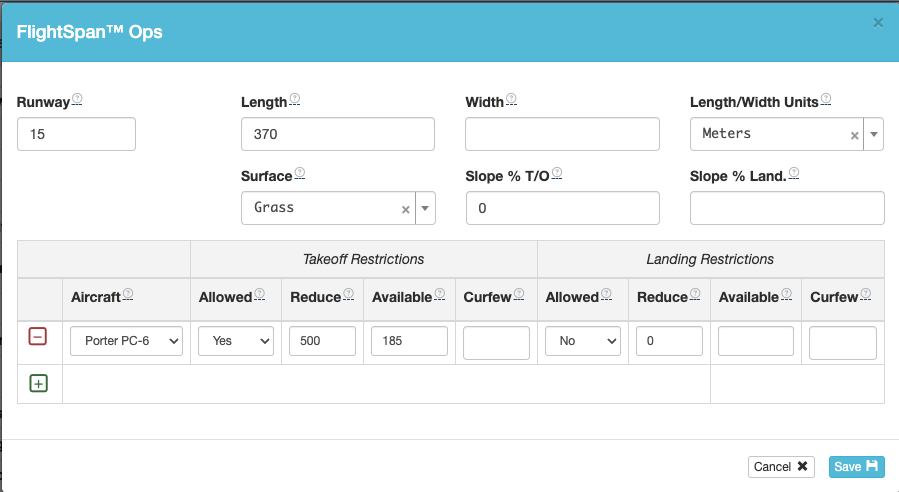
The Company EFB Preference Limit Takeoff Available Runway Length To Max Runway Usable Setting can be set to “Yes” or “No”.
When set to the default of “Yes”
- If a runway has available length set to more than the Takeoff Max Runway Usable, then the greater length is ignored and Takeoff Max Runway Usable is used for the redline. There will also be a notation that there is an obstacle clearance point defined after the redline.
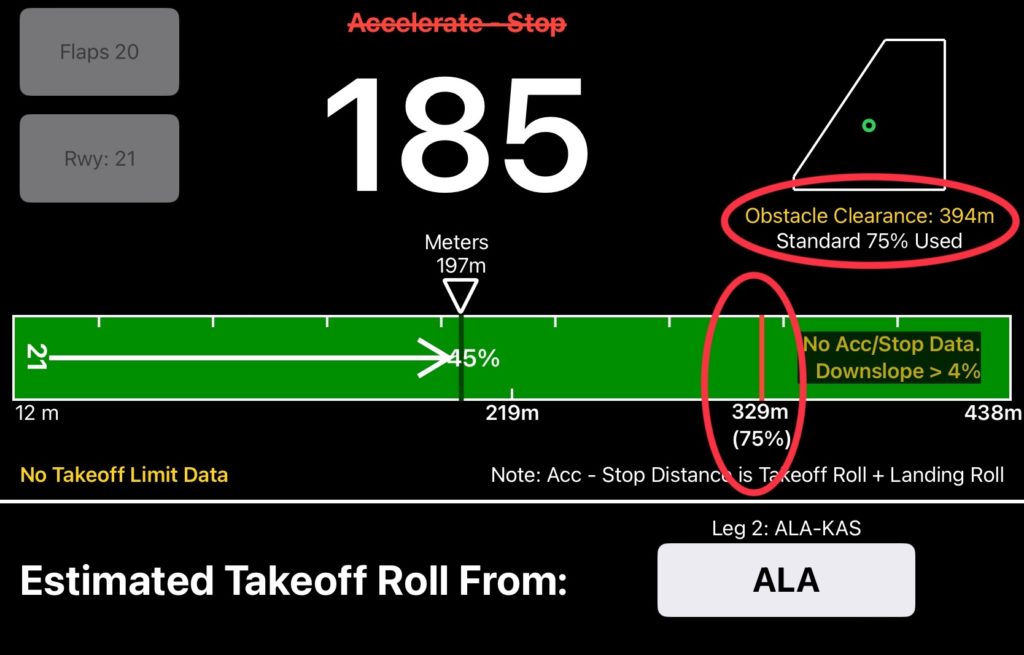
When set to “No”:
- If a runway has available length set to more than the Takeoff Max Runway Usable, then the greater length is used for the redline.
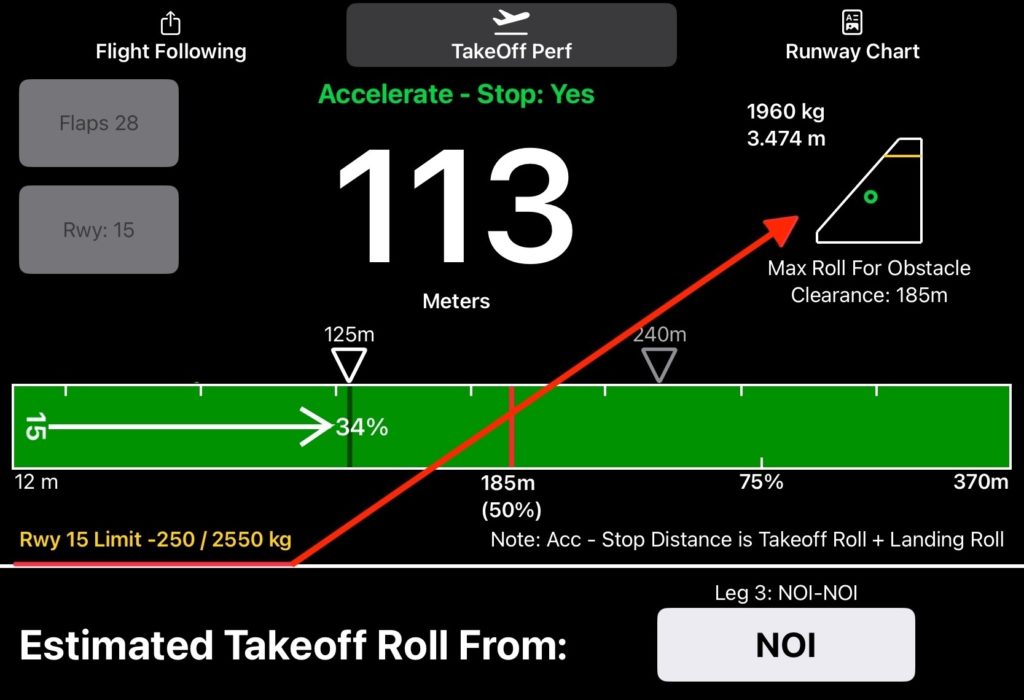
If there is a company runway takeoff weight limit, it will be displayed on the left, along with a yellow line on the CG envelope. Current weight and CG are also displayed near the envelope.
Video Version