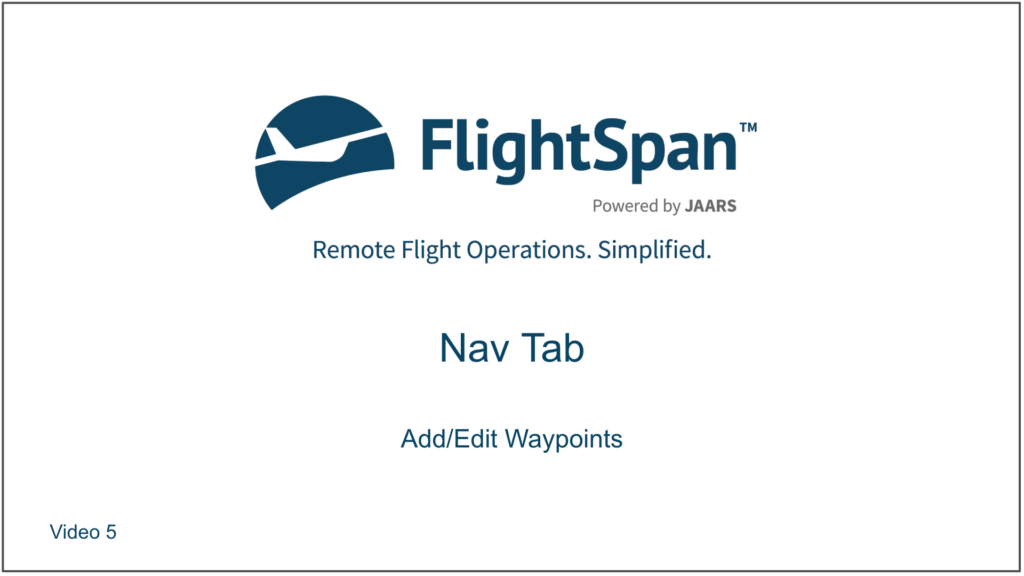
For amphibious or seaplane aircraft and for rotorcraft, the Toggle Leg Complete button is replaced by an Add/Edit Waypoint button.
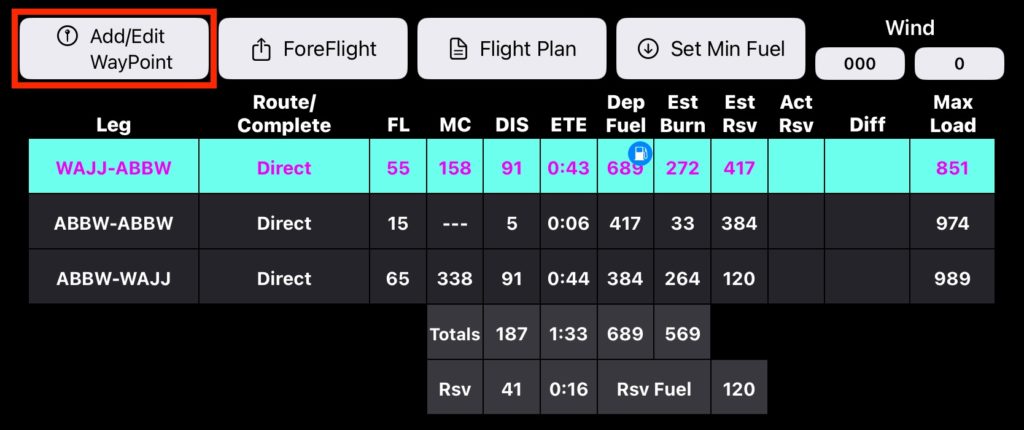
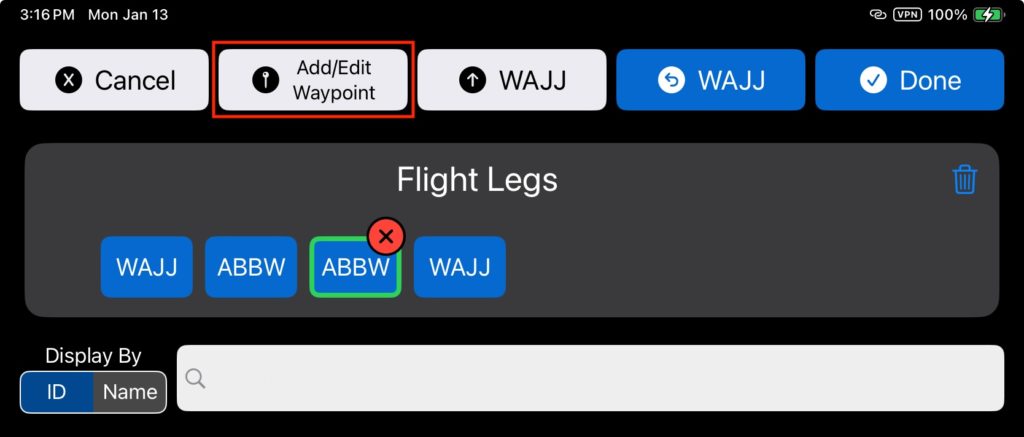
There is also an Add/Edit Waypoint button added to the Flight Legs planner screen. From either location, tap the button to open the Waypoint Editor.
Add New Waypoint
Waypoint ID, Name, Elevation, and Lat/Long are required information.
Once you have saved the new waypoint, you won’t be able to change the identifier except from FlightSpan™ Ops.
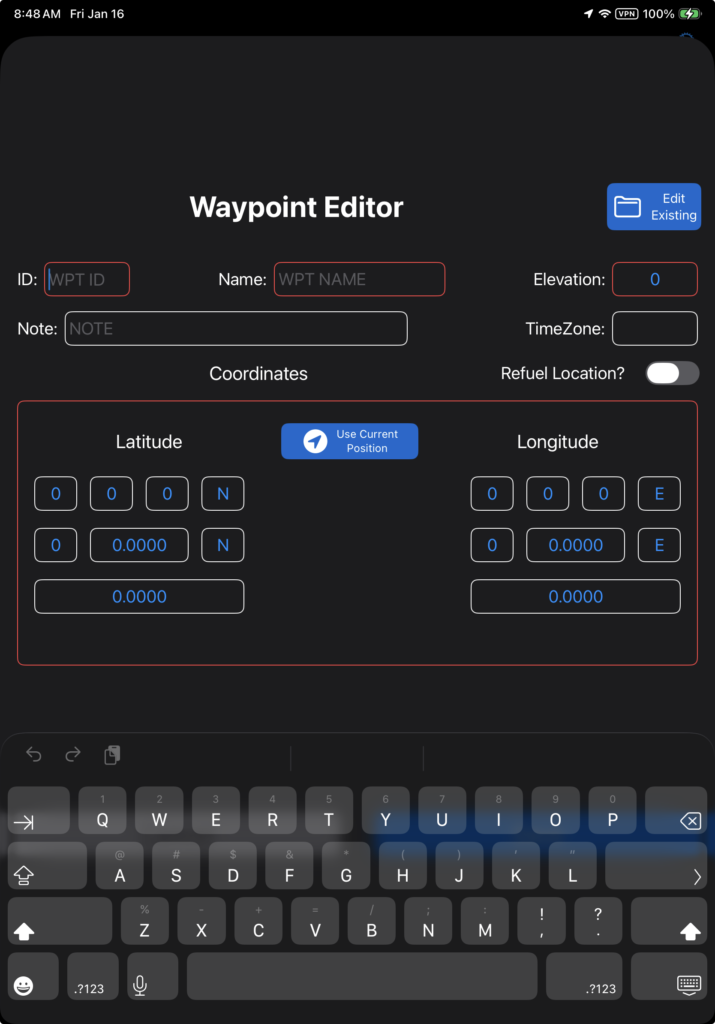
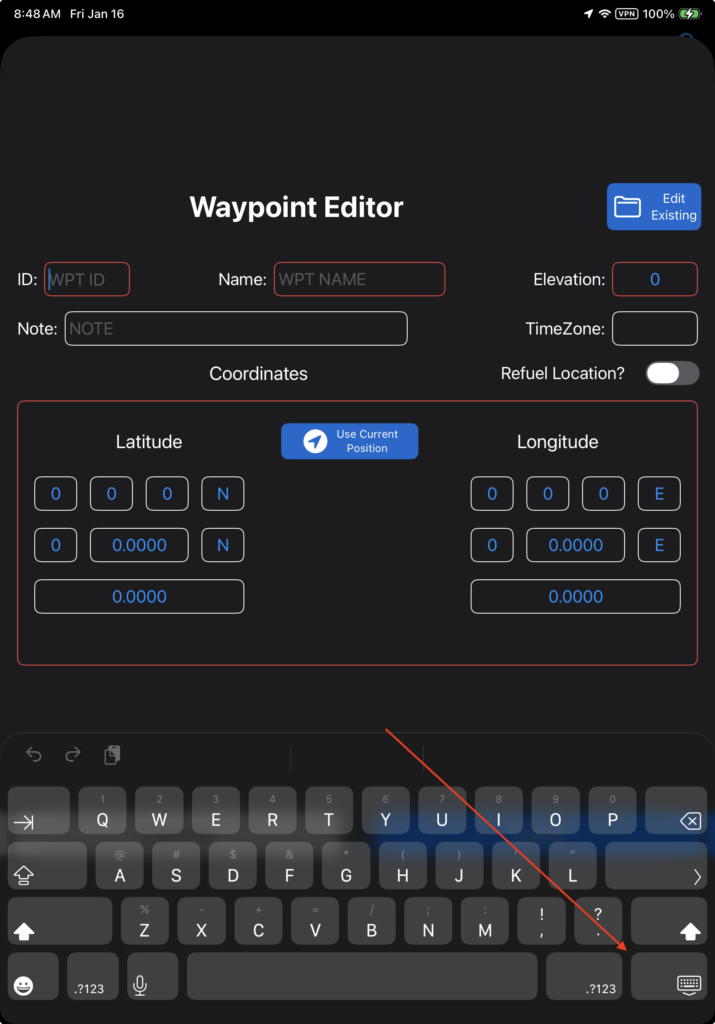
If you decide to cancel, tap the Hide Keyboard button, then cancel.
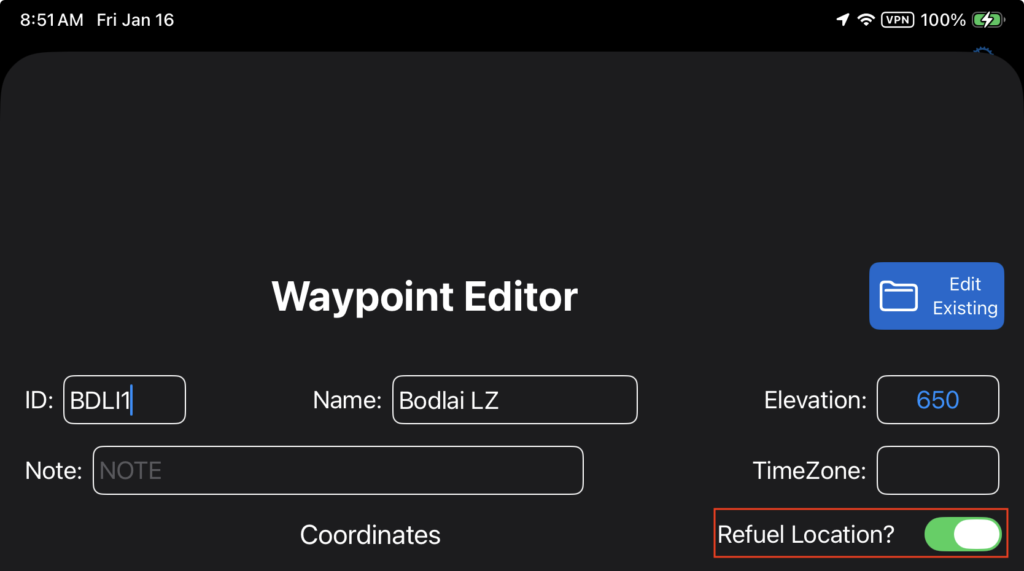
If desired, switch the Refuel Location? toggle on so that:
- In FlightSpan Ops, the waypoint will be an automatic refuel point for that aircraft type
- On the EFB, the waypoint will be a refuel point when using the Set Min Fuel function
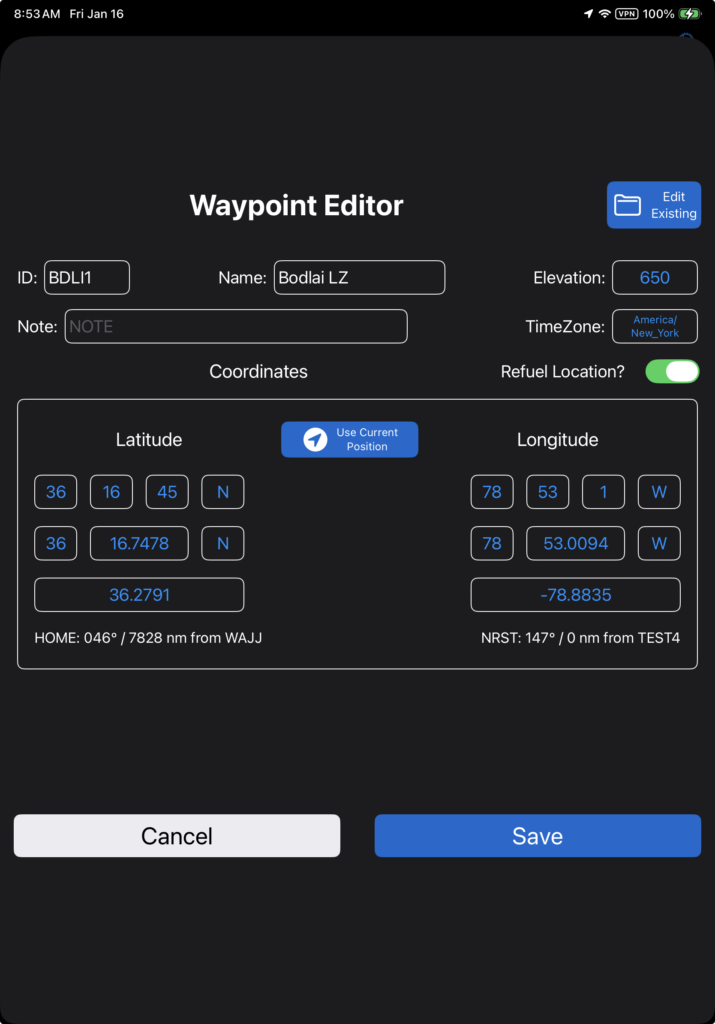
To enter the position
- Tap Use Current Position or
- Enter the Lat/Long manually. Lat/Long can be entered in Degrees/Minutes/Seconds, Degrees/Decimal Minutes, or Decimal Degrees. (Reminder for Decimal Degrees format: Southern and Western hemispheres are negative.)
When manually entering the coordinates, whichever format you use, the remaining two formats will be automatically completed.
Time zone will be automatically calculated if you tap Use Current Position.
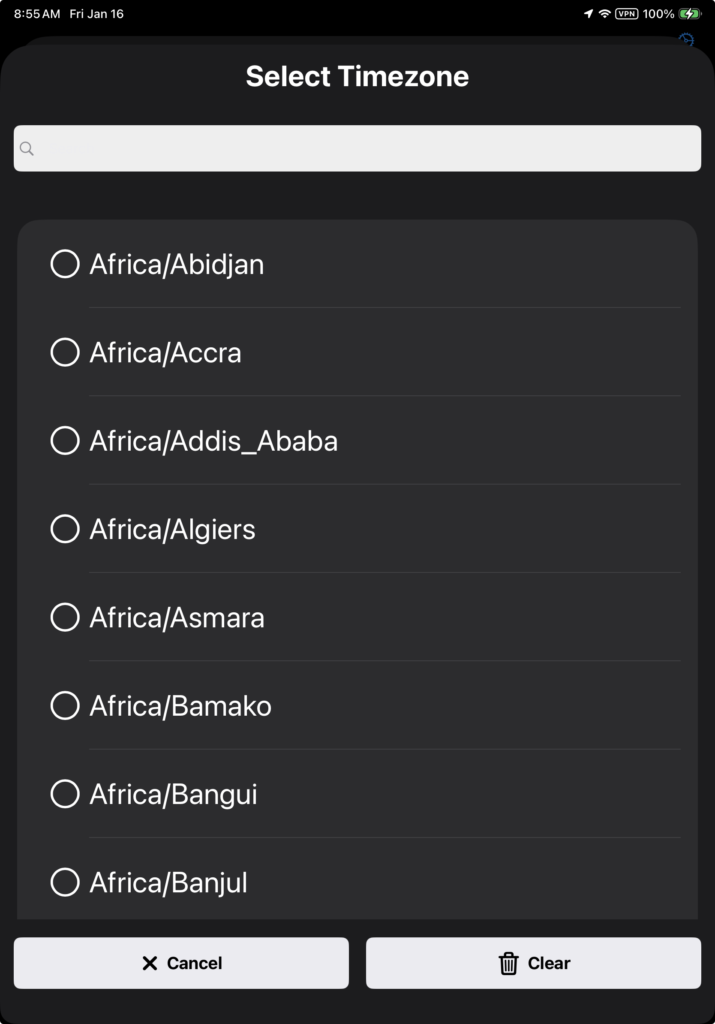
If you manually enter the coordinates, you will have to select the time zone.
When you tap Save, the waypoint will be immediately available on the iPad for route planning, and will be uploaded to FlightSpan Ops when you upload your DFR or when the next data sync is performed.
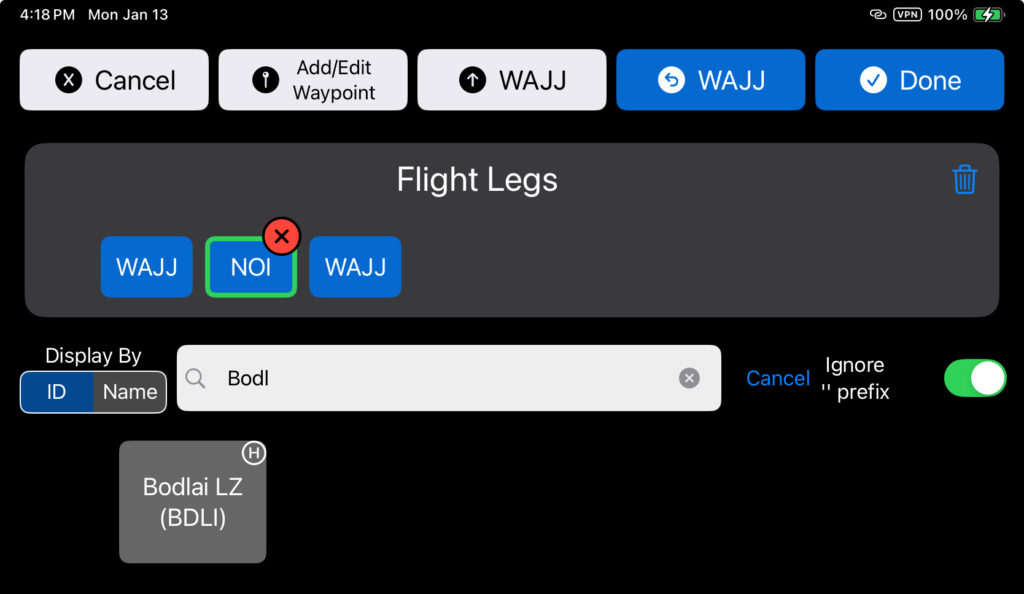
New helicopter waypoints are marked with a superscript H, and will not be available to fixed wing aircraft, except as en route waypoints.
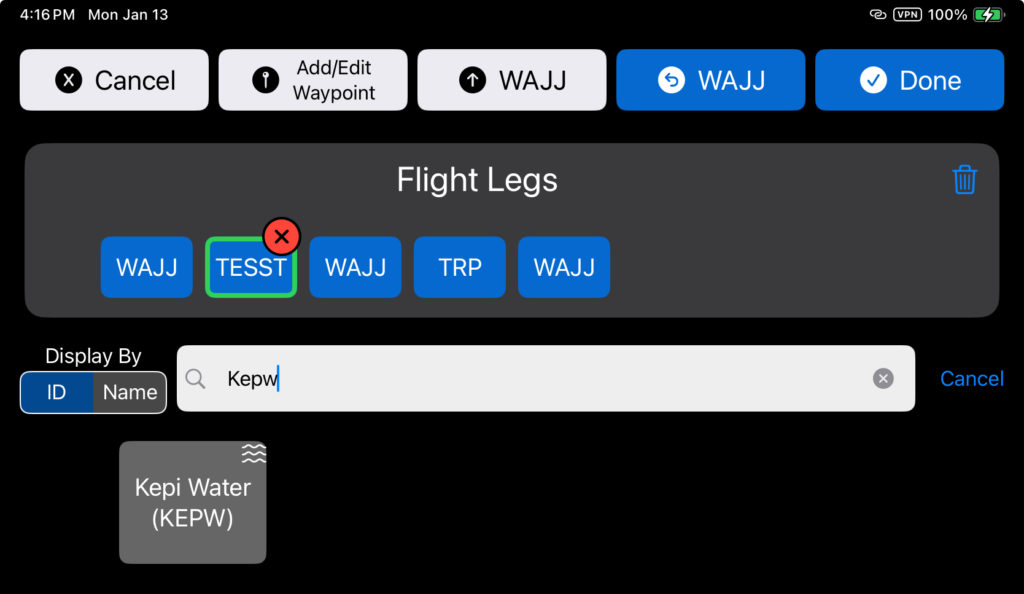
New amphibious or seaplane waypoints are marked with a water symbol, and are not available to land airplanes or rotorcraft except as en route waypoints.
Edit Waypoint
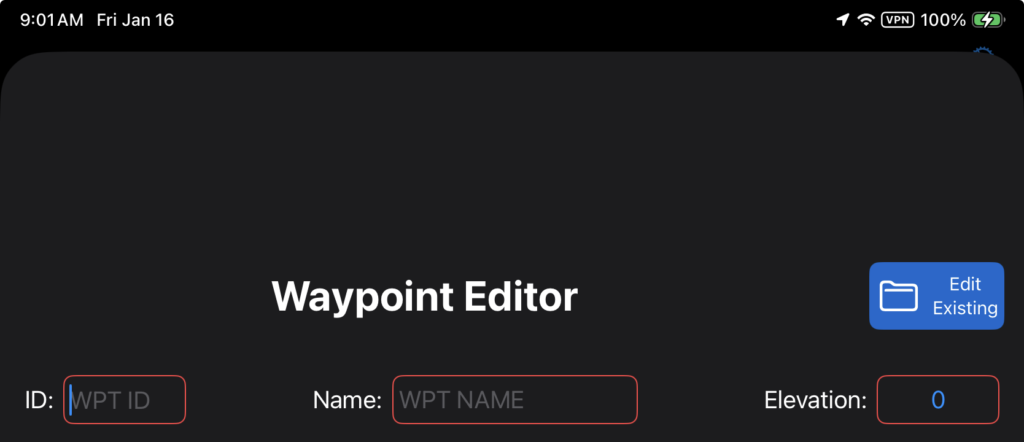
To edit an existing waypoint, select Edit Existing.
When in a rotorcraft, only LZs are available, and when in a seaplane, only water waypoints are available.
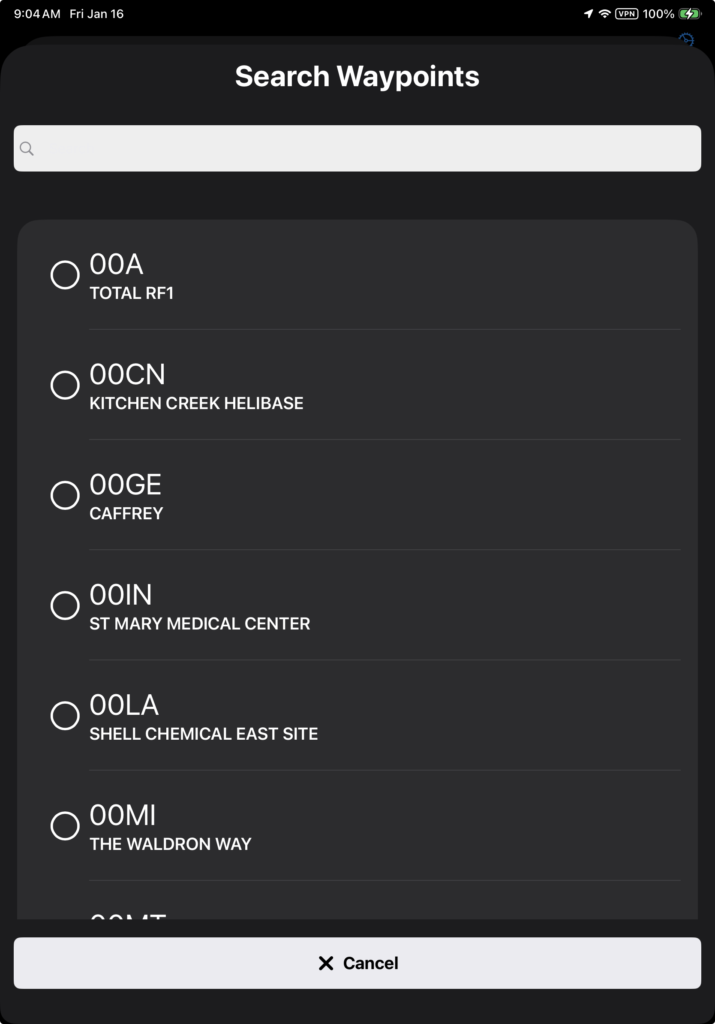
Search for and select the desired waypoint, and edit as needed, then Save. The Waypoint ID cannot be changed from the iPad.
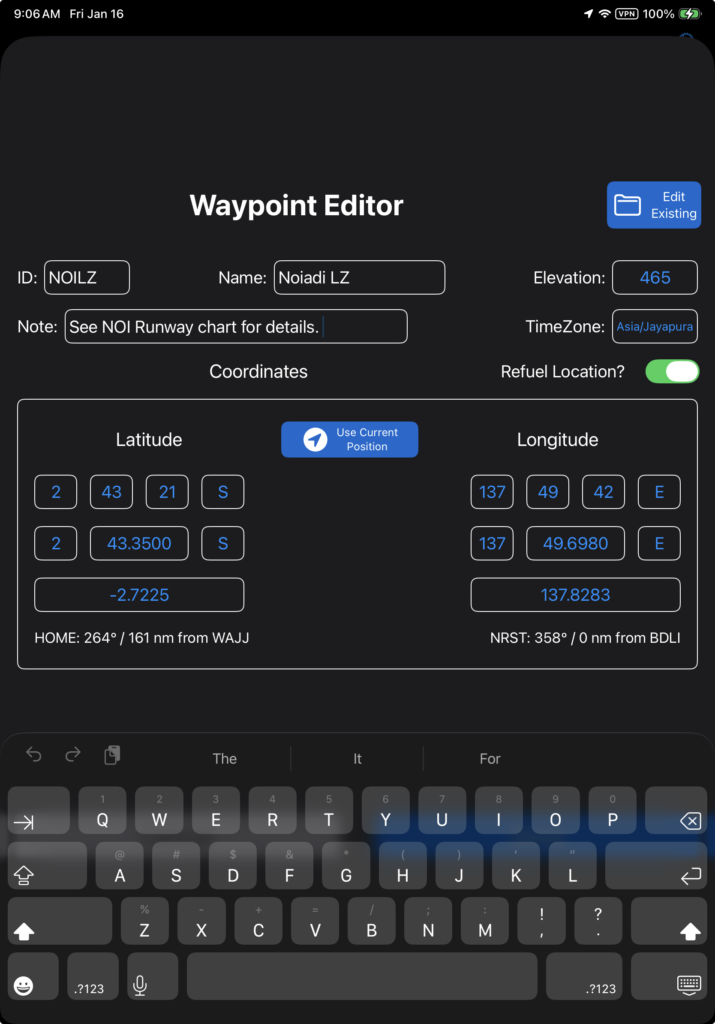
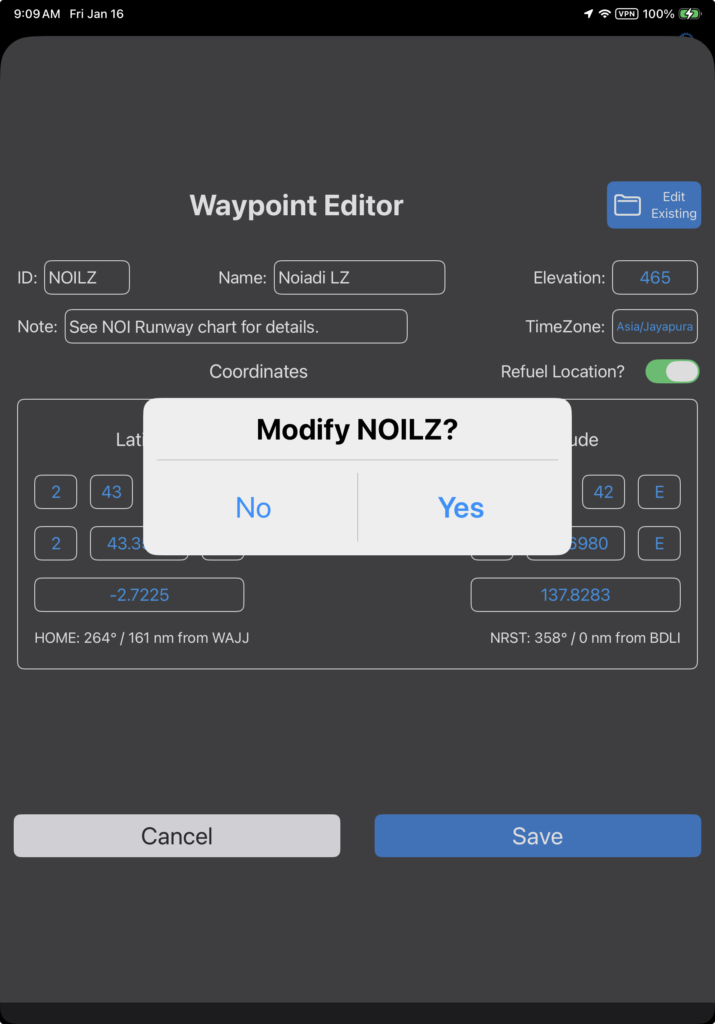
When done editing, tap the Hide Keyboard key if necessary, tap Save, and confirm you want to modify the waypoint.
Video Version