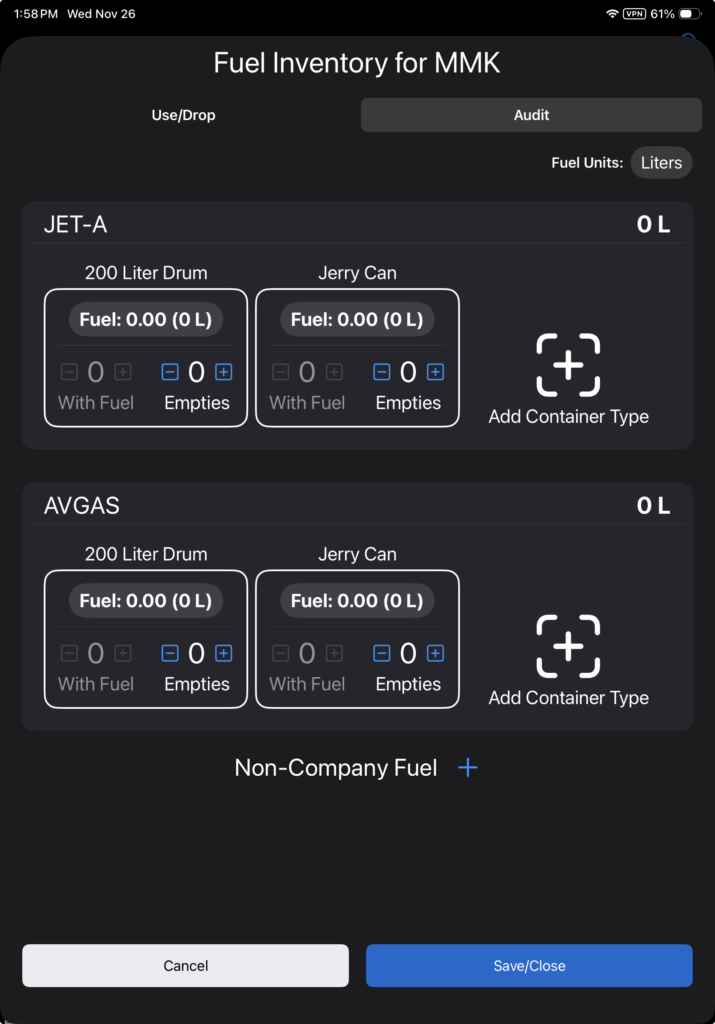
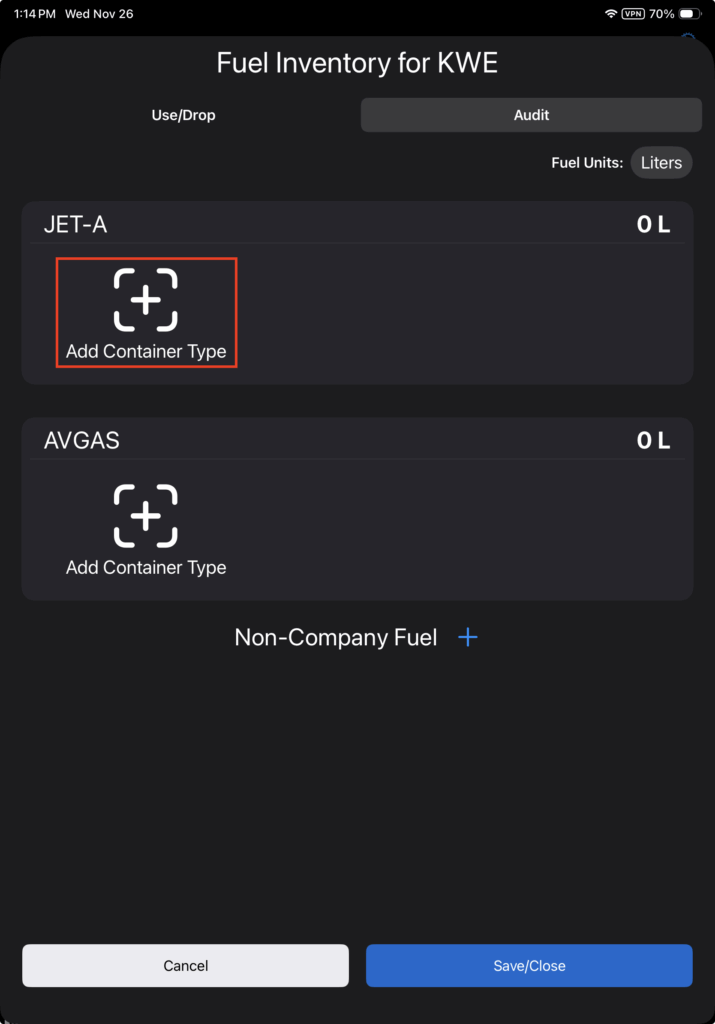
If you are auditing fuel at a location for the first time, open the Audit tab and add the containers for the type or types of fuel that will be used.
Tap the appropriate Add Container Type button.
Then select the appropriate container type from the list.
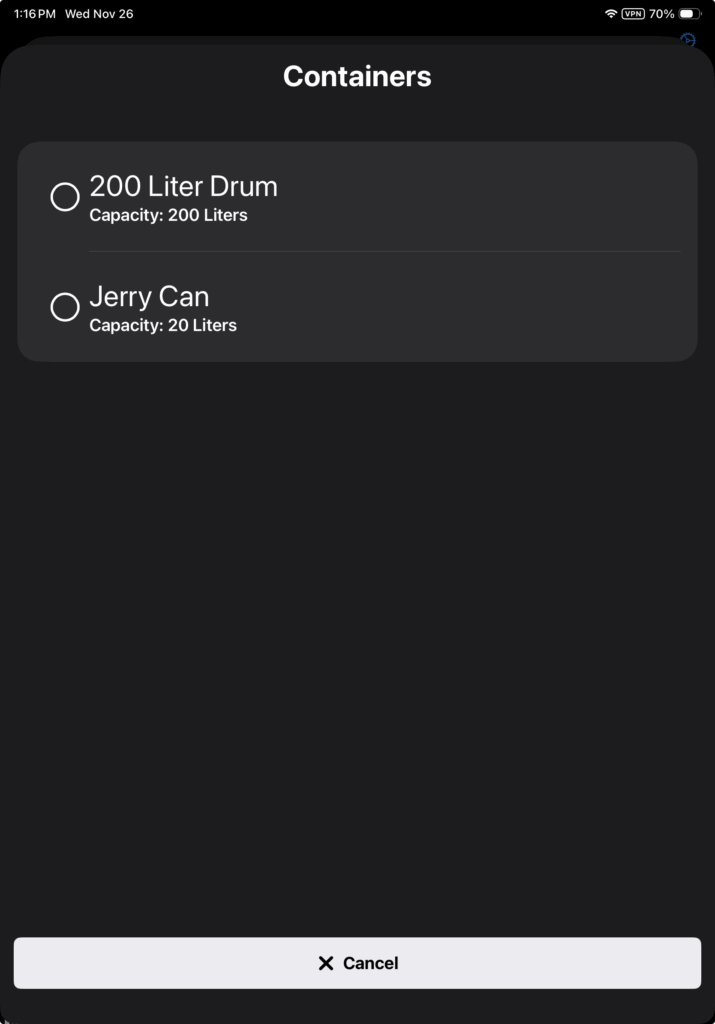
Note: If you need to add a container type that is not listed, see the Fuel Management Setup documentation.
Next tap the Fuel button for the appropriate fuel and container type.
Note that the fuel units default to the aircraft type’s units. If you wish to display and use other units, tap the Fuel Units button.
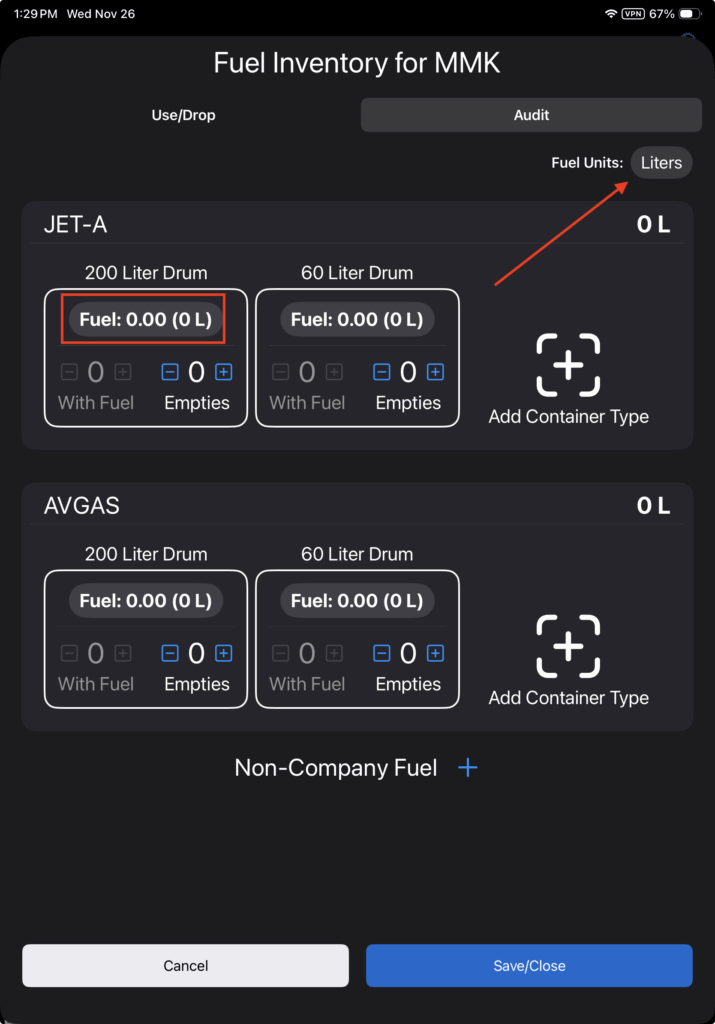
Record fuel by the container by entering the number of containers—in this example, barrels—with fuel, including a fraction of a container, then tap the CTNR button to tell the EFB that you’re entering the number of full containers.
If you choose to enter the amount of fuel by volume, tap the Liters button and the EFB will convert this value into the appropriate number of fuel containers.
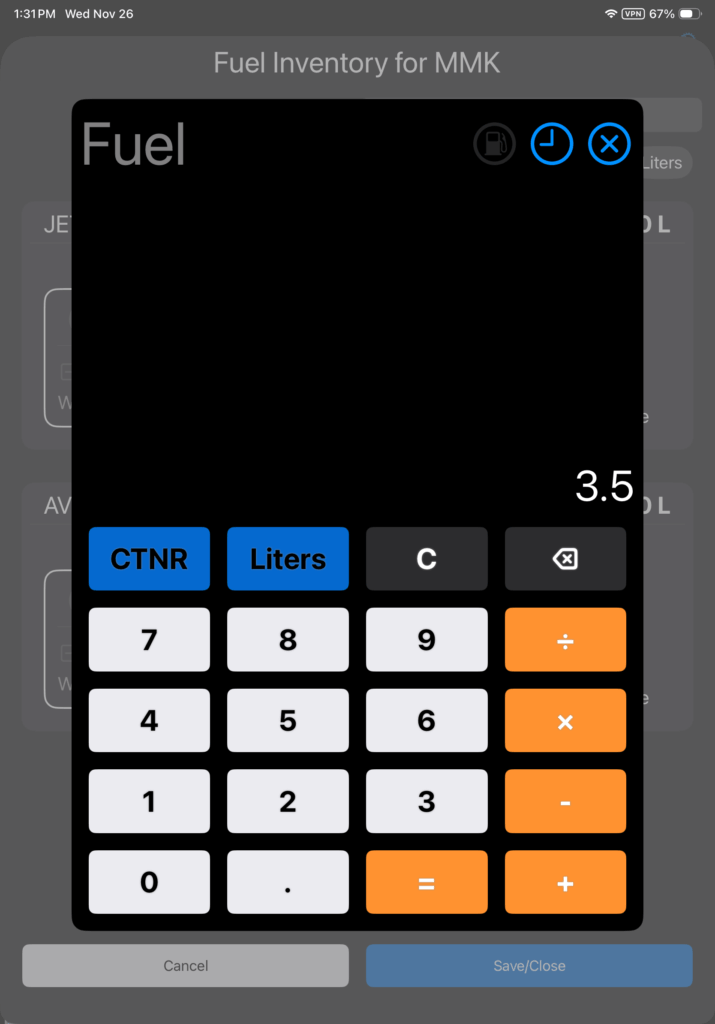
FlightSpan™ will add sufficient barrels for the amount entered. Adjust the With Fuel and Empties quantities as needed using the plus and minus buttons.
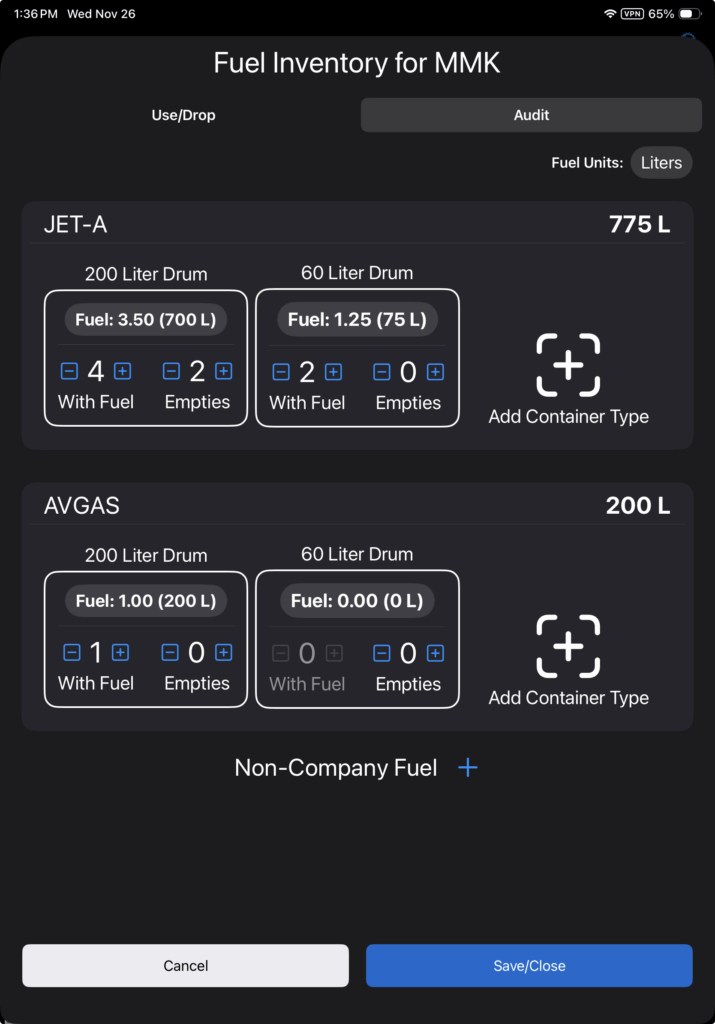
Repeat the process for all other container and fuel types until the inventory is complete.
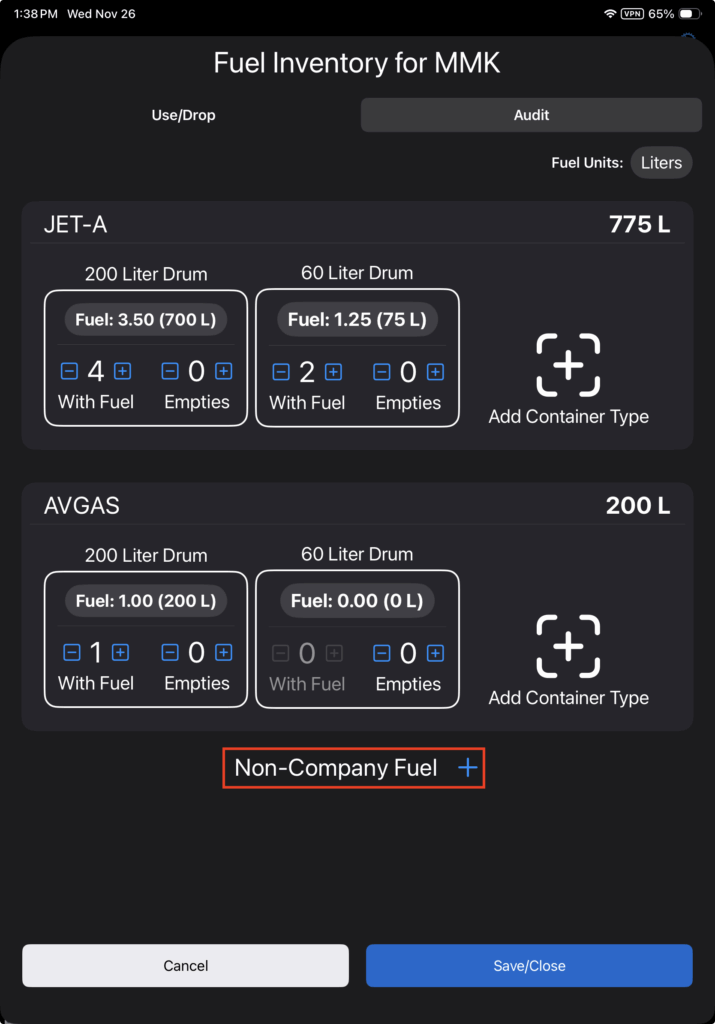
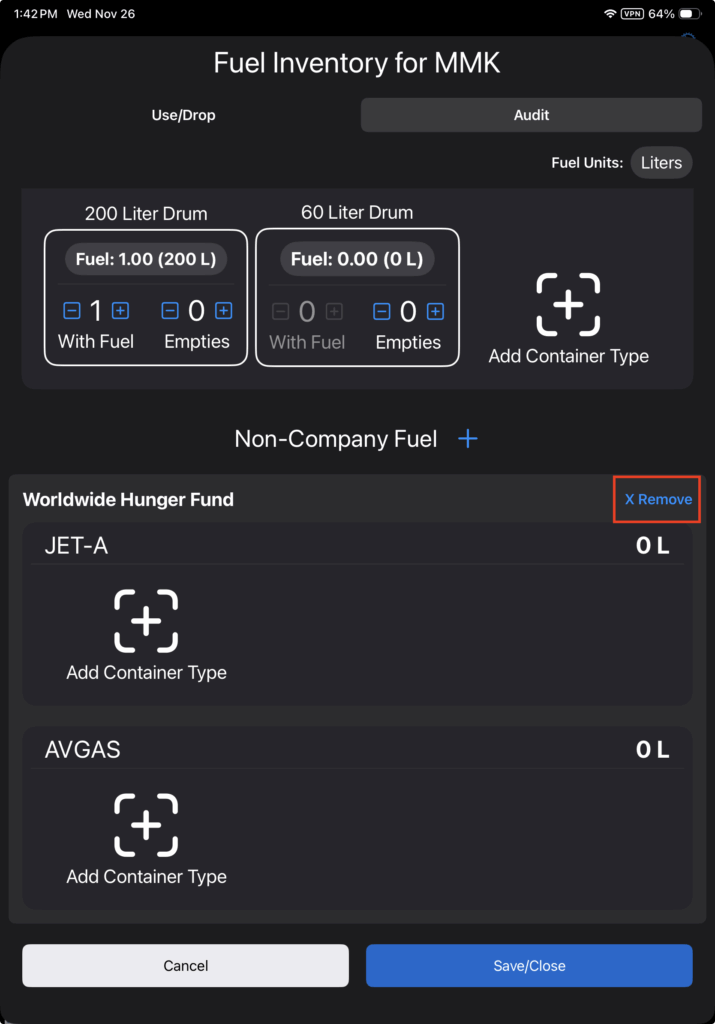
If you wish to inventory fuel belonging to another company, tap the Non-Company Fuel button.
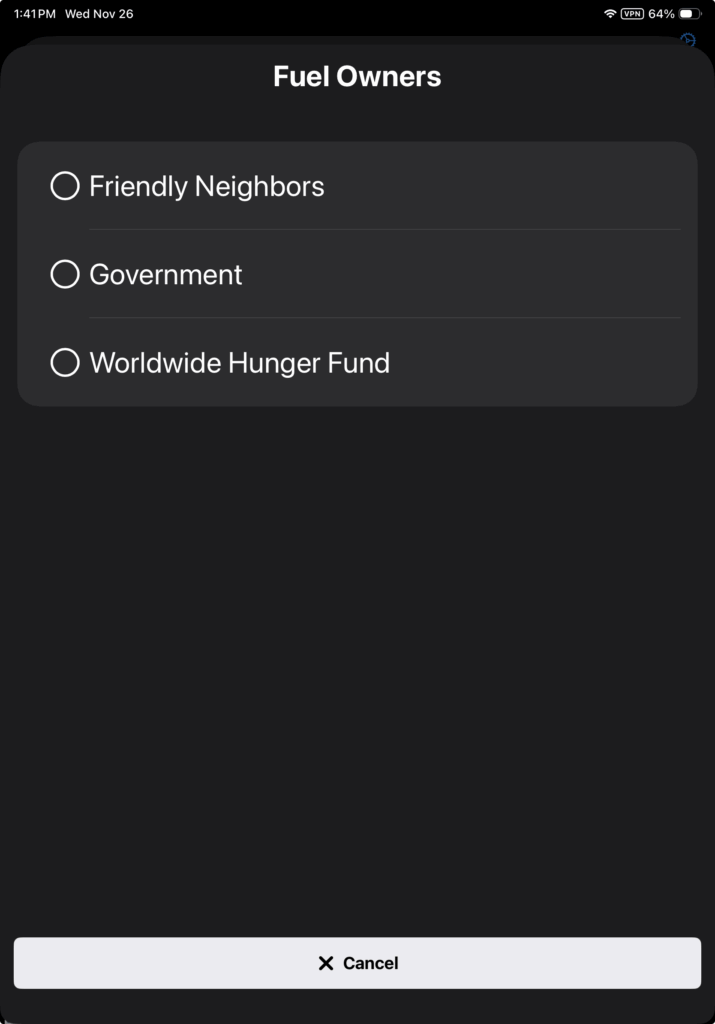
Select the company you wish to audit.
Non-company fuel containers are not displayed by default. First add containers as previously described.
If you change your mind, and do not wish to audit other company fuel after all, tap the Remove button. Note that if you do not tap Remove, you will enter zero fuel for the non-company fuel when you save the audit.
Enter non-company fuel as previously described, then tap Save/Close.
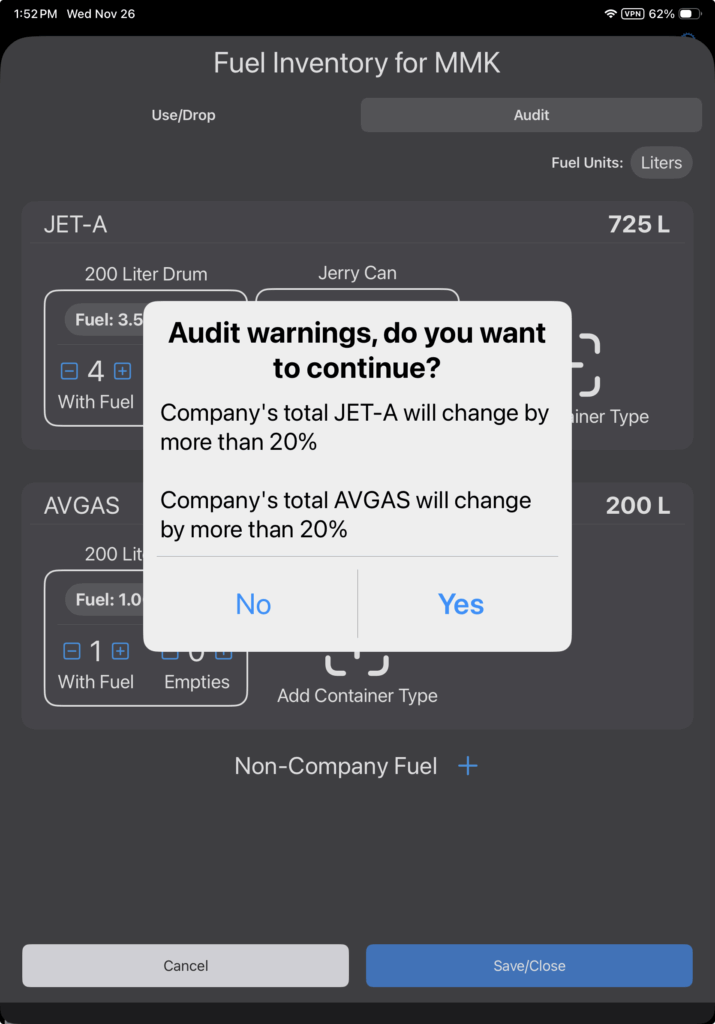
If total fuel quantity changes by more than 20%, there will be an audit warning to minimize the chances of inadvertent/erroneous changes to the fuel inventory.
Select No to go back and correct the audit, or select Yes to save the audit.
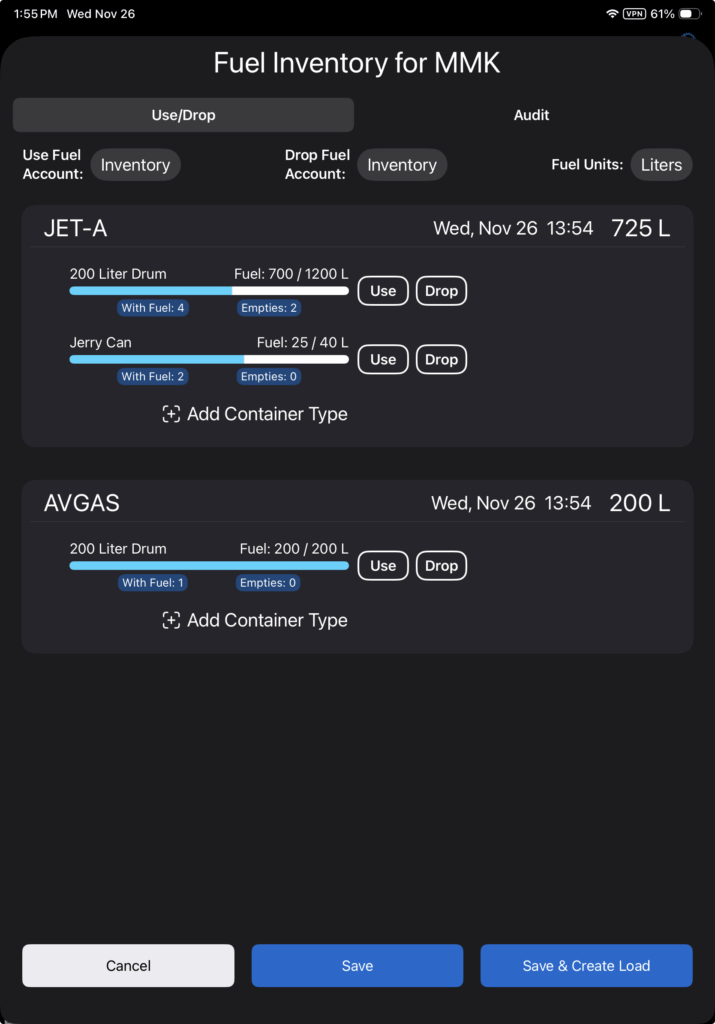
When you save the audit, the window will close, but the next time you tap the fuel barrel icon, the Use/Drop tab will display the quantities entered on the Audit tab.
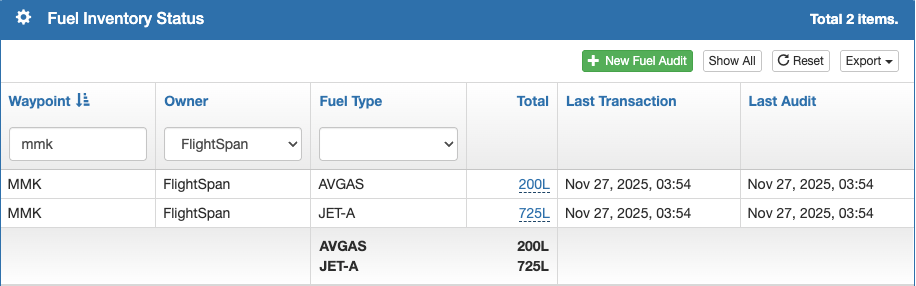
When you connect to the internet, the Audit will also be recorded in FlightSpan Ops.
The next time you do an audit at this location, the container types will be there, but the fuel quantities and container numbers will all be zeroed.