Map Features
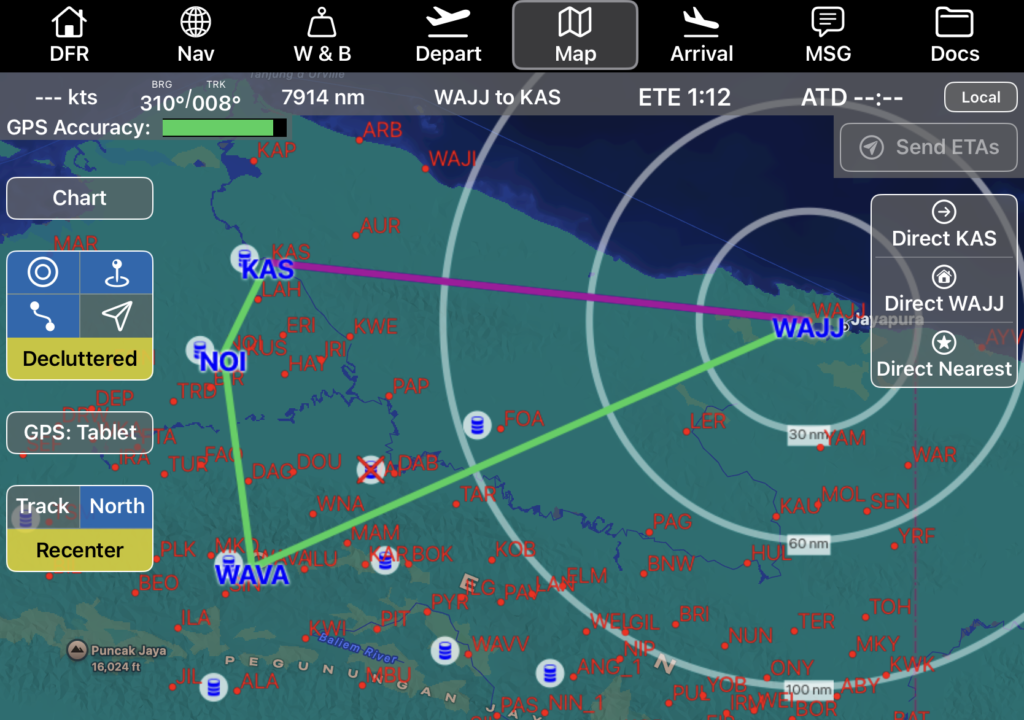
Waypoints included in the route are displayed in blue, and identifiers for other airports in the database are displayed in red.
The route is displayed using the same color coding as on the Nav tab.
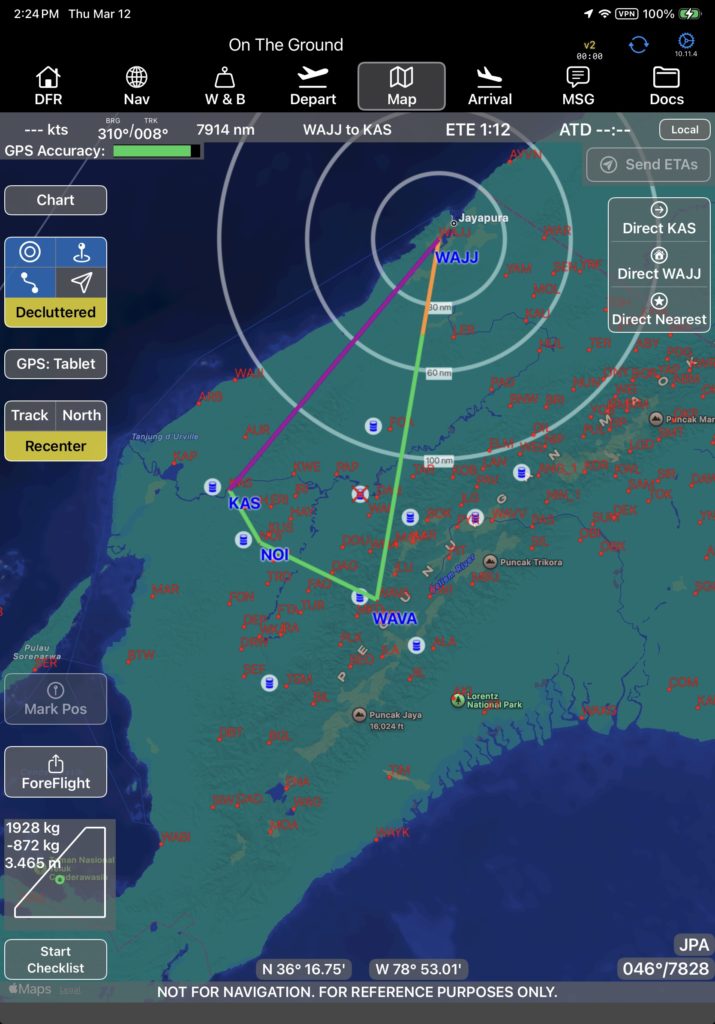
Pinch or spread to zoom, rotate using two fingers, and drag to recenter the map.
Note: When zoomed way out, the chart will automatically switch to North Up.
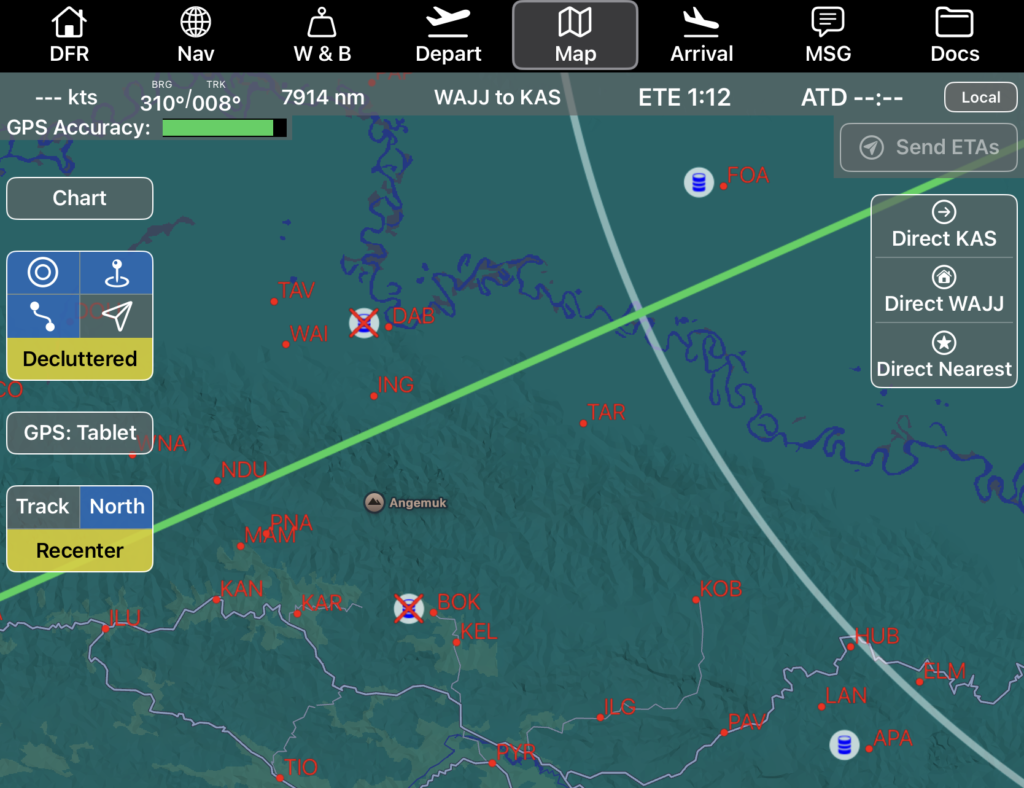
Fuel cache locations are displayed on the map with fuel barrel icons.
A fuel cache location without any fuel is shown with an X over the fuel barrel.
Tap on any waypoint symbol to pull up airport information, including
- Airport name and identifier
- Distance from your present position
- ETE from your present position
- Airport elevation
- Runway information including takeoff and landing limitations
- Fuel type and quantity available
- Any company NOTAMs
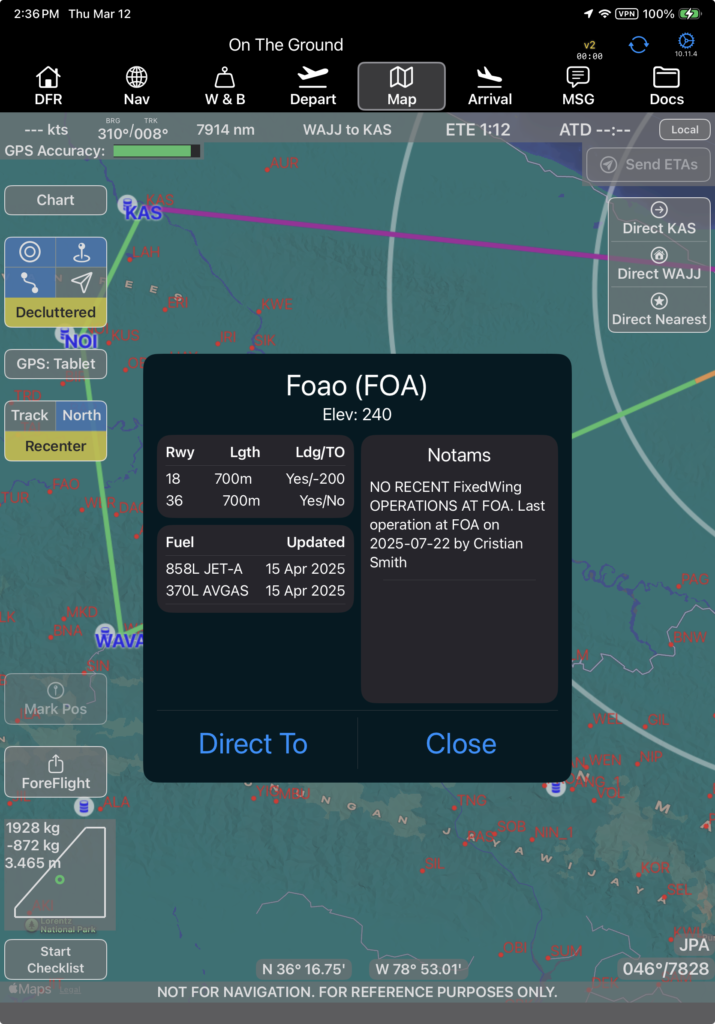
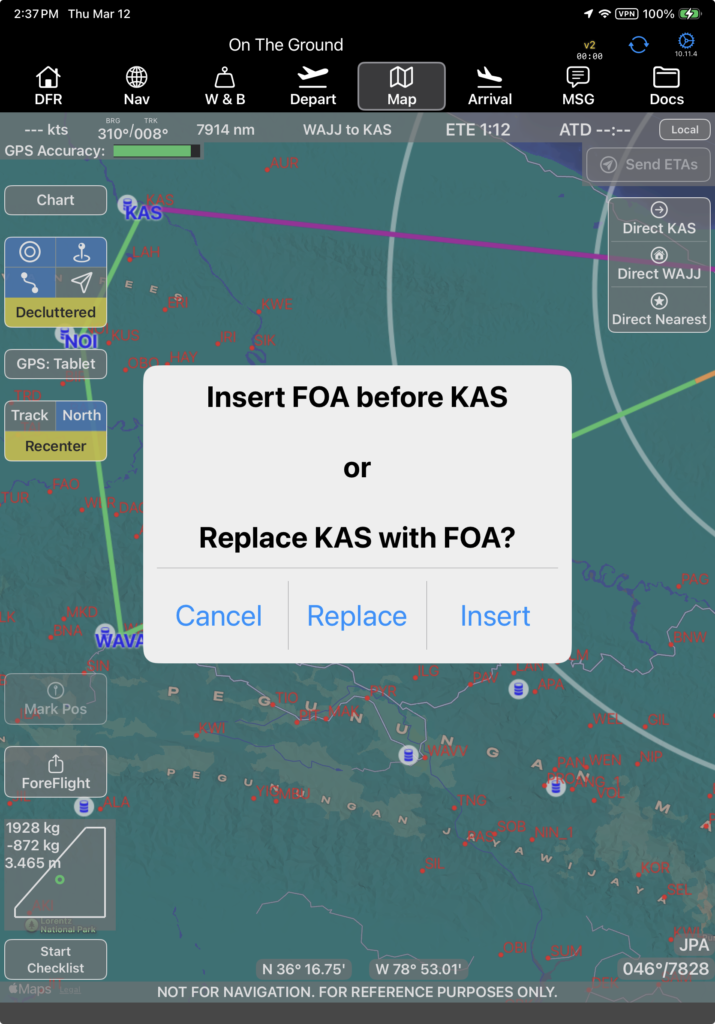
Tap the Direct To button to navigate to the selected airport, as described in the Map Tab – Right Side and Bottom documentation.
Map Tab Information and Controls
The Map Tab information and controls are located around the edges of the map.
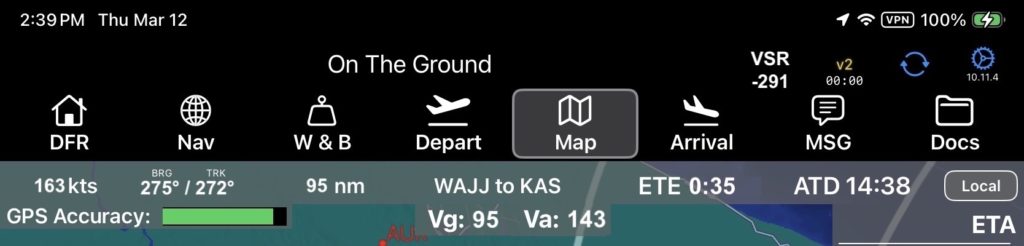
Top bar, left to right
- Groundspeed
- Magnetic Bearing to the next waypoint / Current Magnetic Track
- Distance to Destination
- Current Route Segment
- Estimated Time En Route
- Actual Time of Departure
- Toggle between Local and Zulu time
- Vertical Speed Required to the destination is at the very top next to the v2 connection symbol (this is in the header and thus visible throughout the app)
Row Two
- GPS Accuracy (GPS accuracy indicates green with a good signal, and as the signal degrades the bar will turn yellow, then red. Any time the GPS signal is poor (not green) a GPS accuracy warning will pop up in the center of the screen.)
- Best Glide speed for your estimated current weight
- Maneuvering speed for your estimated current weight