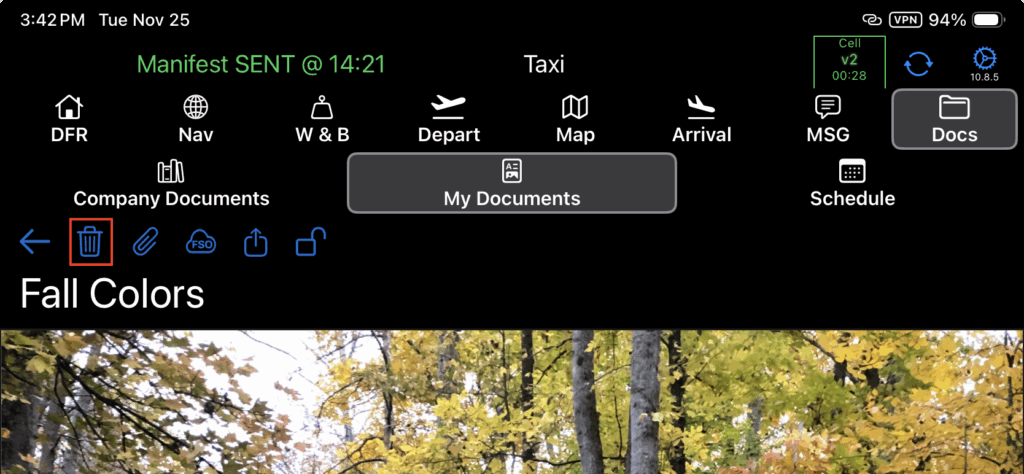
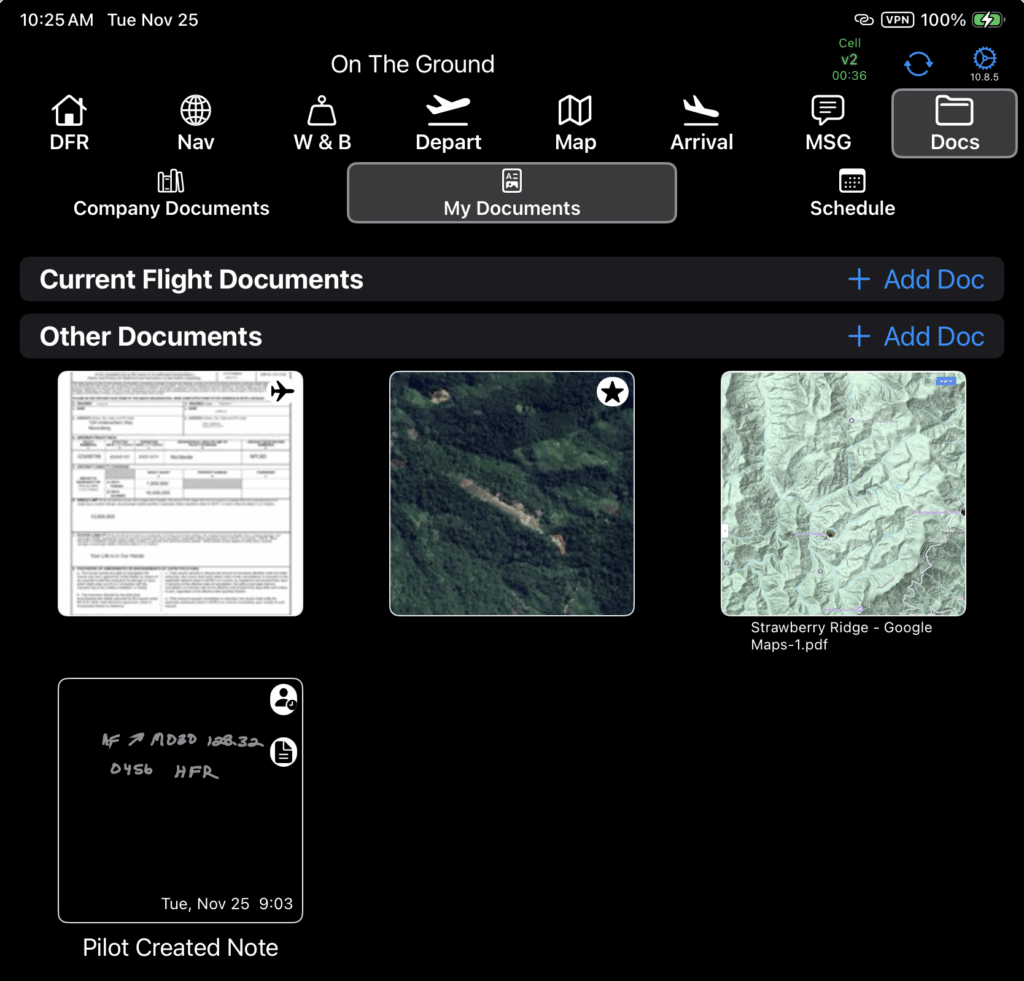
My Documents are documents created locally on the iPad. Attaching one of these locally created documents to a flight, crew member currency event, aircraft or waypoint moves the document out of the My Documents section and into the Company Documents section, and that document will (after syncing) then be available on both the EFB and FlightSpan™ Ops.
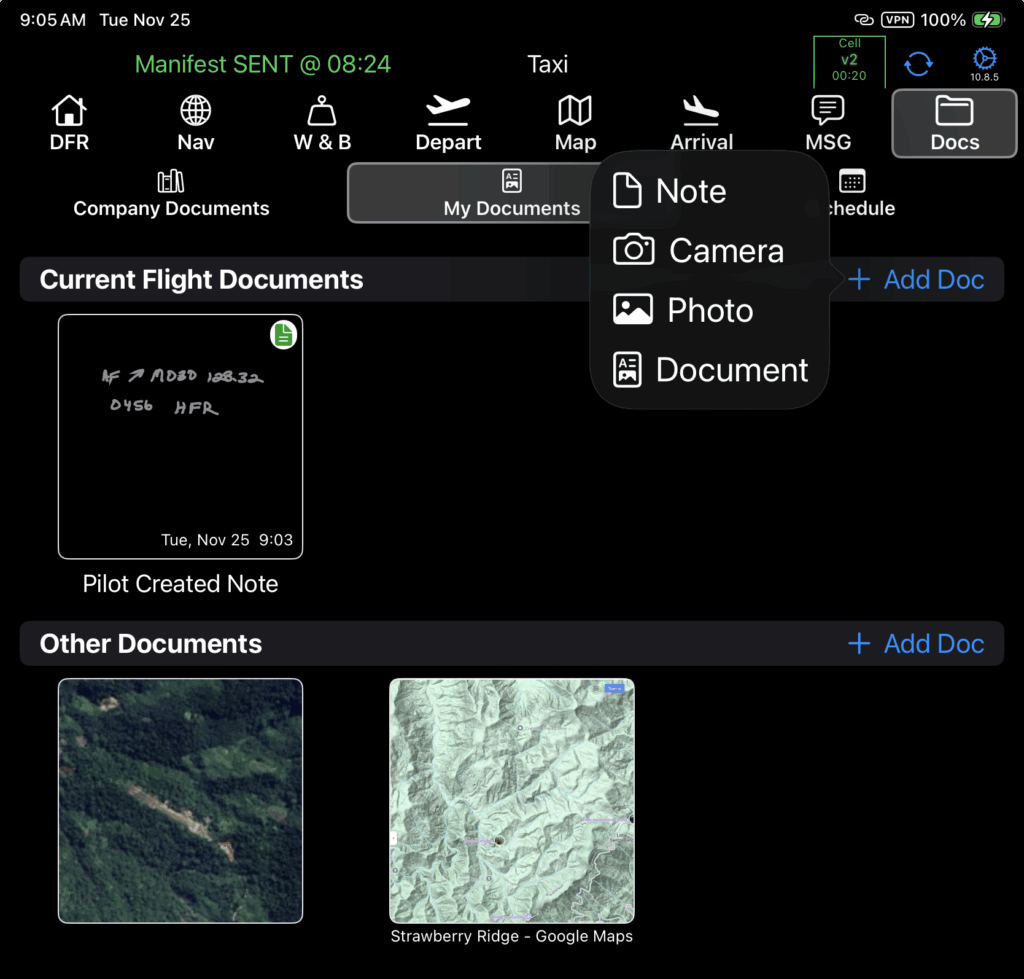
Add Documents
From the My Documents tab, tap the Add Document link to add a note, photo, or document.
Tap the link under Current Flight Documents if you want it attached to the current flight; tap the link under Other Documents if you do not want it linked to the current flight.
Note that links can be added or removed later.
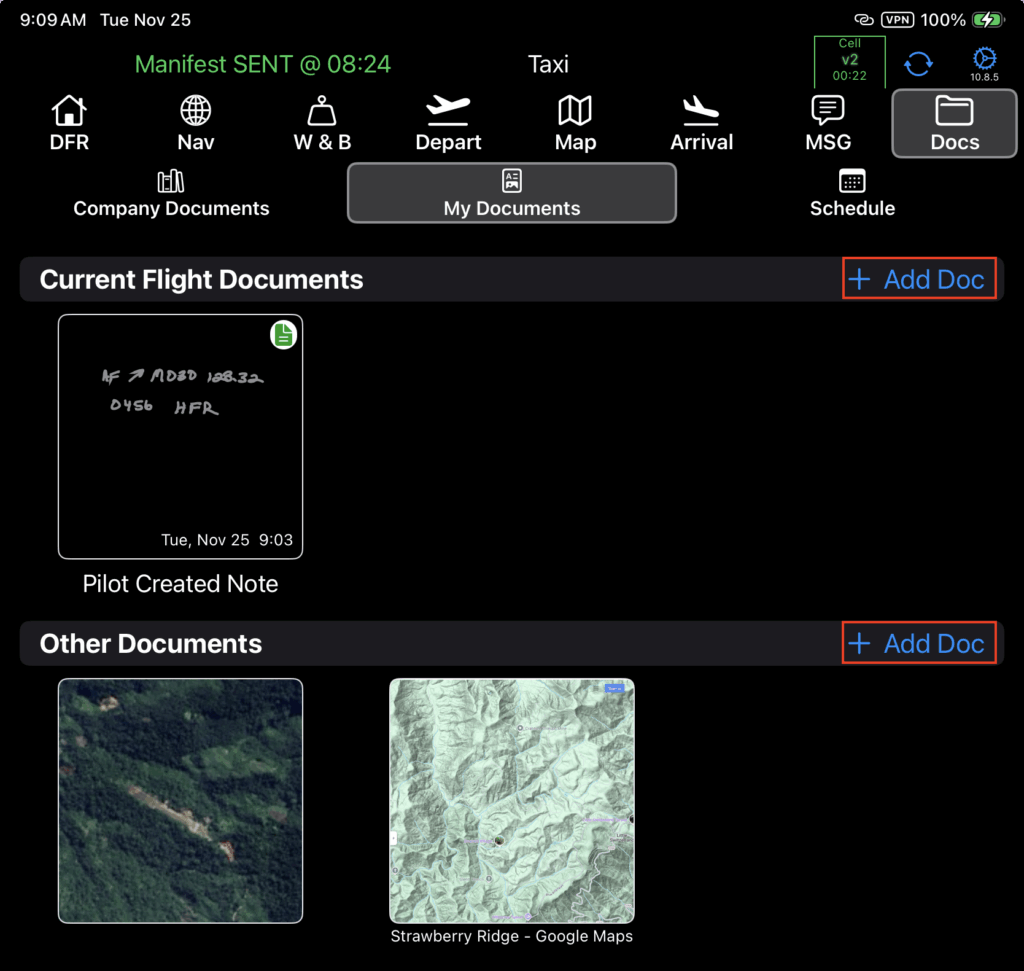
Select Note, Camera, Photo, or Document.
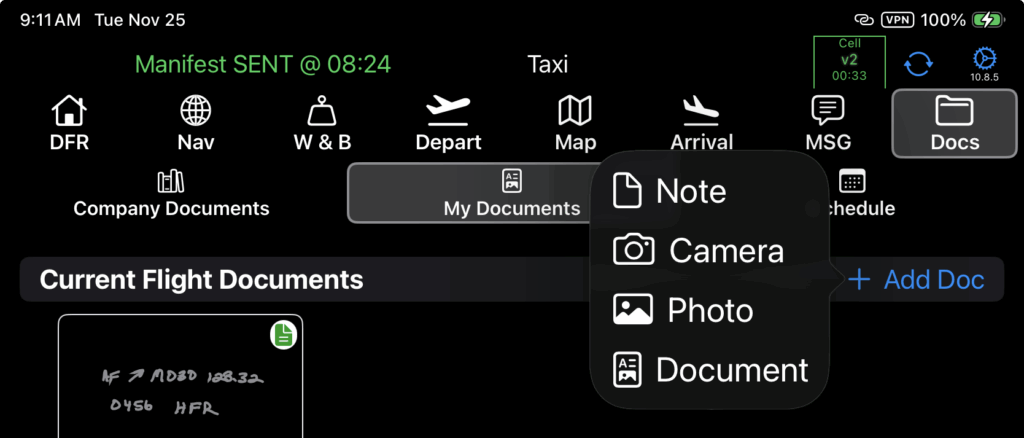
Note: Photos taken when you select Camera are stored locally in FlightSpan, and will not be stored in the iPad Photos app.
If you select Photo, Apple’s Private Access feature will open, since FlightSpan does not request access to your photos.
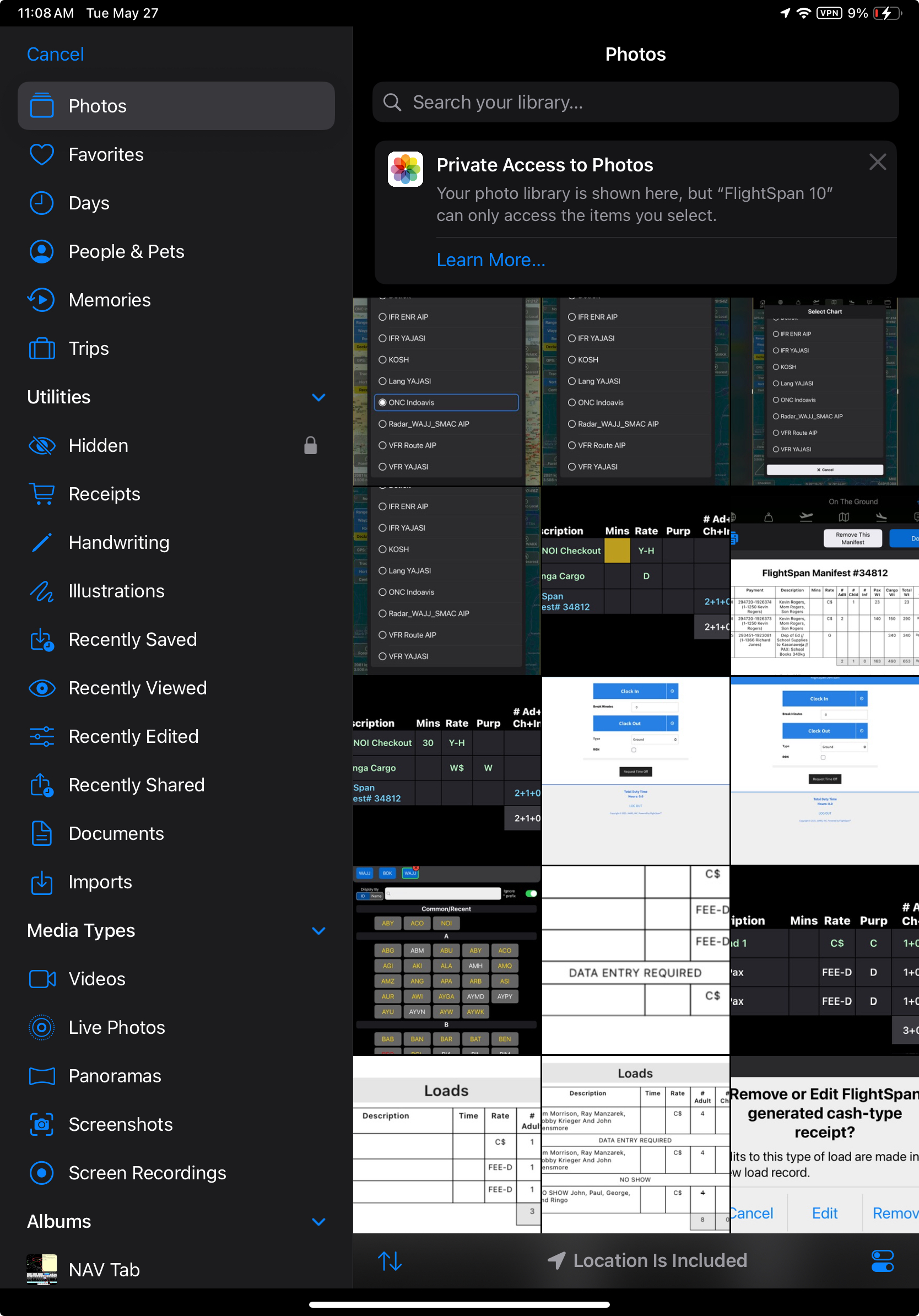
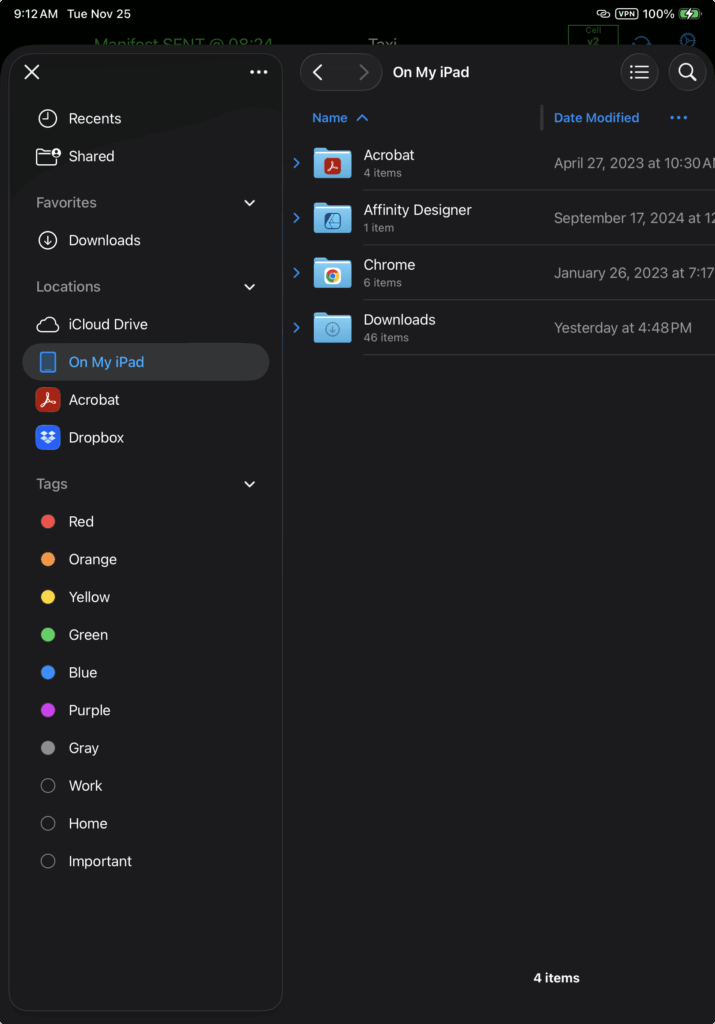
If you select Document, Apple’s Private Access feature will open, since FlightSpan does not request access to your documents.
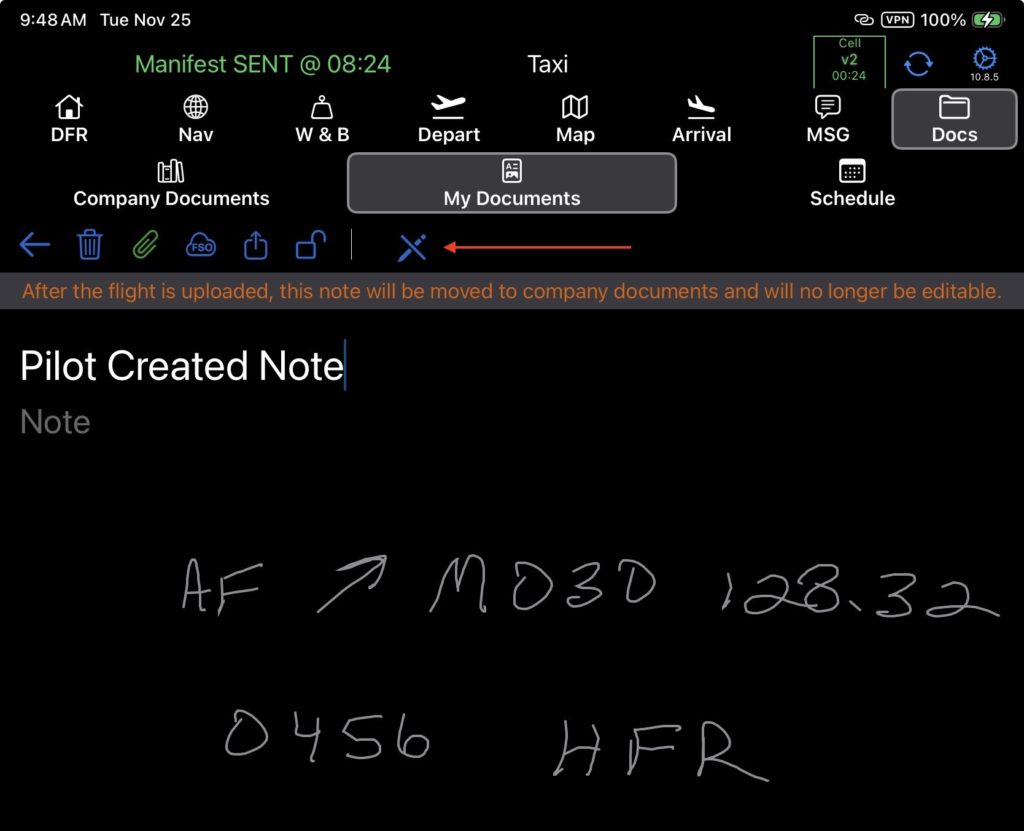
If you select Note, you can either type your note or tap the drawing tools icon for drawing options.
A title can be added to any document type, whether a note, photo or document.
Add Documents from Other Apps
Documents can also be added from the iPad Files folder, Photos, or from Acrobat.
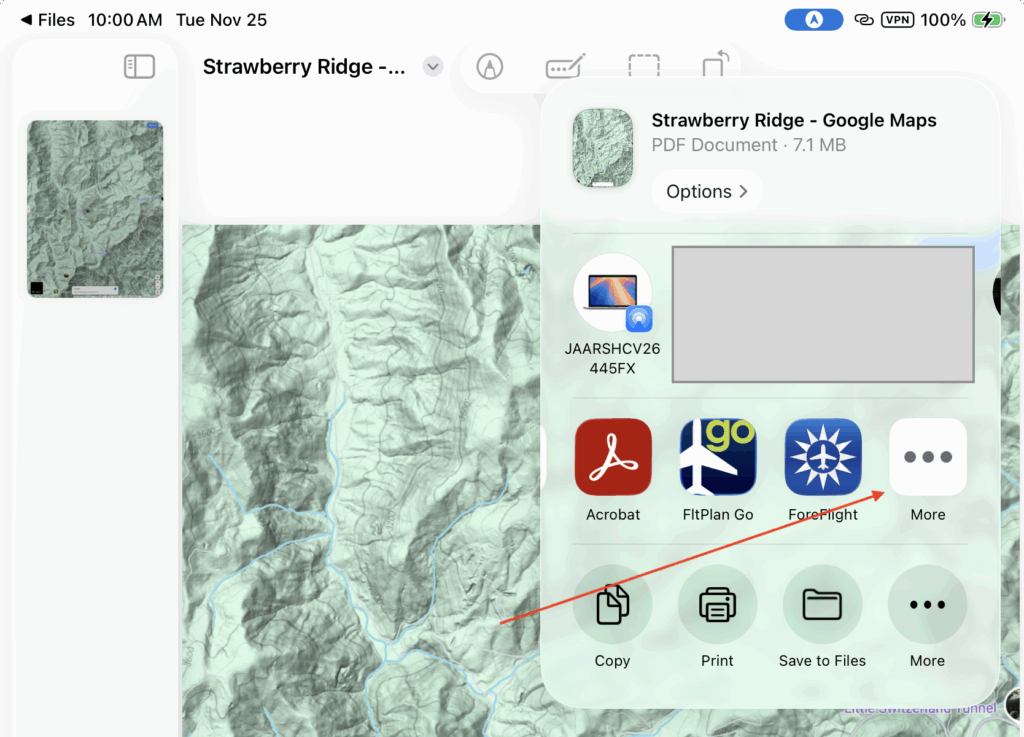
Open the file you wish to share and tap the Share icon.
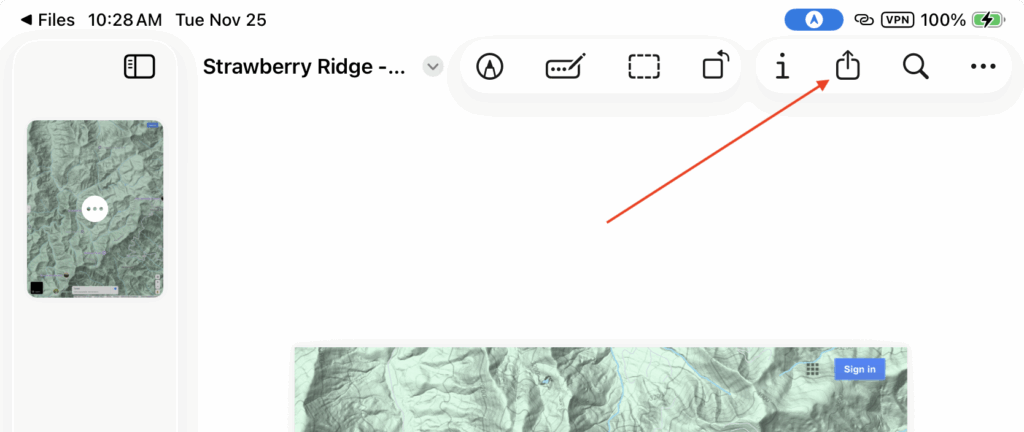
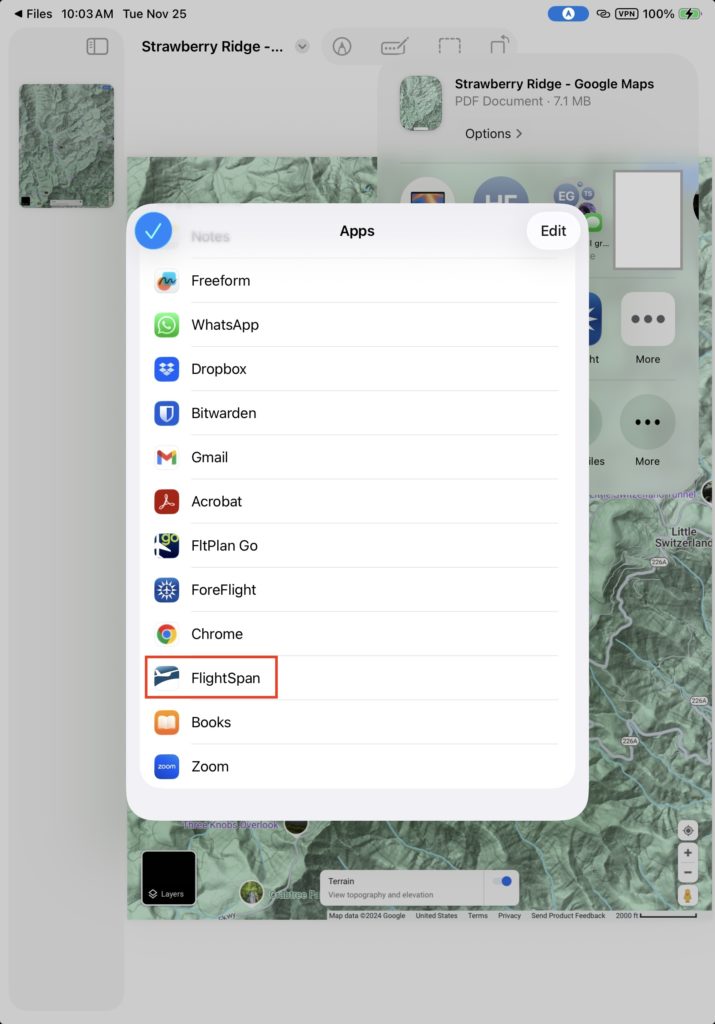
If you don’t see FlightSpan as an option, scroll right and tap More.
Then select FlightSpan from the list.
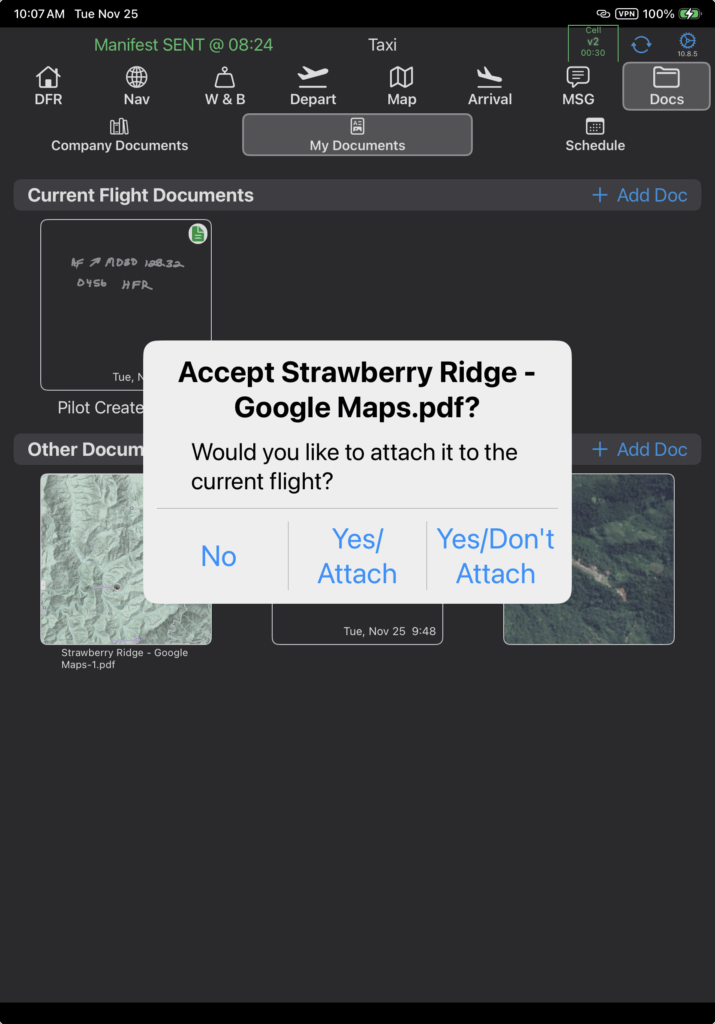
FlightSpan will open with an alert; tap Yes/Attach to add it to Current Flight Documents; tap Yes/Don’t Attach to add it to Other Documents.
Edit Documents
All document types in My Documents are editable.
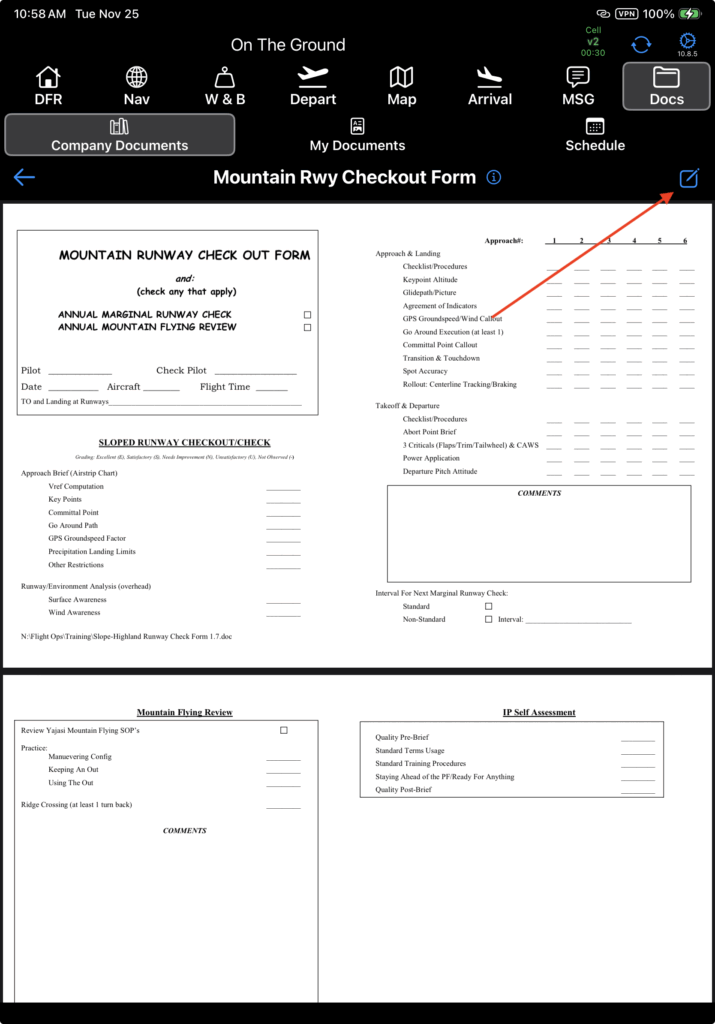
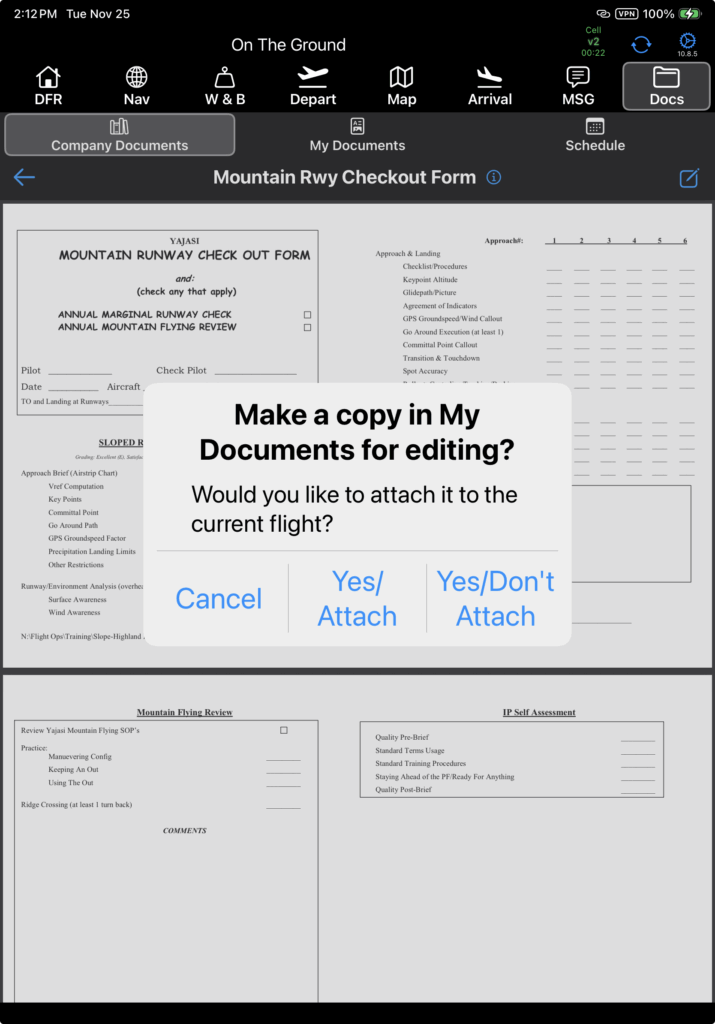
Company Documents are not editable, but you can click the Edit icon to make a copy to My Documents for editing.
Select Yes/Attach to add to Current Flight Documents; select Yes/Don’t Attach to copy to Other Documents.
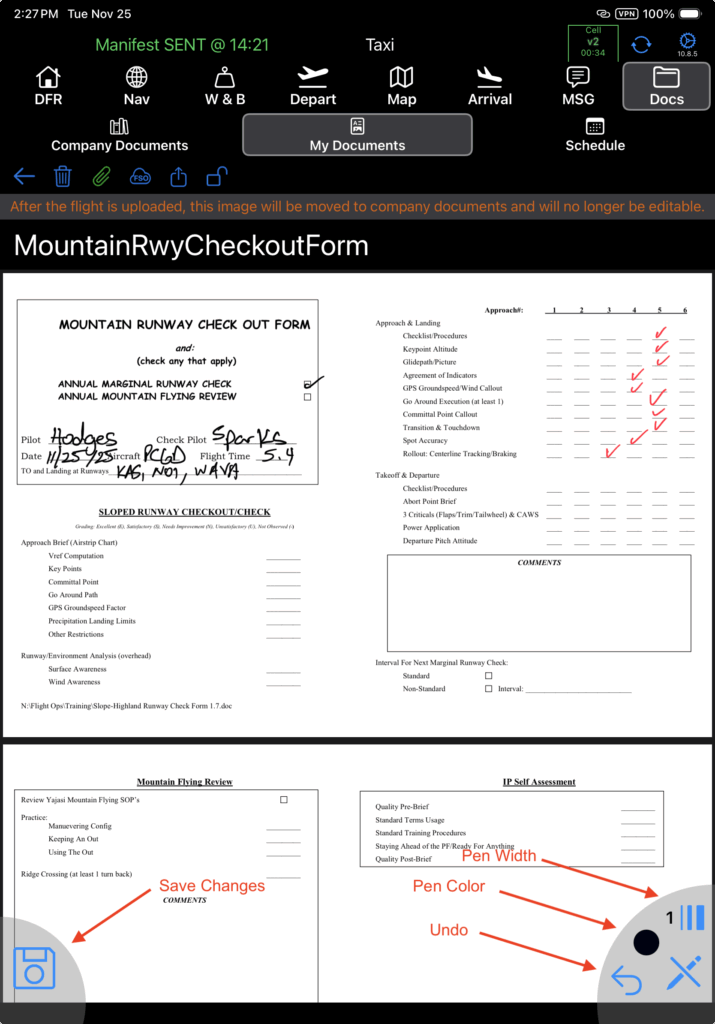
Edit by tapping the pencil icon at the bottom. Be sure to Save after making your changes.
Link Documents
Tap the Links paperclip to link the document to an aircraft, a flight, a waypoint, or a currency event.

If the document was created from Current Flight Documents, it will already be attached to the current flight.
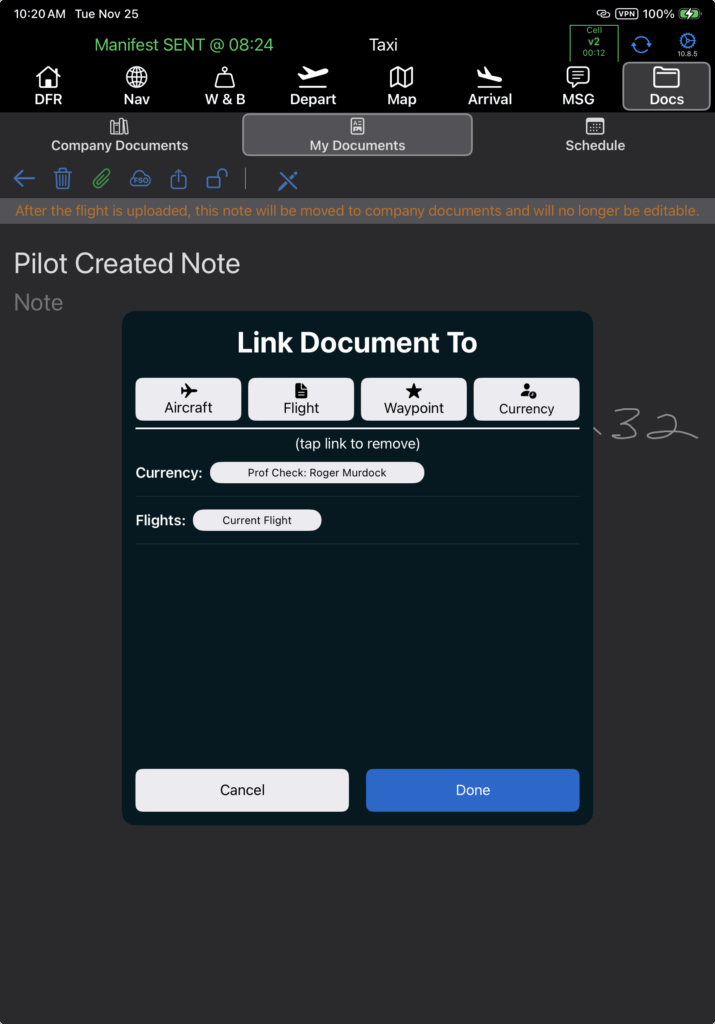
Tap existing links to unlink the document; to link the document, select Aircraft, Flight, Waypoint, or Currency (for currency events).
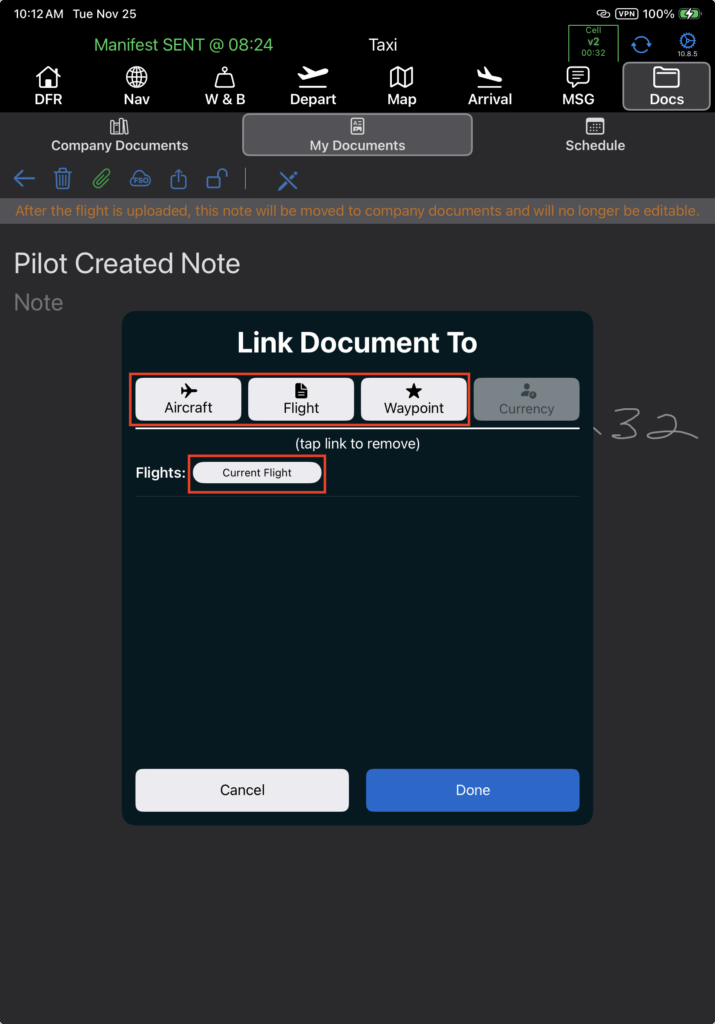
Note: The Currency link will only be active if a Tracked Currency Item has been entered on the DFR.
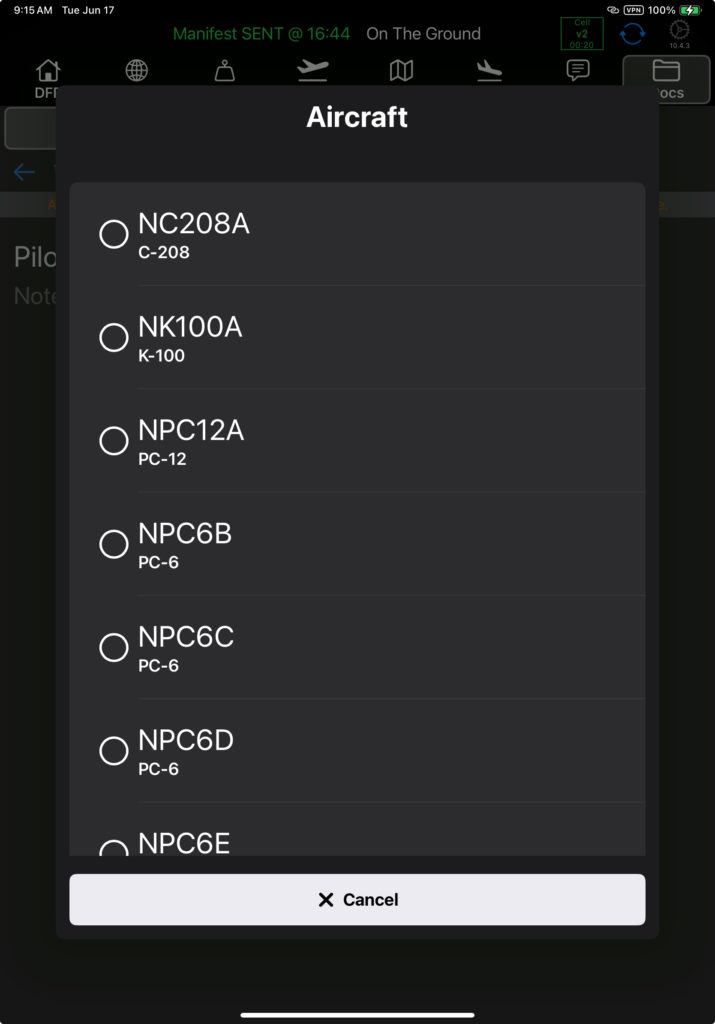
If you select Aircraft, you can choose from any aircraft in the fleet.
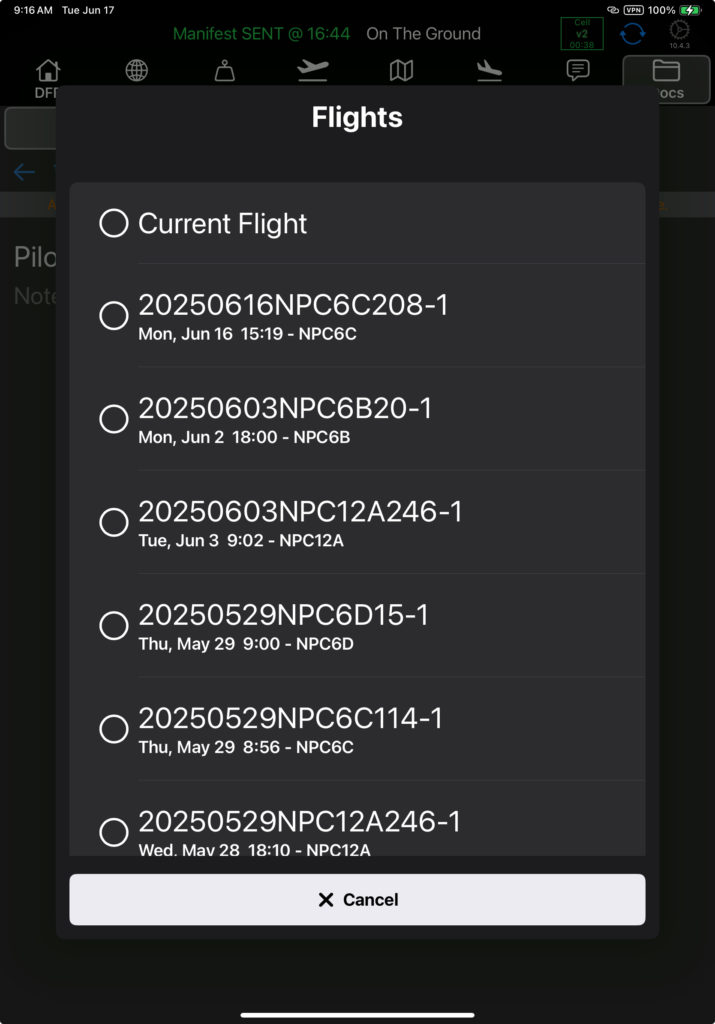
If you select Flight, you can choose between the current flight and any other flight that was uploaded to FlightSpan Ops from this device.
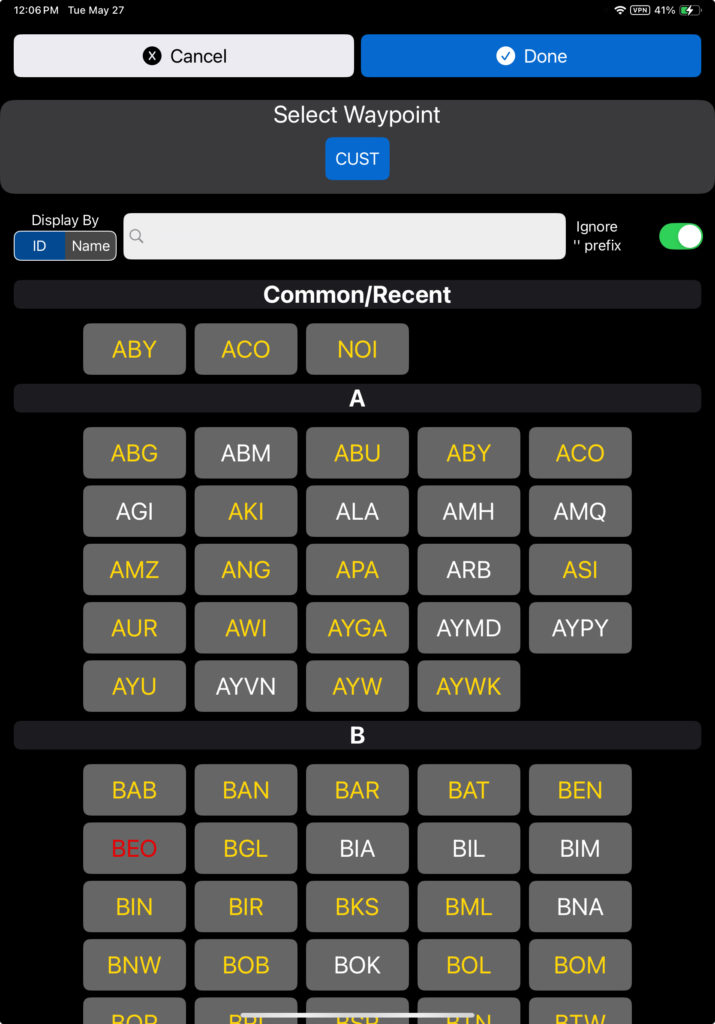
If you select Waypoint, choose from any waypoint in the database.
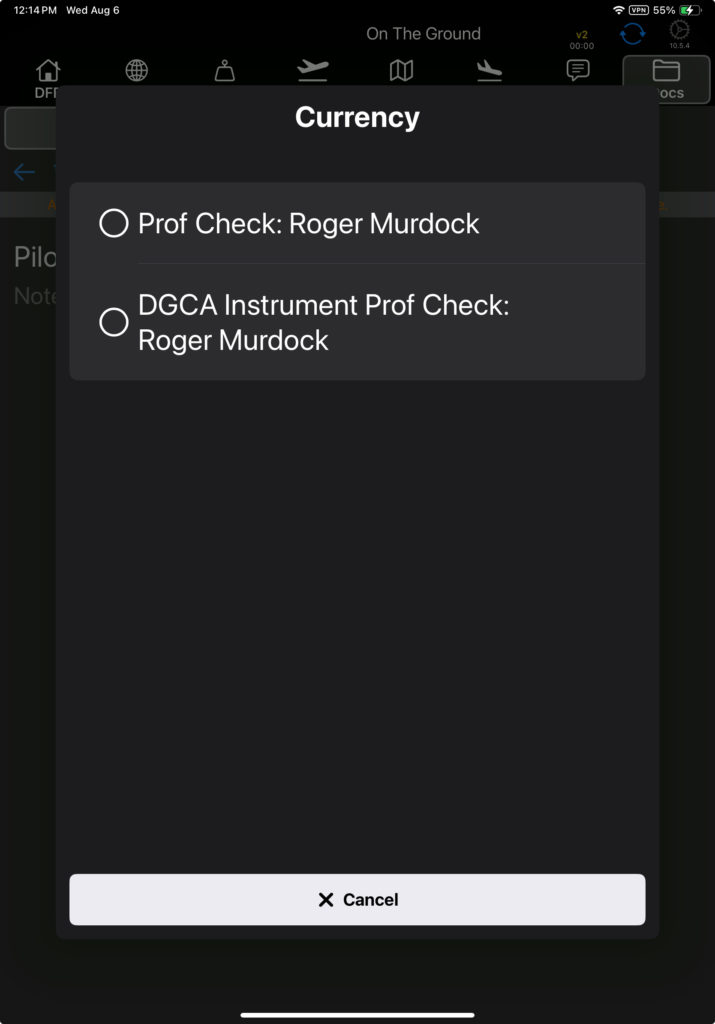
If you select Currency, select the desired currency event.
Once you’ve selected the desired link or links, tap Done.
The type of link(s) created will be indicated by an icon on the upper right corner of each document thumbnail.

The green icons will be black if the documents were linked while on one flight, and you are viewing them from a different flight.
Encrypted Upload
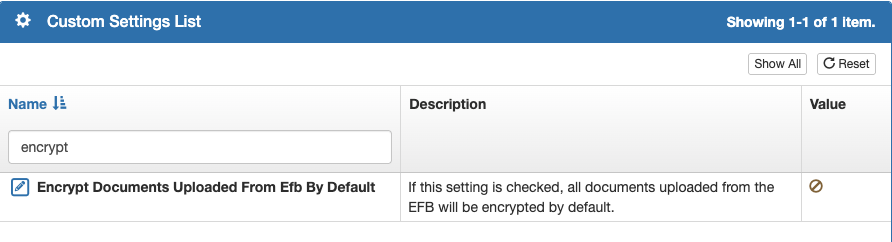
Depending on the Company Custom Setting, documents will be either encrypted or unencrypted by default when they are uploaded.
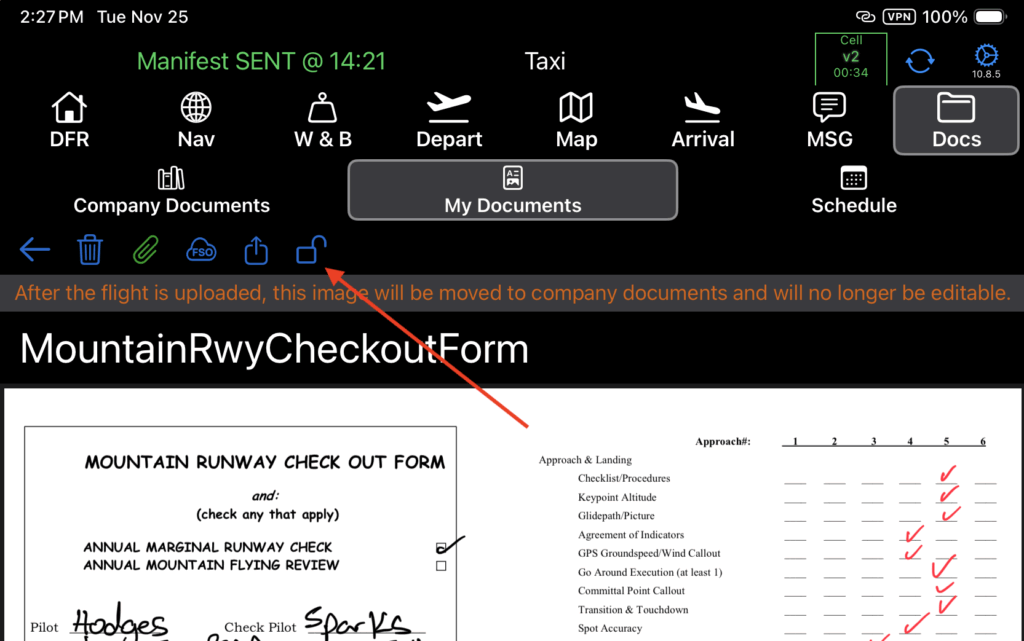
Select the open padlock icon to encrypt the document when it is uploaded, and the icon will change to an encryption icon.
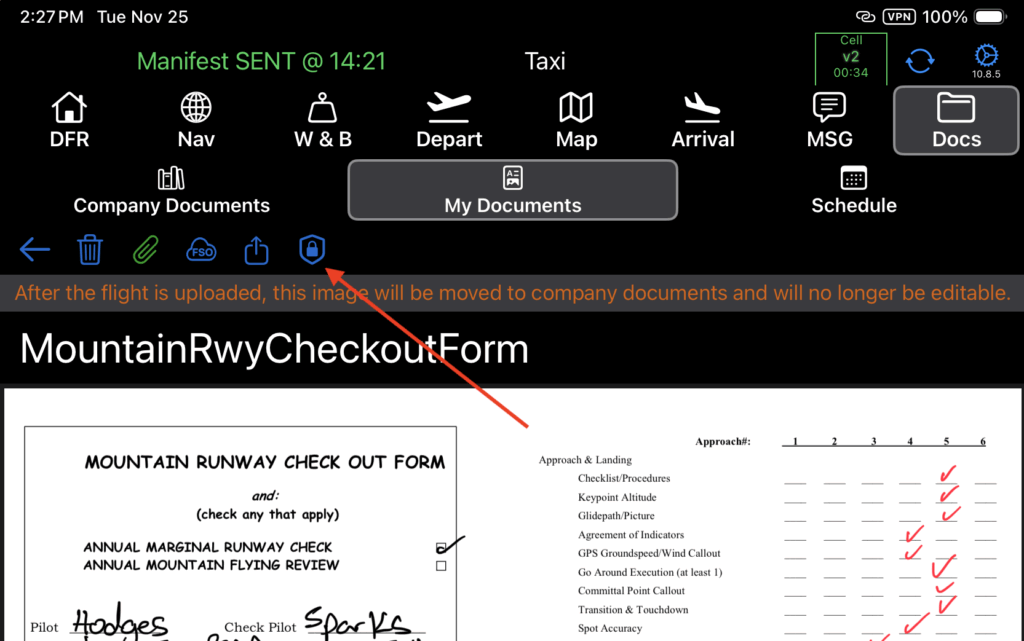
To send an unencrypted document, tap the encryption icon and it will change to an open padlock icon.
Upload Documents
Linked documents will automatically be uploaded when the DFR is uploaded.
They will be added to the FlightSpan Ops Documents List, and on the EFB they will be removed from My Documents and added to their respective linked Company Documents sections.
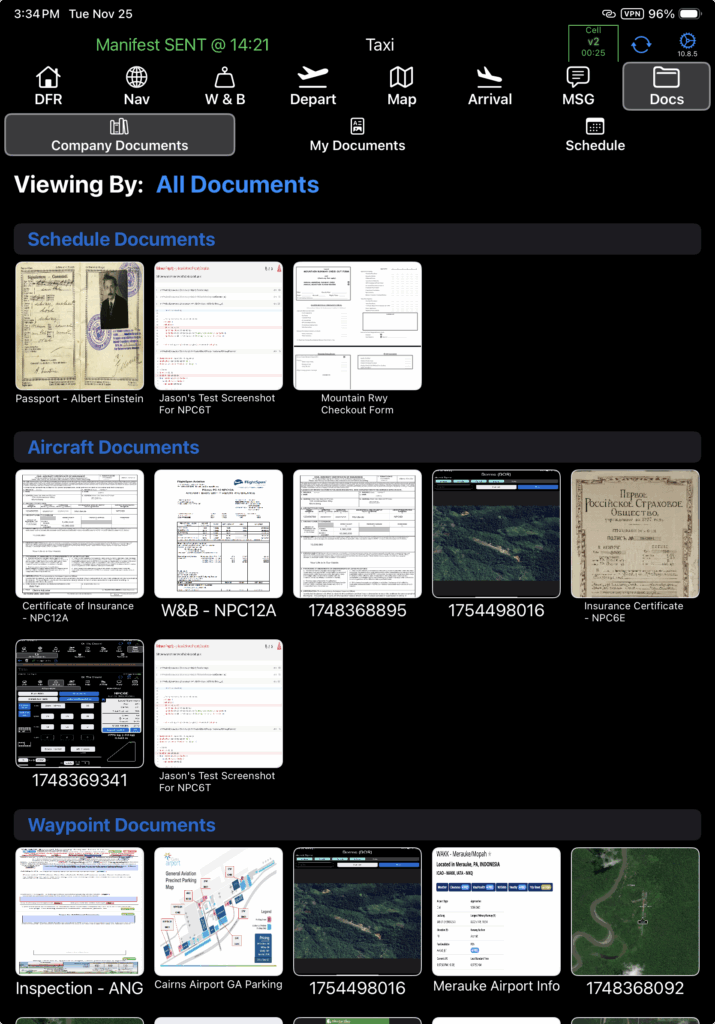
Unlinked documents are not uploaded, and will remain in My Documents. They will be editable even after the flight is uploaded.
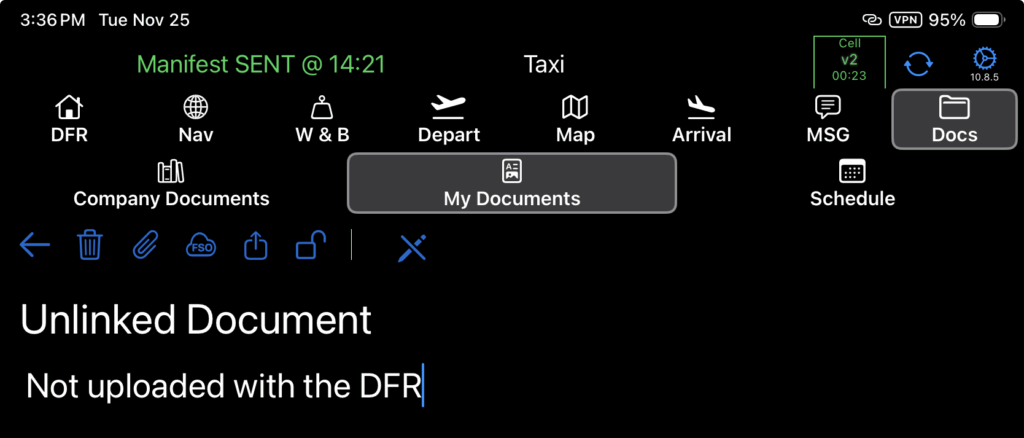
You can also upload a document prior to uploading the DFR by tapping the upload to FSO icon (internet connection required).
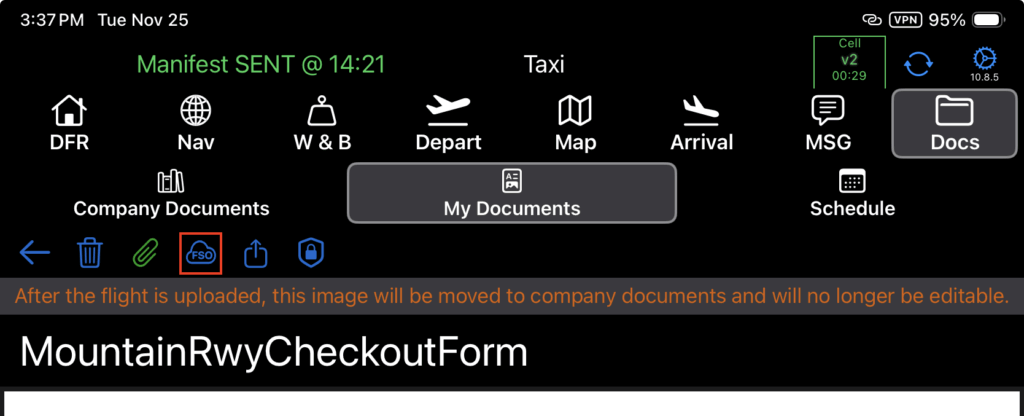
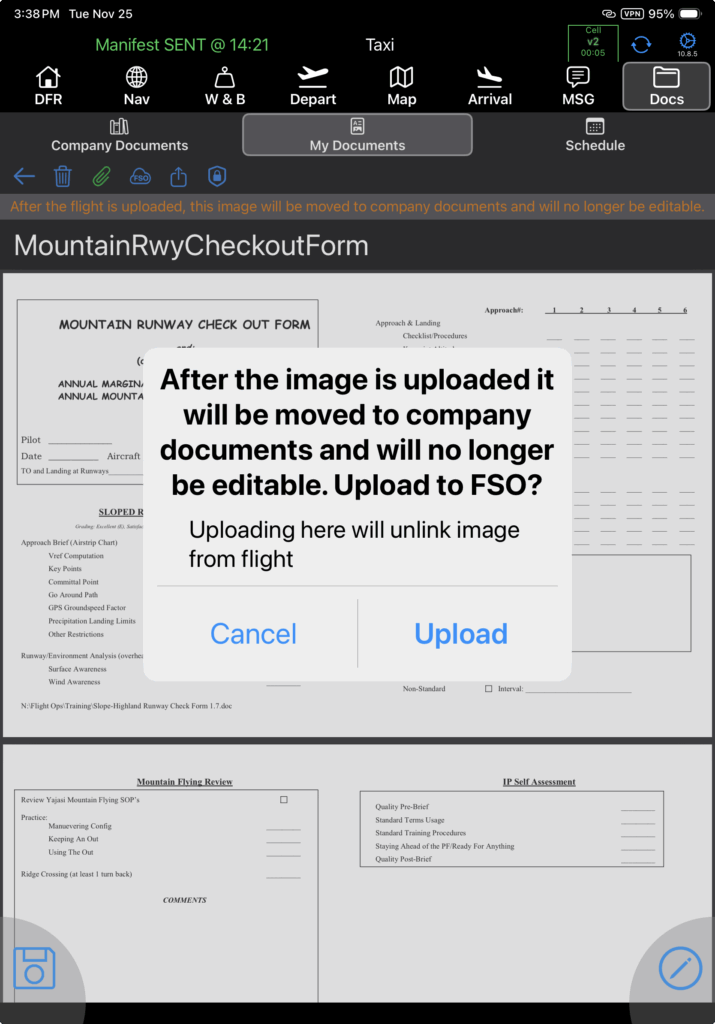
You will be warned you will no longer be able to edit the item.
If you attempt to upload but are not connected to the internet, you will get a “Problem with document upload” message.
If you are connected to the internet, the document will be uploaded to the FlightSpan Ops Documents List. On the EFB it will be removed from My Documents, and added to the Company Documents section.
Share Documents
You can also share a document by email, text, airdrop, or any other standard share method by tapping the share icon (internet connection required).

Delete Documents
Delete a document by tapping the trashcan icon.