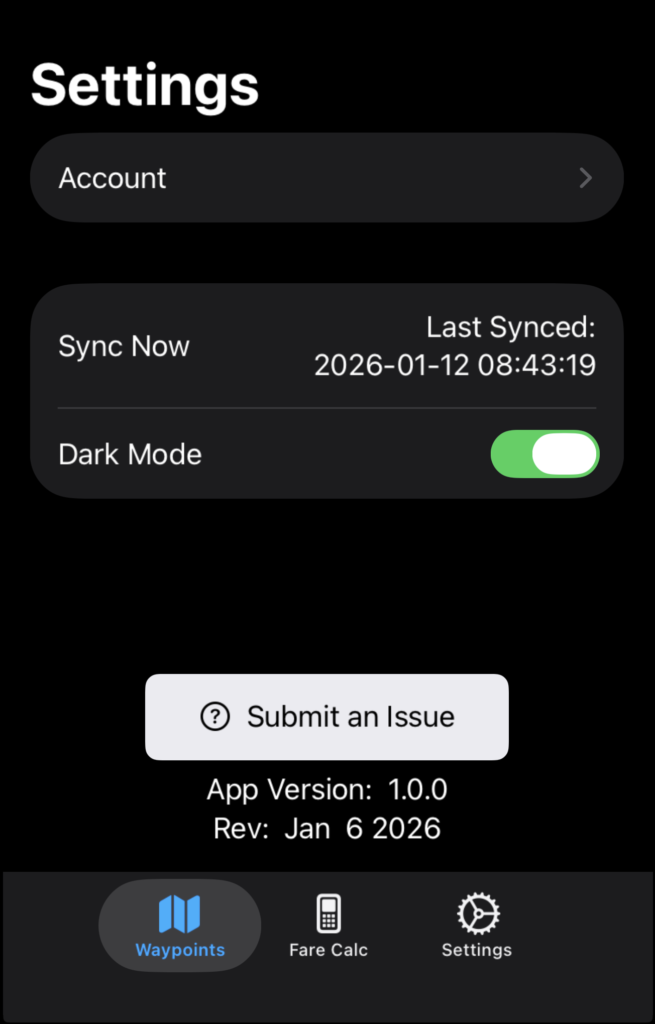
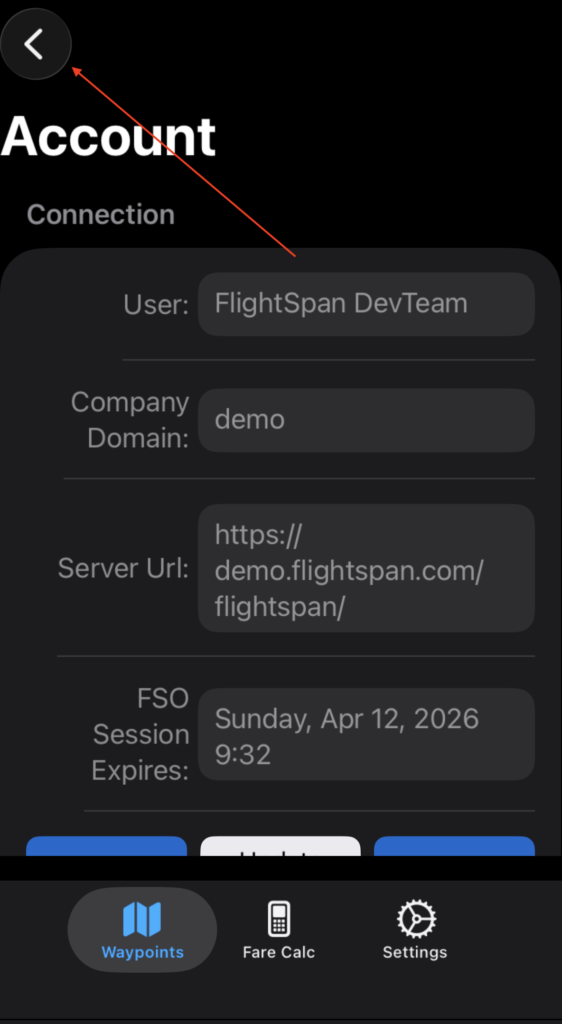
On the Settings tab, tap Account to view account information.
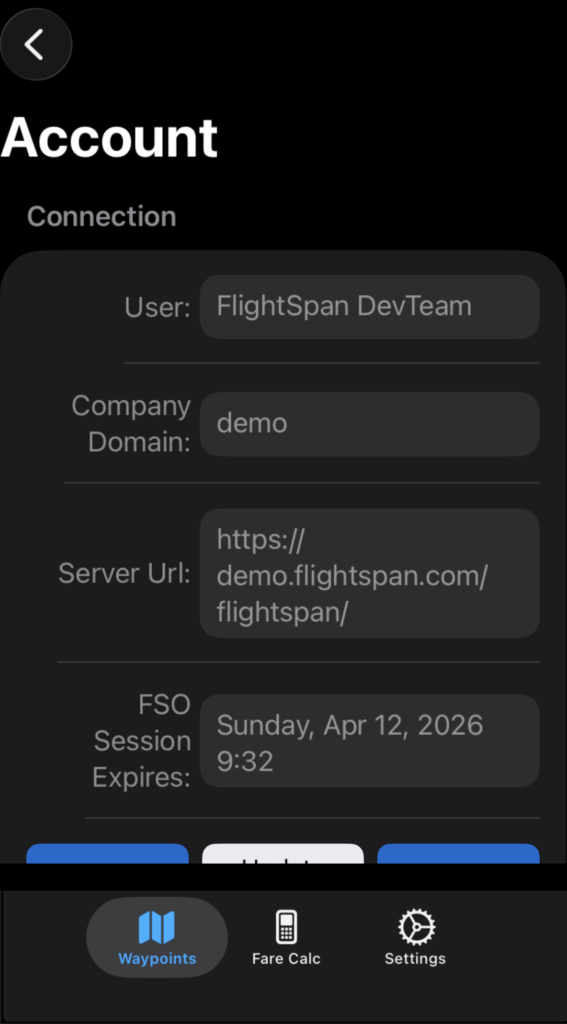
Connection information is displayed at the top.
App permissions granted in FlightSpan™ Ops to the logged in user are listed near the bottom.
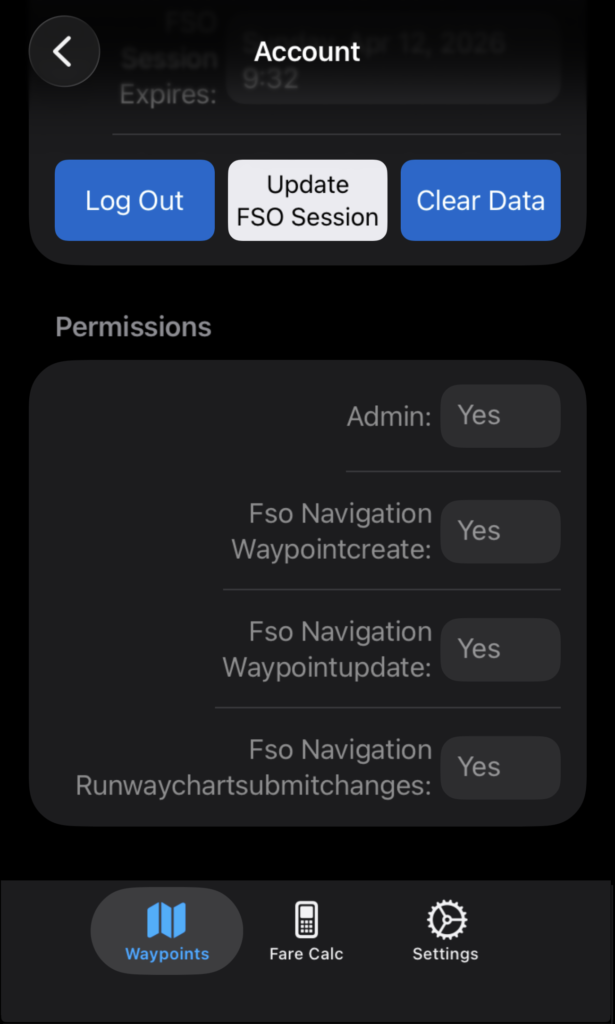
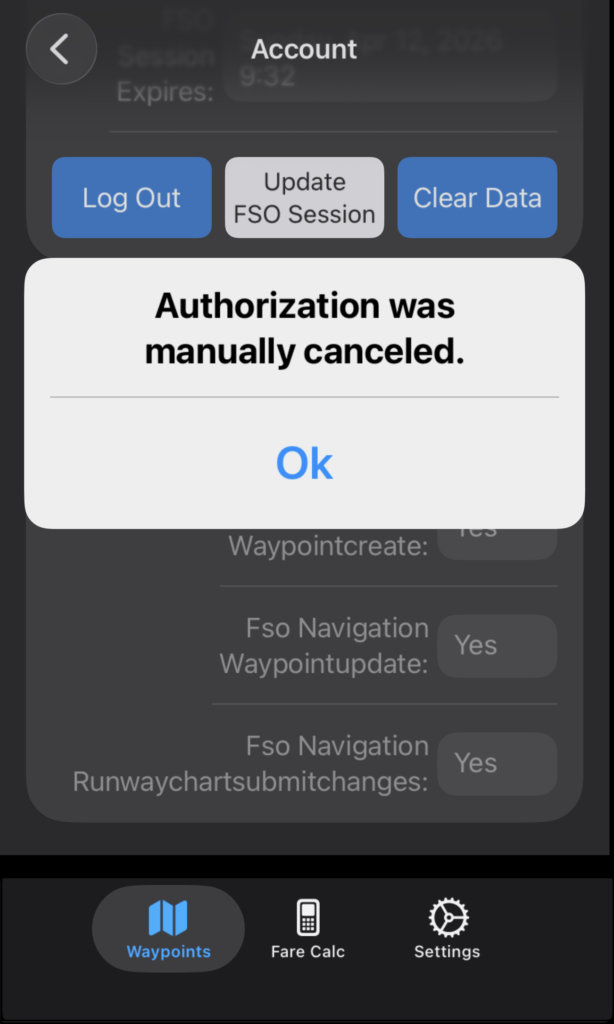
Tap Log Out to log out; tap Update FSO Session to enter login credentials again and reset the session expiration date and time.
Tap the X to cancel.
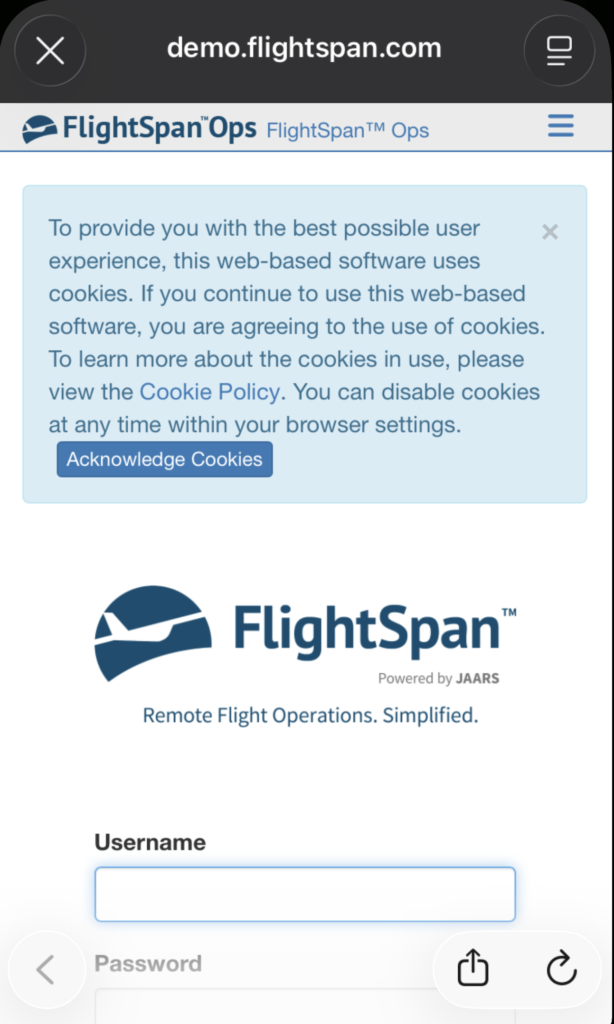
You will still be logged in, but the session will not be updated.
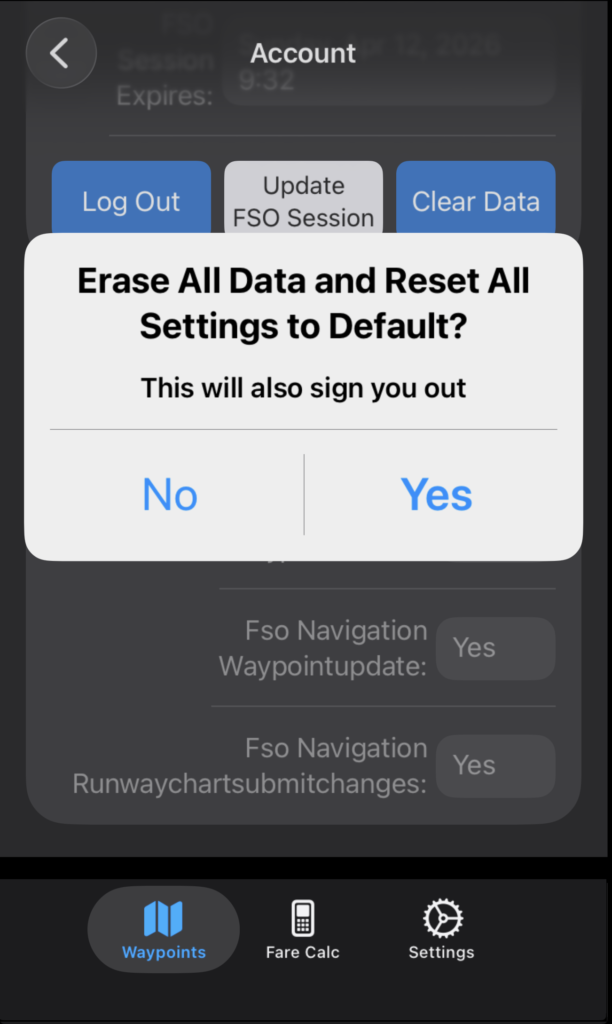
Tap Clear Data to erase data, reset the Tools app and log out.
Logging is at the bottom of the page, and should be left on. With the logging on, if you encounter any errors or bugs, you can email the log to the FlightSpan development team. The type of logging should normally be left at ‘Notice’. For troubleshooting purposes, the FlightSpan development team may occasionally request you to change this to ‘Debug’ (which collects more detailed logs).
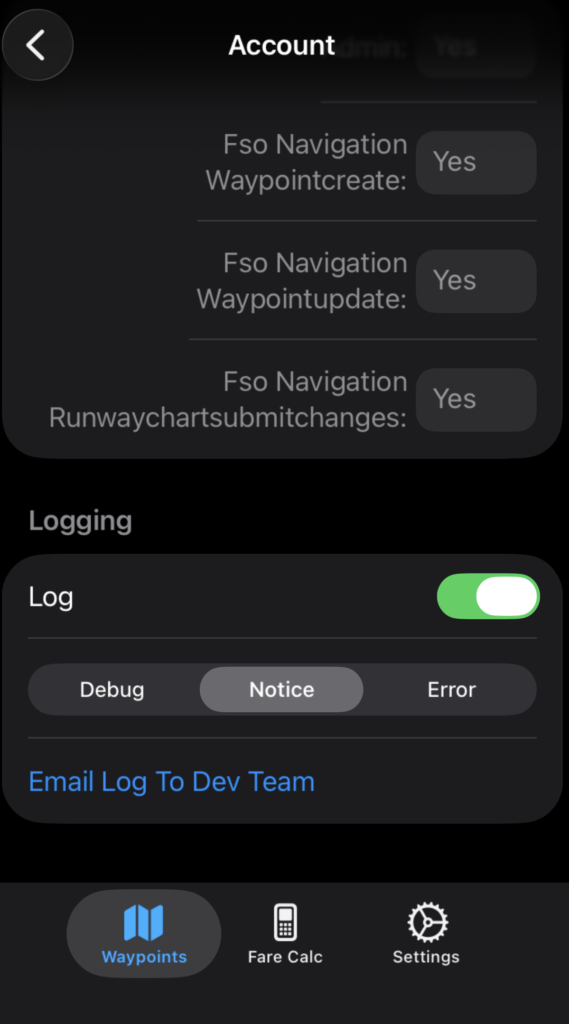
Note: Apple Mail must be opened for the logs to be sent.
Tap the back arrow to return to the main Settings tab.
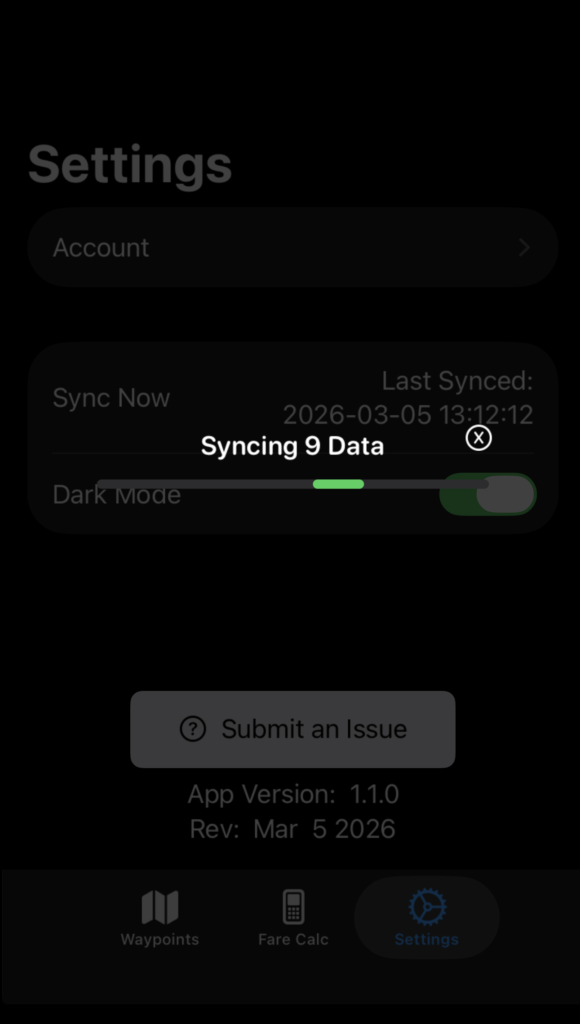
On the main Settings page, tap Sync Now to sync with FlightSpan Ops.
Turn off Dark Mode if desired.
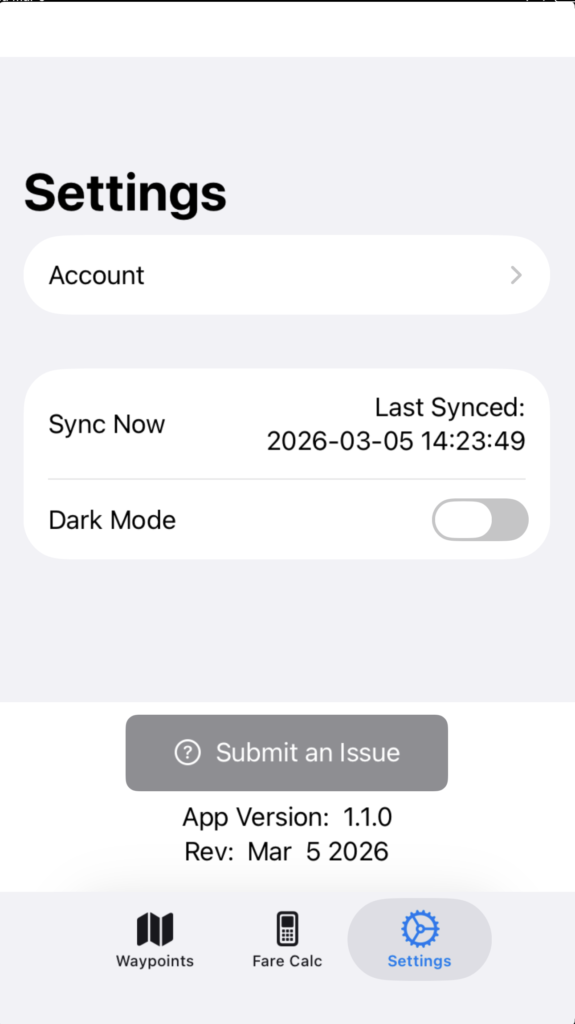
Tap Submit an Issue to report bugs or request features.
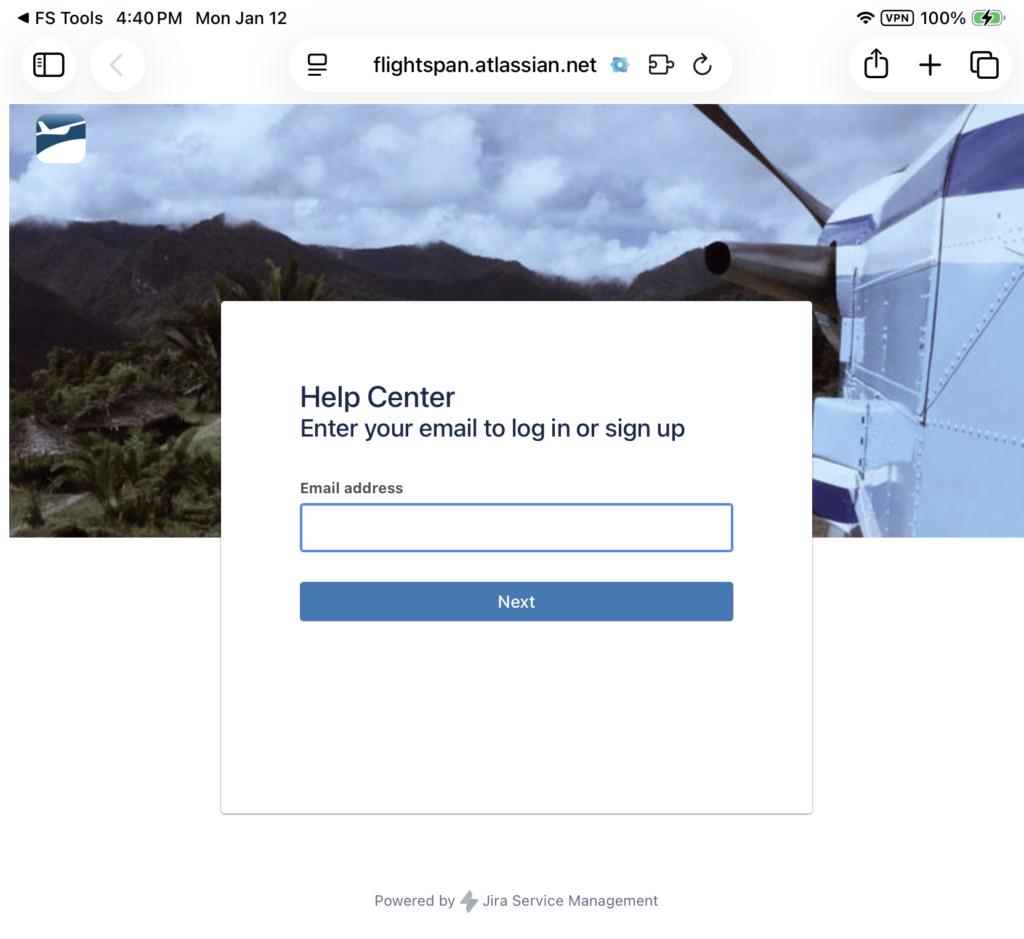
If you have not already done so, create an Atlassian account and log in to continue.