
Tap the Fare Calc button to open the Fare Calculator.
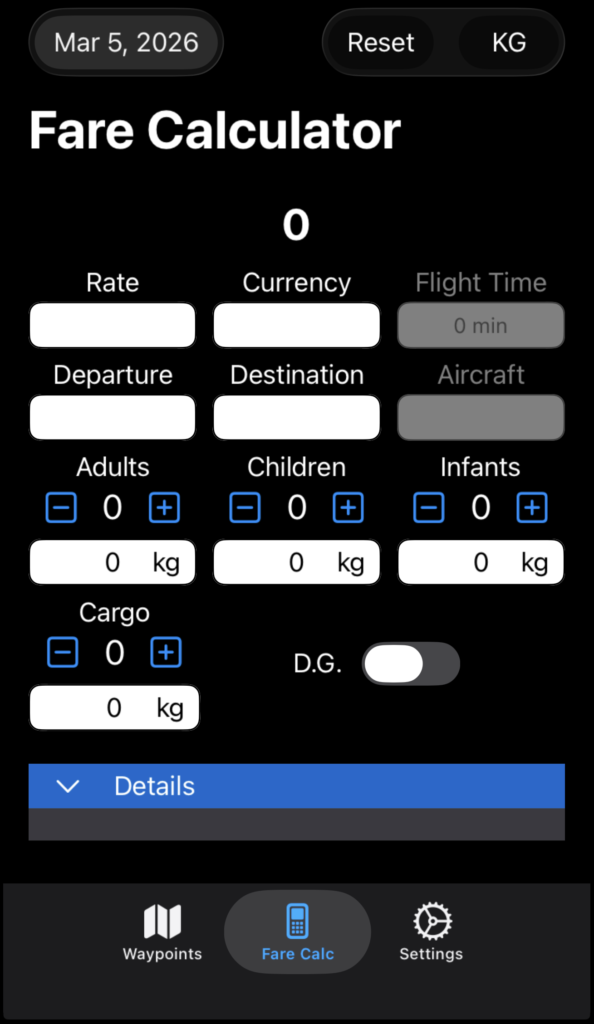
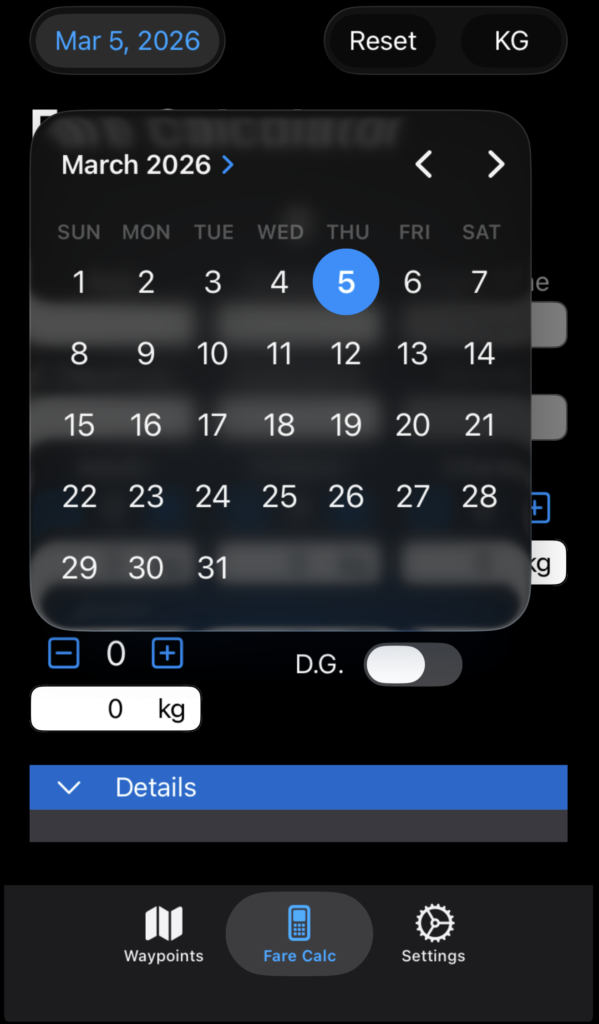
The date defaults to today’s date. Tap the date to change it as needed in order to assure that the correct rate formulas are used.
Tap the date again to close the calendar.
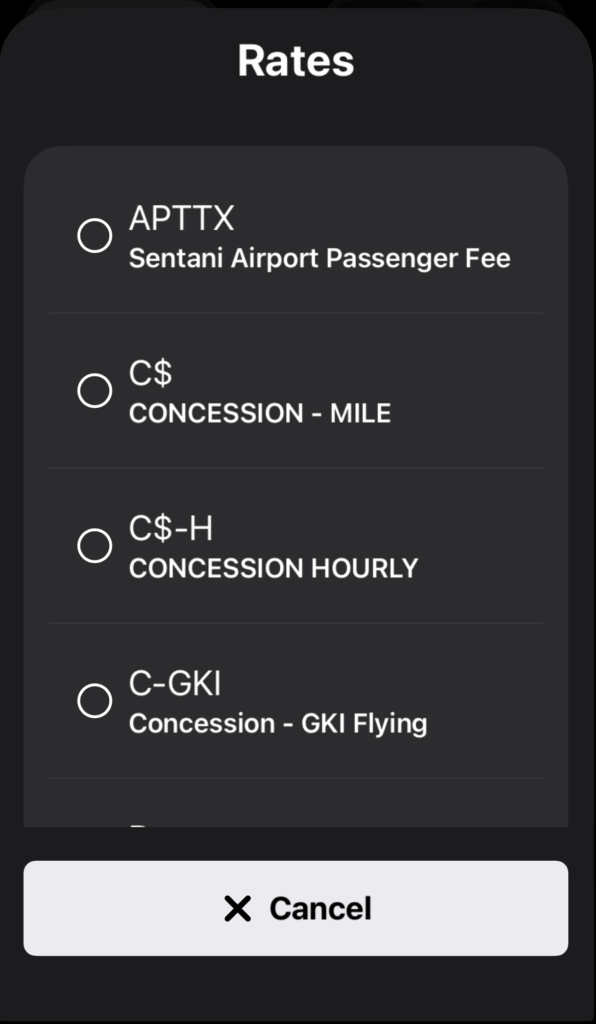
Tap the Rate field to select the appropriate rate.
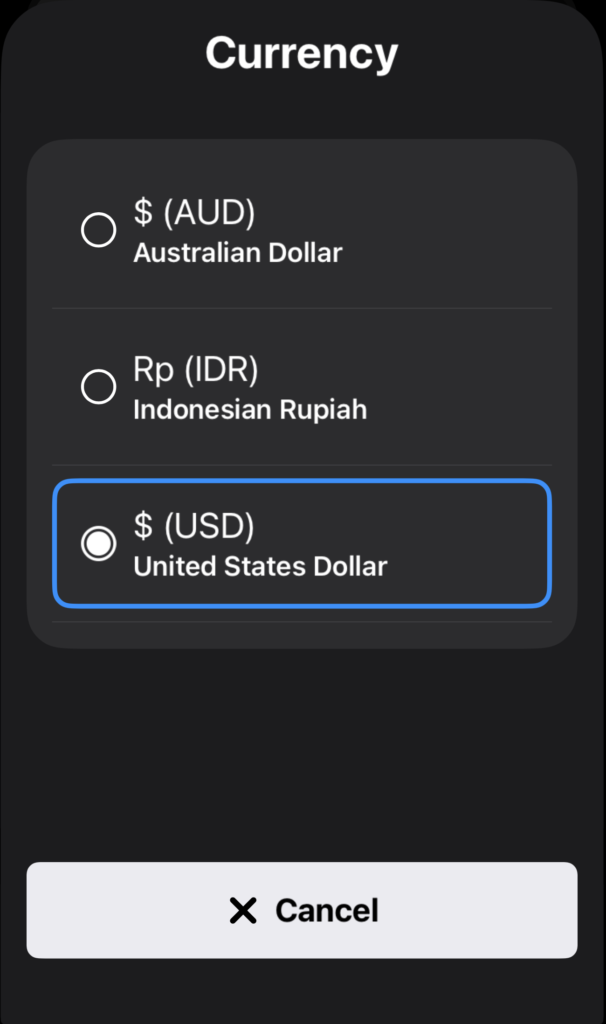
Currency will default to the currency associated with the rate.
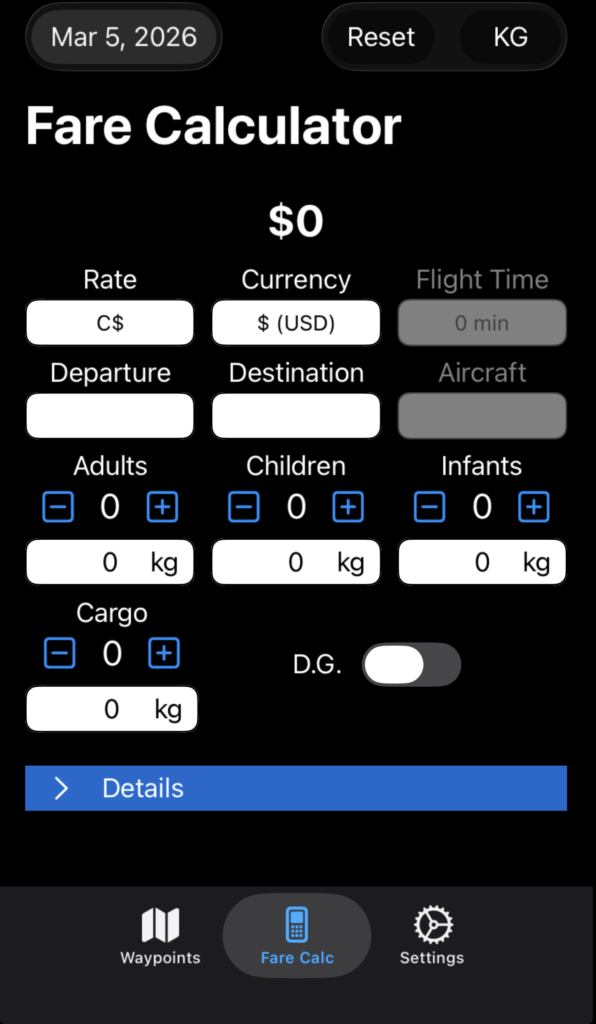
Tap the Currency field to change the cash currency if necessary.
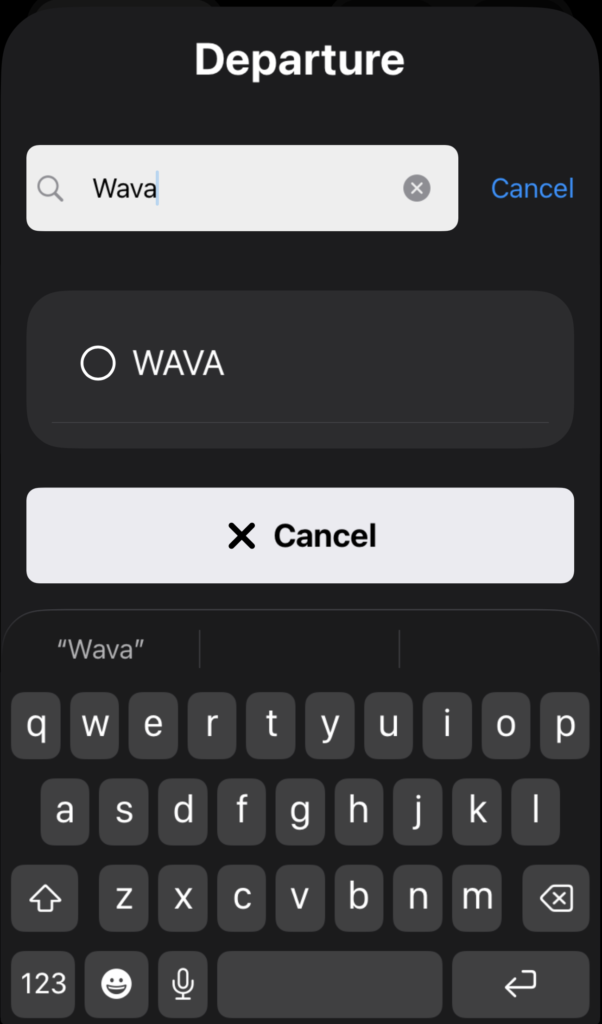
Select the departure point and destination by tapping their respective fields, then search for and select the waypoints.
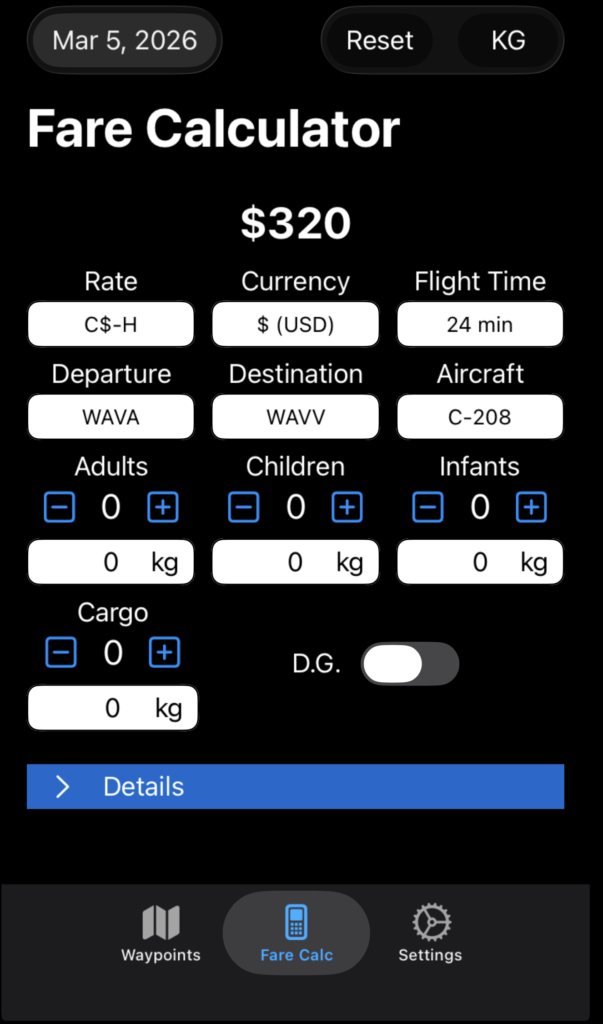
If you selected a time based rate, after you enter the departure point and destination, the Flight Time and Aircraft windows will activate.
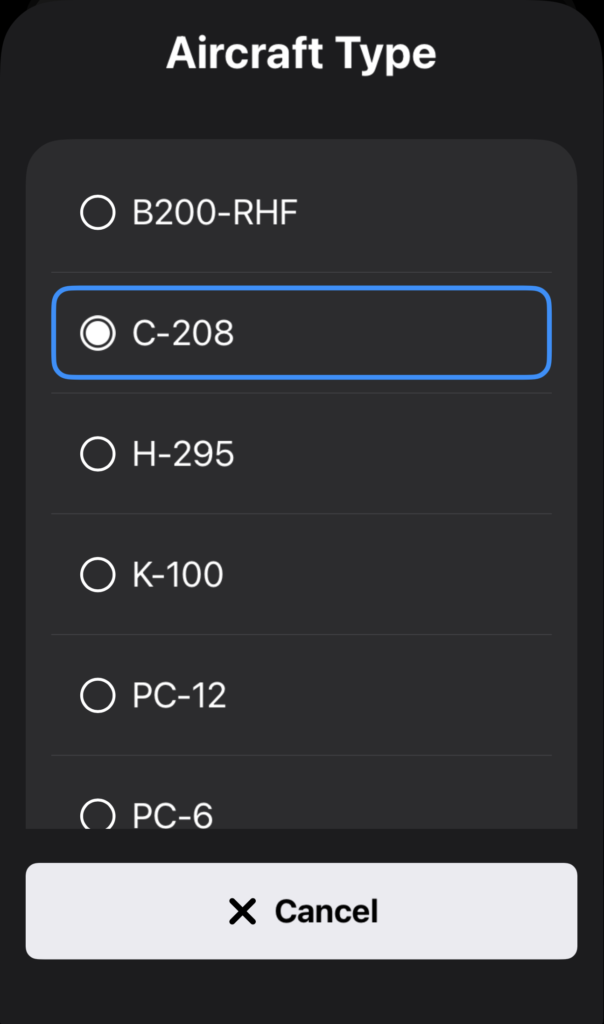
Tap the aircraft to change aircraft types as necessary.
Flight time is automatically calculated for the selected aircraft type.
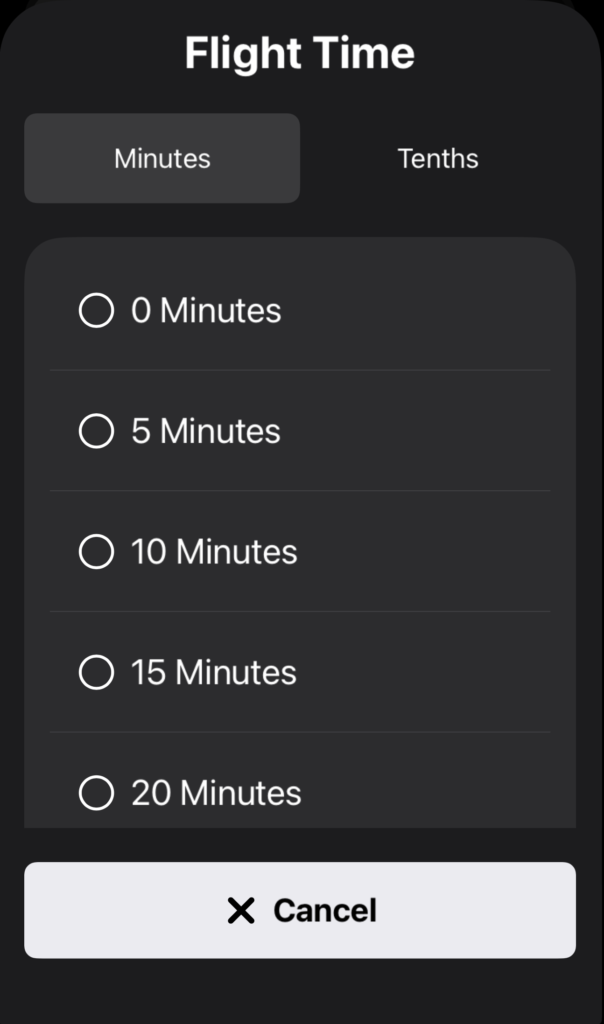
Tap the Flight Time button to change the time if necessary.
Flight time can be set in five minute increments.
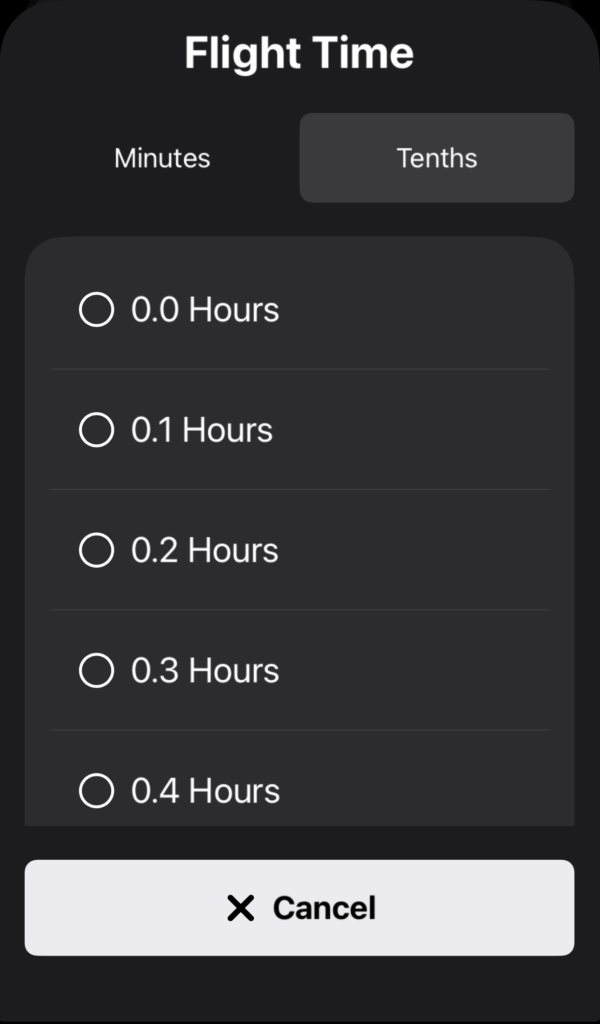
Or in tenths of an hour.
For calculated rates, time cannot be adjusted since it isn’t used in the calculation. Passenger and/or cargo loading must be entered.
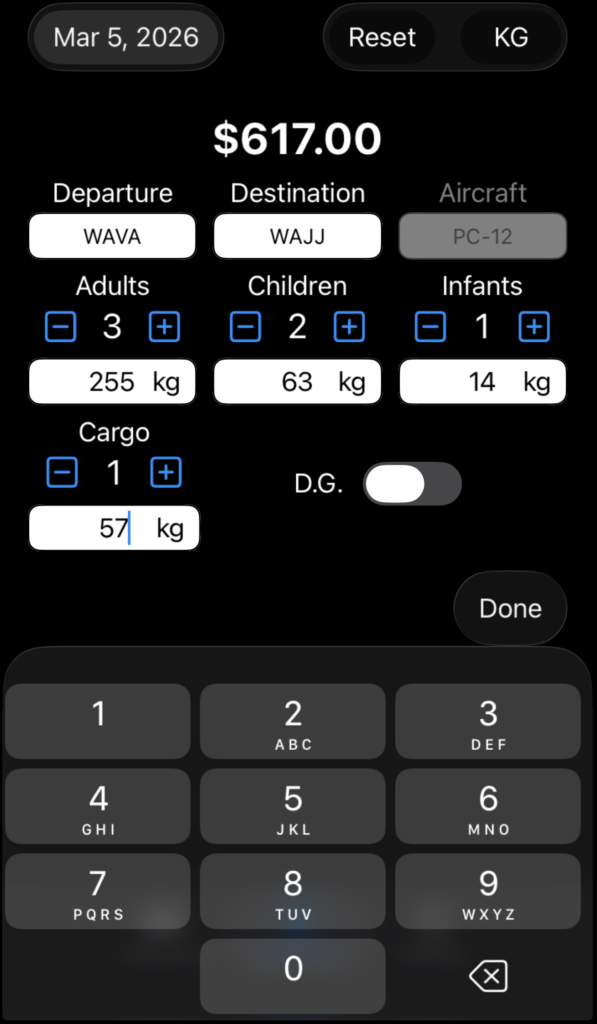
Tap the plus or minus buttons to increment the number of passengers or the number of cargo items. Default weights will be automatically entered.
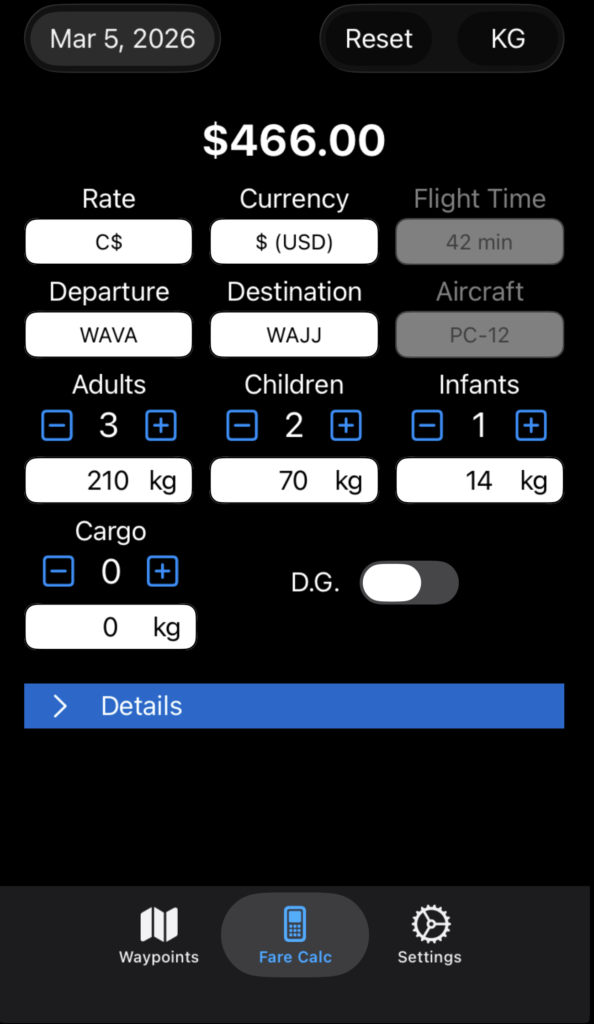
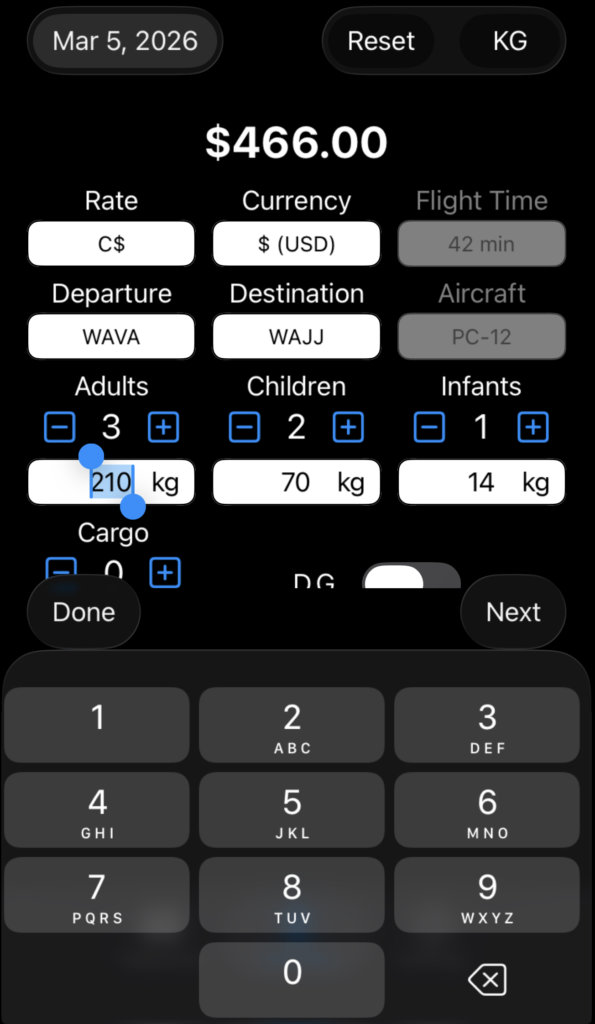
Tap on a weight to adjust it manually.
Tap Done to close the calculator; tap Next to move to the next weight field.
When you enter cargo weight, one cargo item will be automatically added. Increment the number as needed.
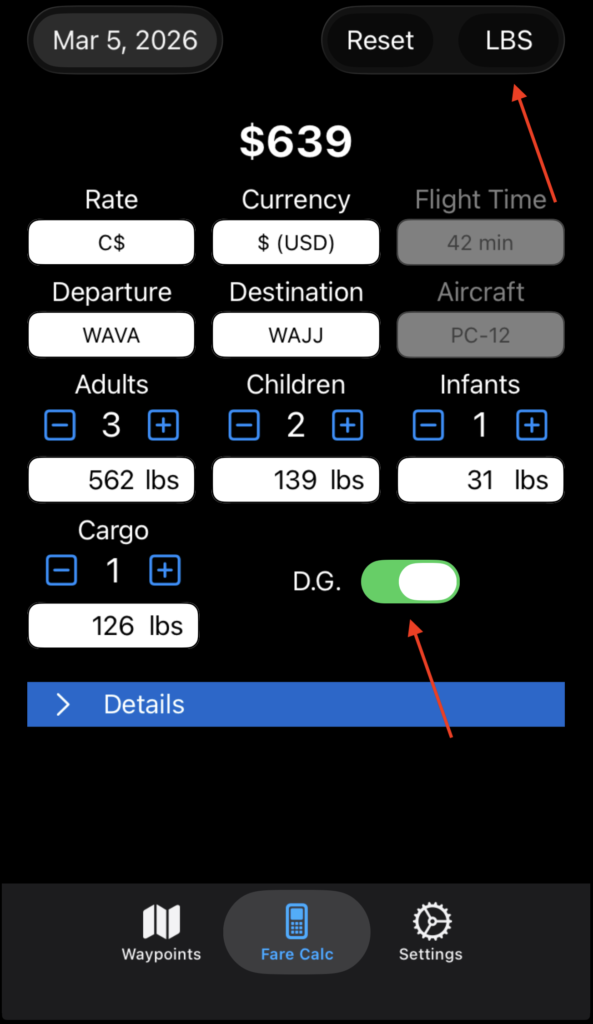
Switch on the Dangerous Goods toggle if needed.
Tap the weight units button to convert to non-standard weight units if desired.
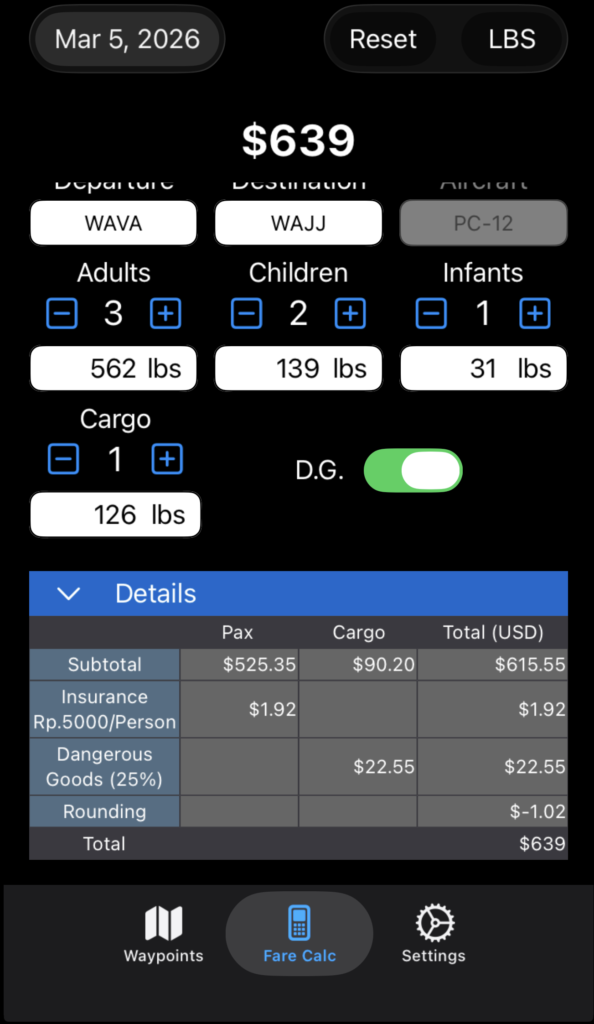
Tap the details button to view the details of how the fare was calculated, and to see all line items.
Tap the Reset button to clear the form and start over again.
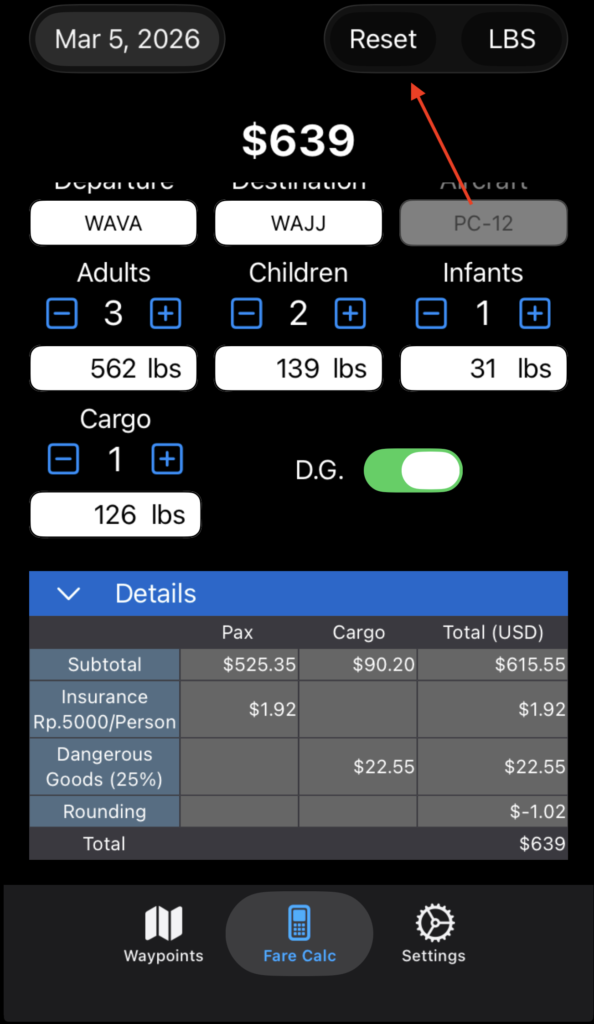
Note: Aircraft Type does not reset.