
FlightSpan Tools is a companion app to FlightSpan, designed to make creating new LZs and adding additional images to existing Runway Charts and LZ Charts easier, as well as giving access to the fare calculator using your iPhone.
Note that the logged in user must have the appropriate permissions for creating new LZs and/or adding images to charts.
Log In
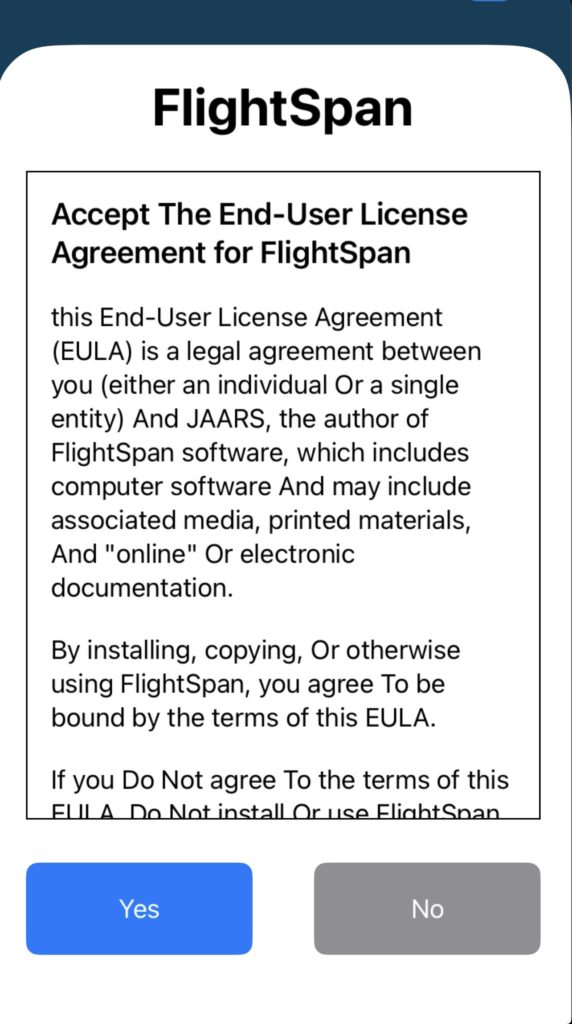
When you first open FlightSpan Tools, accept the End User License Agreement.
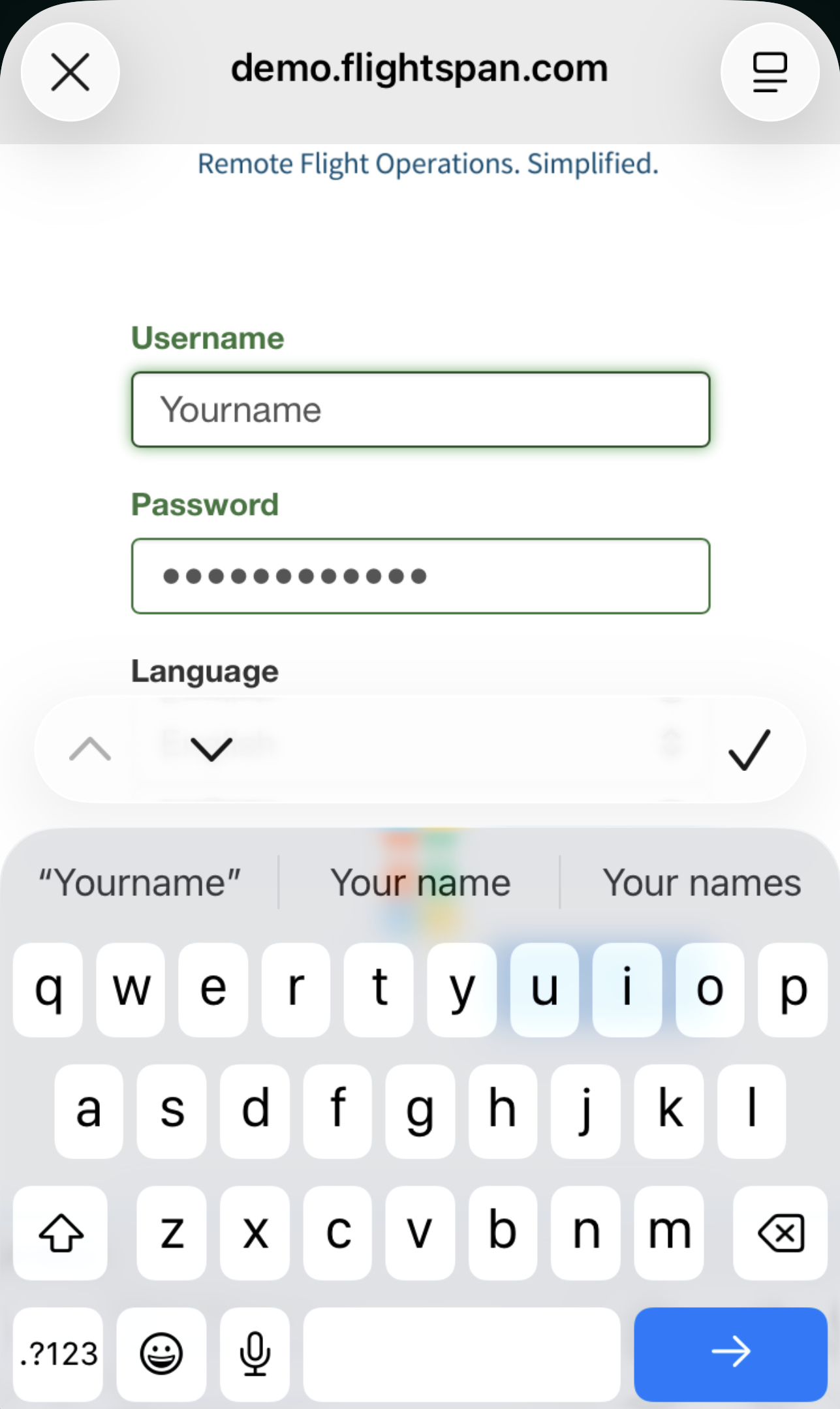
On the login page, enter the first part only of the URL for your instance of FlightSpan Ops. The .flightspan.com portion of the URL is automatically added.

Next enter your personal login credentials for FlightSpan Ops and tap the blue arrow key.
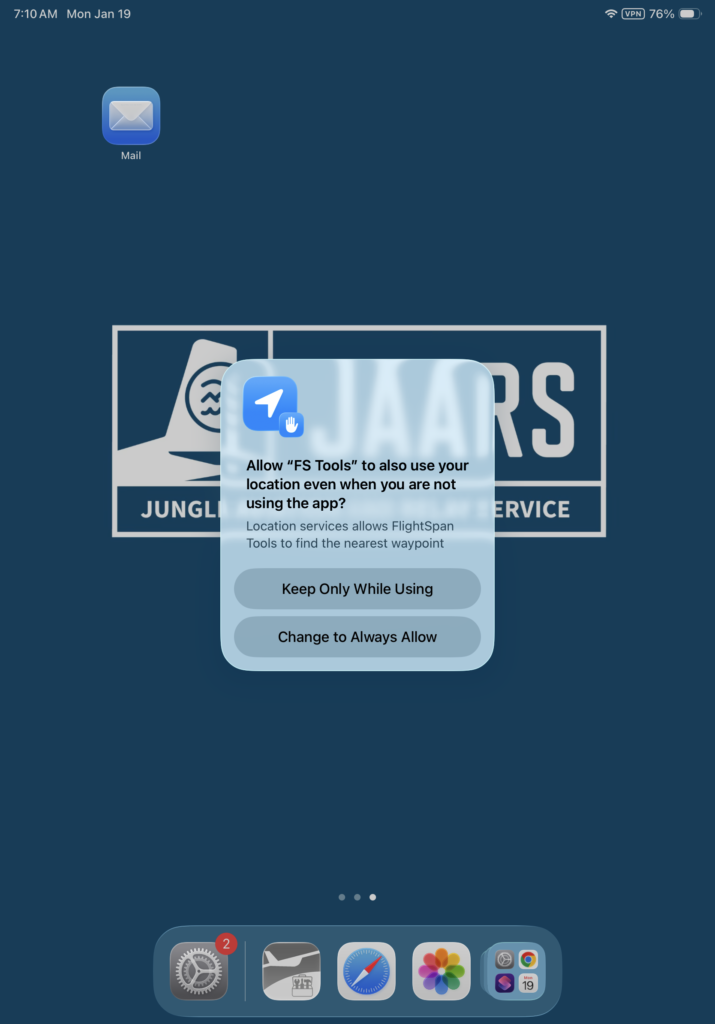
When prompted, select Allow While Using App.

Later when you are asked, selecting Keep Only While Using will help preserve battery life.
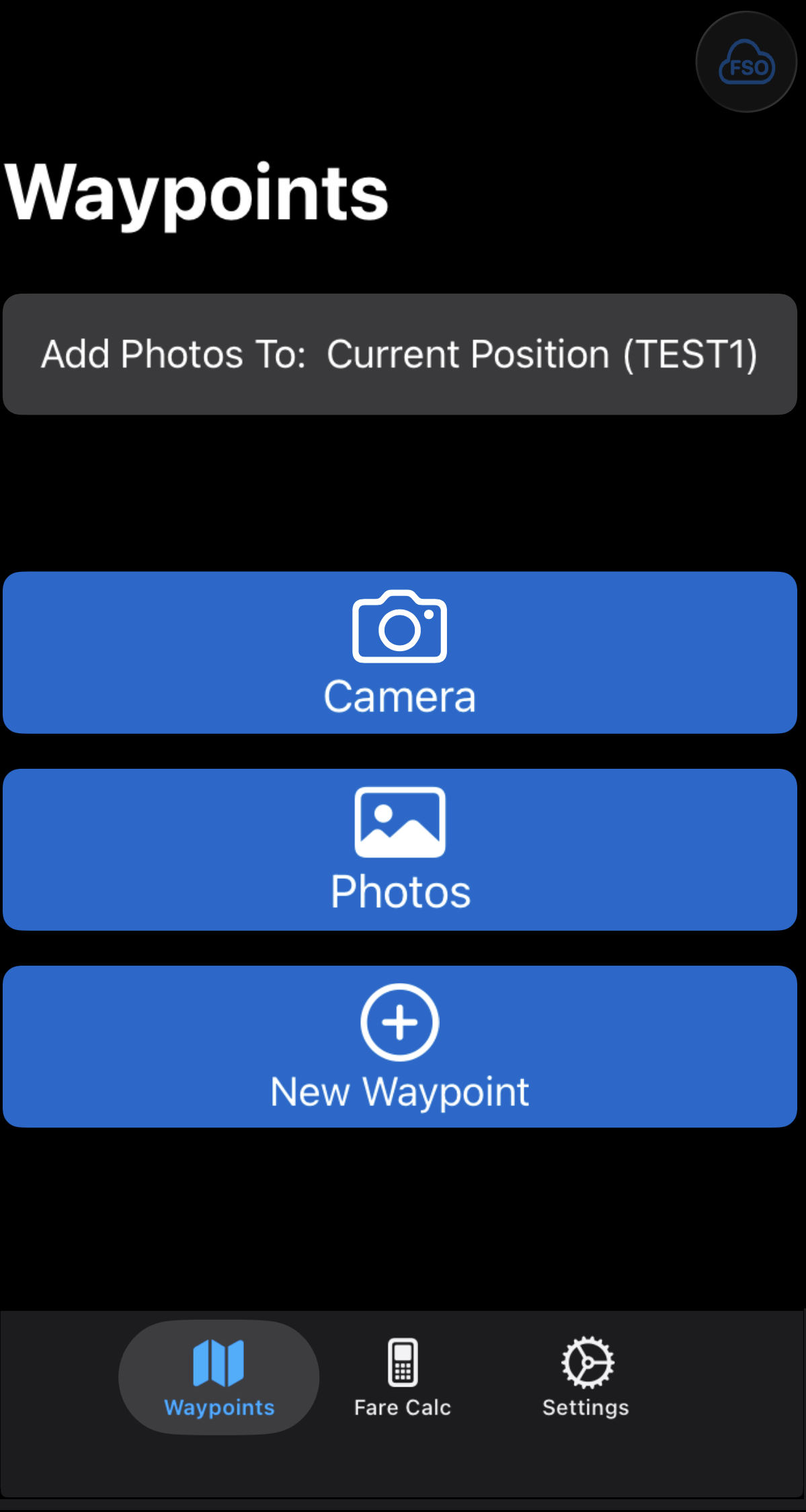
The Tools app will automatically sync and open to the Waypoints tab.
If you are at an existing waypoint, your Current Position waypoint will be open.
Add Images
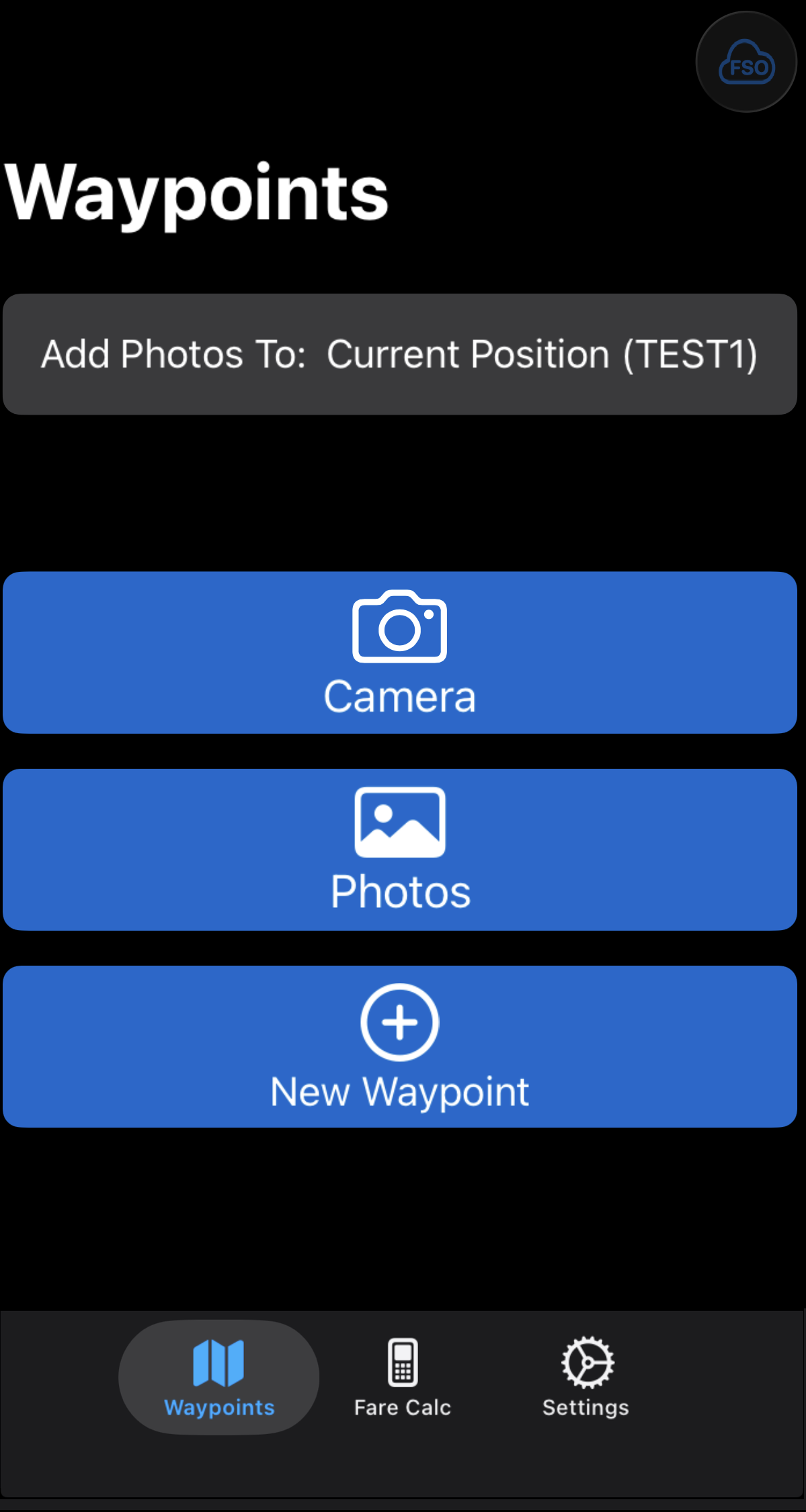
If you wish to change waypoints, tap on the Add Photos To button, then search for and select the desired waypoint.
Take Photos
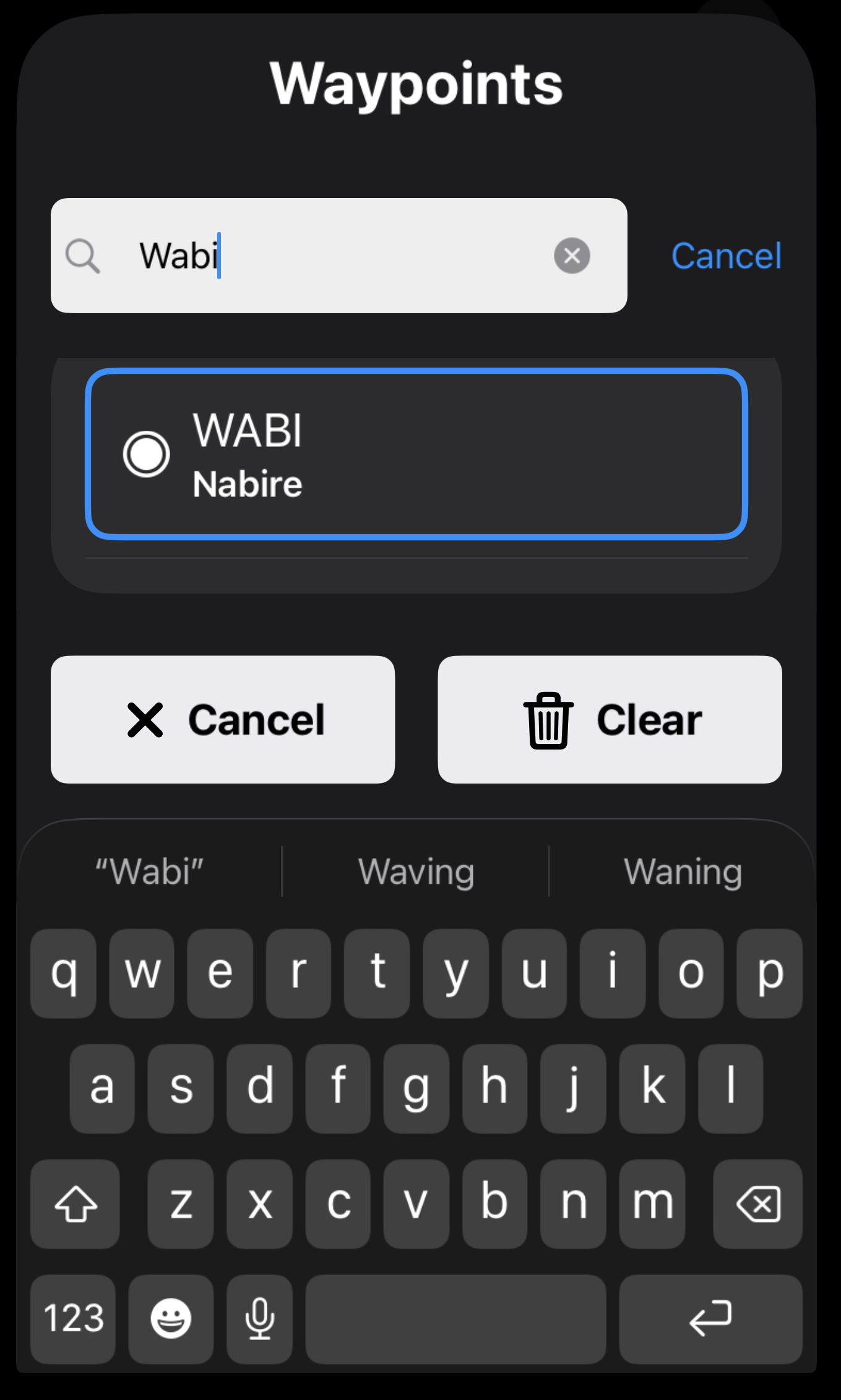
With the correct waypoint displayed, select Camera to take one or more photos.

Tap the camera icon to take photos; tap the checkmark to save all photos to the app; tap the X to cancel and close the camera without saving the photos.
The camera functions in portrait only; if you need to use landscape, see Select Photos.
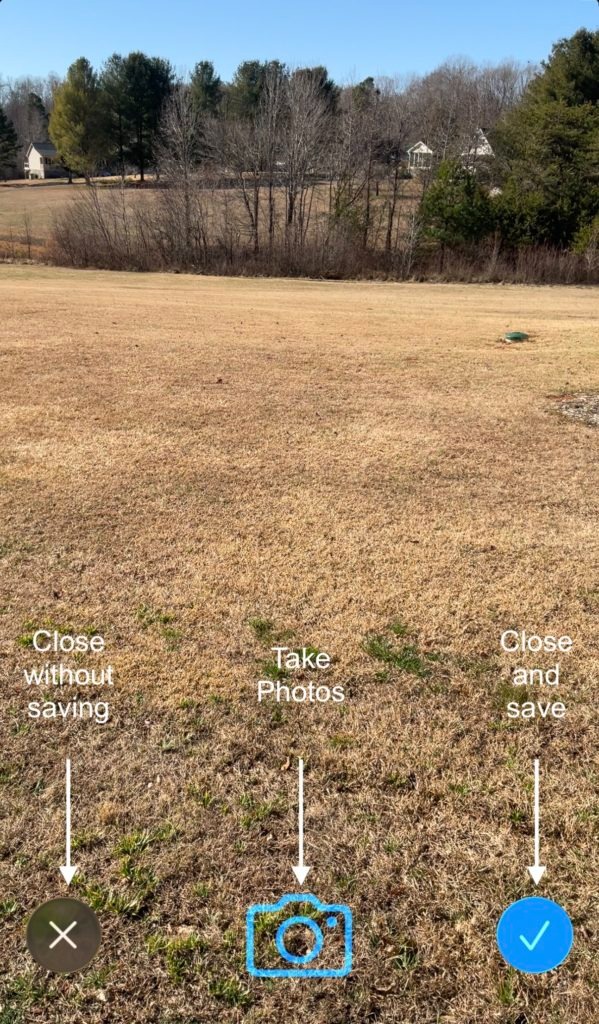
Note: Photos taken from the Tools app are not stored in your device’s camera roll.
Select Photos
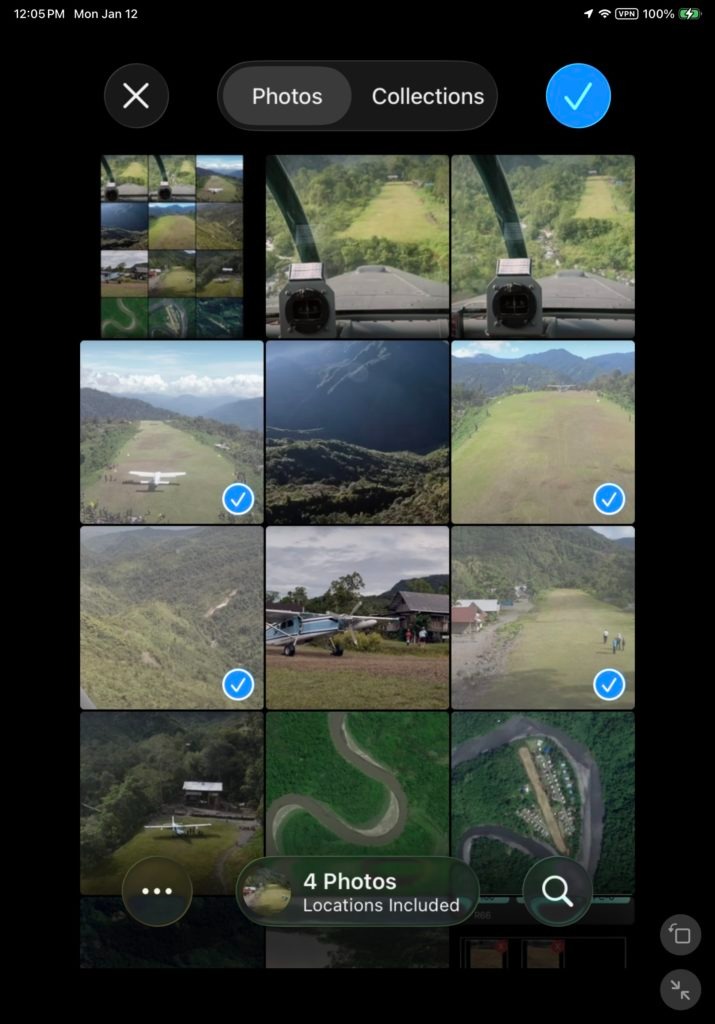
If you have already taken the photos, select Photos to select from your camera roll.
Next select all the desired photos and tap the blue check mark.
Manage Photos
After either taking photos or selecting them from the camera roll, the waypoint will open with thumbnails of the photos.
Tap on the Waypoint name to associate the photos with a different waypoint.

Tap the pin icon to associate the photos with your current position.
See the Current Position instructions for details. [insert link]

Click the red X on a photo to remove it from the waypoint.

Select Delete to remove the photo from both the waypoint and the Tools app.
Select Detach to remove the photo from the waypoint only, but keep it in the Tools app—available to be attached to a different waypoint if desired.

Select all the aircraft types the photos should apply to.

If there is more than one runway at an airport, also select which runway(s) the images apply to.
If you do not select a runway, the images will be applied to all of them.

Tap on a photo to add a caption if desired.

Tap the FSO icon, and if you have an internet connection the photos will be uploaded to FlightSpan Ops.

Note: Photos must be approved in FlightSpan Ops before they will be available on the EFB.
If you do not have an internet connection, you will get a warning message, and the Photo Set will be stored on the Tools app for later upload.

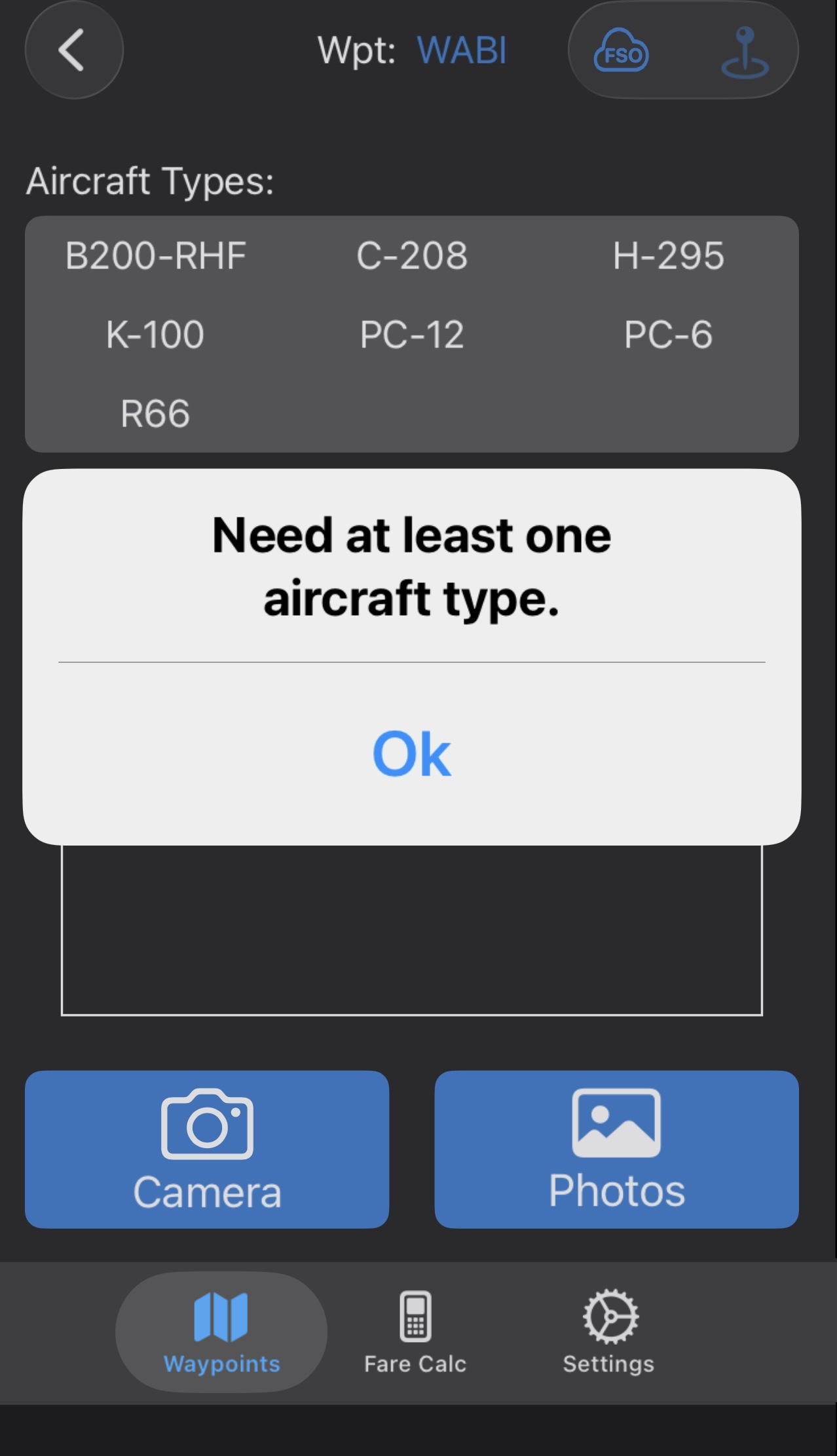
If you attempt to upload when no aircraft types are selected, you will be reminded to select aircraft.
Tap the back arrow to return to the Waypoints tab and upload later.
Any Photo Sets that have not been uploaded will be displayed.

There will be a yellow triangle warning badge on the Photo Set if no aircraft type has been selected.
Tap on the warning badge to view the message.

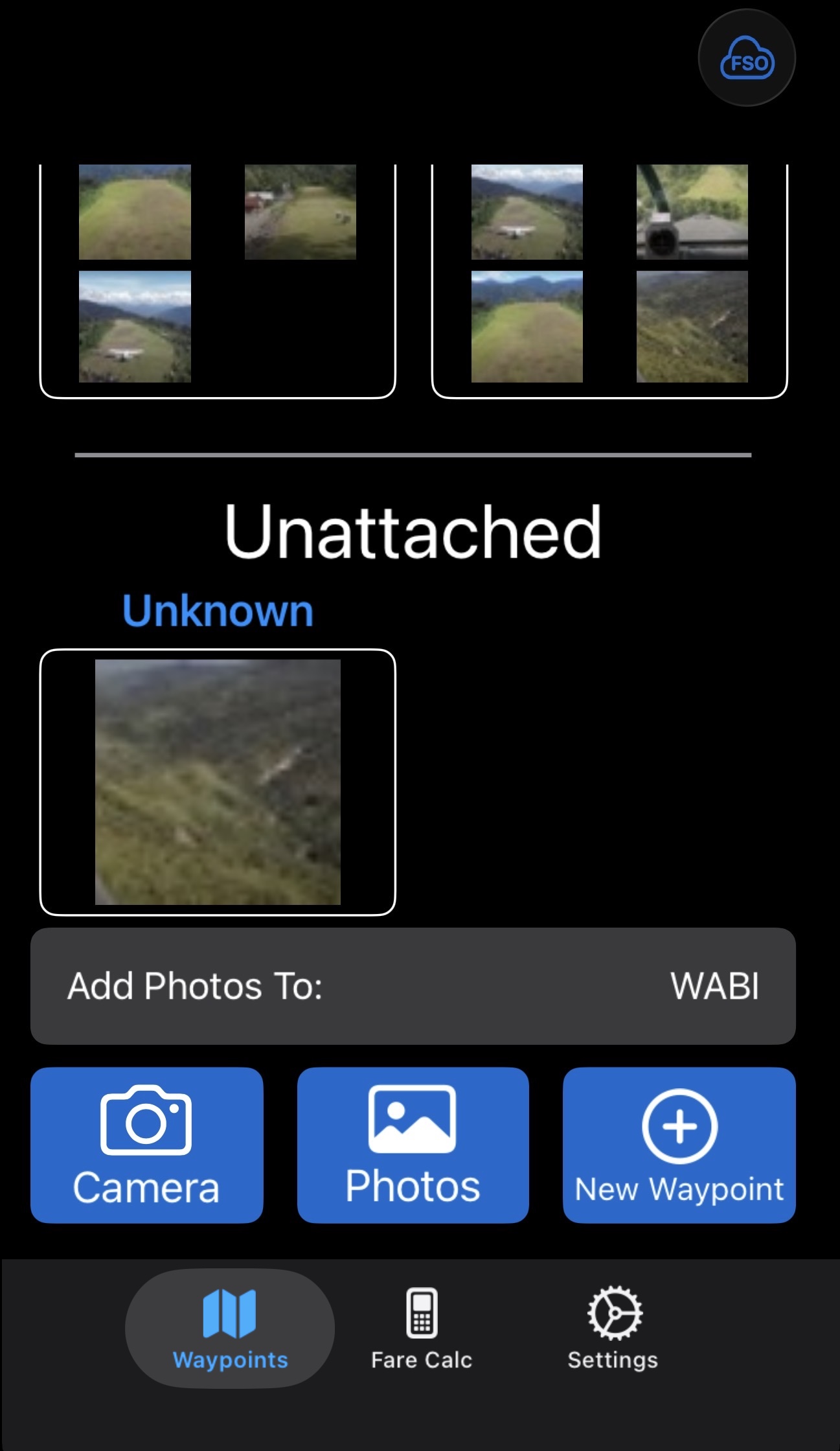
Any photos that were detached from a waypoint will be listed under Unattached.
Tap on Unknown to associate the photos with a waypoint and aircraft as previously described.
New Waypoint
Tap on New Waypoint to create a new helicopter or seaplane landing zone.
Note: New runways for fixed wing aircraft can only be created in FlightSpan Ops.
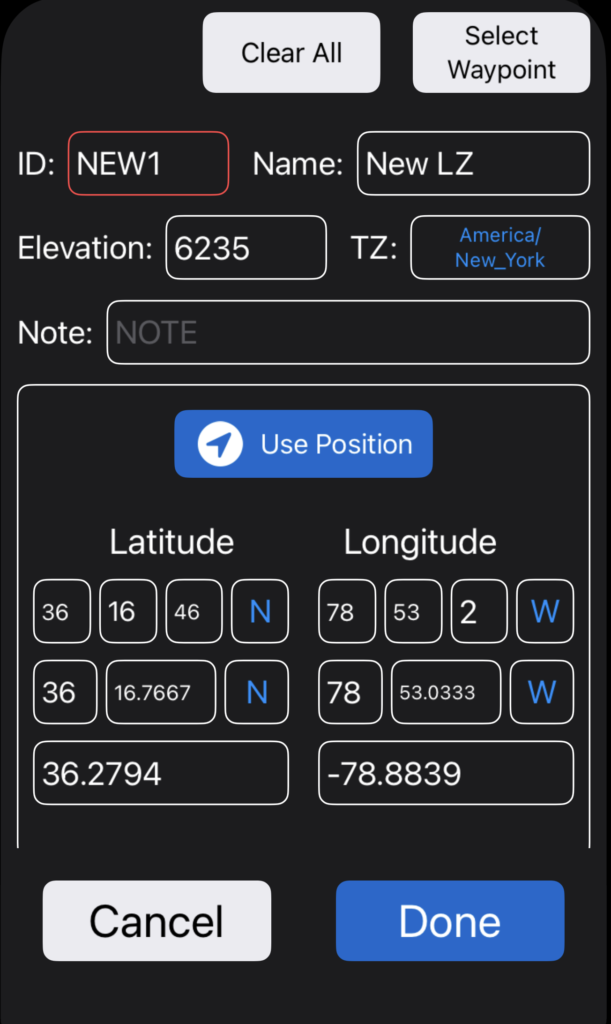
Enter the waypoint ID, waypoint name, elevation, and a note if desired.
Tap Use Position to automatically capture your position, and time zone will be automatically selected.
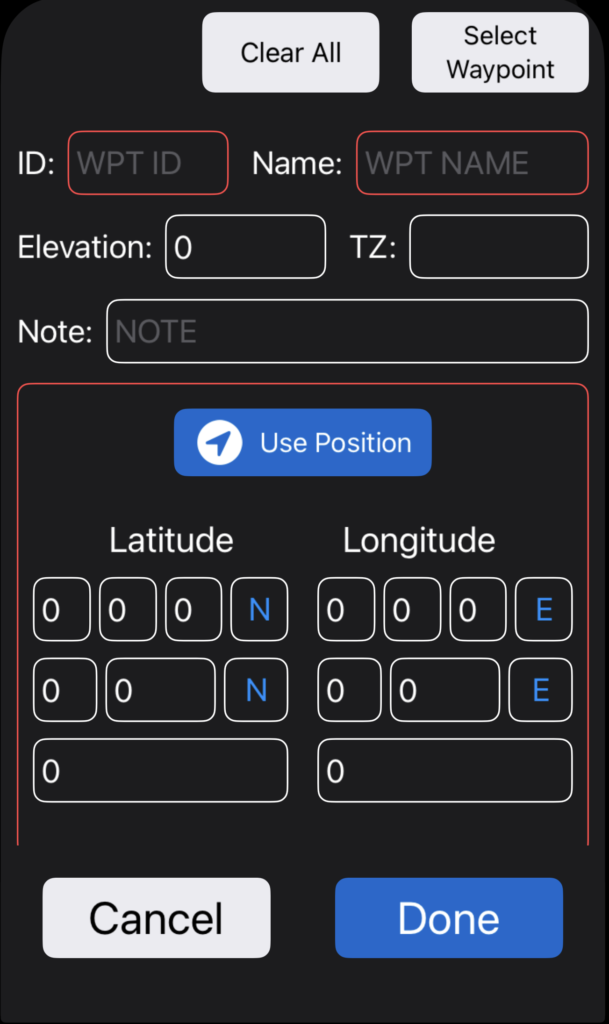
Or manually enter the position in
- Degrees, minutes, seconds
- Degrees, decimal degrees, or
- Decimal degrees
Entering the position in one format will automatically fill the other formats.
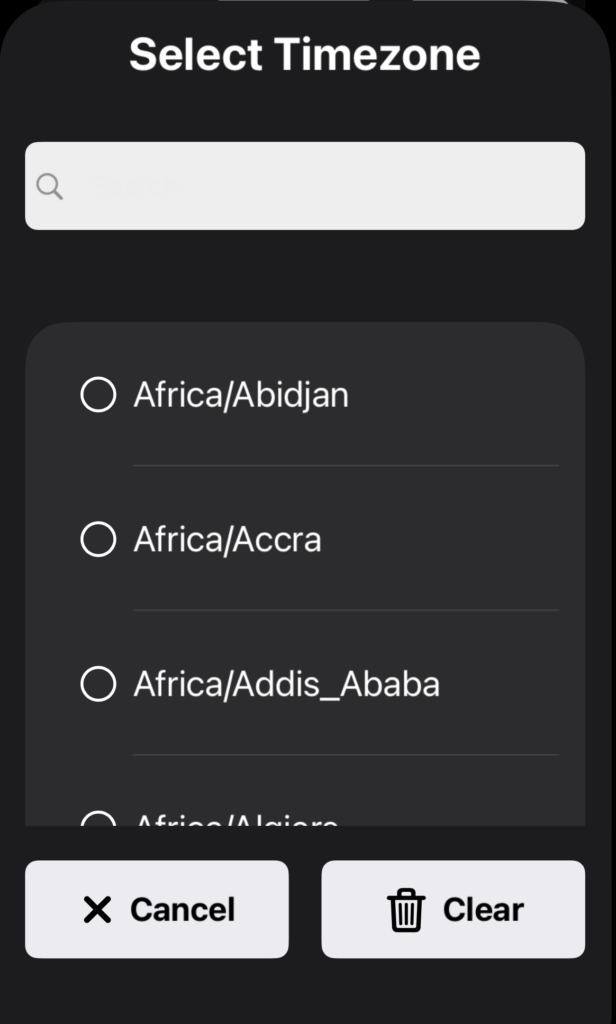
Time zone must be manually selected when manually entering the position. Tap the TZ block to open the time zone selector.
If you tap Clear All, all data will be erased.
When all information is complete, tap Done.
The photo management page will open. Tap Camera or Photos to add photos as previously described.
Note that only helicopter and seaplane aircraft types will be available for selecting.

Edit Existing Waypoint
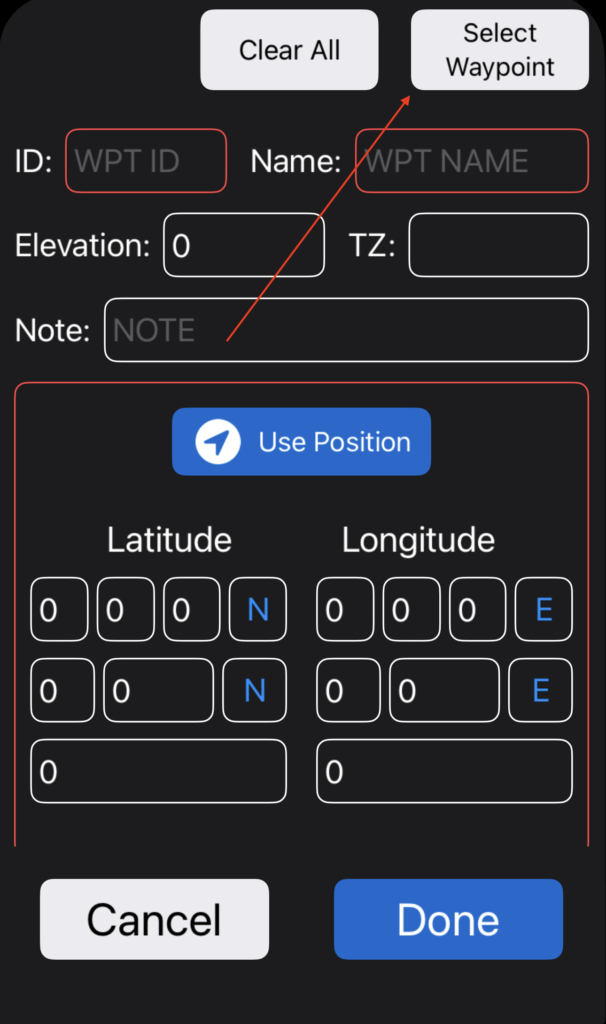
To edit an existing waypoint, first tap New Waypoint.
Then tap Select Waypoint on the upper right.
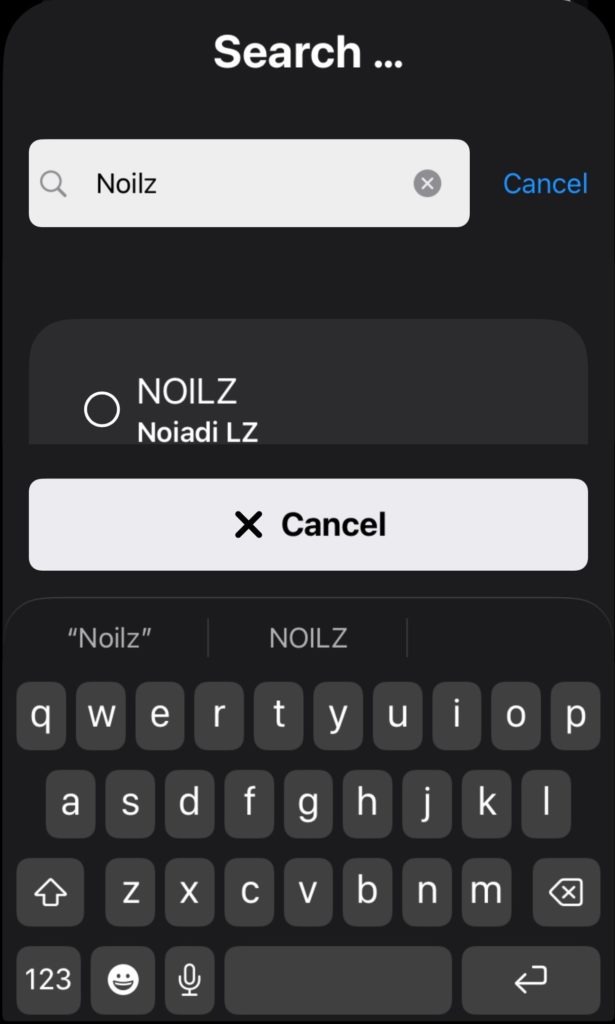
Search for and select the LZ.
Edit any field except the waypoint ID, which can only be edited in FlightSpan Ops.
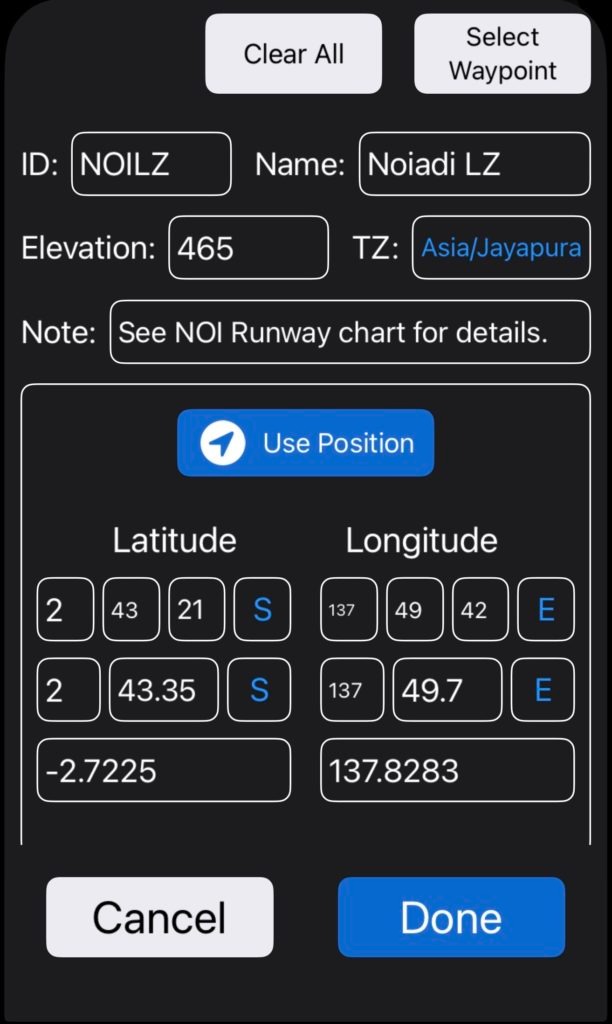
When you tap Done, confirm you want to make the changes.
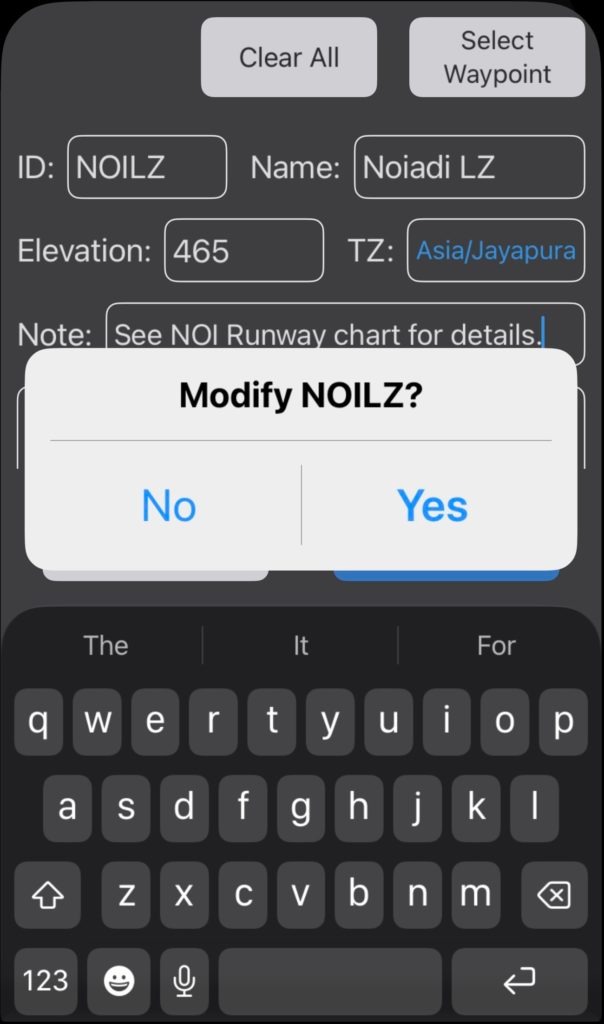
Note: Changes made to the waypoint will be immediately effective in FlightSpan Ops, and will be available on the EFB after syncing.
Support
Have a question? Need support? Submit a ticket here.