NOTAMs can be viewed, created, expired, or reinstated from the Tools app.
View NOTAMs
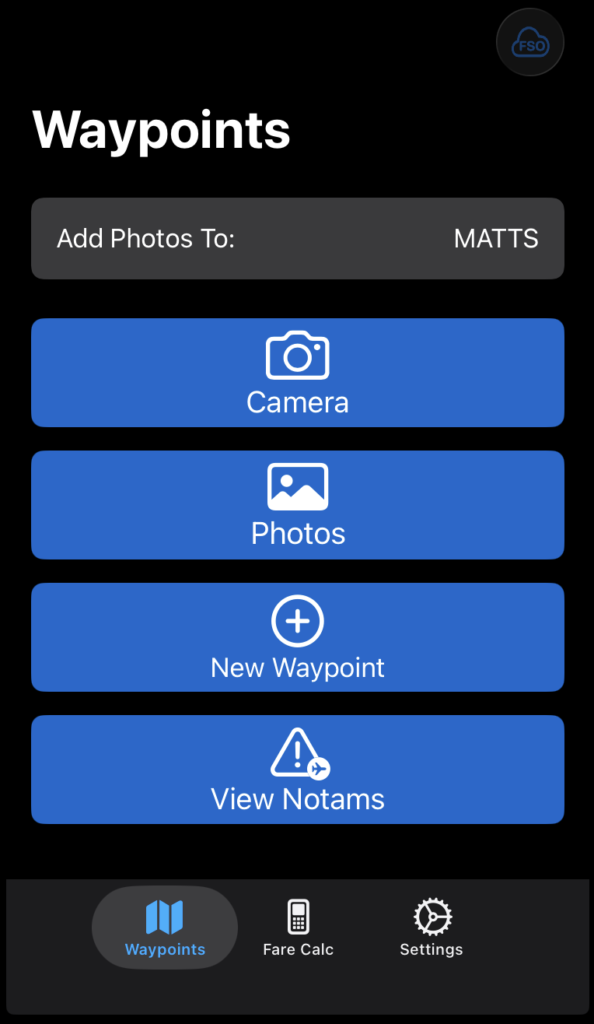
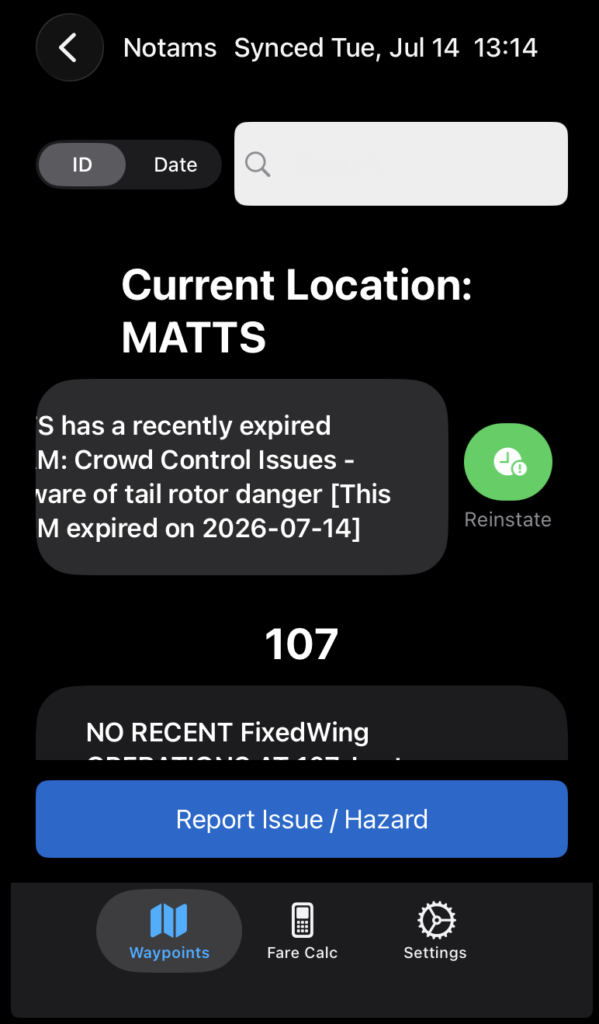
To view NOTAMs, from the Waypoints Tab tap View Notams.
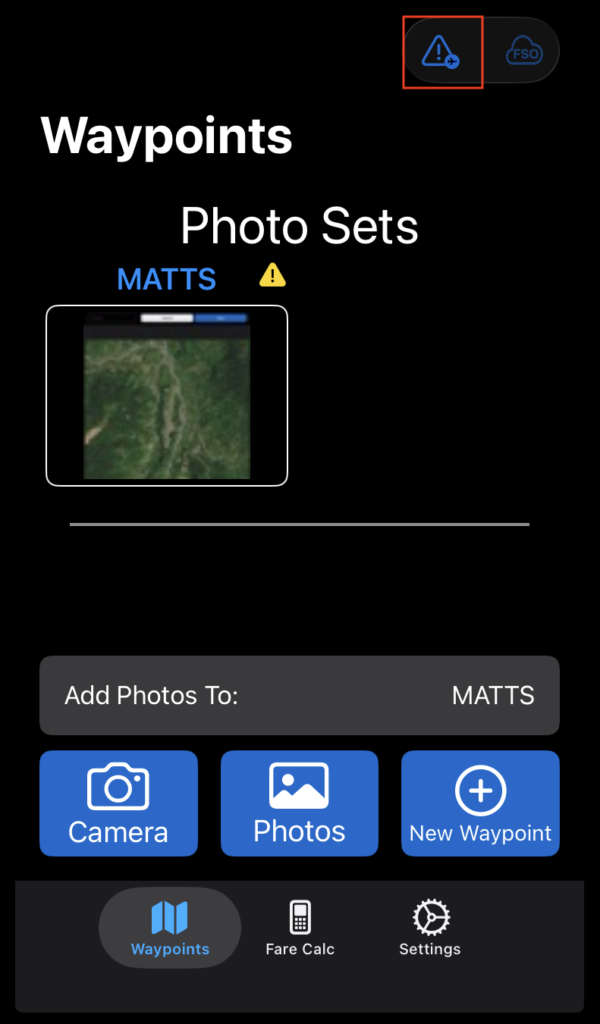
Note: If Photo Sets that have not yet been uploaded are attached to any waypoint, the NOTAMs button moves up to the toolbar.
The NOTAMs page will open with either your current location or to the location selected on the Waypoints Tab at the top of the list.
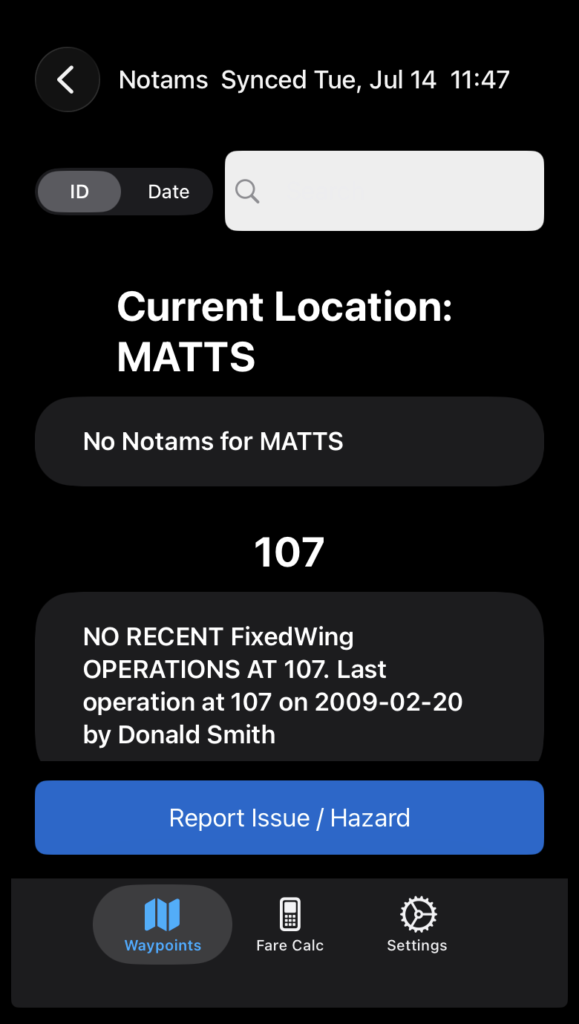
Search for a different location by its identifier, search based on the content of a NOTAM.
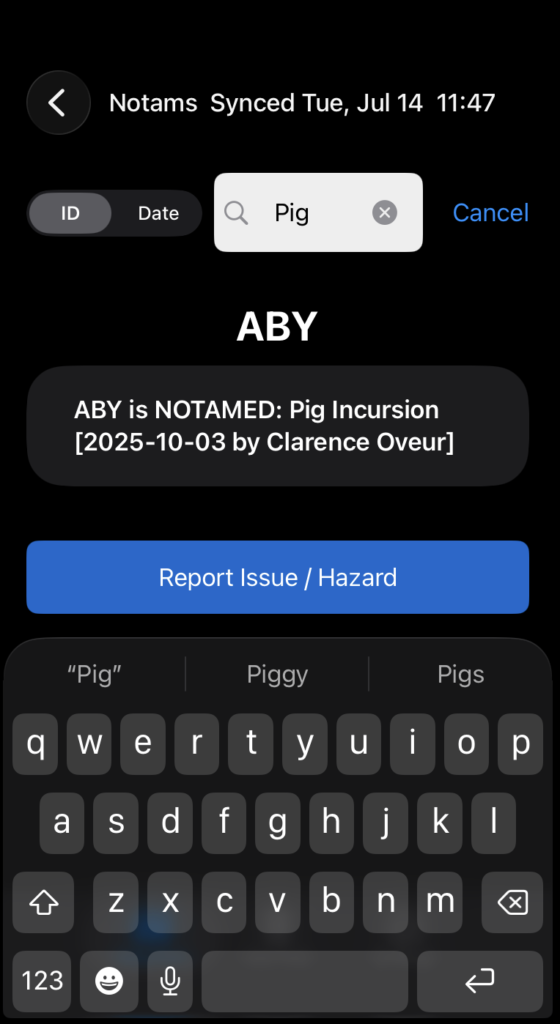
Scroll to view all or filtered NOTAMs.
Create NOTAM
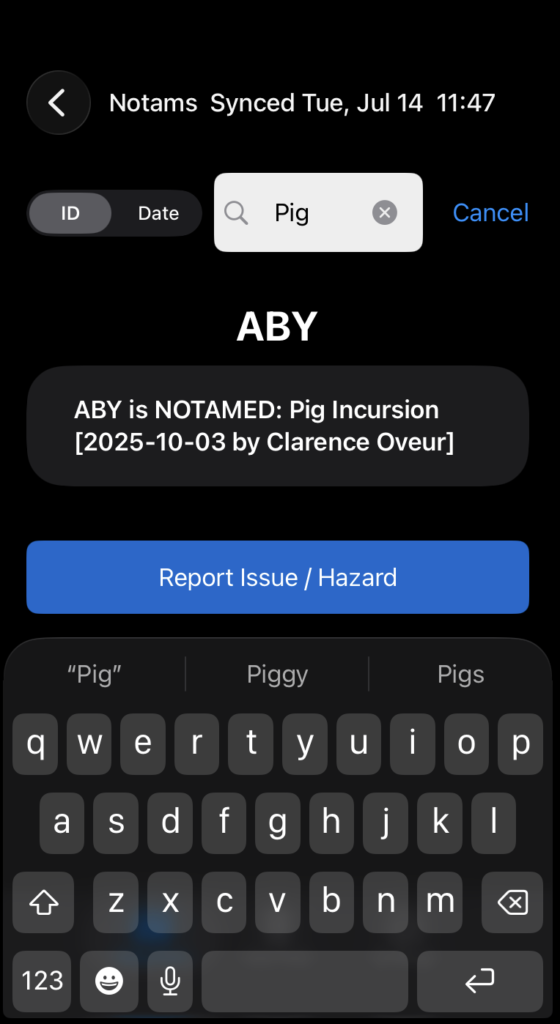
Create a NOTAM for the current location or for the location selected from the Waypoints tab by tapping the Report Issue / Hazard button.
Select from the prefilled list of NOTAMs, or select Manually Enter A Hazard/Notam.
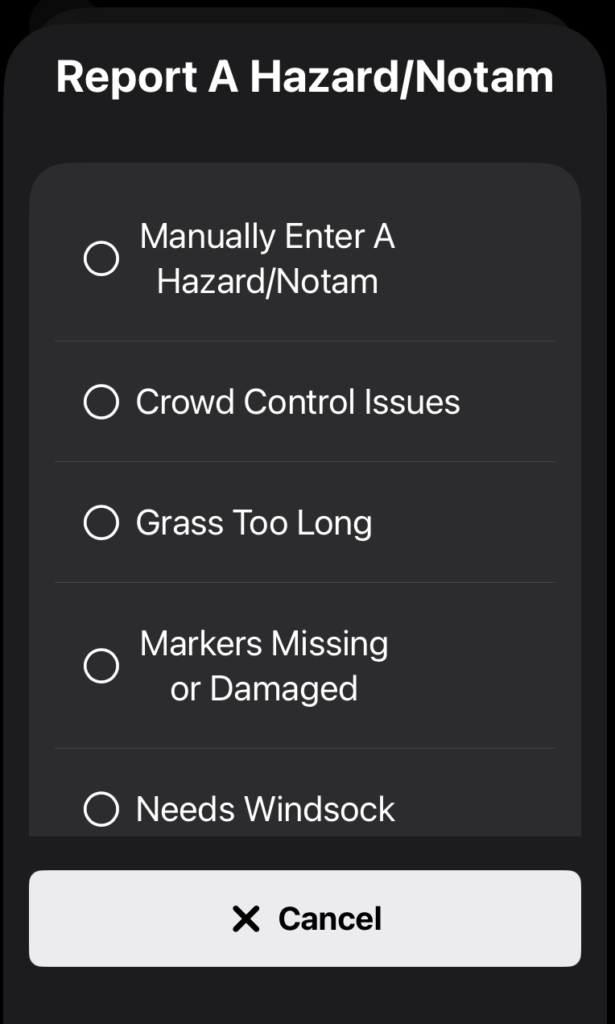
If you select from the list, edit as necessary, then tap the blue check mark.
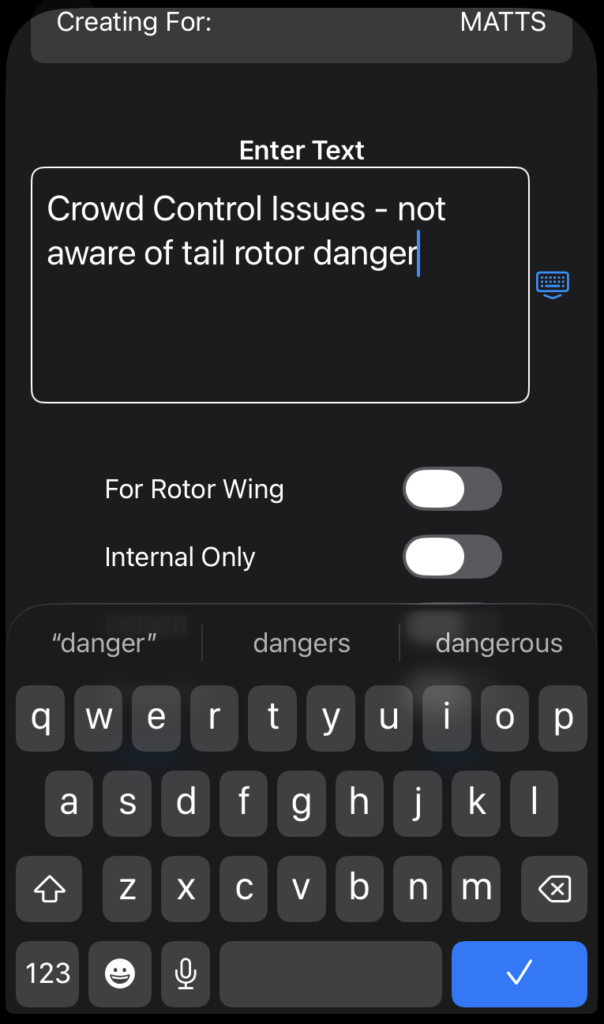
Select one of the toggles if desired, then Save.
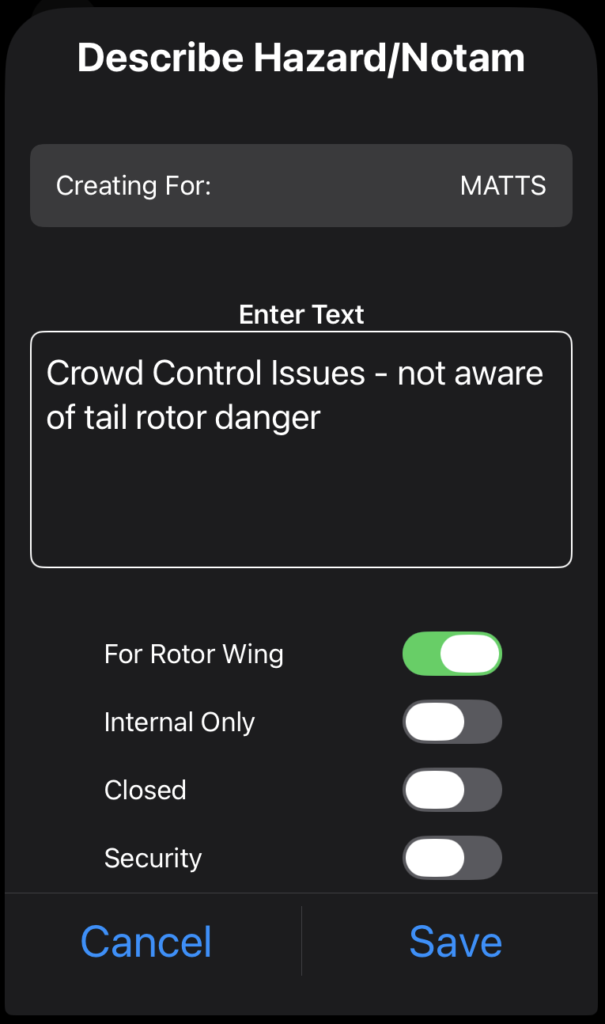
Then confirm to create the NOTAM.
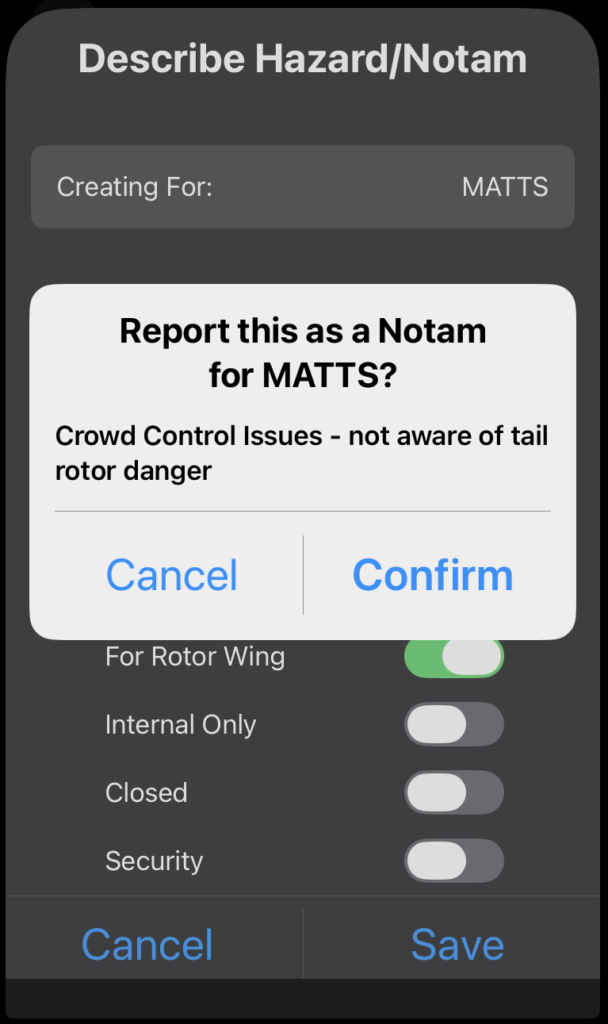
Then tap the blue arrow to send the email or the X to discard it.
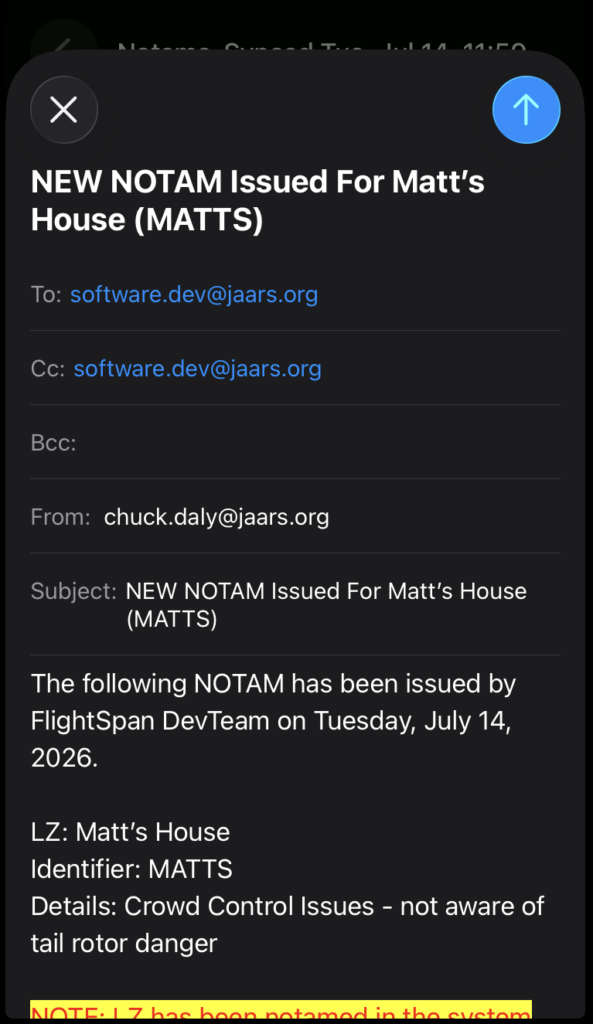
Note: Your default email client must be opened before the email will be sent.
The NOTAM will be added to the list, and when you have an internet connection, it will be sent to FlightSpan Ops.
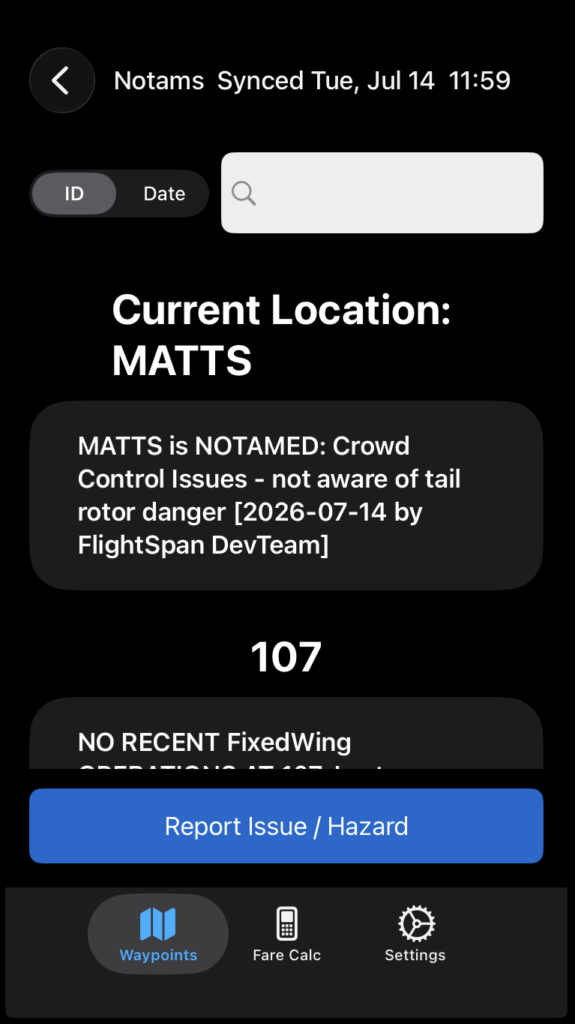
Expire or Reinstate NOTAM
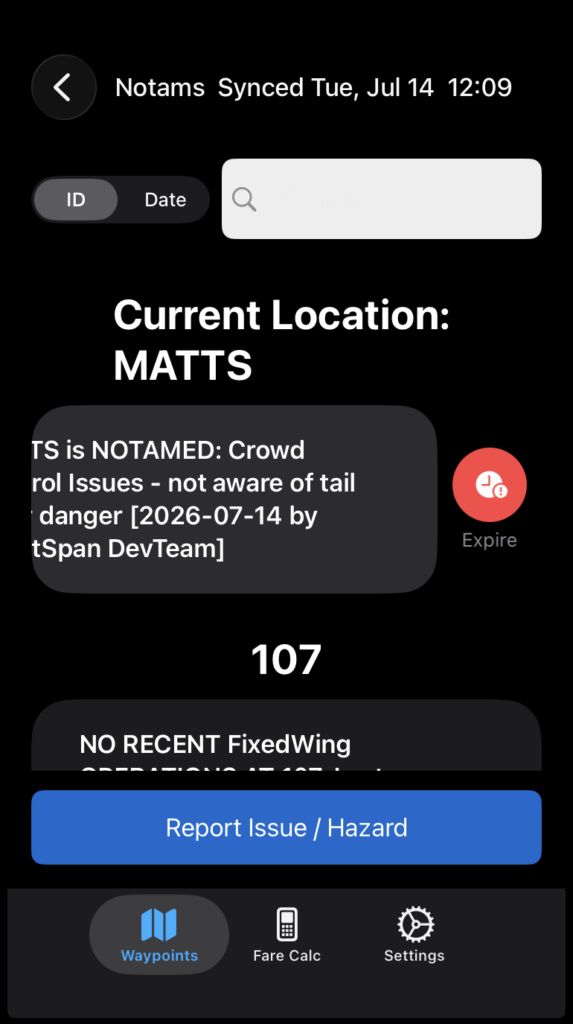
To expire a NOTAM, swipe left, then tap Expire.
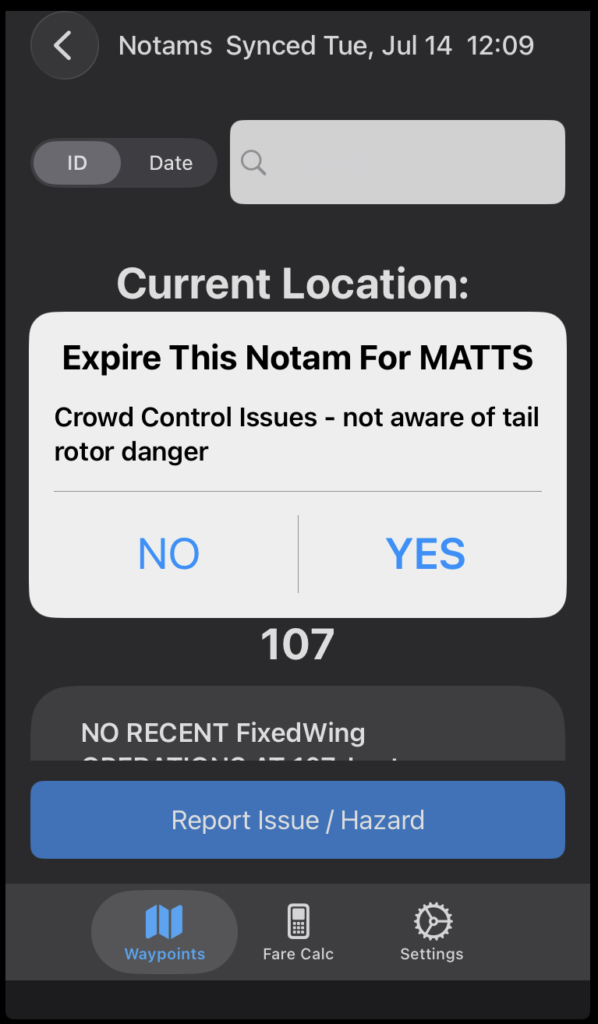
Tap Yes to confirm.
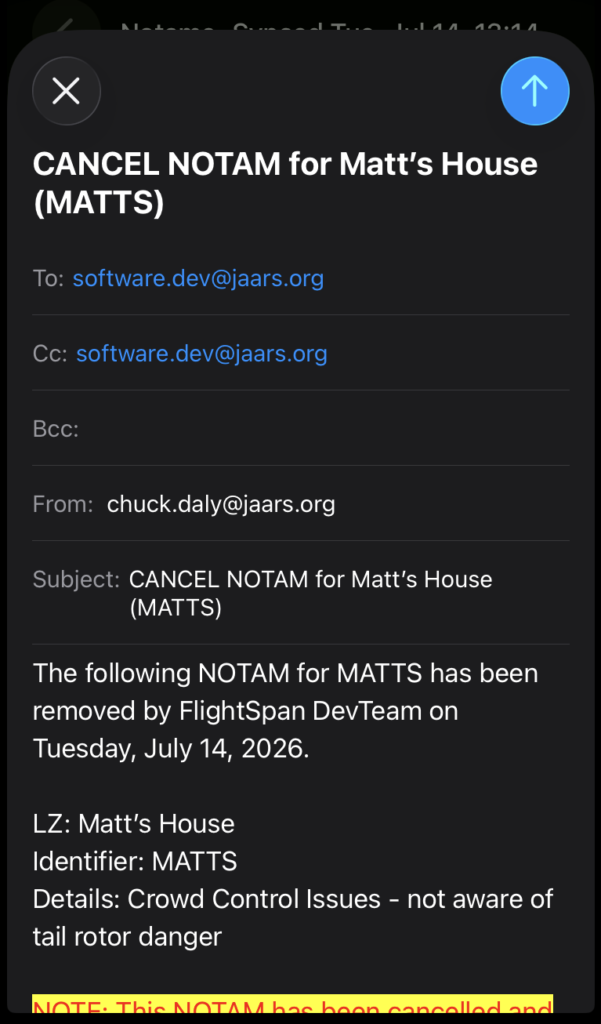
Tap the blue arrow to send the email, or the X to delete the draft.
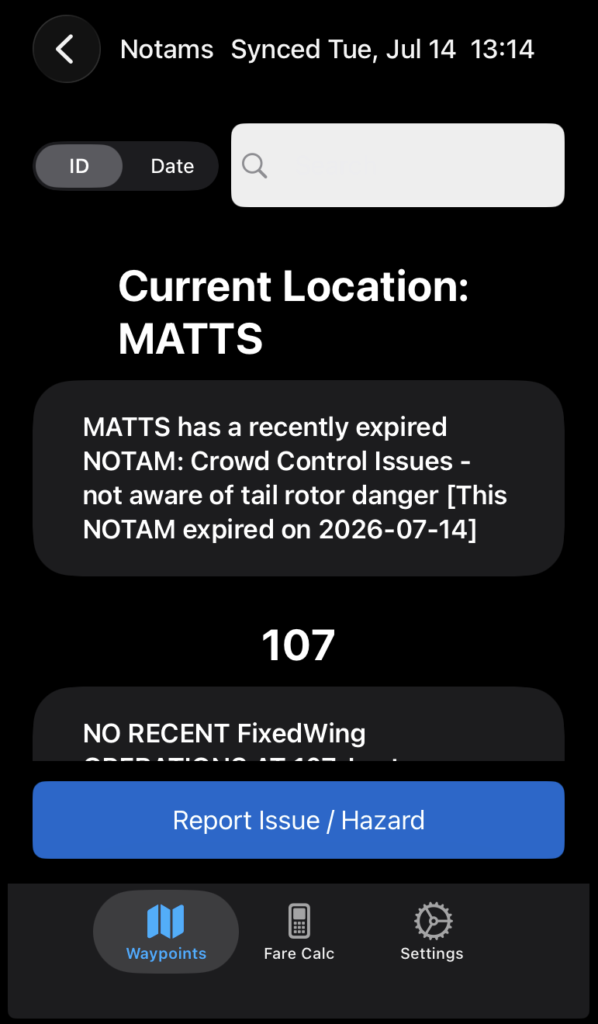
The NOTAM will be marked as recently expired.
FlightSpan Ops will be updated as soon as you have an internet connection.
To reinstate a NOTAM, swipe left and tap Reinstate, then follow the same steps previously described.
Exit
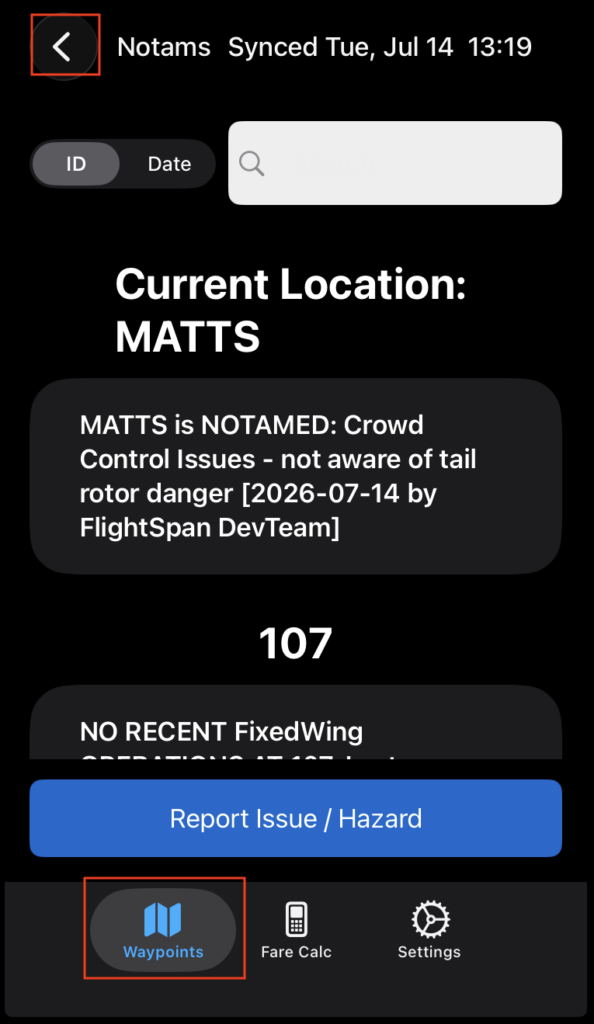
Return to the Waypoints tab by tapping either the Waypoints button or the back arrow on the upper left.